

July 14, 2025 • Proven solutions
Windows 10 offers a powerful, built‑in tool for capturing stills from video—its Photos app. The resulting JPEG frames retain the video’s resolution, ensuring you get crisp, high‑quality images.
In this guide you’ll discover:
- How to capture a still frame with the Photos app
- Common reasons why the feature may fail and how to resolve them
- An alternative method using the free ScreenShot tool
Step 1: Capture a Still Frame in Photos
Follow these steps to create a “living” image and then export it as a JPEG:
- Open File Explorer and navigate to the folder that contains your video.
- Right‑click the video file, choose Open With → Photos, and let the file play.
- Right‑click the playback window, select Edit and Create → Save Photos.
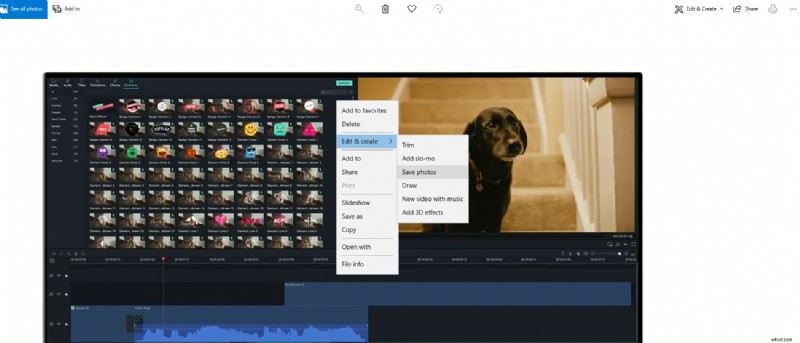
In the editor, click Play to view the live preview. The generated “living” image will appear in your Pictures folder with an “LI” prefix.
To pick the exact frame you want:
- Click the living image to open it in full‑screen mode.
- Use the arrow keys or the timeline slider to navigate to the desired frame.
- Click Save a Photo. The file will be stored as
LI_Momentin the Pictures folder.
Step 2: Troubleshooting Common Issues
Sometimes the Photos app may refuse to create a still. Typical causes include:
- Outdated Windows updates – Ensure you’re running the latest patch.
- Microsoft Store account problems – Try signing in with a different Microsoft account.
To update Windows:
- Click Start → Settings → Update & Security → Windows Updates → Check for Updates.
- Install any available updates and restart if prompted.
To change your Microsoft Store account:
- Open the Store app.
- Click the profile icon, sign out, and sign in with a different account.
Step 3: Alternative – Use ScreenShot
If the built‑in method fails, the free ScreenShot tool offers a reliable fallback. It captures any on‑screen content, supports a wide range of video formats, and lets you annotate the image before saving.
Steps:
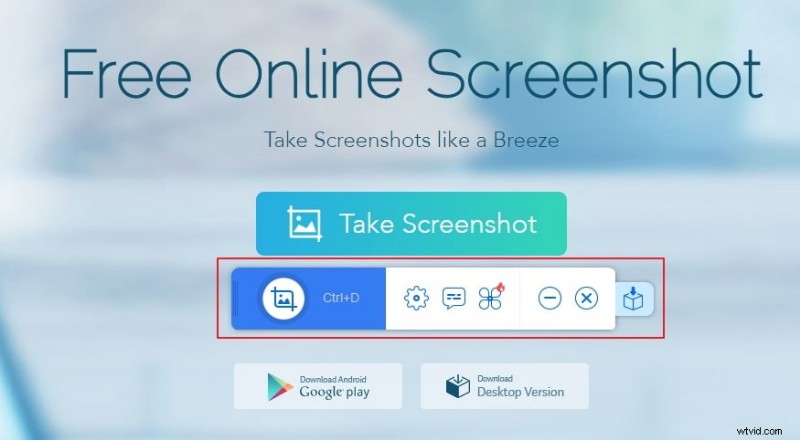
- Visit the ScreenShot website and click Take Screenshot.
- Run the Java applet and press the camera icon.
- Drag the blue crosshair over the video window to select the region you want to capture.
- After the capture, use the toolbar to edit the image.
- Click Save to download the JPEG to your computer.
Conclusion
Whether you prefer the convenience of the native Photos app or the flexibility of an external screenshot utility, Windows 10 provides the tools you need to extract high‑quality stills from video. Try the method that best fits your workflow and enjoy crisp, ready‑to‑share images.
Shanoon Cox
Shanoon Cox is a writer and a lover of all things video.
Follow @ShanoonCox