

Jul 10, 2025 • Proven solutions
Adding titles or text to a video is a powerful way to convey context and storytelling. If you use Windows 10, the built‑in Photos app makes this process straightforward. Below you’ll find a clear, step‑by‑step walkthrough to help you add text titles and even animate them.
- Part 1: How to Add Titles/Text to Video on Photos in Windows 10
- Part 2: How to Make Text Move in Windows 10 Photos App


Part 1: How to Add Titles/Text to Video on Photos in Windows 10
Whether you’re editing a family video or a short corporate clip, the Photos app offers a convenient way to insert titles. Here’s how:
- Begin by dividing your footage into logical sections. For each segment, choose a relevant background image or video clip and add a header.
- If you need new visuals, click “Add Photos or Videos” and search the web or select from the preset licensed categories. Remember to credit the image when you insert it.
- When an image appears with black bars, click the resize button and then remove the black areas to fit the frame.
- To insert a title, type your text in the box located at the top right of the editor. Pick an animated font that complements your background. Each font style offers distinct layouts, so preview the animation with the playback control. If the text is too quick, extend the duration to 3‑4 seconds for a smoother effect.
- For credit lines, use the Classic text style. Place each credit on a new line and don’t forget to acknowledge yourself as well.
Part 2: How to Make Text Move in Windows 10 Photos App
The Photos app’s anchoring system lets text glide naturally alongside your video. Follow these steps to animate your titles:
- Open the Photos app and click the blue “Create” button. From the drop‑down, choose “Custom video with music.” Check the box next to the video you wish to edit.
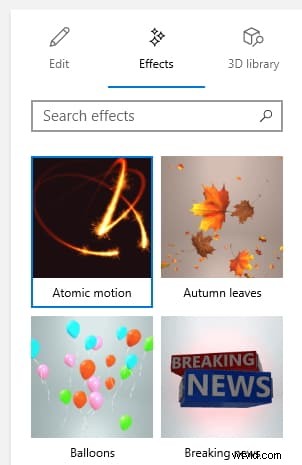
- Drag the video onto the timeline below. Go to the Effects menu and select “3D effects.”
- On the right‑hand sidebar, pick an effect that supports motion. If the effect can anchor, you’ll see an “Attach” option.
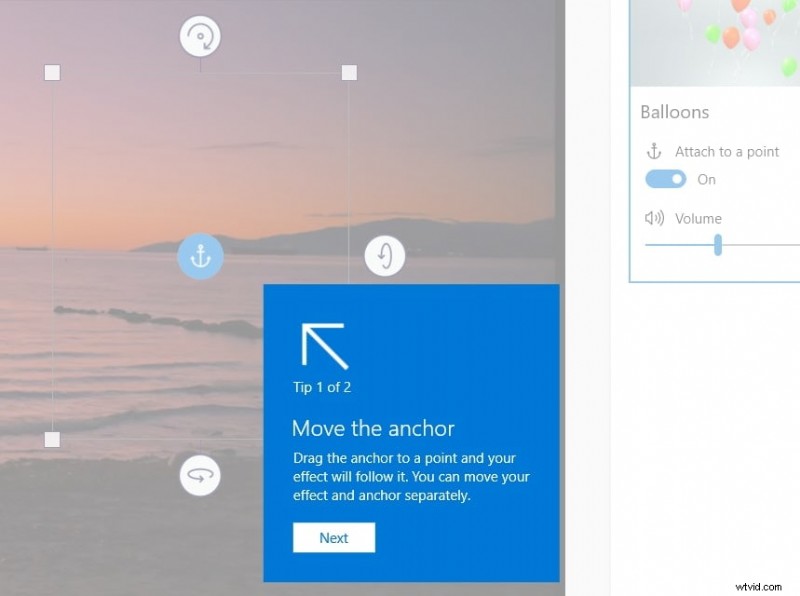
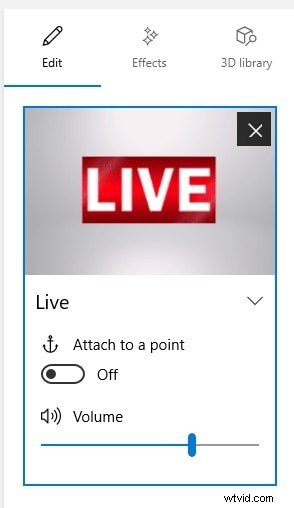
- Enable “Attach to a point” and position the blue anchor on the text you want to move. The app will process the attachment.
- Adjust the animation length by sliding the time bar. You can also rotate, resize, and anchor at different points to create a dynamic sequence.
Conclusion
By following the steps above, you can effortlessly add titles and animated text to your videos using the Windows 10 Photos app. The process is intuitive, making it suitable for both beginners and seasoned editors.
Shanoon Cox
Shanoon Cox is a writer and a lover of all things video.
Follow @Shanoon Cox