

Mar 10, 2026 • Proven solutions
When you need to remove watermarks from video footage, a range of reliable tools are available—from professional editors to free online services and mobile apps. This guide presents seven proven methods that let you eliminate watermarks quickly while preserving quality and respecting copyright laws.
- Part 1: Remove Watermarks in Videos with Filmora – 3 Effective Ways
- Part 2: Remove Watermarks Online – 2 Free Tools
- Part 3: Remove Watermarks with Logo‑Remover Software – 2 Programs
- Part 4: Remove Video Watermarks on iPhone and Android – 2 Apps
Part 1: How to Effortlessly Remove Watermarks with Filmora on Windows & Mac
Wondershare Filmora is a user‑friendly editor that requires no advanced experience. Choose the technique that best suits your video and follow these simple steps.


Note: These methods work best when the watermark sits in a corner or along the edges. For watermarks in the center, you may need additional editing or a different tool. Some features require a paid subscription; students and educators can access a discount at https://effects.wondershare.com/student-discount.
Method 1: Blur the Watermark
While this doesn’t remove the watermark, the Mosaic effect can obscure it. Select Effects → Utility → Mosaic, drag it onto the timeline above your clip, and adjust its size and position. Double‑click the effect to fine‑tune blur amount and shape.
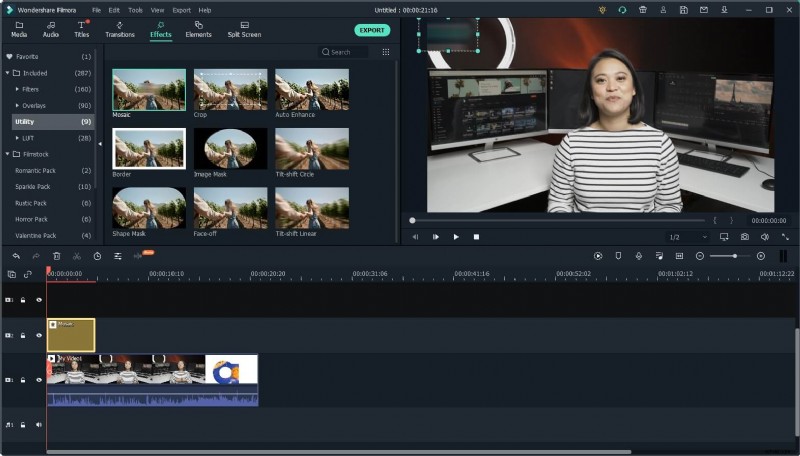
This technique works well for small logos or repetitive watermarks and can also blur faces or other objects if needed.
Method 2: Crop the Video
When the watermark is positioned in a corner, cropping can remove it entirely. Right‑click the clip in the timeline, choose Crop & Zoom, and adjust the cropping rectangle to exclude the watermark. Click OK to apply.

Be aware that cropping reduces the frame size and may cut out part of the scene, so use this method only when the watermark’s location allows for minimal visual loss.
Method 3: Replace the Watermark
If cropping isn’t suitable, overlaying a new logo or graphic can cover the original watermark. Import your replacement graphic, place it on the timeline, and match its duration to the clip. Drag the image to align it over the existing watermark, resize as needed, and finalize.
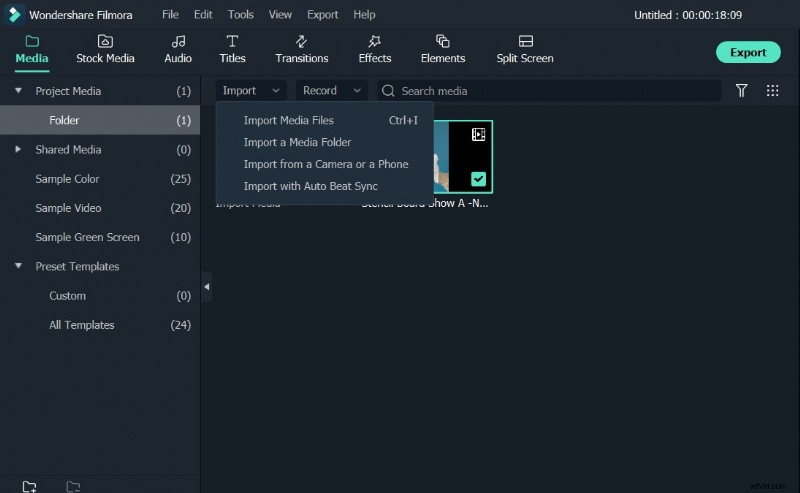
Choose a replacement graphic that matches the style and size of the original to avoid noticeable differences.
Part 2: Remove Watermarks Online
1. Video Watermark Remover Online
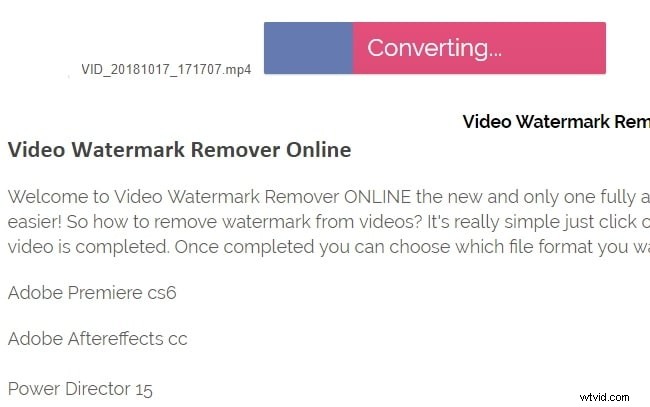
This web service requires no installation. Upload your video, click Remove Watermark, wait for processing, and download the cleaned file.
Steps:
- Visit Video Watermark Remover Online and upload your file.
- Click Remove Watermark once the upload finishes.
- After processing, download the result.
Free users can process up to five videos per month. Paid plans cost $49.99 (Standard) and $79.99 (Unlimited), allowing 25 and 95 videos per month respectively.
Pros:
- Easy to use
- Fast processing
- Supports many formats (MKV, 3GP, FLV, SWF, HTML5, M4V, etc.)
Cons:
- Higher pricing for advanced plans
- Performance depends on internet speed
- No additional editing features
- Download process can be complex due to surveys
2. Apowersoft Online Video Watermark Remover
Apowersoft’s tool offers a browser‑based interface. After uploading your video (supports MP4, MKV, FLV, MOV, WMV, WEBM, 3GP, AVI, ASF, M4V, MPEG, MPG, TS), you can add up to 10 selection boxes to target multiple watermarks.
Steps:
- Navigate to Apowersoft Video Watermark Remover (Google Chrome recommended).
- Click Remove Watermark from Video and upload your file.
- Preview the video, then click Add Box(es) to mark watermark areas.
- Press Erase to process.
Processing times can be long, and final quality may differ from the preview due to compression.
Part 3: Remove Watermarks with Logo‑Remover Software
1. Video Converter Studio
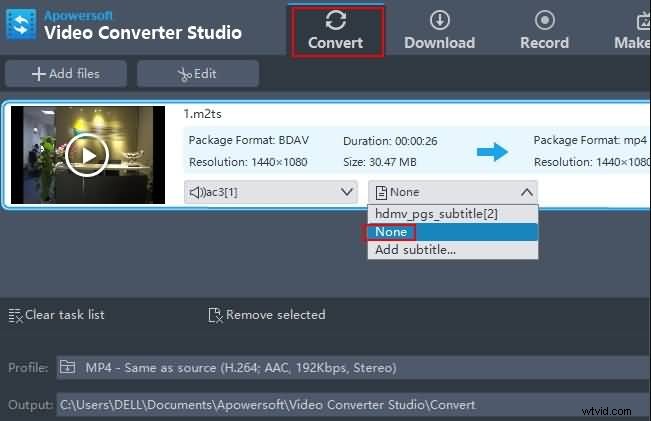
While primarily a converter, this software includes a watermark removal feature that automatically detects logos and subtitles. The full license costs about $40, with a free trial available. It supports formats such as MP4, MKV, AVI, and WMV.
Pros:
- Efficient watermark removal
- Conversion and basic editing (contrast, saturation, cropping)
- Cross‑platform (Windows/Mac)
Cons:
- Free version limited
- Advanced editing options absent
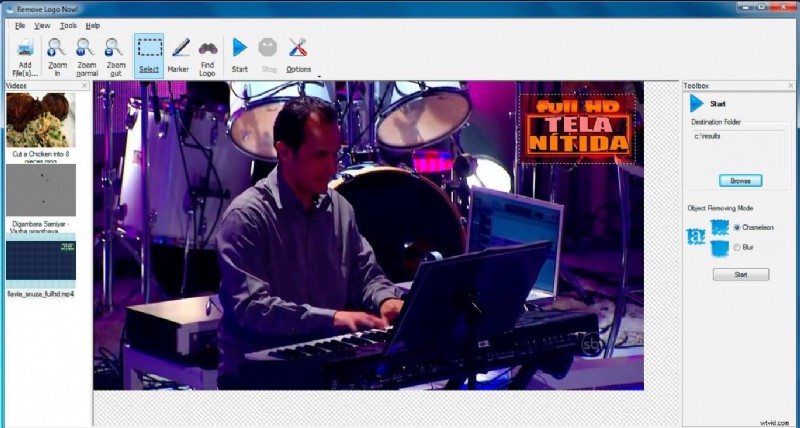
2. Remove Logo Now
This Windows‑only tool uses advanced algorithms to locate and remove watermarks. The free version offers basic functionality; the Pro edition is priced at $139.99.
Pros:
- Advanced watermark detection
- User‑friendly interface
- Manual adjustment of removal parameters
Cons:
- Pro version costly
- Export can be slow
- May not work on all videos
Supported formats include MOV, M1V, MP2, SVCD, FLV, MP4, and more.
Part 4: Remove Video Watermarks on iPhone and Android
1. Remove Logo From Video (Android)
This free Android app removes watermarks by blurring the selected area. It displays ads but is straightforward to use.
Steps:
- Download from Google Play (requires Android 4.3+).
- Open the app and tap Start to select a video.
- Draw a rectangle over the watermark and tap Remove Logo.
- Preview the result.
Note: Blurring is best for small logos; larger watermarks may require overlaying a new graphic afterward.

2. Video Eraser – Remove Logo (iOS)
Available for iPhone and iPad (iOS 8+), this free app offers watermark removal with optional in‑app purchases to unlock features.
Steps:
- Import a video via the plus icon.
- Select Remove Watermark from the video icon.
- Mark the watermark area and tap Start.
- View the processed clip in the Processed tab.

Conclusion
With these tools—ranging from professional editors to convenient online services and mobile apps—you can efficiently remove watermarks while preserving video quality. Always verify that removing a watermark complies with local copyright laws before proceeding.
For more editing options, consider Filmora, which offers a free trial (watermarked output) and a paid version without watermarks.
Liza Brown
Writer and video enthusiast
Follow @LizaBrown