
Looking for a reliable video format that delivers high‑quality playback across platforms? The AVI (Audio Video Interleave) format, introduced by Microsoft in 1992, remains a popular choice for both consumer and professional video work.
AVI files are self‑contained containers that can hold audio and video streams, typically with little or no compression. While this results in larger file sizes compared to formats like MPEG‑4 or MOV, it guarantees that the original quality is preserved and that the file can be played on virtually any system without the need for external codecs.
Below we’ll cover what AVI is, how to open and play AVI files on different operating systems, and how to edit them efficiently with industry‑grade software.
In this article
Part 1. What Is the AVI Video Format?
AVI is a multimedia container developed by Microsoft in 1992. It supports synchronous audio‑with‑video playback, making it ideal for editing and archival purposes. Unlike highly compressed formats, AVI preserves the full fidelity of the source footage, which is why it is favored by video editors who need lossless files.
Because AVI does not rely on proprietary codecs, most modern operating systems—Windows, macOS, Linux—can open AVI files directly. The format also supports lossless compression, so the video quality remains unchanged even after multiple saves.

Part 2. How to Open and Play AVI Files
While most media players support AVI out of the box, certain applications provide a smoother experience and additional features such as hardware acceleration, network streaming, and subtitle support.
VLC Media Player
VLC is a free, open‑source player that runs on Windows, macOS, Linux, Android, and iOS. Its extensive codec library eliminates the need for external plugins, and it can stream over networks or transcode files on the fly.

Elmedia Player
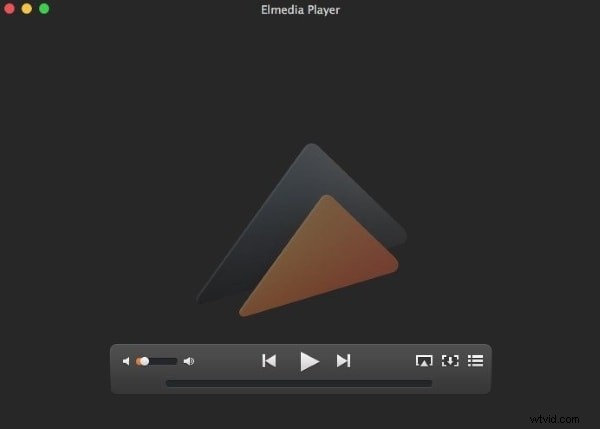
Elmedia Player is tailored for macOS users and supports seamless playback of AVI, MOV, MP4, FLAC, and MP3 files. It offers streaming to Chromecast, AirPlay, DLNA, and Roku devices, all without extra codecs.
5KPlayer
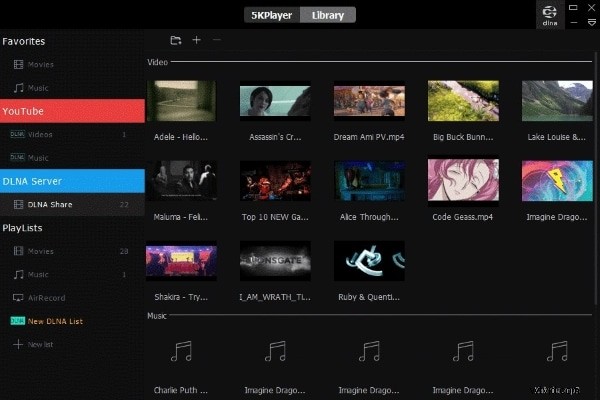
5KPlayer combines audio and video playback with AirPlay and DLNA support, allowing wireless streaming of 4K and 1080p content. It also lets you download videos from YouTube, Vimeo, and 300+ other sites.
GOM Media Player
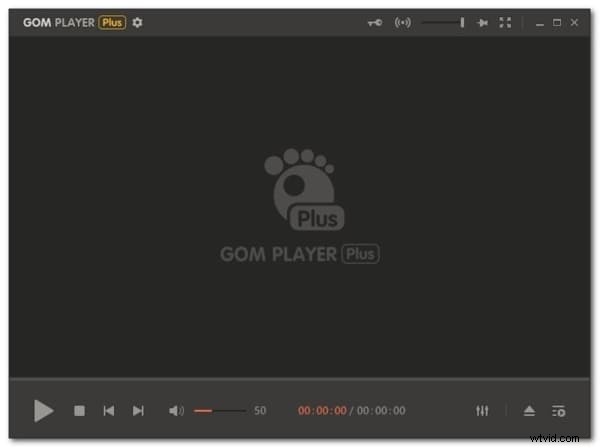
Popular in South Korea, GOM Media Player automatically searches for missing codecs and offers an ad‑free paid version. It supports 360‑degree video playback and provides extensive subtitle support.
Part 3. Editing AVI Files with Wondershare Filmora
Filmora is a user‑friendly video editor that brings professional features to creators of all skill levels. Below is a concise guide to turning raw AVI footage into polished content.
Key Features of Wondershare Filmora
- Silence Detection – automatically removes silent pauses from your recording.
- Split Screen – combine multiple clips or images into a single, dynamic frame.
- Auto Reframe – AI‑driven cropping keeps the focal point centered for any aspect ratio.
- AI Portrait – remove or replace backgrounds without a green‑screen setup.
Step‑by‑Step Guide
Step 1: Import the AVI File
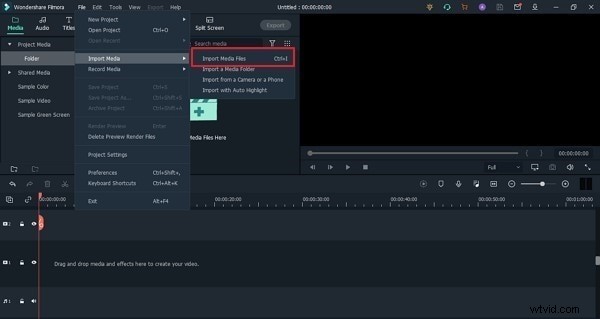
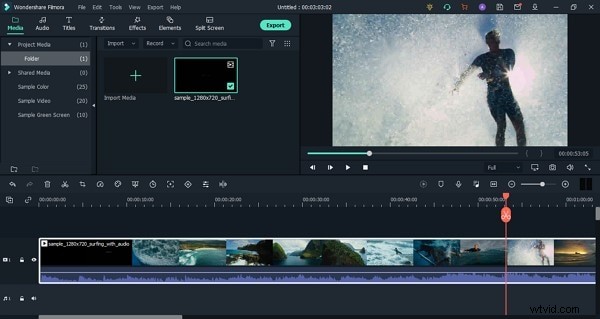
Launch Filmora and choose File > Import Media to add your AVI file to the project library.
Step 2: Drag to the Timeline
Drag the imported clip onto the timeline to begin editing.
Step 3: Apply Audio Effects
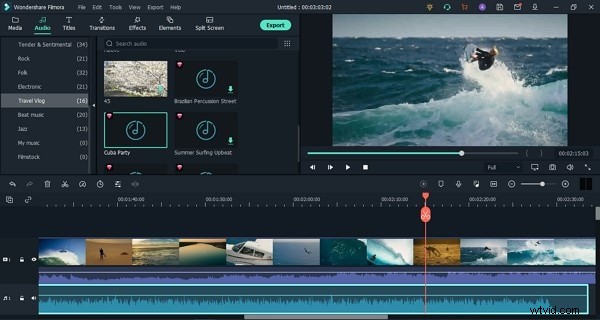
Detach the audio track, then add sound effects or background music from the Audio tab.
Step 4: Insert Transitions
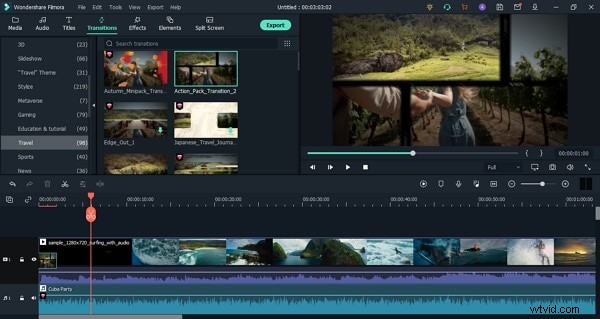
Use the Transitions tab to add smooth glides between clips—choose from Glitch, School Pack, or other creative options.
Step 5: Export the Finished Video
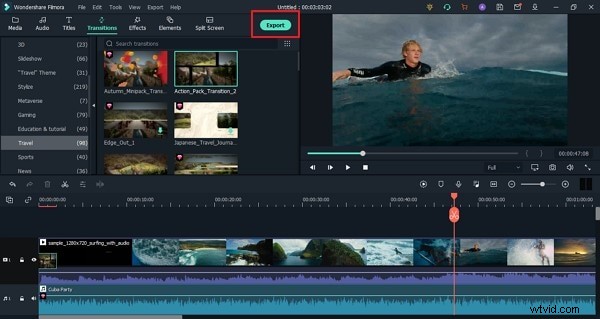
Click Export, select your desired format (e.g., MP4), and save the project to your device.
Conclusion
With its robust compatibility and advanced editing tools, AVI remains a reliable format for creators who need uncompromised quality. Whether you’re opening files on Windows, macOS, or Linux, or you’re refining footage in Filmora, AVI provides the flexibility and fidelity required for professional video production.