
Create a Custom Animated Discord Avatar (GIF)
Animated profile pictures add personality and flair to your Discord presence. With the right tools and a few simple steps, you can turn any video clip or series of images into a smooth GIF that will look great on Discord.
Why Animated GIFs Are Trending on Discord
Part 1: Why Animated GIFs Are Popular on Discord
Discord has become the go‑to platform for community engagement—chatting, watching movies, listening to music, and gaming—all under one roof. A static avatar can feel outdated, whereas an animated GIF lets you express your mood, brand, or fandom in motion. Thousands of users switch to animated icons to stand out, and many of these GIFs are free and easy to create.
Discord’s official support channel and help center routinely publish tutorials on how to use animated avatars, underscoring the platform’s commitment to user creativity.
Part 2: How to Create a Discord GIF Using a Free Online Editor
Follow these steps to craft a GIF that fits Discord’s 512×512‑pixel requirement and 10.24 MB size limit.
- Choose a template: Open your preferred online GIF maker and select “Edit this template.” This opens a workspace where you can upload a video or a set of images.
- Set the dimensions: On the right‑hand panel, choose “Custom” and enter 512 × 512 pixels. This ensures the final file is Discord‑compatible.
- Upload your media: Click the “Upload” button to add a clip from your computer, Google Drive, or a local gallery. Drag‑and‑drop is also supported.
- Trim and adjust: In the editor, use the timeline to select the desired segment, set the frame rate, and resize if necessary.
- Export as GIF: Click the “Export Video” button, then choose “Export as GIF.” Monitor the download progress; once completed, click “Download” to save the file to your system.
- Upload to Discord: Open Discord, right‑click the server icon, select Server Settings → Overview, then click “Upload Image.” Browse to your saved GIF, choose it, and hit Apply. Finally, click Save Changes. If the file exceeds 10.24 MB, reduce its size or simplify the animation before re‑uploading.
Part 3: Setting an Animated GIF as Your Personal Avatar (Requires Nitro)
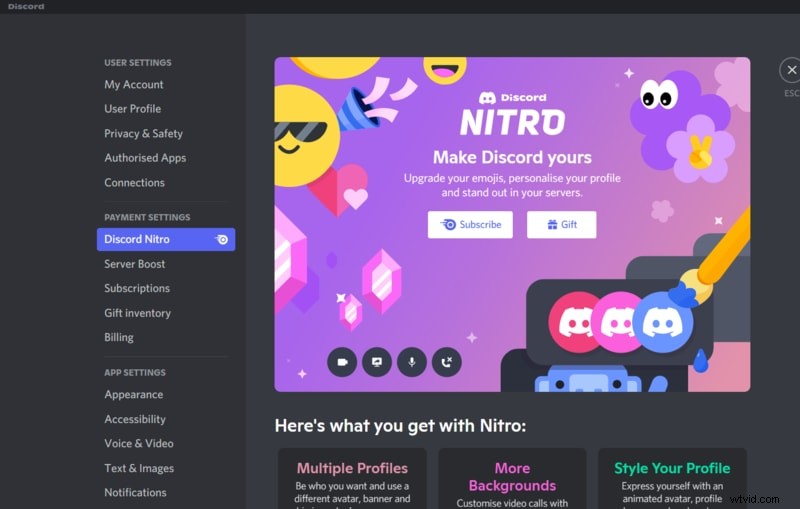
Discord Nitro unlocks animated avatars for personal profiles. Here’s how to activate Nitro and set your GIF:
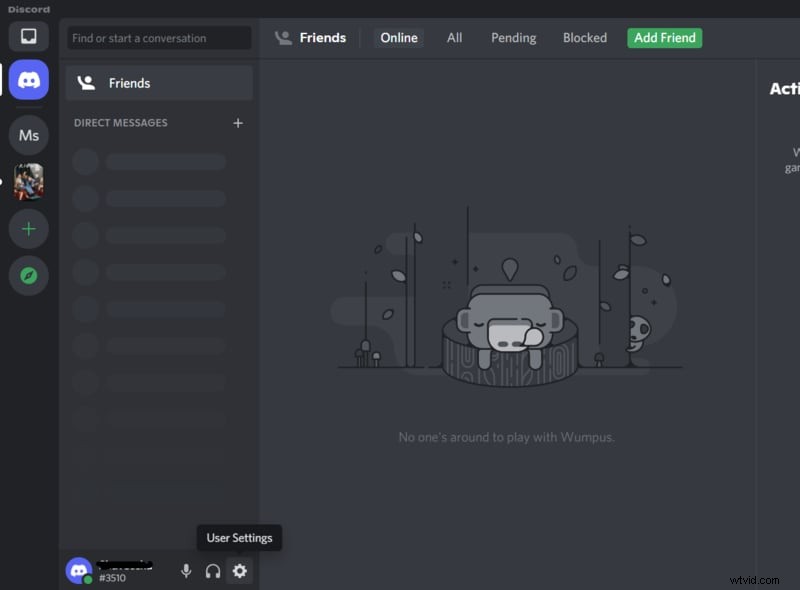
- Open Settings: Click the gear icon in the bottom‑left corner to open User Settings.
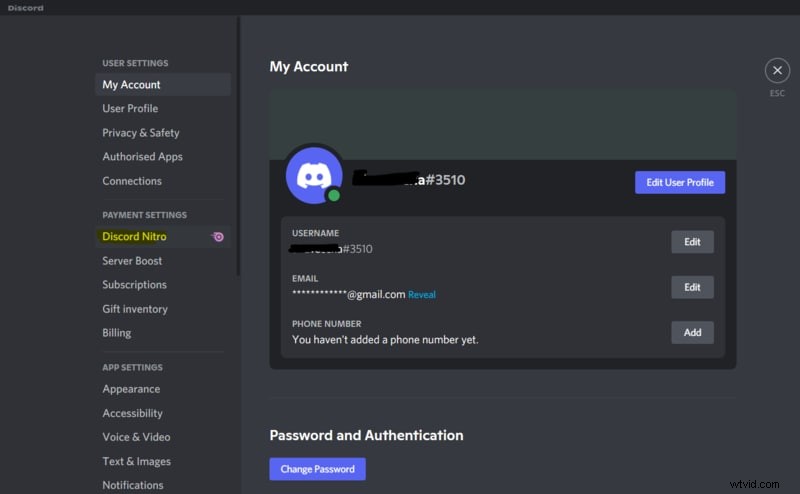
- Activate Nitro: Navigate to Discord Nitro under Payment Settings. If you’re not a subscriber, click Subscribe and choose a monthly or yearly plan (the yearly plan offers a 16% discount). Confirm the purchase to enable Nitro.
- Upload your GIF: In User Settings → User Profile, click Change Avatar. Browse to the GIF file you created earlier, select it, and optionally adjust the frame in the preview. Click Apply and then Save Changes.
Part 4: Create a Discord GIF with Wondershare Filmora
Wondershare Filmora offers a powerful yet lightweight video editor (under 4 KB) that lets you build custom GIFs from scratch. It’s available for both Windows and macOS and has over 5.48 million downloads.
Follow these streamlined steps:
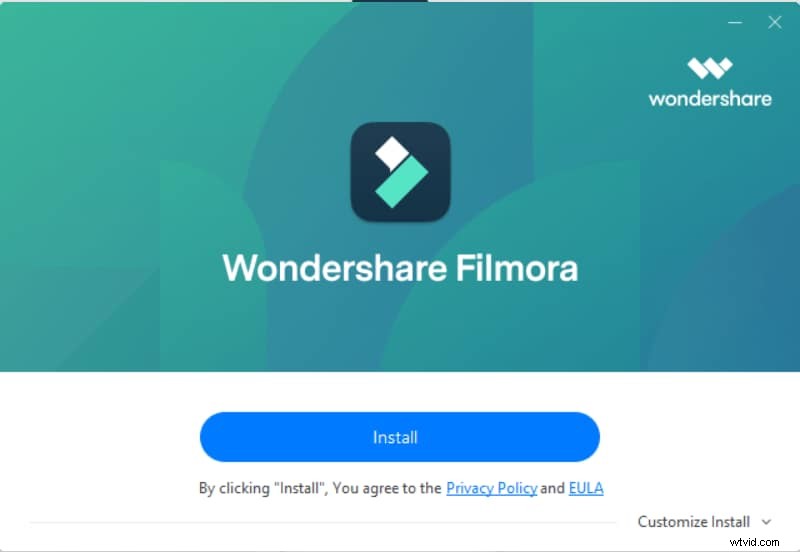
- Download & Install: Grab Filmora from the official site and follow the 10‑minute installation wizard.
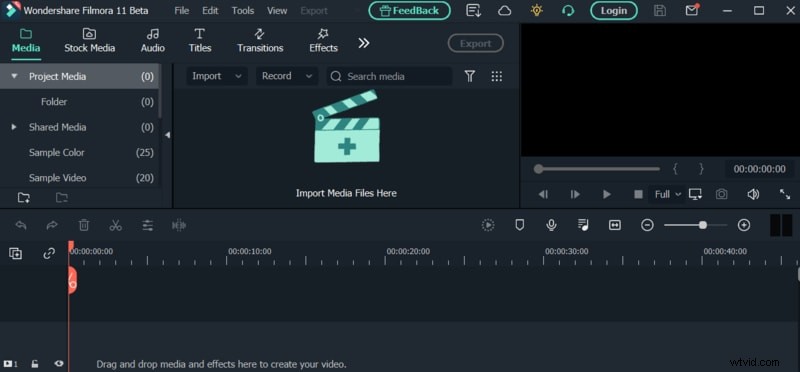
- Import Media: Click Import Media Files Here and select a video clip or photo sequence.
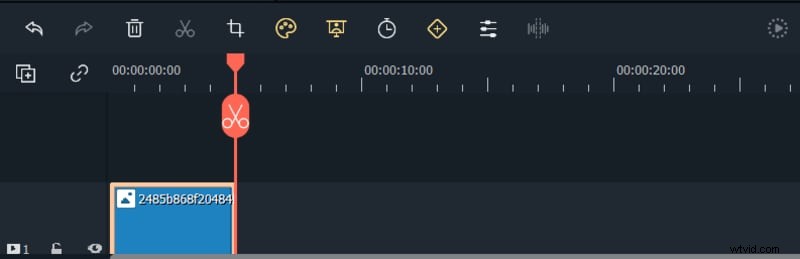
- Edit: Use the bottom toolbar to crop, trim, adjust duration, or add effects such as chroma‑key. Preview changes on the right pane.
- Add Text: Click the T icon to insert titles. Choose a template, edit the text, and confirm with OK.
- Export as GIF: Click the Export button, choose GIF format, set the 512 × 512 resolution, and export. Save the file and upload it to Discord as described earlier.
Ending Thoughts
- Three distinct methods—online editors, Nitro‑enabled personal avatars, and Filmora—give you complete control over your animated Discord icon.
- Custom GIFs replace the old static images, letting your profile truly reflect who you are.
- With straightforward steps and clear limits, creating and uploading a GIF is now easier than ever.