
4K video has become the new standard for high‑definition storytelling, from YouTube vlogs to streaming services and even smartphone captures. While the pixel density and color fidelity are critical, the frame rate determines how fluidly motion is rendered. Choosing the right fps can transform a sharp image into a truly immersive experience or leave it feeling jittery.
Why Frame Rate Matters in 4K
Frame rate, measured in frames per second (fps), indicates how many individual images are displayed each second. A higher fps yields smoother motion and reduces motion blur, making fast action appear lifelike. Conversely, a lower fps can evoke a cinematic feel with natural motion blur, often preferred for narrative storytelling.
Common 4K frame rates include 24, 30, 60, and 120 fps. To illustrate the visual impact, here’s a side‑by‑side comparison of the same clip at 24 fps versus 60 fps:
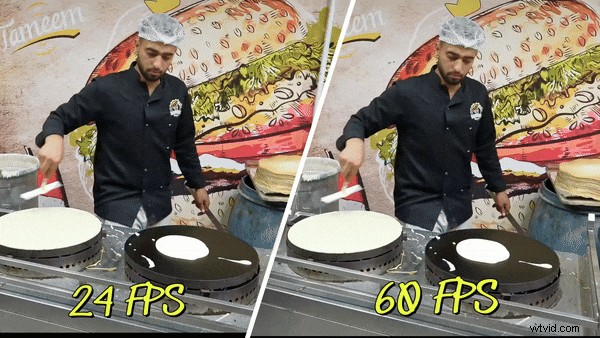
- 60 fps: Delivers a fluid, almost lifelike motion ideal for sports, gaming, and fast‑moving scenes.
- 24 fps: Offers a slightly choppier, but classic film look that is easier on the eyes for storytelling.
The “best” frame rate is context‑dependent; the table below outlines typical use cases and their visual characteristics.
| Frame Rate | Best Use Case | Visual Effect | Why It Works |
| 24 fps | Cinematic films, narrative content | Classic film look with natural motion blur | Creates a familiar, dramatic ambience in 4K |
| 30 fps (29.97) | YouTube, TV, casual vlogs | Smooth yet not overly fluid | Balances visual quality with smaller file sizes |
| 60 fps | Sports, gaming, action sequences | Very smooth, lifelike motion | Ideal for rapid action and clean slow‑motion editing |
| 120 fps | Slow‑motion shots, creative effects | Ultra‑smooth, detailed playback | Provides high‑resolution slow‑motion when supported |
Setting the Frame Rate in Your Editing Software
Even with the correct fps, the final output depends on the editing workflow. A reliable editor should allow seamless frame‑rate adjustments and preserve 4K clarity throughout the timeline.
Wondershare Filmora is designed for this purpose, offering an intuitive interface that lets you set your project’s frame rate with just a few clicks. It also auto‑optimizes playback to avoid stutters, supports mixed‑fps clips, and retains 4K sharpness from import to export.
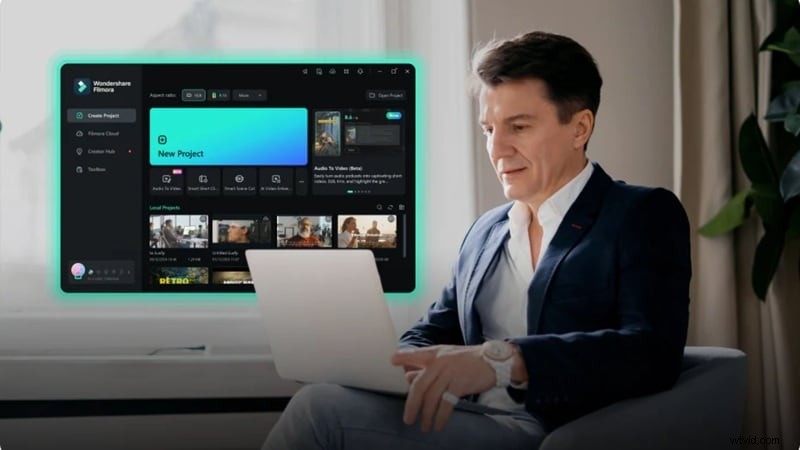
- Export Settings: Choose 24, 30, or 60 fps effortlessly.
- Optimized Playback: Auto‑fine‑tunes frame rates for smooth viewing.
- Full 4K Editing: Maintains detail from start to finish.
- Flexible Timeline: Aligns clips of different fps without quality loss.
- Creative Enhancements: Apply effects and AI tools while keeping frame rate stable.
Step‑by‑Step Guide to Adjusting Frame Rate in Filmora
- Launch Filmora & Start a New Project
Ensure the latest version is installed, then click "New Project." - Import Your 4K Video
Navigate to the "Media" tab, click "Import," and drag the clip to the timeline. - Access Project Settings
Click the desktop icon below the preview and select "Change Project Aspect Ratio." - Adjust Frame Rate
In the settings window, choose "Frame Rate" and pick the desired fps (e.g., 24 fps for cinematic feel). Confirm with "OK." - Preview & Refine
Play the clip to verify smoothness, then enhance with Filmora’s stickers, effects, and royalty‑free music. - Export
Select "Export," choose "Local" or "Social Media," set title, format, resolution, and verify the frame rate before finalizing.
Optimizing Frame Rates for Social Media Platforms
Each platform recommends specific fps for optimal playback. Filmora’s built‑in export templates automatically apply the correct settings, saving time and ensuring compatibility.

| Platform | 24 fps | 30 fps | 60 fps |
| YouTube | Cinematic films, storytelling | Standard uploads, vlogs, tutorials | Gaming, sports, fast‑action |
| TikTok | / | Everyday clips, casual trends | Dance, fitness, high‑energy shorts |
| / | Lifestyle posts, reels, stories | / | |
| Casual cinematic style | General uploads, sharing | Live streams, events, action shots | |
| Twitch | / | / | Live gaming, esports, interactive streams |
AI‑Powered Frame Rate Management
Filmora’s AI tools handle technical adjustments automatically. From auto‑reframing to video enhancement, the software keeps your 4K footage smooth and professional without manual intervention.
- AI Auto‑Reframe: Adapts aspect ratios for YouTube, TikTok, Instagram, and Facebook.
- AI Video Enhancer: Stabilizes playback even at 60 fps or 120 fps.
- Templates & Presets: Apply platform‑specific settings with a single click.
Conclusion
Frame rate is a pivotal decision that shapes the viewer’s experience of 4K video. Whether you aim for the classic filmic aura of 24 fps or the razor‑sharp fluidity of 60 fps, the right choice enhances your content’s impact. With an all‑in‑one editor like Wondershare Filmora, adjusting frame rates becomes effortless, ensuring every 4K project looks as stunning as it should.
