
Vimeo, alongside YouTube, remains a top choice for creators seeking high‑quality video hosting. Its platform supports independent filmmakers, documentary makers, and artists, offering tools for uploading, watching, and engaging—through playlists, comments, likes, and more.
For viewers, speeding up videos can save time and streamline content consumption, especially when you want to reach key segments quickly.
Below are three straightforward methods—using Vimeo’s native controls, Chrome extensions, or browser developer tools—to customize playback speed, along with guidance for editing downloaded footage with Filmora.

In this article
- Method 1: Enable Vimeo’s built‑in speed controls
- Method 2: Use Chrome extensions for greater flexibility
- Method 3: Manipulate speed with browser Developer Tools
- Speeding up downloaded Vimeo videos with Filmora
Part 1. Available Features on Vimeo
Vimeo distinguishes itself by catering primarily to creators and professionals who prioritize artistic expression. Unlike platforms that focus on mass appeal, Vimeo emphasizes quality, enabling independent creators to showcase their work with professional tools.
To enhance your viewing experience, Vimeo offers several customization options. You can adjust playback speed, change resolution, save videos to your collection, and interact by liking or sharing.

Vimeo’s playback‑speed menu includes the following presets:
- 0.5× – Slow motion, half the normal speed
- 0.75× – Slightly slower, ideal for detailed review
- 1.0× – Standard speed
- 1.25× – Moderately faster, maintaining clarity
- 1.5× – Quickened pace without losing detail
- 2.0× – Double speed, perfect for rapid skimming
Part 2. How to Speed Up Vimeo Videos
Whether you’re watching on desktop or mobile, Vimeo’s player offers flexible speed adjustments. Below are three methods that cover a range of needs—from quick tweaks to advanced customization.
Method 1: Enable Vimeo’s Built‑in Speed Controls
Vimeo’s native speed control is accessible on both the website and embedded players, capped at a maximum of 2×. To activate:
- Click the gear icon in the lower‑right corner of the player.
- Select the desired speed from the dropdown menu.
If the Speed option is missing, enable it via the Player Settings:
- Open the video from your Library.
- Navigate to the Player tab on the left panel.
- In the Controls section, toggle the Speed option on.
Method 2: Use Chrome Extensions for Greater Flexibility
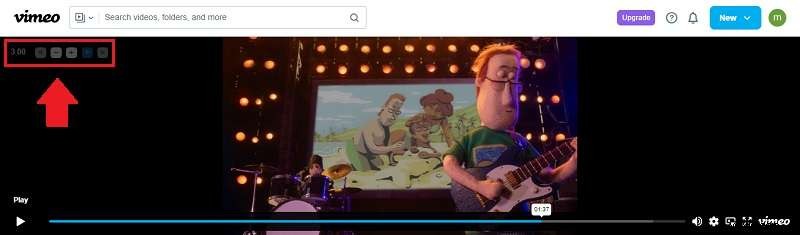
For users who require speeds beyond the 2× limit or prefer keyboard shortcuts, the Video Speed Controller extension is an excellent choice.
- Install the extension from the Chrome Web Store.
- While watching a Vimeo video, press V to open the overlay.
- Use the on‑screen buttons or shortcuts (D to increase, S to decrease) to set any speed up to 16×.
Method 3: Manipulate Speed with Developer Tools
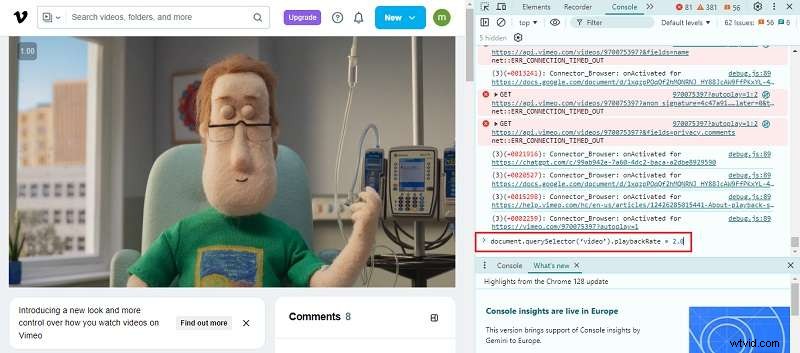
Advanced users can set a custom playback rate directly via the browser console.
- Open the Vimeo video you wish to speed up.
- Launch Developer Tools: Ctrl + Shift + I (Windows/Linux) or Cmd + Option + I (Mac).
- Navigate to the Console tab and enter:
document.querySelector('video').playbackRate = 2.0;to set the speed to 2×, or replace 2.0 with any desired value.
Part 3. Speeding Up Downloaded Vimeo Videos with Filmora
If you need to adjust the speed of a Vimeo video before uploading, or simply want precise control after downloading, Wondershare Filmora offers a user‑friendly editing solution.
Filmora allows speed changes from 0.01× to 100× and features Speed Ramping for smooth transitions between fast and slow motion.
How to Speed Up Vimeo Videos Uniformly
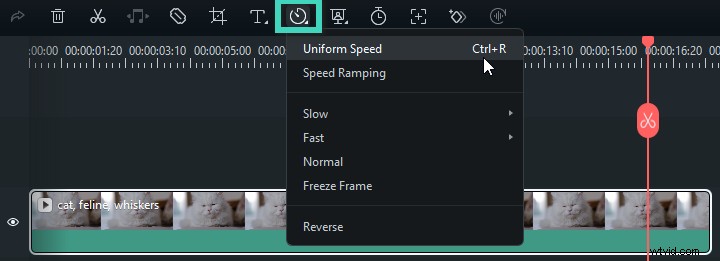
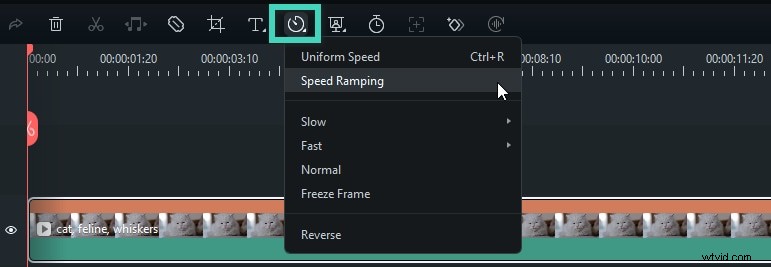
- Place the video on the timeline and click the Speed icon above the timeline.
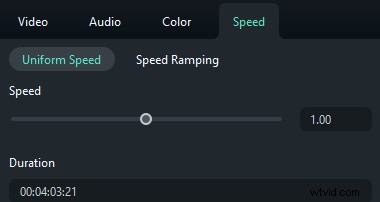
- Select Uniform Speed and drag the slider to the right, or enter a value greater than 1 in the Duration field.
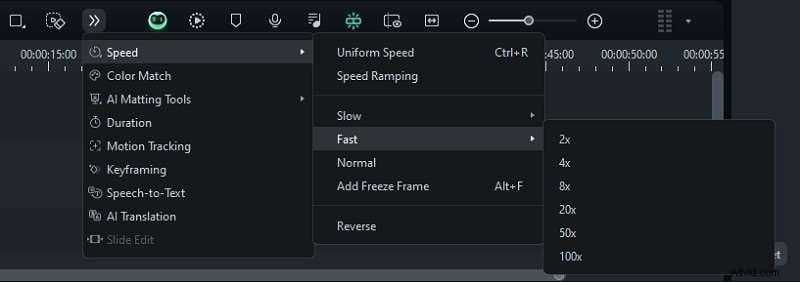
- For quick presets, navigate to Speed > Fast and choose from options such as 2×, 4×, 8×, 20×, 50×, or 100×.
How to Speed Ramp the Video
- Activate Speed Ramping by clicking the Speed icon and selecting Speed Ramping, or via the Property Panel on the right: Speed > Speed Ramping.
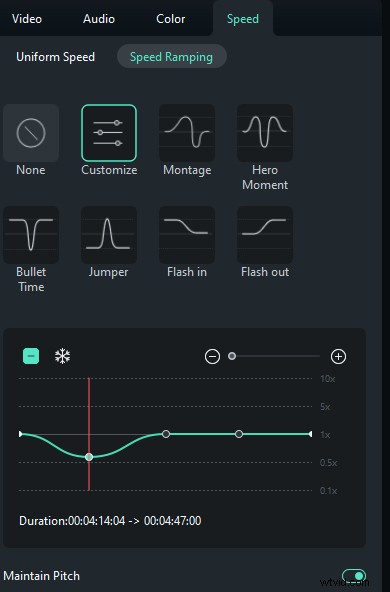
- Choose a preset from the Speed Ramping settings. Filmora’s guide details each preset’s effect, or experiment to find the best fit.
- Adjust the speed points by dragging them up or down to modify the speed, and left or right to change the affected segment. Use the + or – icons to add or remove points. For a freeze frame, place the playhead, click the snowflake icon, set the duration, and apply.

Conclusion
Beyond Vimeo’s default speed controls, you can employ Chrome extensions or Developer Tools for greater flexibility. For downloaded footage or pre‑upload edits, Filmora provides robust speed‑adjustment tools, including Speed Ramping for dynamic motion transitions.