
After you edit your video with Filmora you may wonder how to export your video in Filmora Indeed, you can export your video in Filmora in various options. This article will show you the multiple options you can get if you want to export your video in Filmora.
Steps to export your video with Filmora
To open the export box, press "CTRL+E" on your keyboard. After that, you'll see many export options you can do.

Export Video Platform
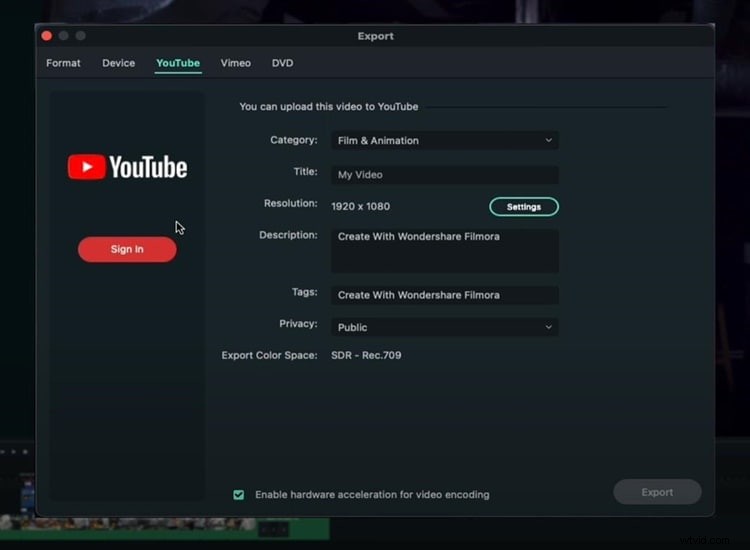
If you want your video to end up on YouTube, you can click on the "YouTube" option, sign in, and enter all the basic metadata you need for your YouTube video. Then you can click "Export", and the video will go straight to YouTube. Also, you can have all of your privacy settings, descriptions, and everything else.
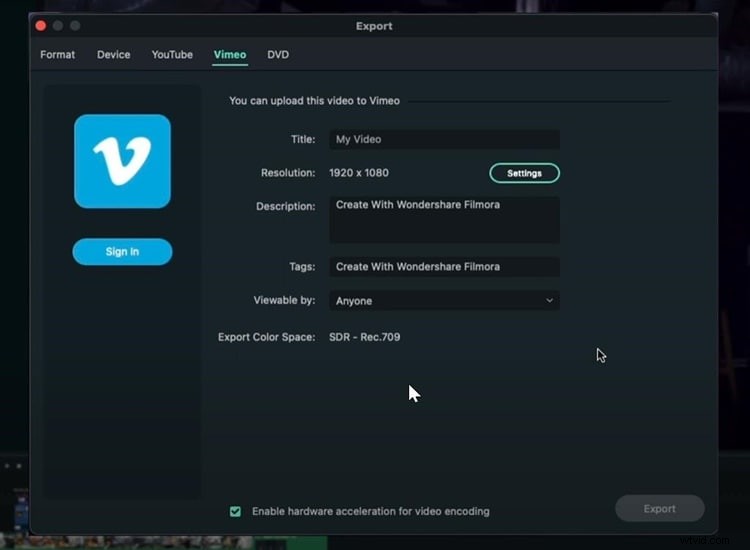
Similar to YouTube, you can do the same thing if you want to export your video on Vimeo.
Export and Burn Video into DVD
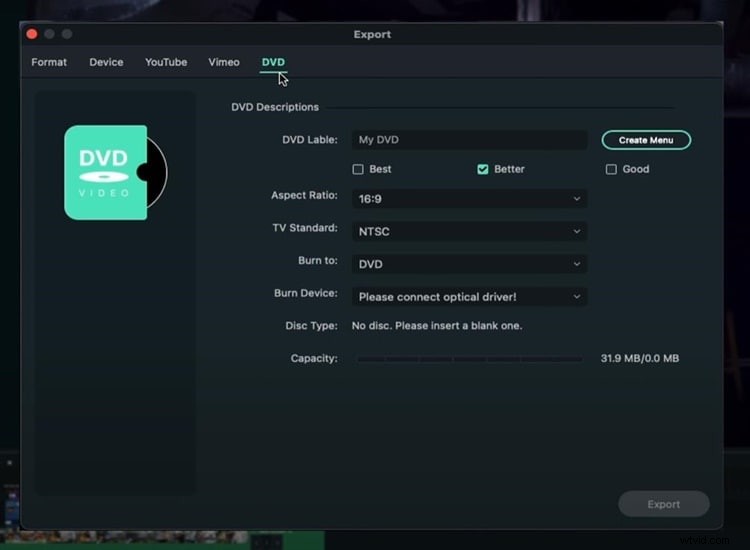
You can also directly burn your video to a DVD. Even though video to DVD isn't as common as it used to be, it's still nice to be able to do it, especially if you like making DVDs.
Export Video to Other Devices
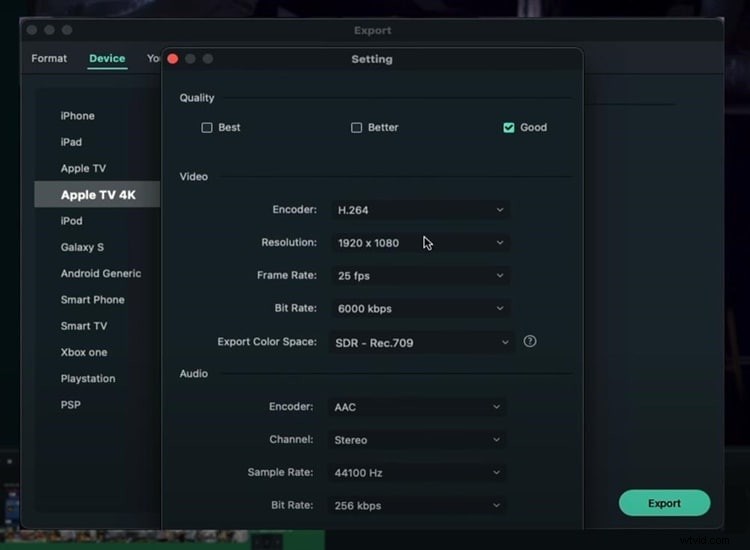
Go to the "Devices" option if you want to export your video to specific devices with everything looking good on that particular device. For instance, if you want to export your video to iPhone, you can see the size will be 41MB, and the resolution will be 1080p. All those things are going to look much better on an iPhone.
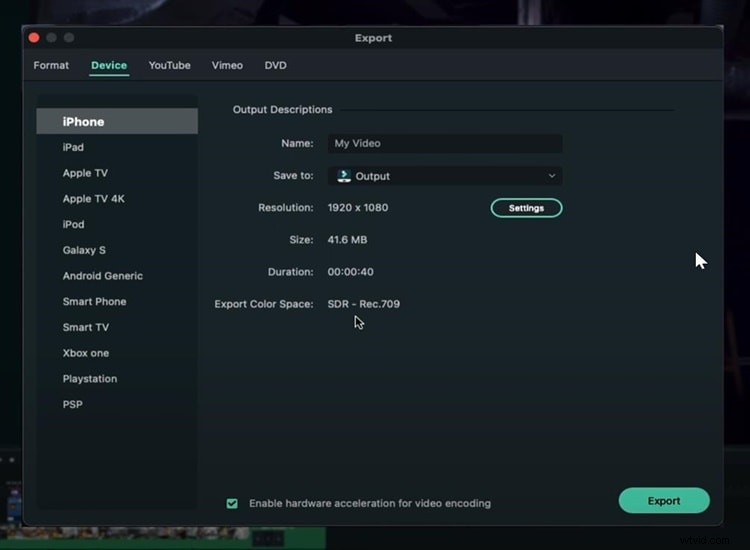
You can also adjust the quality of your video based on your needs by clicking on "Setting."
Export Videos in High Res Quality
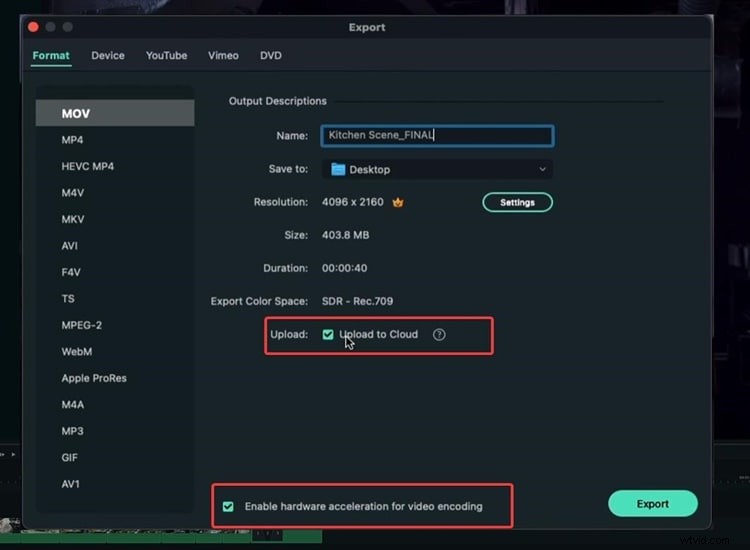
In the “Format” option you can choose the file extension, the format, or the codec. Exporting your video based on format is good if you prefer to save your video on your computer since maybe you may upload your video on YouTube, Instagram or other social media platforms.
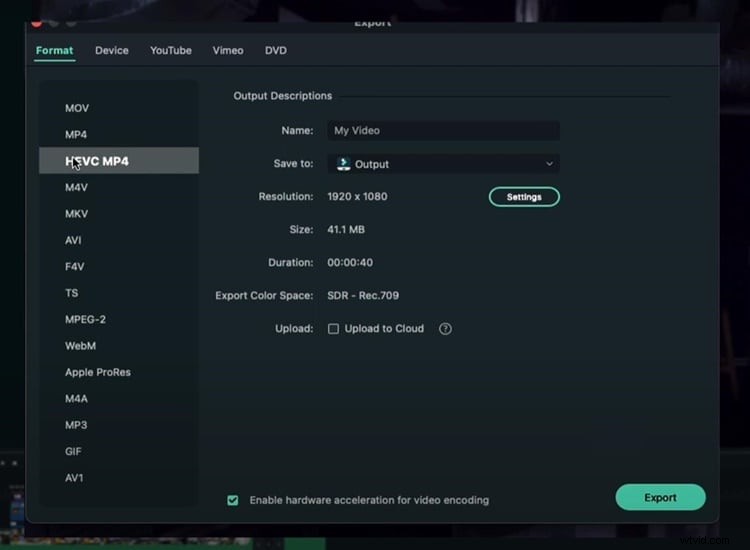
You can choose "Apple Prores" if you want the least amount of compression possible and don't care about the file size. For example, if you want to export a video from Filmora and then import it into another video editor without losing too much quality, you should definitely choose "Apple Prores."
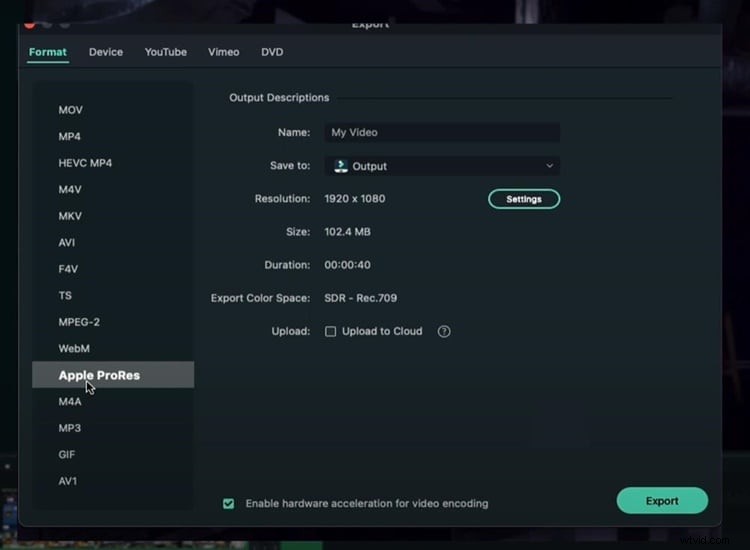
Before exporting, there is the option to upload to the cloud. If you do not know what it is, Wondershare has its own Drive, which allows you to save and remotely view your video files.
In the meantime, if you have a decent PC, you can enable "Hardware acceleration for video encoding." This option will utilize as much computer power as you have to export the video and make the process significantly faster. Once everything is finished, click "Export."
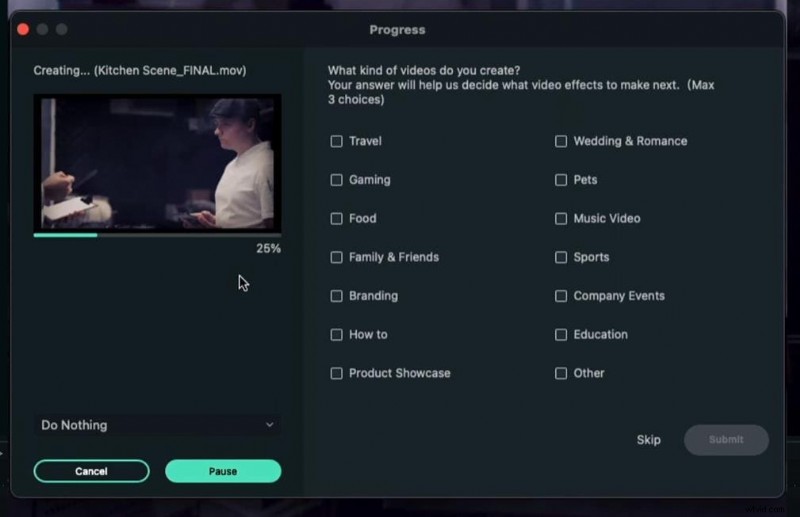
When you click Export, you can see the progress with thumbnails and everything. Lastly, your video has been exported successfully when the exporting process reaches 100%.
Summary
Indeed, there are many options to export your video using Filmora. If you wish to export your video directly to YouTube, simply select the YouTube option in the Export box. Meanwhile, if you want to export your video on your computer and upload it to various social media platforms, it's much better to export it with a format option.