
Wondershare Filmora is a popular video editing tool trusted by millions. While its core features are well known, many users miss a set of hidden tricks that can dramatically improve workflow, performance, and creative control.
In this article
- Global Media Folder
- Custom Proxy Settings
- Delete Project Render Cache
- Remove Split Button on Playhead
- Copy and Paste Effects
- Timeline Snap
- Color Code Video Clips
- Group Clips Together
- Pan and Zoom Shortcut
- Feature Request Process
Part 1. Global Media Folder
Managing media across multiple projects can become tedious. Filmora’s Global Media Folder allows you to import media once and reuse it in any project, saving time and keeping your library organized.
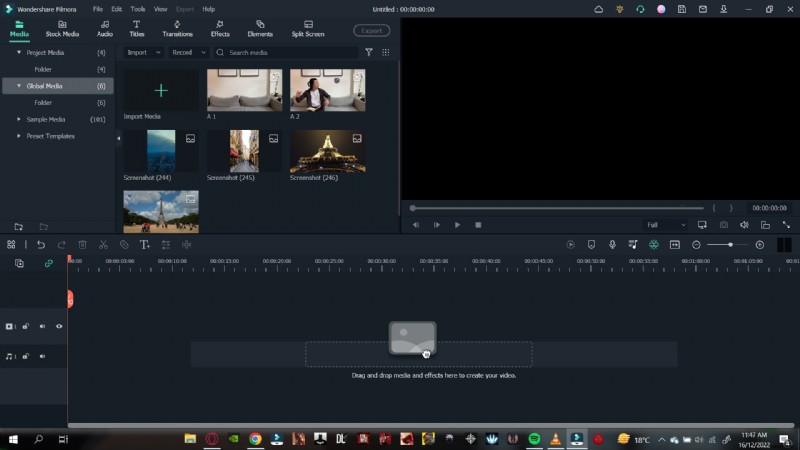
Within the Global Media Folder you can create sub‑folders—for example, a dedicated “Memes” folder for quick access to trending content. Once imported, these files are instantly available in any new project, creating a solid media foundation for future work.
Part 2. Custom Proxy Settings
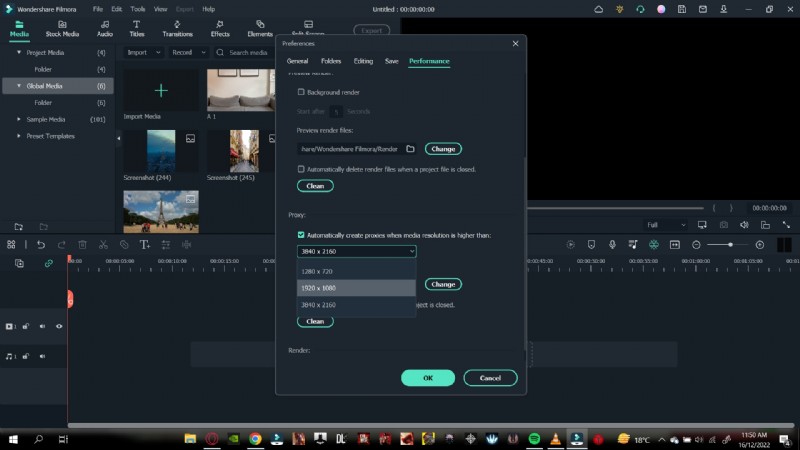
High‑resolution footage, especially 4K and beyond, can strain your system. Filmora’s proxy files render lower‑resolution copies that play smoothly, freeing up resources for editing.
To tailor proxy behavior, follow these steps:
- Click File in the top left corner.
- Select Preferences.
- Navigate to the Performance tab.
- Scroll to Proxy.
- Check Automatically create proxies when resolution higher than: and choose your desired threshold.
- Optionally enable Delete proxies when project is closed to keep disk space tidy.
Part 3. Delete Project Render Cache
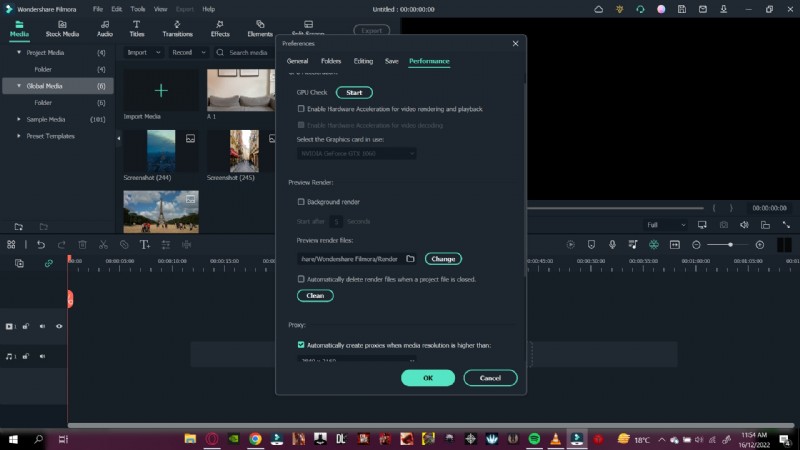
The render cache stores processed preview frames, which can quickly fill up storage. Clearing it after finishing a project frees space without affecting your final output.
- Go to File → Preferences.
- Open the Performance section.
- Find Preview Render and check Automatically delete render files when a project is closed.
- Click OK to apply.
Part 4. Remove Split Button on Playhead
When the split button sits on the timeline playhead, accidental clicks can interrupt editing flow. Hiding it restores a cleaner workspace.
- Open File → Preferences.
- Choose the Editing tab.
- Uncheck Show Split button on playhead.
- Save with OK.

Part 5. Copy and Paste Effects
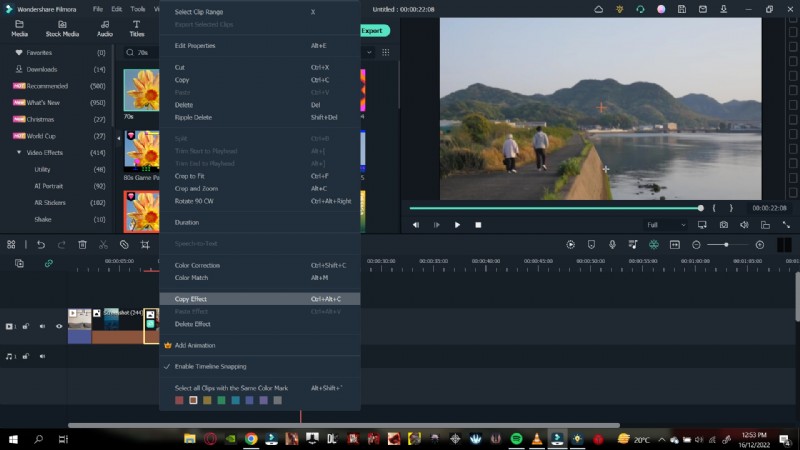
Applying the same visual effect across multiple clips is a time‑saver. Filmora lets you copy an effect from one clip and paste it onto others effortlessly.
- Right‑click the clip that already has the desired effect.
- Select Copy Effects.
- Move the playhead to the target clip.
- Right‑click that clip and choose Paste Effect.
Part 6. Timeline Snap
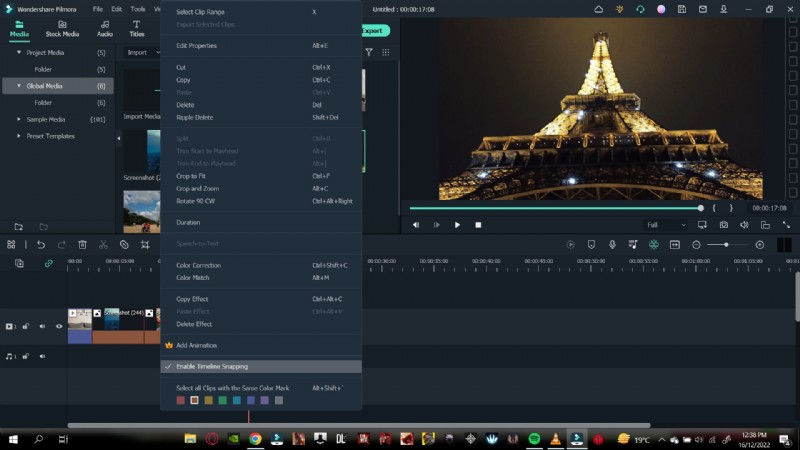
When editing multiple clips, snapping keeps them aligned precisely, preventing unwanted gaps or overlaps.
- Right‑click anywhere on the timeline.
- Toggle Timeline Snapping to enable or disable.
Part 7. Color Code Video Clips
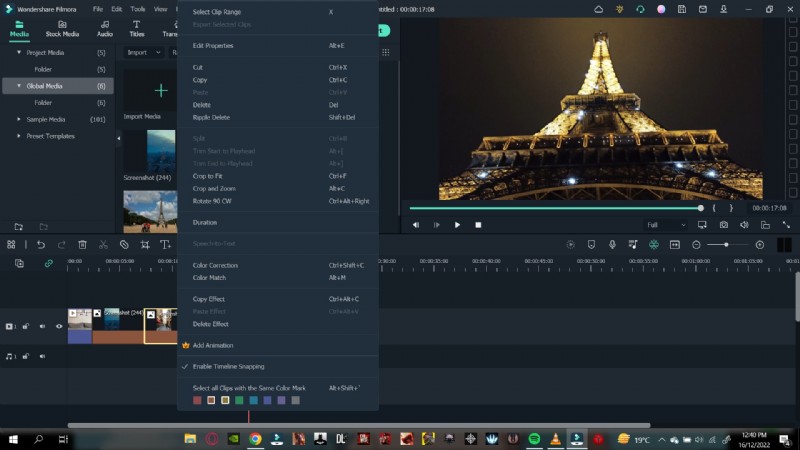
Color coding simplifies the management of footage from several sources. Assign a color to a clip, then quickly select all clips of that color for batch editing.
- Select the clip(s) you wish to tag.
- Right‑click and choose a color from the palette.
- To select all clips of that color, right‑click any colored clip and pick Select all clips of this color.
Part 8. Group Clips Together
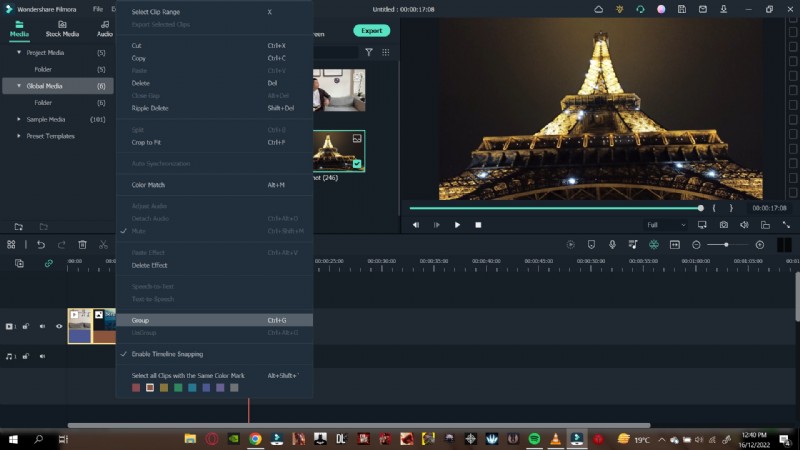
Grouping maintains the relative arrangement of a video clip and its accompanying audio. Move the group as a single unit, preserving synchronization.
- Drag to select the clips you want to group.
- Right‑click and choose Group.
Part 9. Pan and Zoom Shortcut
Pan and zoom offers dynamic motion within a still frame or clip. Filmora’s shortcut panel lets you apply preset motion paths with a few clicks.
- Right‑click a photo or video clip.
- Select Crop & Zoom from the toolbar.
- Click Pan & Zoom in the dialog.
- Choose a preset from the list and confirm with OK.

Part 10. Feature Request Process
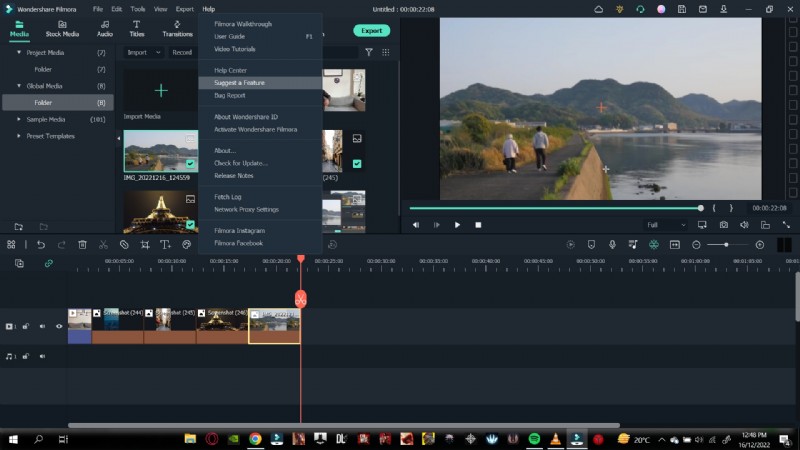
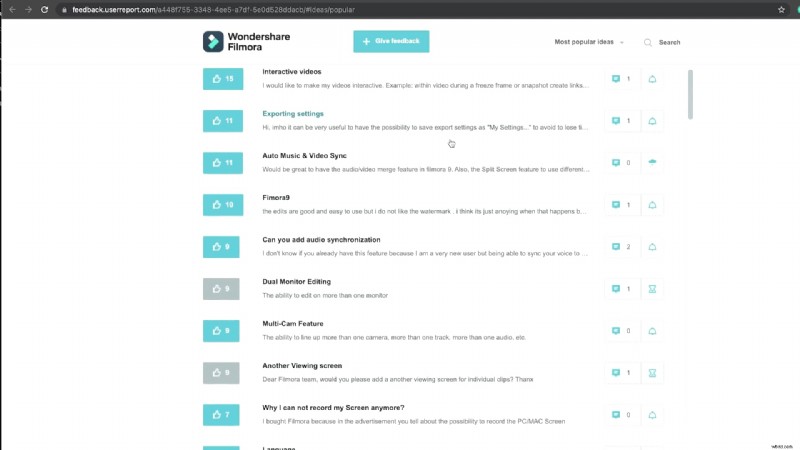
Filmora actively listens to its community. If you have a feature idea, you can submit it directly from the software.
- Click Help in the top left corner.
- Select Suggest a Feature.
- Your default browser opens to the feature request page.
- Vote for existing suggestions or submit a new one.
Summing Up
Filmora remains one of the most approachable yet powerful editing solutions. By leveraging these hidden features, you can streamline your workflow, enhance performance, and unleash greater creativity in every project.