
How to Adjust QuickTime Player Speed on Mac – A Step‑by‑Step Guide
QuickTime Player, Apple’s built‑in media player, supports a wide range of video and audio formats and lets you change playback speed with ease. Below is a professional, concise walkthrough that covers speeding up, slowing down, troubleshooting audio glitches, and how to enhance your videos further with Wondershare Filmora.
QuickTime Player Overview
QuickTime Player is available on all current macOS releases and even on Windows. Its interface is intuitive, and the player can handle video, audio, images, and panoramic photography without issue.
Hidden behind the simple “Play” button are powerful features such as adjustable playback speed, keyframe‑based effects, and a comprehensive media library.
Speeding Up a Video
There are two practical ways to increase playback speed:
Manual Adjustment
- Open the video in QuickTime Player.
- Click View → Playback Speed from the toolbar.
- Select a speed (e.g., 1.5× or 2×) and hit Play.
Using Keyboard Hotkeys
- Start the video and press Option + Right Arrow to incrementally increase speed.
- Repeat until the desired speed (usually 1.1×, 1.2×, …, 2×) appears in the top corner.
- Note: Speed above 2× can cause audio to drop; stop at 1.9× if audio is critical.

Slowing Down a Video
Manual Adjustment
- Open the video and choose View → Playback Speed.
- Select Half Speed (0.5×) or a custom value.
- Click Play to preview.
Keyboard Hotkeys
- Press Option + Left Arrow to decrement speed.
- Continue until the desired slow‑motion effect is achieved.

Troubleshooting Audio Issues When Speeding Up
Missing audio is often caused by:
- Out‑of‑date QuickTime Player – download the latest version from Apple.
- System audio settings – ensure speakers/headphones are functional and not muted.
- Corrupted video file – try playing the file in another player (e.g., VLC) to confirm.
To play at 2× speed with sound, adjust the audio output device:
- Open QuickTime Player → Edit → Preferences → Audio.
- Choose a compatible device (e.g., Promethean USB Audio) and apply.
Enhancing Playback Speed with Wondershare Filmora
Filmora offers advanced editing tools that let you apply fast‑motion or slow‑motion effects, tweak audio, and add titles or transitions.
How to Change Video Speed in Filmora
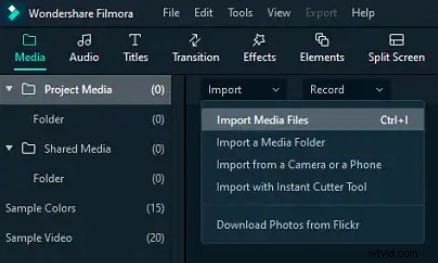
- Import your video via File → Import or drag‑and‑drop.
- Place the clip on the timeline.
- Right‑click the clip → Speed & Duration.
- Set the speed (e.g., 0.5× for slow motion, 2× for fast motion) and preview.
- Adjust audio separately if you want to preserve the original pitch.
- Export or publish directly to YouTube, Vimeo, or a DVD.
Conclusion
QuickTime Player gives Mac users quick, on‑the‑fly speed control, while Filmora provides deep editing capabilities for creative projects. Whether you need to speed through a lecture or craft a polished video, these tools cover every scenario.