
Whether you're creating a promotional video, a background animation, or a looping visual effect, extending a short clip is often necessary. iMovie, the free video editor bundled with macOS, iOS, and iPadOS, offers a simple way to duplicate and stitch clips together, creating a seamless loop.
In this article
- Loop a video on iMovie for iPhone
- Loop a video on iMovie for Mac
- Alternative: Wondershare Filmora
Part 1: Loop a Video on iMovie for iPhone
iMovie is pre‑installed on every iPhone and iPad, making it the most convenient choice for mobile editors. Follow these straightforward steps to duplicate a clip and create a loop.
Step 1: Open the iMovie app. If it’s not installed, download it from the App Store.
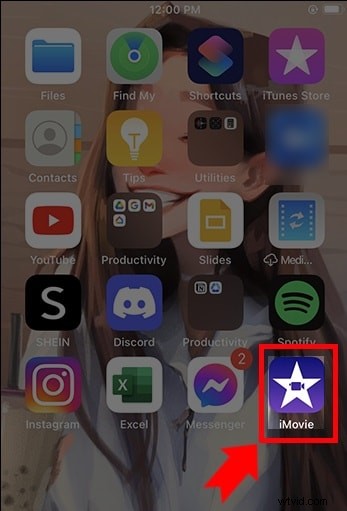
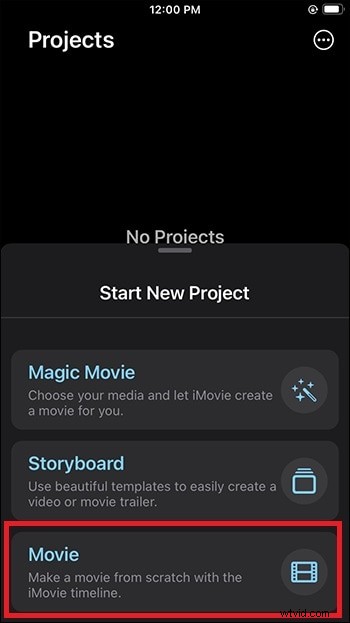
Step 2: On the welcome screen, tap “+” and choose “Movie” to start a new project.
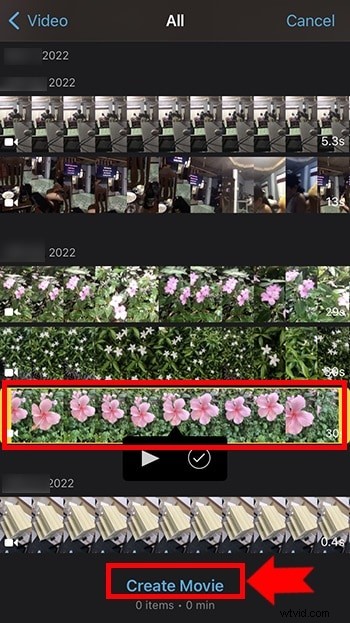
Step 3: Select the video you want to loop from your library, then tap “Create Movie.”
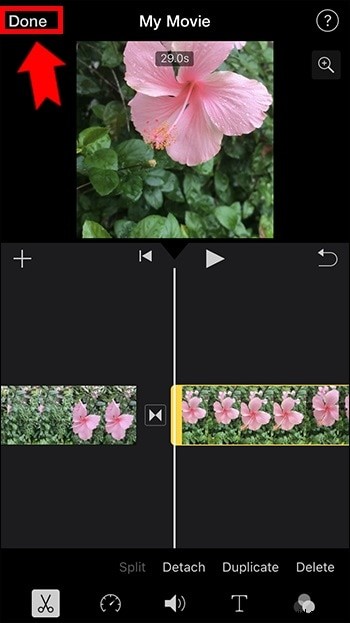
Step 4: Tap the clip in the timeline, then tap the “Duplicate” icon. Repeat as many times as needed to reach the desired length.
Step 5: When you’re satisfied, tap “Done” in the upper left corner, then tap the Share icon.
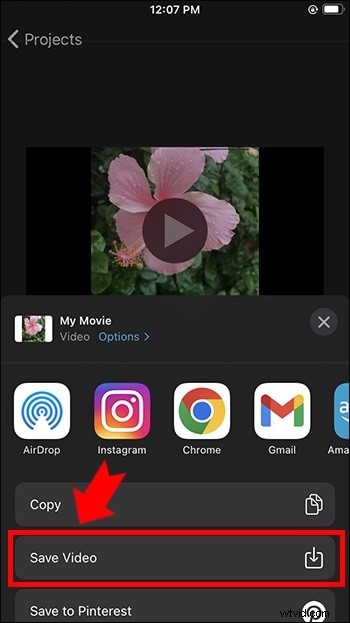
Step 6: Choose “Save Video” to export the looped clip to your Photos library.
Part 2: Loop a Video on iMovie for Mac
Using iMovie on a Mac gives you a larger workspace and a more precise editing experience. The process is similar but leverages the desktop interface.
Step 1: Open iMovie from the Applications folder.
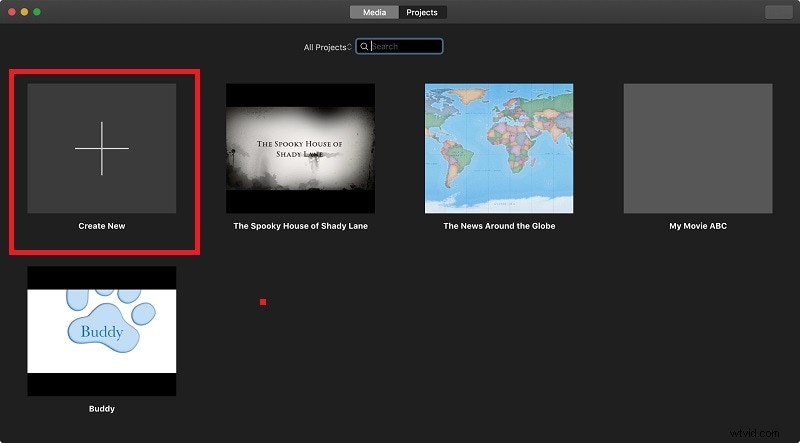
Step 2: Click “Create New” → “Movie.”
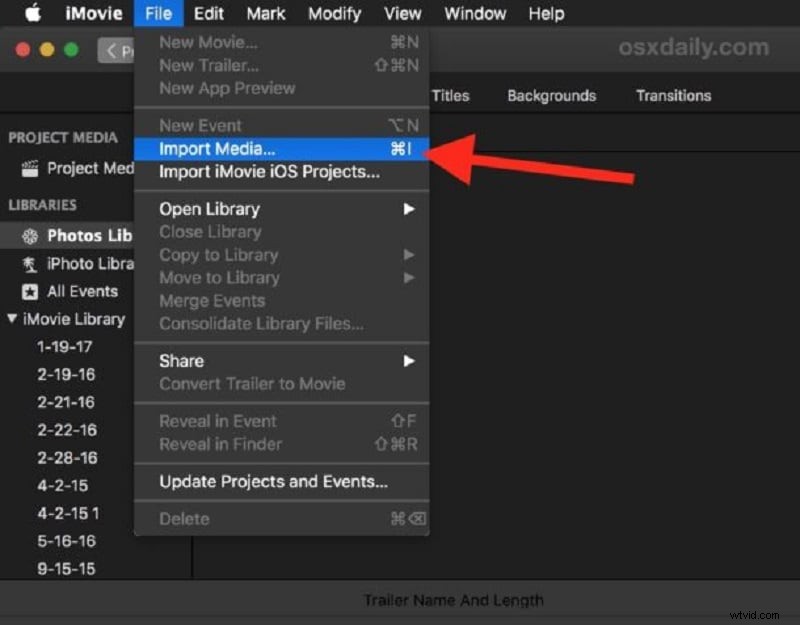
Step 3: Import your video by dragging it into the Movie Library or via File → Import Media.
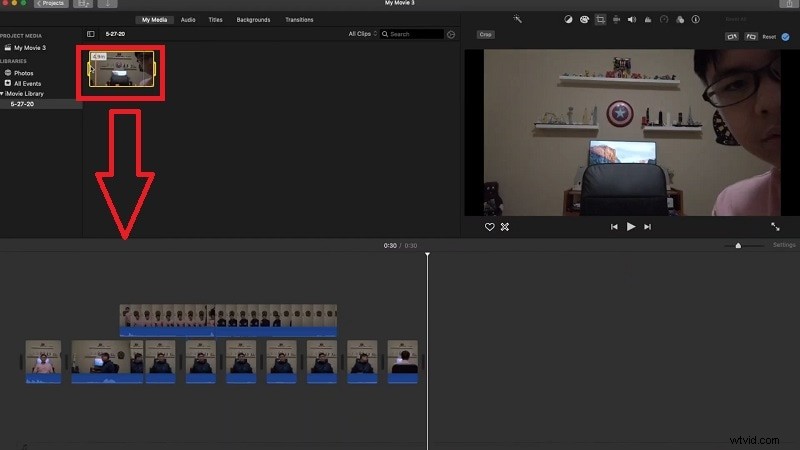
Step 4: Drag the clip onto the timeline. Drag the same clip again to append it, ensuring there are no gaps. Repeat to extend the loop.
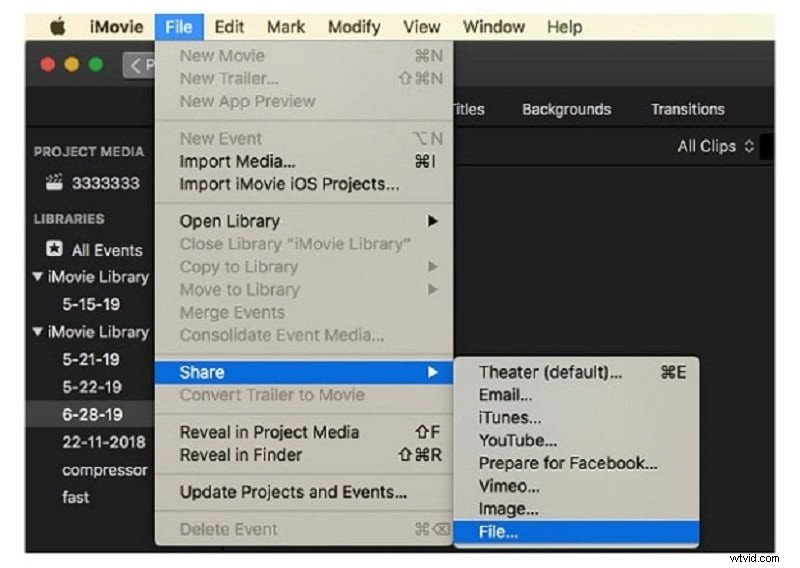
Step 5: When finished, go to File → Share → File, choose your export settings, and save.
Part 3: Alternative – Wondershare Filmora
If you’re looking for a feature‑rich editor beyond iMovie, Wondershare Filmora is a solid choice for both Mac and Windows. It offers advanced effects, transitions, and an intuitive timeline that makes looping effortless.
Step 1: Download and install Filmora, then launch the application.
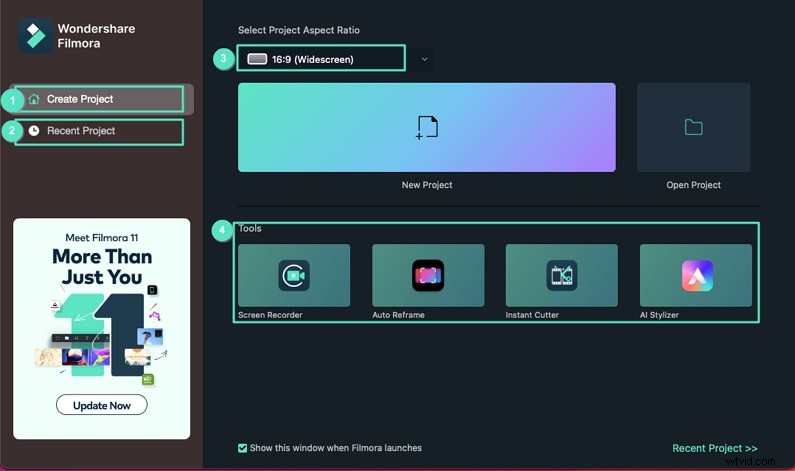
Step 2: Create a new project and import your video file into the media library.
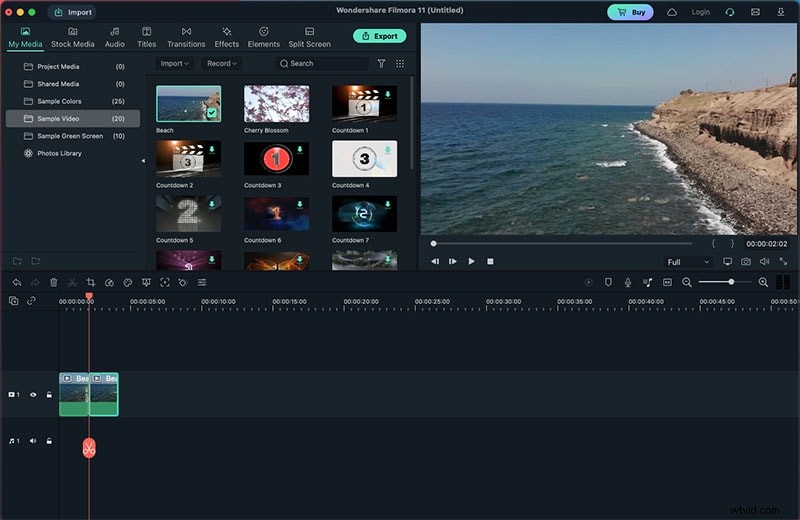
Step 3: Drag the clip onto the timeline, then drop it again immediately after to create a loop. Repeat as needed.
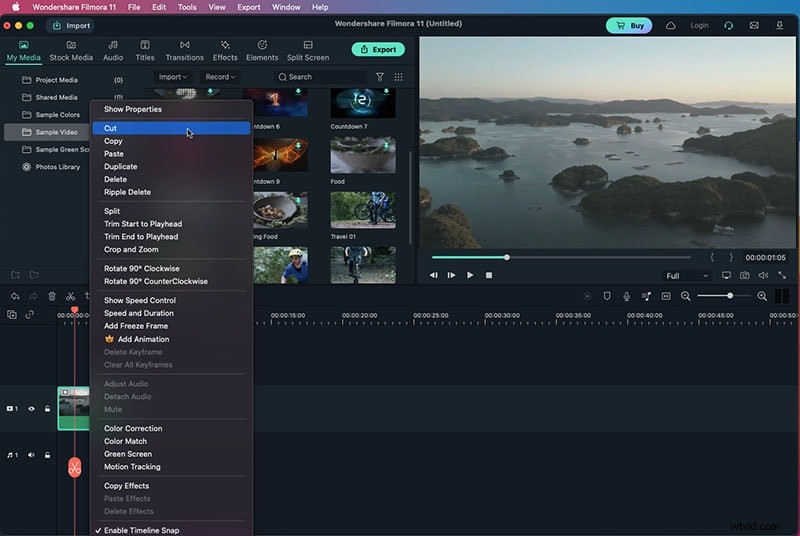
Step 4: Preview the loop in the viewer, then click “Export” to save in your preferred format.
The Bottom Line
iMovie remains the most accessible option for quick looping on both iPhone and Mac, thanks to its free, built‑in nature. For more advanced editing, Filmora provides a richer set of tools while still making looping straightforward.