
Fast motion is a popular effect in video editing that speeds up footage to create dramatic or comedic moments, or to condense lengthy scenes into a tighter runtime. Modern editing tools make this effect accessible on both desktop and mobile platforms, enabling users of all skill levels to create polished, fast‑moving videos.
Table of Contents
- How Fast Motion Works
- Best Video Editor for Fast Motion: Wondershare Filmora
- Speeding Up Videos on Mobile Devices
- Speeding Up Videos on PC
- Pro Tips for High‑Quality Fast‑Motion Videos
1. How Fast Motion Works
Fast motion is achieved by altering the frame rate of a video. If a clip runs at 24 frames per second (fps), displaying fewer frames per second or skipping frames results in a faster playback speed. Conversely, increasing the frame count slows the video. The key is balancing speed with visual fluidity—too many frames can look unnatural, too few can become jerky.
2. Best Video Editor for Fast Motion: Wondershare Filmora
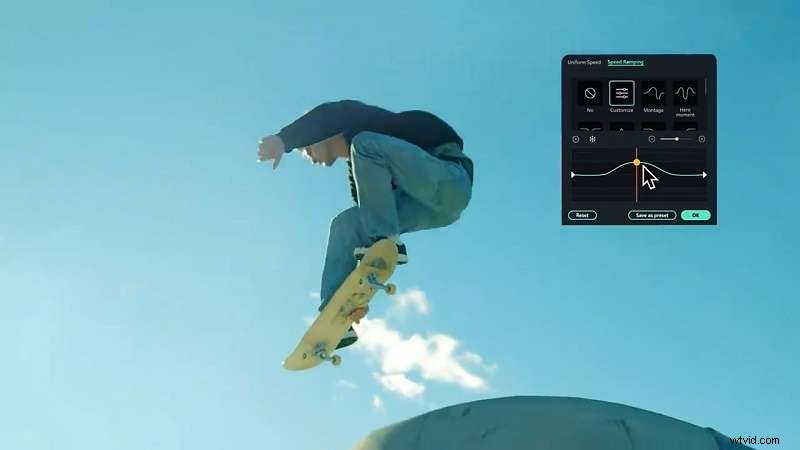
Wondershare Filmora stands out as the most user‑friendly option for creating fast‑motion footage. It supports all major operating systems—Windows, macOS, Android, and iOS—allowing you to edit on the go or at the desk.
- Intuitive speed‑up workflow
- Comprehensive effects library
- Universal video format support
Cons:
- Watermark appears in the free version
- 4K export is unavailable in the free tier
3. Speeding Up Videos on Mobile Devices
Filmora’s mobile app offers the same powerful features as its desktop counterpart. Below is a step‑by‑step guide for Android (iOS users follow a similar flow).
- Download Filmora from the Google Play Store (or App Store for iPhone).
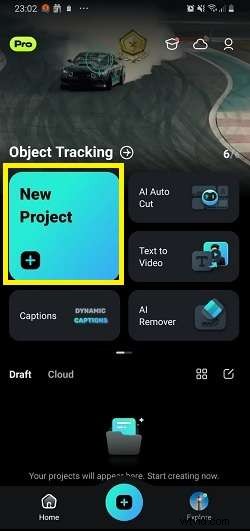
- Launch the app and tap New Project.
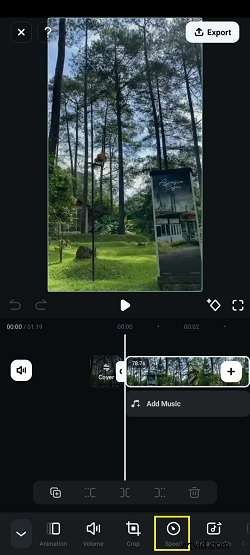
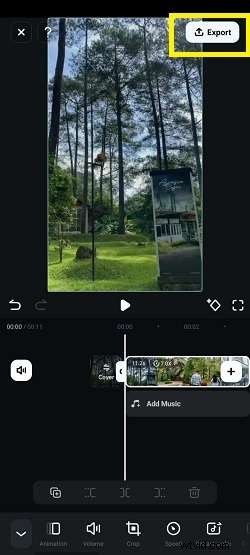
- Import your clip. Once loaded, tap the Speed button in the toolbar.
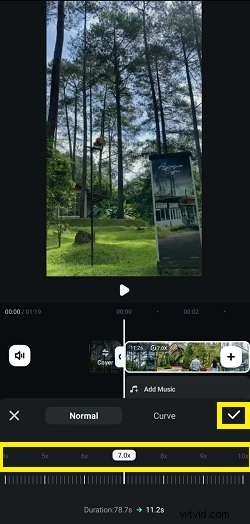
- Choose a speed multiplier—Filmora offers 1× to 10×. Preview the effect before confirming.
- Tap Export to save the edited video.
4. Speeding Up Videos on PC
The desktop version of Filmora provides a slightly more detailed speed‑adjustment panel.
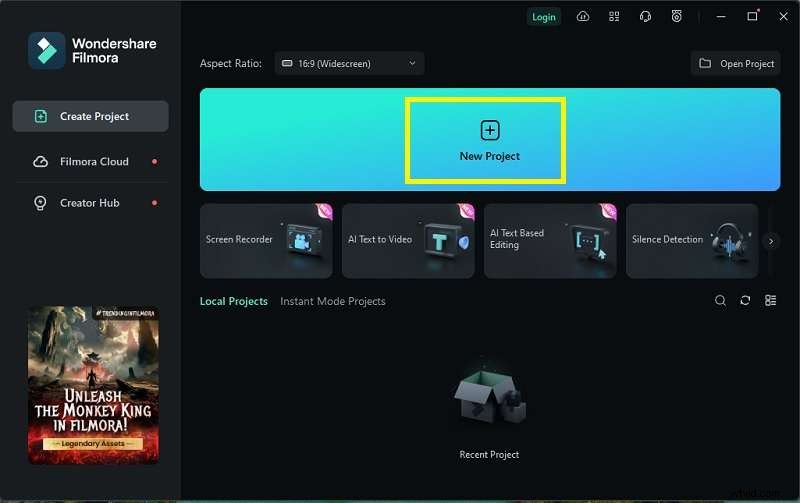
- Install the latest Filmora release and open the program.
- Click New Project on the start screen.
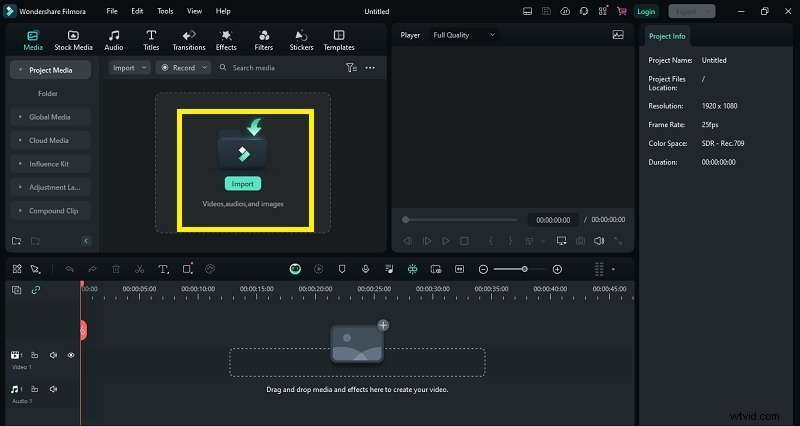
- Use the Import button to bring your video into the project library.
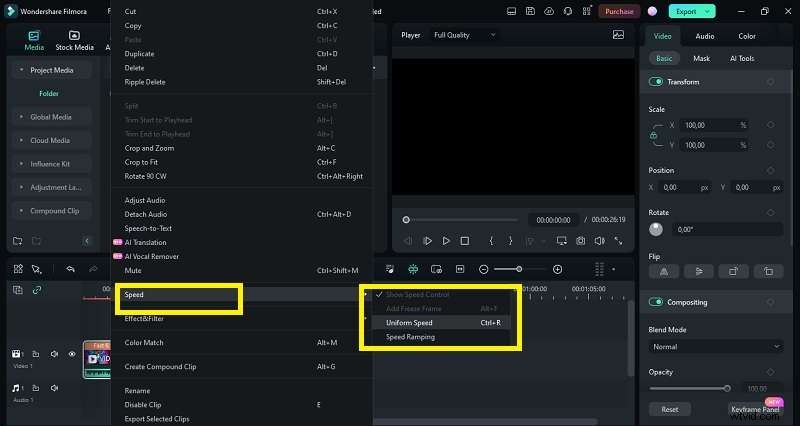
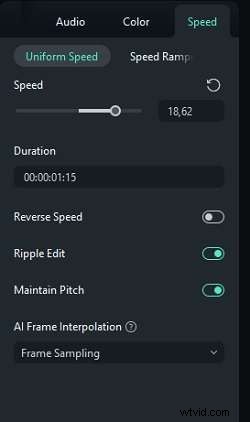
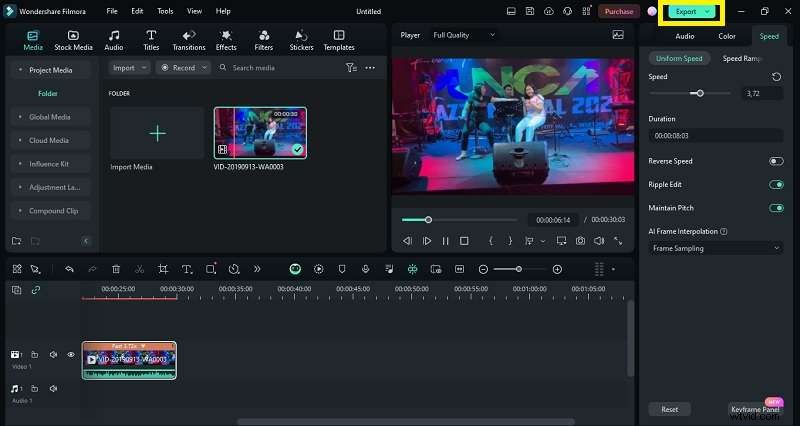
- Drag the clip onto the timeline, right‑click it, and select Speed & Duration → Uniform Speed.
- Set your desired speed multiplier, preview the result, and click OK.
- When satisfied, click Export to render the final file.
5. Pro Tips for High‑Quality Fast‑Motion Videos
- Record in high resolution so the final clip remains sharp even when sped up.
- Choose an appropriate frame rate—too high can look artificial; too low can feel choppy.
- Use a tripod or stabilizer to avoid shaky footage.
- Export with settings that match your distribution platform (e.g., 1080p at 30fps for web).
- Pay attention to audio—speed‑up can distort sound; consider adding background music or adjusting audio levels.
Conclusion
Fast‑motion editing is a powerful storytelling tool that’s now more accessible than ever. With a reliable editor like Wondershare Filmora, beginners can quickly master the technique, while seasoned editors can fine‑tune every detail. Whether you’re editing on a phone or a desktop, the steps above will help you create engaging, smooth fast‑motion videos that capture your audience’s attention.
Ready to give it a try? Download Filmora today and experience how effortless it is to transform your footage into dynamic, fast‑moving content.