
Fast Motion is an effect used to speed up the duration of a video in the video editing process. Usually, the fast motion video effect is used to make the video look more dramatic or funny. In addition, speeding up the video can also be used if you want to replay all the scenes that have a long duration to make the video duration shorter.
Because of its usefulness, many video editing software programs now can make a video into fast motion. These programs are easy to use and work on most devices, like Windows, Mac, Android, and iPhone.
To help you learn how to use the fast motion effect, this article will show you how to speed up a video on both mobile and desktop. Keep reading and follow the steps to make your videos faster!
In this article
Part 1. How Fast Motion in Video Works
Simply put, speeding up a video changes how many pictures (or frames) are shown every second. So If you're wondering how to make a video in fast motion, the answer is simply the software either skips some pictures or shows them more quickly than normal.
For example, if a video has 24 frames per second, it means 24 pictures are shown in one second. If there are fewer frames, the video plays faster. If there are more frames, the video plays slower.
The frame rate of a video affects its look and feel, determining how realistic it is. If the frame rate is too high, it will look unnatural, and if it is too low, it will look jerky.
Part 2. Best Video Editor for Creating Fast Motion Video: Wondershare Filmora
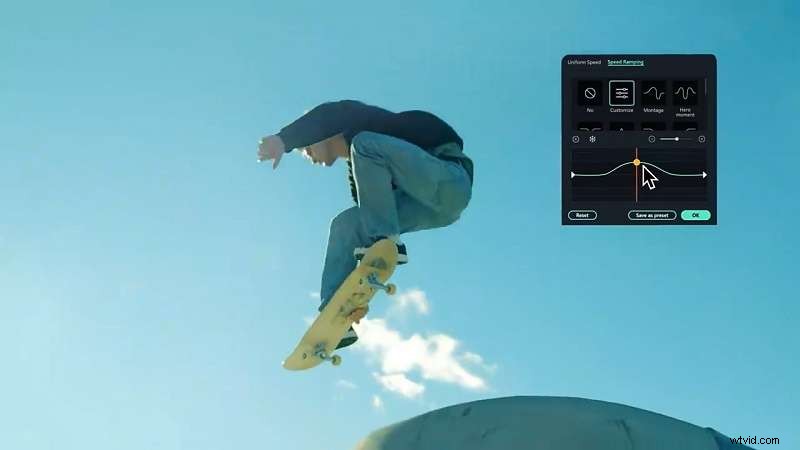
If you want to make a video into fast motion, we recommend the best video editor software, Wondershare Filmora. The software has a fast motion feature to add fast motion effects to your videos. Wondershare Filmora can be used on mobile and desktop and is available for Windows or Mac and Android or Iphone users. Changing video speed using Filmora software only takes a few moments.
Here are the pros and cons of Wondershare Filmora:
Pros- Easy video speedup process
- Speed ramping features
- A complete effects library
- Supports all video formats
- There is a watermark for the free version.
Read on to learn how to make a video in fast motion using the advanced software Wondershare Filmora.
Part 3. How to Make Video in Fast Motion on Mobile Devices
For users who do not have a computer or laptop, do not worry. Wondershare Filmora software can be used on mobile phones. This allows you to edit videos on the go with the same great features you'd find on a desktop. So, whether you're using an Android or an iPhone, you can easily create and edit videos right from your device!
Follow this simple guide of how to make video into fast motion on Android (for iphone users, the method is almost the same):
Step 1: Download Wondershare Filmora on Google Play Store for android users (on App Store for iphone users).
Step 2: Launch the Wondershare Filmora app, then select “New Project” on the first interface.

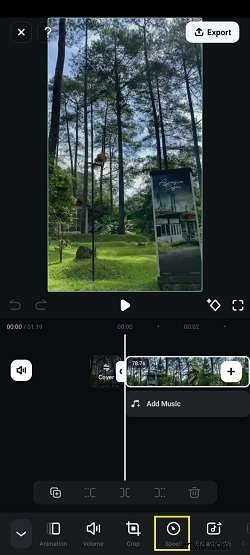
Step 3: Then import the video you want to speed up the duration. After you import it, it will appear as below. Click the "Speed" button in the menu bar.
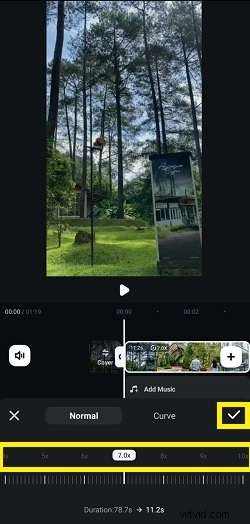
Step 4: A pop-up window will appear. Choose the speed you want; available speeds are 1x, 2x, 3x, and up to 10x; you can see the effect in the preview window first. After that, click the check mark.
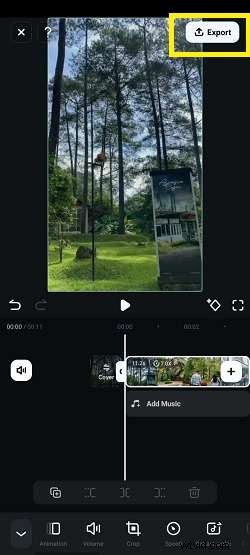
Step 5: Once you are satisfied, click “Export” to save your video editing results.
Part 4. How to Make Video in Fast Motion on PC
In addition to changing video speed using Wondershare Filmora on mobile, you can also use Wondershare Filmora on desktop. Changing video speed in Filmora can be done through the speed and duration panel settings. The process will be completed in seconds.
Follow this simple guide of how to make video into fast motion in Filmora for Desktop:
Using Speed and Duration Panel (Uniform Speed)
Step 1: Download the latest version of Wondershare Filmora. Then, install and launch this software on your PC.
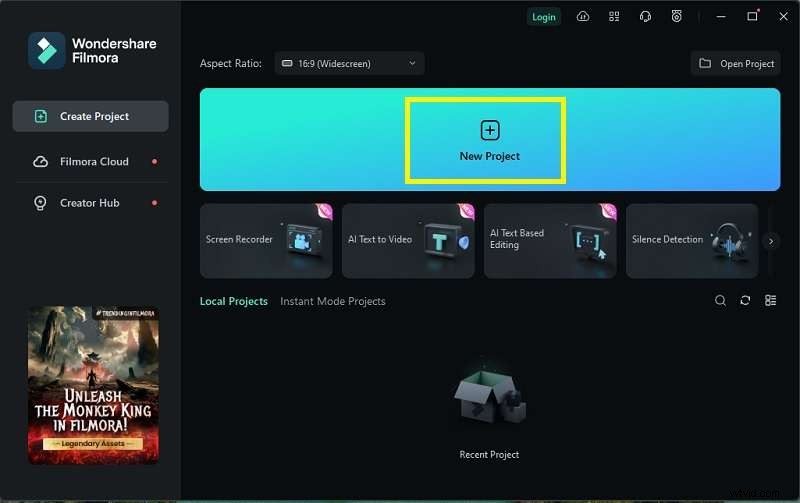
Step 2: The first interface window will appear, then click “New Project”.
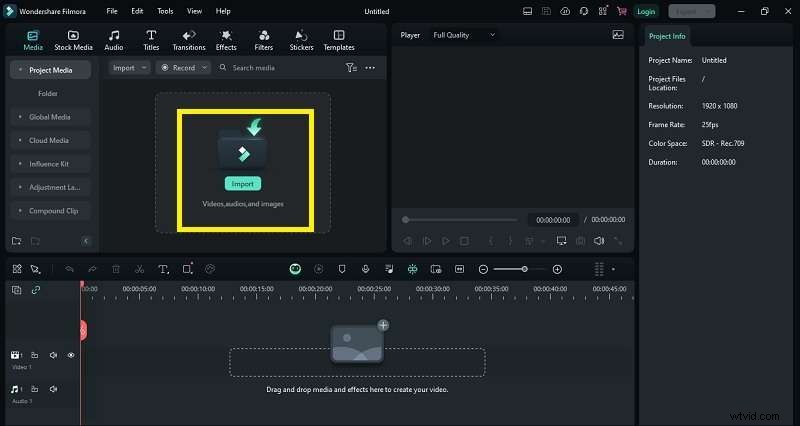
Step 3: The next step is to click the “Import” button to upload videos from your computer library.
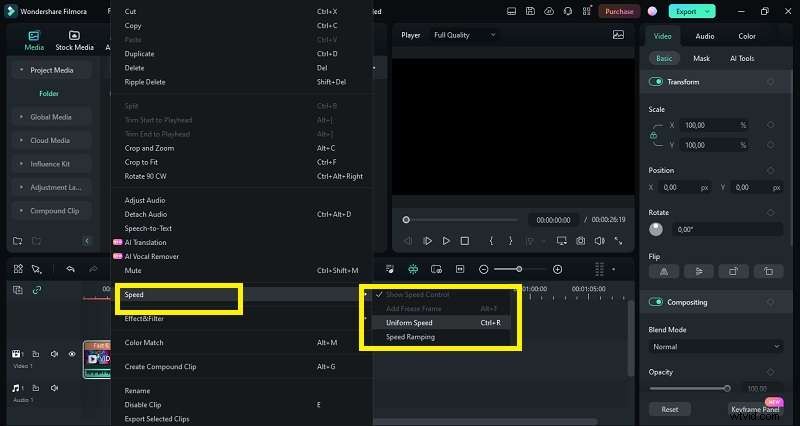
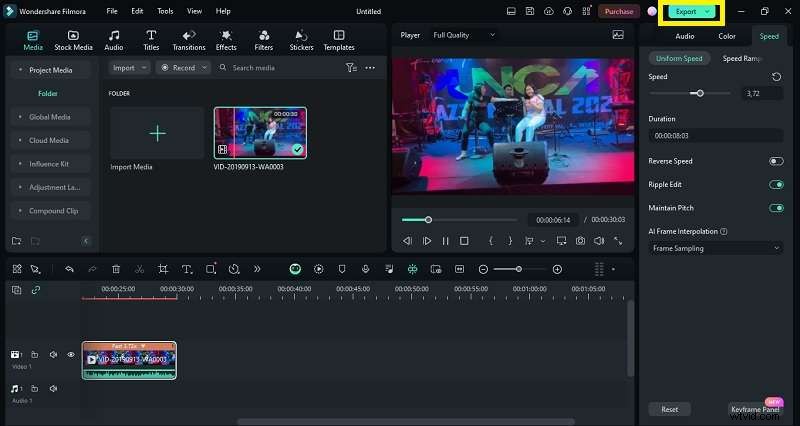
Step 4: Now that your video clip has been successfully imported into the timeline, we can start adjusting its speed. Right-click on the video clip in the timeline. A pop-up box will appear, scroll down and select the "Speed" option and then select "Uniform Speed".
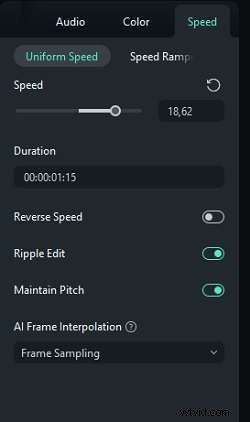
Step 5: Set the video speed you want. Preview the video before saving and exporting.
Step 6: Once you are satisfied with the result, click “Export” to save it.
Part 5. Tips to Create High-Quality Fast Motion Video
After learning how to make a video into fast motion, you might think you got it all figured out, but there’s still more to learn! After all, to make the best fast motion videos, you need to use a few helpful tricks. Whether you want your videos to be funny or dramatic, these tips will help you create fast motion videos that look smooth, clear, and super cool to watch!
- Use High-Resolution Recording: Recordings that have high resolution when sped up will still look clear and sharp.
- Optimize Frame Rate: Frame rate affects the look and feel of the video. The Frame Rate of a video must be appropriate because if the frame rate is too high, the video will look unnatural, and if the frame rate is too low, the video will look jerky.
- Use a Steady Camera: This is important for videos, as shaky or uneven video can be distracting or uncomfortable for viewers if watched for too long.
- Export with the Right Settings: When exporting, pay attention to the export settings, if the settings are correct, then your video will be of high quality. Use the appropriate setting values for your video needs.
- Pay Attention to Audio: In addition to video visuals, audio plays an important role in enhancing the viewer's experience. If you pay attention to audio quality, you can improve the quality of your video and can attract more viewers.
Conclusion
The fast motion effect is a great tool that can be useful in many different situations. Thanks to advanced video editing software, even beginners can easily change the speed of a video. By following the steps in this article, you can quickly speed up any video on your computer or mobile device.
Wondershare Filmora is an excellent choice for this because it works on all devices—Windows, Mac, Android, and iPhone—making it the perfect option for anyone wondering how to create fast motion videos.
If you're still unsure about trying it, don't worry! Give it a go and experience how easy it is to speed up videos with Wondershare Filmora.