
The typewriter effect adds a cinematic, live‑typing feel to video captions, drawing viewers' attention to key messages. In this guide, you’ll learn how to create that effect in After Effects—both with built‑in presets and from scratch—while also seeing why Filmora can be a simpler alternative.
Part 1: Using the Built‑In Typewriter Preset
After Effects ships with a “Typewriter” preset that instantly animates any text layer as if it’s being typed. Follow these steps:
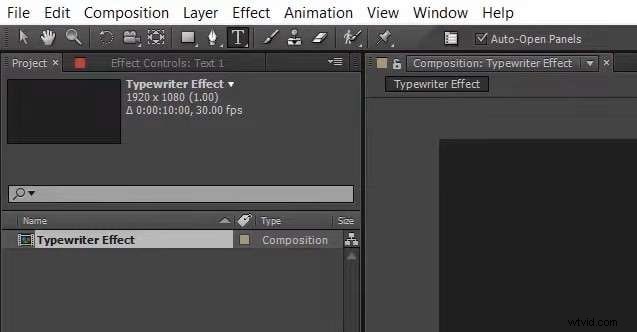
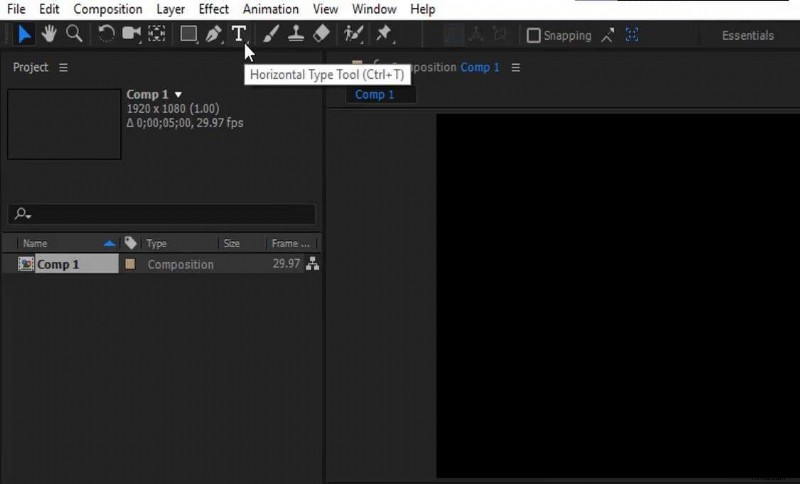
- Create a new composition and use the Type Tool to add a text layer.
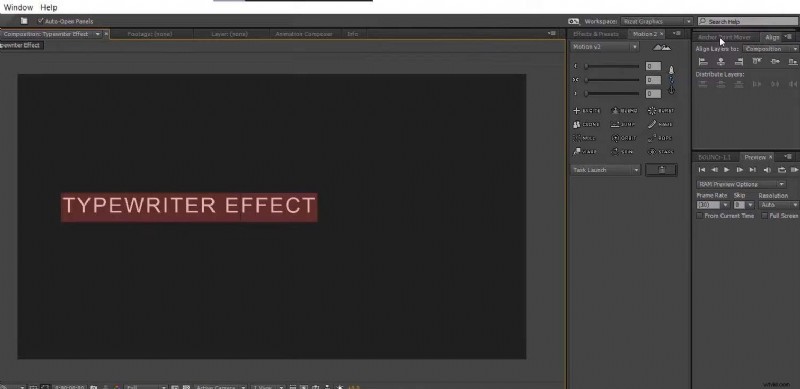
- Enter your desired text and style it (font, size, rotation, etc.).
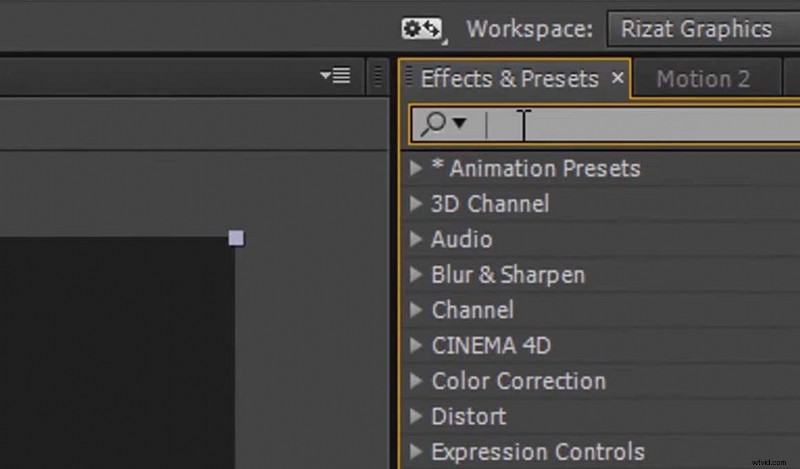
- With the text layer selected, open Window > Effects & Presets. Search for “Typewriter” and drag it onto the layer.
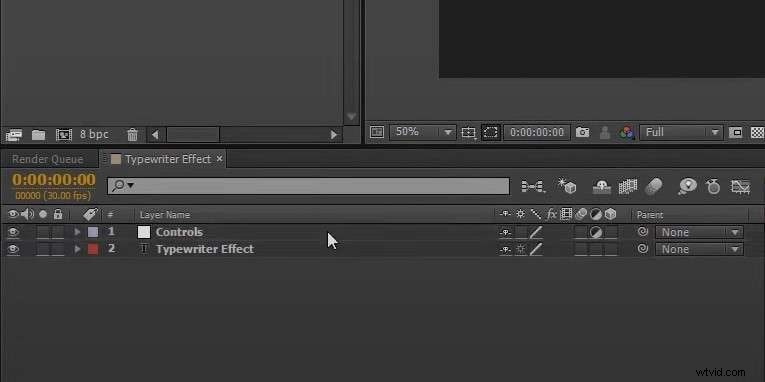
- Expand the effect controls in the Timeline and adjust the Blink Speed and Cursor Shape to match your design.
- Fine‑tune the typing speed by moving the Typewriter keyframes in the Timeline.
Part 2: Building the Effect from Scratch
If you prefer full control, you can animate the typewriter effect manually:
- Type your text with the Type Tool and style it.
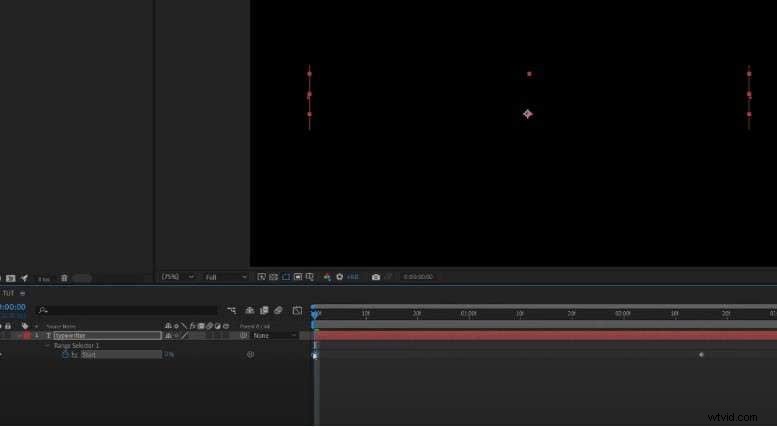
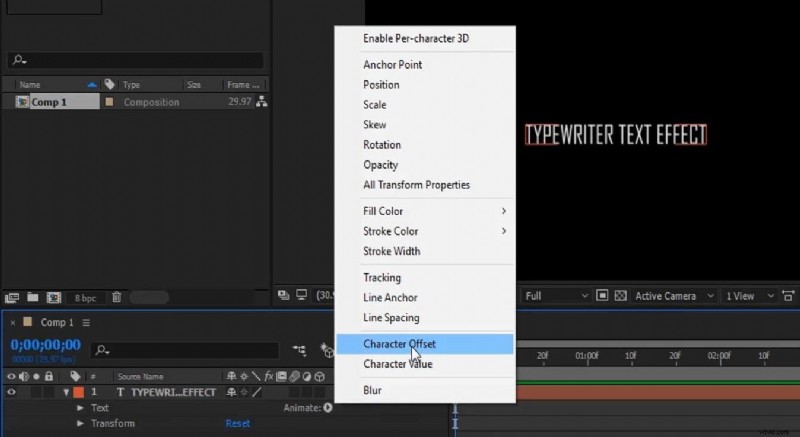
- Open the layer’s Animation menu, choose Character Offset, then add a Opacity keyframe set to 0.
- Click the Range Selector 1 arrow, start a keyframe, set Start to 0 % and End to 100 %.
- Under Advanced, set Smoothness to 0 to eliminate easing.
- Preview the animation and export.
Part 3: Considerations and Limitations
- Steep Learning Curve – Even experienced designers can find After Effects’ UI and keyframing complex.
- Feature‑Heavy – Advanced tools and options can be overwhelming for newcomers.
- Cost – A full After Effects subscription is required; the feature isn’t free.
Part 4: Filmora – A Simpler Alternative
Filmora offers ready‑made typewriter presets and text animations that are easier to use and more affordable. Key benefits include:
- A large library of title presets: typewriter, 3D text, glowing titles, etc.
- Fully customizable text (color, rotation, outlines, templates).
- Variable animation speeds for both typing‑in and typing‑out effects.
Because Filmora’s free version provides a generous amount of credits, you can experiment before purchasing.
Adding the Typewriter Effect in Filmora (Preset)
- Create a new project and import your media.
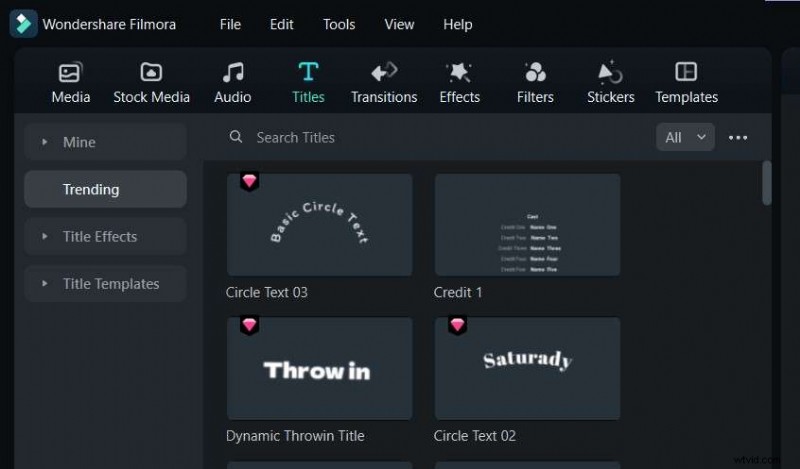
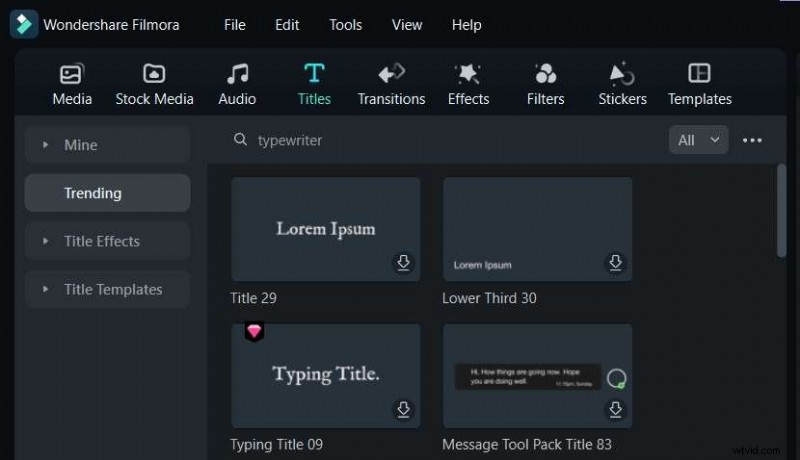
- Go to Titles and search for “Typewriter.” Pick a preset that fits your style.
- Edit the text properties—font, color, size—to your liking.
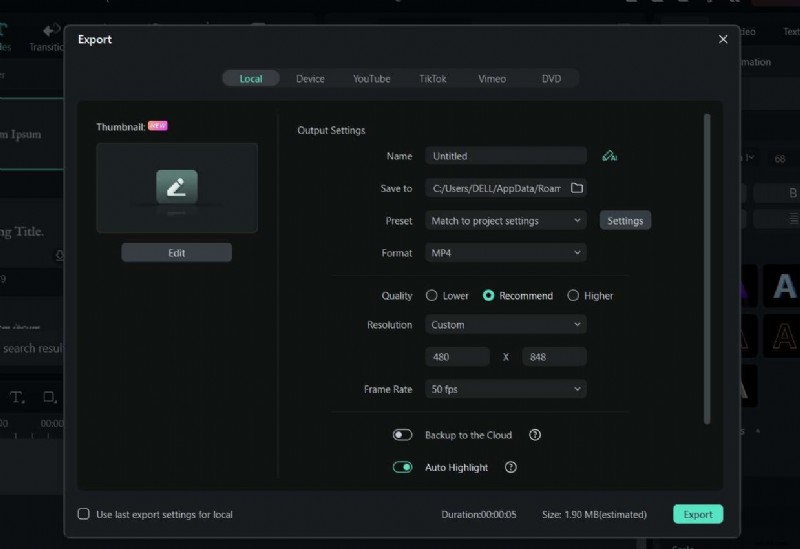
- Preview and export.

Adding the Typewriter Effect in Filmora (Text Animation)
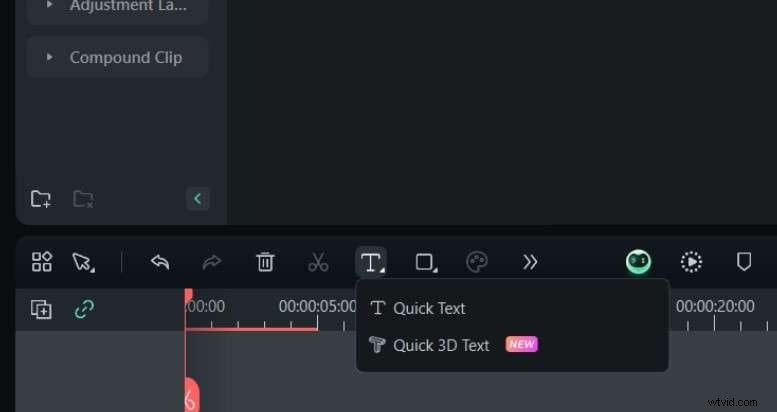
- Open the Quick Text tool from the editing suite.
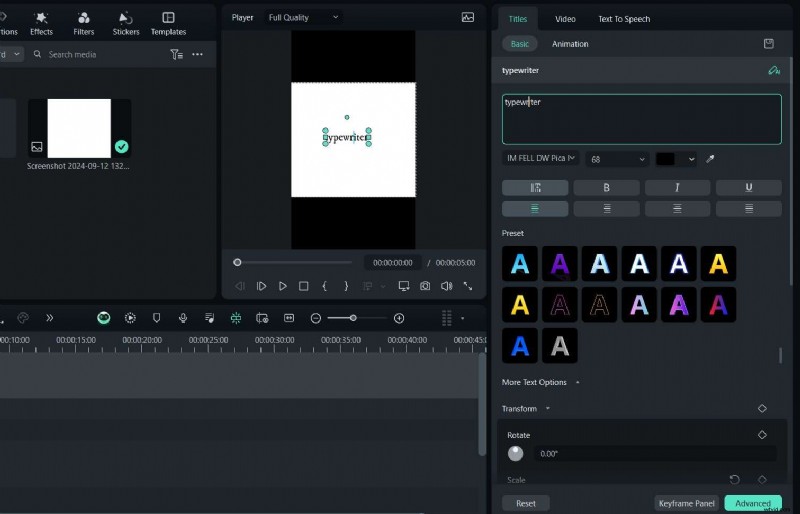
- Enter and style your text.
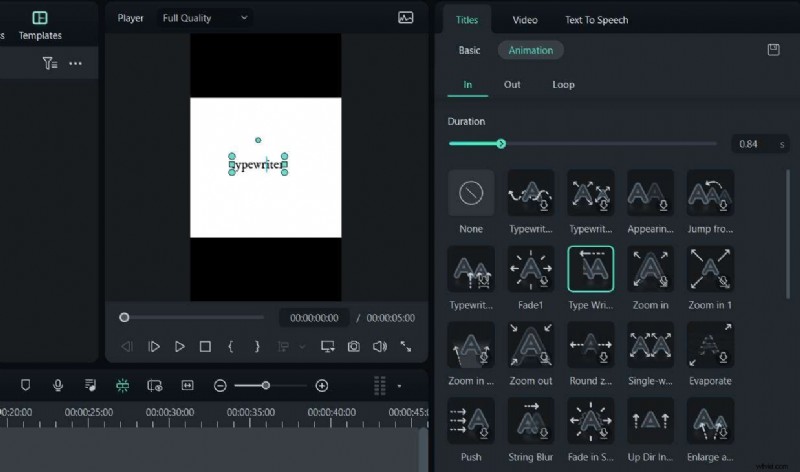
- With the text selected, choose Animations > In > Typewriter. Adjust the speed slider, preview, then export.
Conclusion
After Effects delivers a powerful, professional typewriter effect—ideal for creators who need full control and are comfortable with its complexity. For those who prefer a straightforward workflow, Filmora’s built‑in presets and animations offer a cost‑effective solution without compromising visual impact.
Ready to add that cinematic typing flair? Try After Effects for complete mastery, or jump straight to Filmora for an easier experience. Download Filmora from the official website today.

