
Have you ever wondered why most of us prefer videos over text?
The answer is simple. It's because videos simplify the whole learning process. They help us process information better and improve memory recall. So much so that today, we all rely on videos to communicate complex ideas, concepts, information and instructions.
So, irrespective of who you are, if you plan to teach something to people, you can definitely try investing your time and energy in creating a series of training videos.
In today's post, we will be giving you a complete walk-through about how to create training videos using the simplest approaches and tools. But, before we learn how to create training videos, let's try to understand what they truly are, and how people across different sectors benefit from them.
What is a training video?
A training video is a video that instructs or teaches someone about something. It could be a how-to video, a tutorial, or a screencast that teaches how to get something done with easy-to-follow instructions.
What are the different types of training videos?
There are several types of training and instructional videos. It's important to choose the right type of video content before you start your video creation process. Based on your audience's interests and learning goals, you will be able to decide on the type of video you need to create for your audience. Here are some of the popular types of video content.
i) Micro-videos
A micro-video is a short video that tries to deliver a message or a call to action within a short time frame. These types of training videos are increasingly becoming popular because of three reasons - they are easy to consume, to the point, and are effective in delivering the message within a few seconds. The optimal length of a micro-video is somewhere around five to fifteen seconds.
ii) Screencasts
A Screencast is a digital screen recording that can be used to create detailed training manuals, tutorial guides, and video presentations. They are widely popular in the educational sector and are actively used by educators, online course creators and coaches. Simply put, a screencast captures everything that's visible on a computer's screen and allows presenters to add voice narrations and webcam overlays explaining the process.
iii) Animated videos
Animated videos are fun to create. These videos use graphics, text and voiceovers to deliver their messages. Animations also help in making the videos more engaging for the audience. These kinds of animation training videos can be created for young learners in the age group of 6 - 12. There are quite a few tools available online that help beginners create animation videos effortlessly. Some of the popular animation tools are Animaker, Powtoon, Vyond, etc.
iv) Screen recordings
A screen recording is simply a recording of the content of your computer screen. These kinds of videos are usually used to create how-to videos, instructional guides, product demonstration videos, employee training manuals, etc.
v) Roleplay videos
In these types of videos, a scenario is usually enacted to make viewers understand a learning process. These videos would be suitable for soft skills training.
Why are training videos so popular?
Training videos and instructional guides can be used across different sectors. It can be used to create e-learning materials, YouTube training materials, employee onboarding manuals, etc.
Some of the main reasons why training videos are popular amongst different sectors are stated below. They
- Make employee onboarding & training easier.
- Provide practical learning exposure without real-time interactions
- Help viewers rewatch important sections of the videos multiple times
- Serve as a great alternative to books and courses
- Help visual learners grasp lessons better
- Make it easier to access anytime, anywhere
- Reduce training costs & time
How to create a training video: 5 simple steps
Now that we have a clear understanding of what training and instructional videos are, let's dive in and learn how to create training videos easily in five simple steps.
Step 1: Choose the best training video software & download it to your computer
Choose the right software and install the application to your system. In the next section of this post, we will also be sharing the list of 5 best training video software available online. Feel free to take a look at it and make an informed buying decision.
Note: In this process, we teach you how to create training videos with the help of Vmaker. Vmaker is a popular screen recording software that allows its users to create training and instructional videos effortlessly in just a few simple steps. It comes with a built-in video editor and allows users to record HD videos. Users have access to multiple recording modes and can easily record both their screen and webcam. It comes without watermarks and provides custom branding options as well.
If you choose to make your training videos with Vmaker, you can either download Vmaker's chrome extension from the Chrome Web Store or download the software as a Mac application.
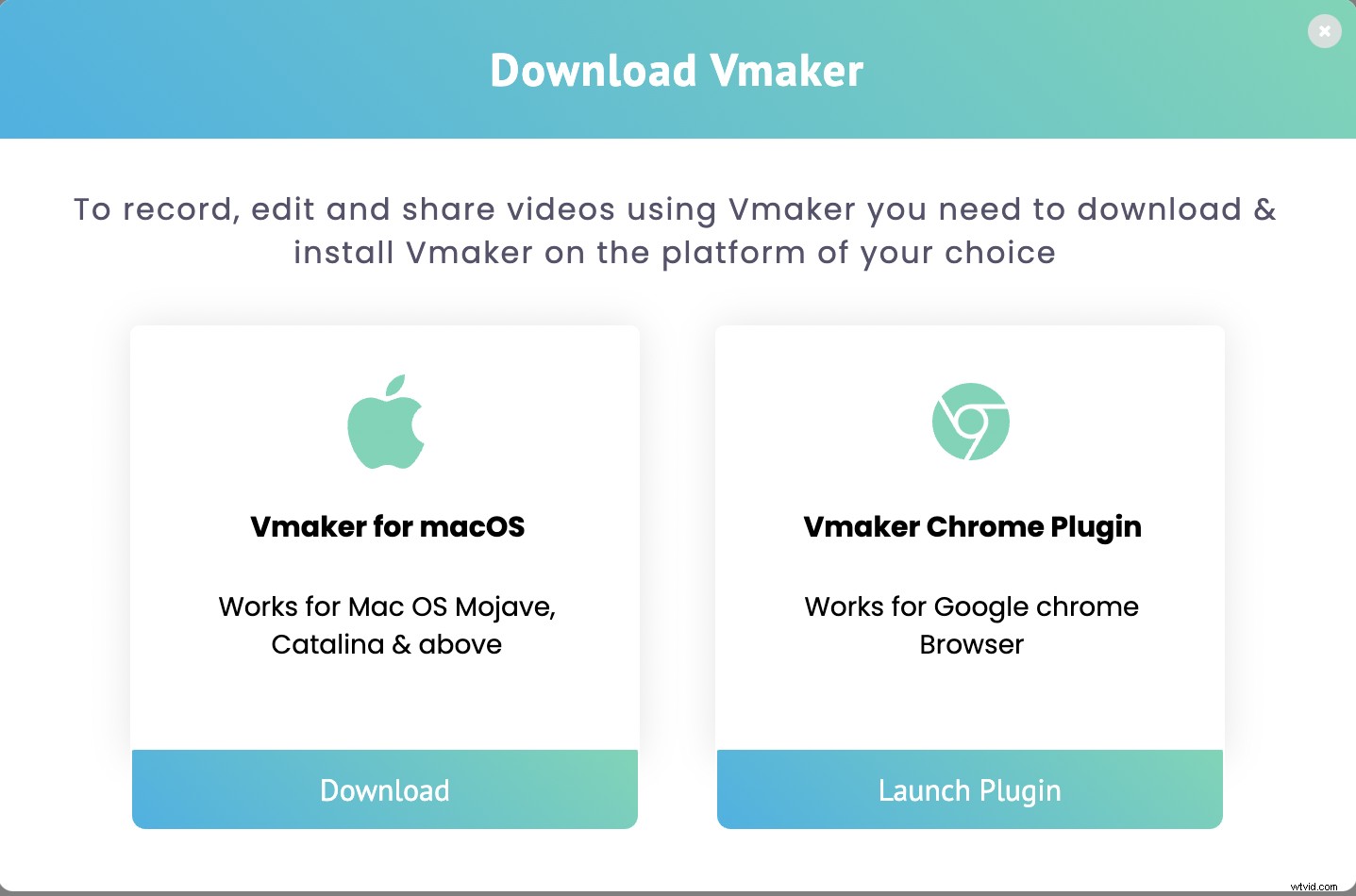
Just head over to Vmaker's official page and sign up for Vmaker. You will be directed to the dashboard, from where you can download the software in your preferred format.
Pro tip: If you're using Vmaker's chrome extension, you can pin the extension to your chrome browser. By doing this, you make it easier to access the application with just a single click.
Step 2: Prepare a script
Now, it's time to prepare your script. Once you are ready with your script, you can try taking a few mock sessions before you start recording for real. This helps you gain practice and helps you give your best shot. But, if you're already well prepared, you can skip the mock recordings, and start recording the real session.
To start recording, click on the 'Record' button on your dashboard. A small drop-down box will appear below your user icon. This is where you select your basic recording features.
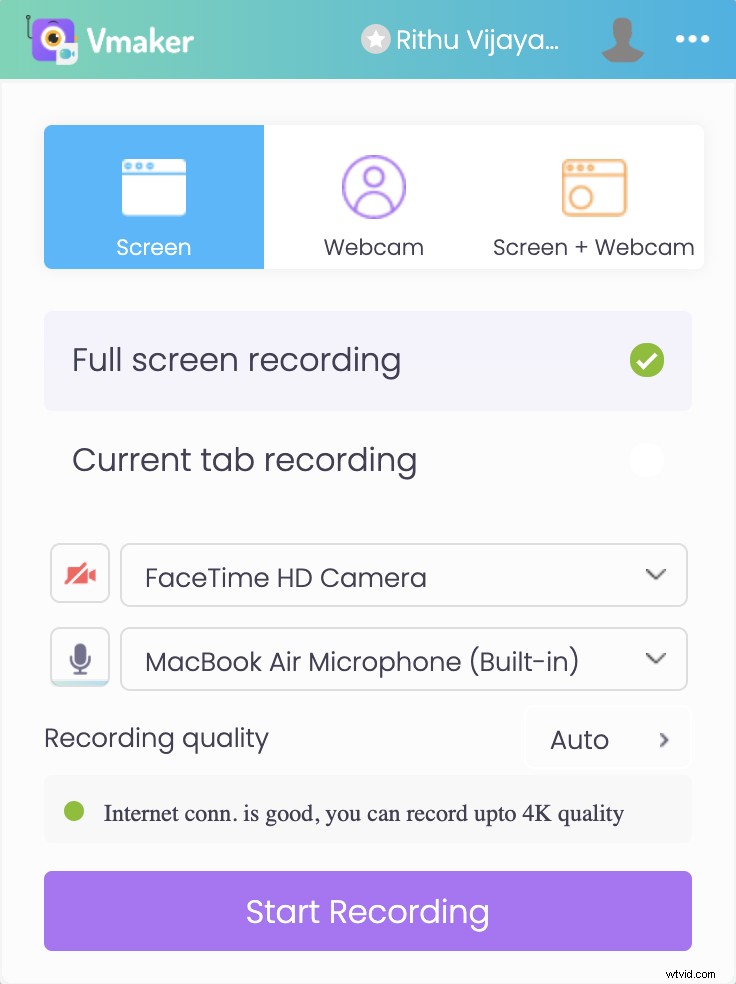
Select your desired recording quality, recording mode and audio output source. You can either click on 'Start recording' right away or try enhancing your videos further by enabling some additional features.
Step 3: Customize your preferences to enable advanced features
You can customize your recording preferences according to your own requirements.
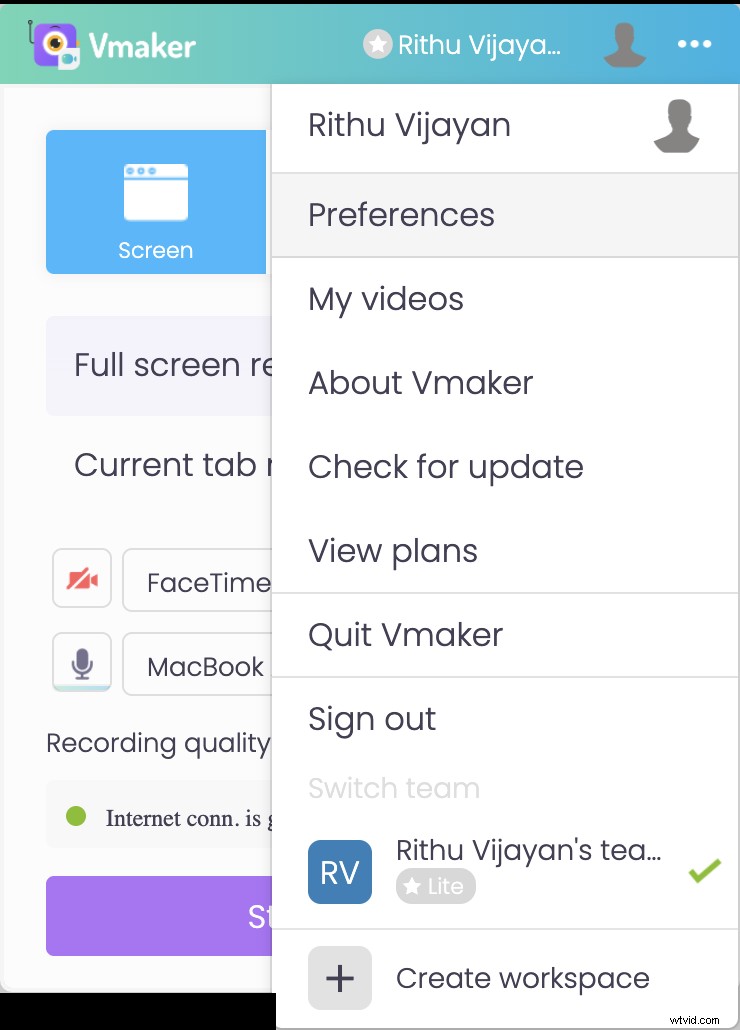
In order to do this, click on your profile icon, and select 'Preferences'. Here, you will have some advanced features. Enable the features that would help enhance your recording and start recording.
As soon as you click on the 'Start Recording' button, a timer starts indicating to you that the recording is about to start in three seconds. Once the timer stops, the recording starts.
When you're done recording, you can click on 'Stop Sharing'.
Step 4: Edit the recording if necessary
As soon as you finish the recording, you will be able to access the recording in Vmaker's dashboard. If you choose to edit the recording, you can do so by clicking on the 'Edit' option.
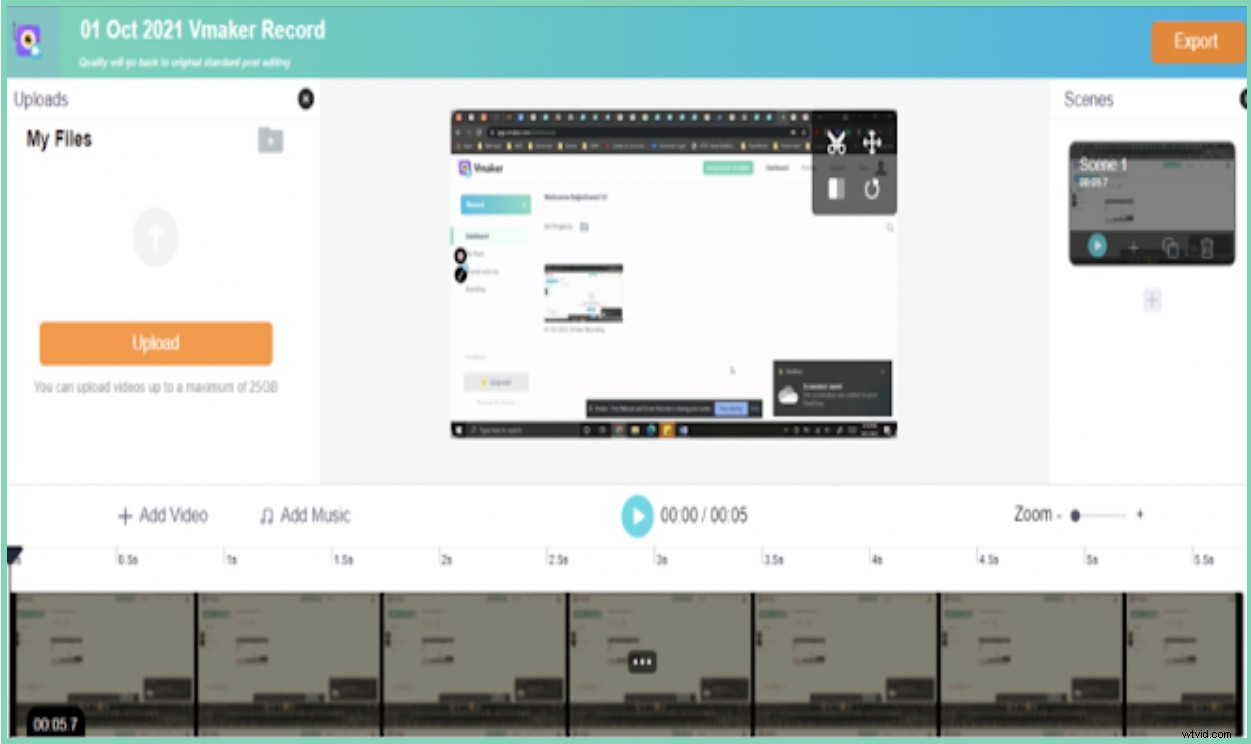
You will be directed to Vmaker's built-in editor. Here, you'd be able to crop, trim, rotate and flip the recording easily. Once you're done with the editing process, you can export the file to your dashboard in your desired quality.
Pro tip: Before you start editing your video, we highly recommend you 'Duplicate' the file. This ensures you have a backup of your original copy in case you cut out some necessary sections of your original video during the editing process.
Step 5: Download and share the video recording
Once you are done with the recording and editing process, you can easily download, share or upload the training video to any of your social media platforms. If you choose to share the recording, you can do so by copying the link.

5 Best training video software available online
If you're on the lookout for the best software for creating training and instructional videos, you can check out this list of 5 best training video software. This list elaborates on each of the product's features, pricing policies and ratings.
1. Vmaker
Vmaker is an all in one recording suite that helps users record, edit and track video metrics based on the number of views a recording gets. It comes with no watermarks and provides custom branding options. Users can easily record their screens and add narrations using the webcam overlay. Vmaker also comes with screen annotation tools that help users draw and highlight important sections of the recording.
Features
- Recording scheduler
- Watermark free
- Records both internal & external audio
- Comes with a built-in video editor
- Offers up to 4K recording quality
- Allows users to track video metrics
- Comes with screen annotation tools
- Easily shareable
- Allows users to add subtitles, music and customizable background to their videos
Pricing
It has three main pricing packages.
- Lite plan (free): $0
- Starter plan: $84 a year/ $7 a month
- Team plan: $120 a year/ $10 a month
Reviews & Ratings
- G2 Rating: 4.7
- Capterra Rating: 4.5
- Crozdesk Score: 90/100
2. Camtasia
Camtasia is also a complete video recording software that provides all the necessary recording and editing features one would look for in a training video software. It has a stock library of ready-made video templates, animations and audio tracks that helps even beginners create training videos effortlessly.
Features
- Built-in video editor
- Screen annotation
- Powerpoint integration
- Allows users to add a table of contents
- Readymade video templates
- Easily shareable
Pricing
It provides a license that's valid for a lifetime.
Camtasia license: Rs 26, 383.
Reviews & Ratings
- G2 Rating: 4.5
- Capterra Rating: 4.6
- Crozdesk Score: 96/100
3. Screencast-o-Matic
Screencast-o-Matic is a commonly used software in the educational sector to create screencasts, instructional guides, tutorials, etc. It allows users to personalize their videos with images, screen effects and transitions.
Features
- Provides multiple collaboration tools
- Comes with built-in video editing tools
- Provides easy backup and recovery
- Records both internal and microphone audio
- Provides speech to text translations
- Easily shareable
Pricing
It has four pricing packages.
- Free plan: $0
- Business plan: $5/user per month
- Premier plan: $5.75 per month (annual subscription)
- Deluxe plan: $4 per month (annual subscription)
Reviews & Ratings
- G2 Rating: 4.2
- Capterra Rating: 4.6
4. Panopto
Panopto is another screen recording tool that comes with all the necessary recording, editing and video management features. It allows users to create and record video presentations enhanced with special multimedia elements.
Features
- Provides a video content management software
- Records both system audio and microphone audio
- Allows users to track engagement
Pricing
It has two major pricing packages.
- Panopto Basic plan: $0
- Panopto Pro: $14.99/month
Reviews & Ratings
- G2 Rating: 4.2
- Capterra Rating: 4.5
5. Hippo Video
This is an easy-to-use software that helps users create training guides, tutorials and video messages. It allows users to personalize their videos with graphs, callouts and tags.
Features
- Provides video analytics and reports
- Customizable video thumbnails
- Provides 100 GB bandwidth
- Provides multiple video embed options
- Easily shareable
Pricing
It has separate pricing packages for different categories.
Sales
- Starter plan: $15 per month
- Pro plan: $ 30 per month
- Growth plan: $ 48 per month per user
- Enterprise plan: $79 per month per user
Team
- Starter plan: $4 per month
- Pro plan: $ 15 per month
- Growth plan: $ 20 per month
Reviews & Ratings
- G2 Rating: 4.5
- Capterra Rating: 4.5
Bonus: Tips and tricks to create effective training videos
In order to create an effective training video, it's safe and advisable to stick to a plan. Follow these five steps to make your video creation process easier.
- Plan precisely
- Write the content
- Create a Storyboard
- Create or record your training video
- Distribute effectively
Here are some additional tips you can keep in mind while you make your training videos.
- Tell a story
- Set a clear learning objective
- Know your audience
- Don't aim for perfection in the very first shot
- Ensure that the video recording is mobile-friendly
- Determine the budget of your video beforehand
- Remember, that you don't need costly recording equipments
- Don't hesitate to hire a professional voice over artist
- Set up an engaging thumbnail
- Share on multiple social media channels
Recommended Reads
- A Complete Product Video Guide - 2022
- The Ultimate Guide: What is Screencasting & How To Create One (2022)
- A Complete Tutorial Video Guide (With Tips & Tricks)