
Adding text to an image has many benefits. You can use it to spread a message on social media, add a cool title for the photo, or simply write a funny joke to make people laugh. There are instances where you have text in a photo, but you want to remove it because you want to write something else. You might think that it is a challenging task, but we are here to tell you that it isn't.
Stick around and learn how to edit text from photos, delete it, add new text, and all that using one simple tool with stellar AI features.
In this article
-
- Curved Text
- Text Animation
- Text Distortion
How To Change Text on a Picture on Mobile
The easiest tool that you can use to edit the text in an image is Filmora. Available for Windows, Mac, Android, and iOS, this video editing tool is packed with image and audio editing features. It has the AI Remover feature, which you can use to remove unwanted objects or people from a photo. You can also add text animations, text effects, change fonts, and explore a whole bunch of awesome templates.
To change the text on a picture, you should use Filmora's AI Remover feature to remove the text first, then add new text to the photo. Strap in!
- Download and install Filmora on your mobile.
 Secure Download
 - Open the app and tap on AI Remover.
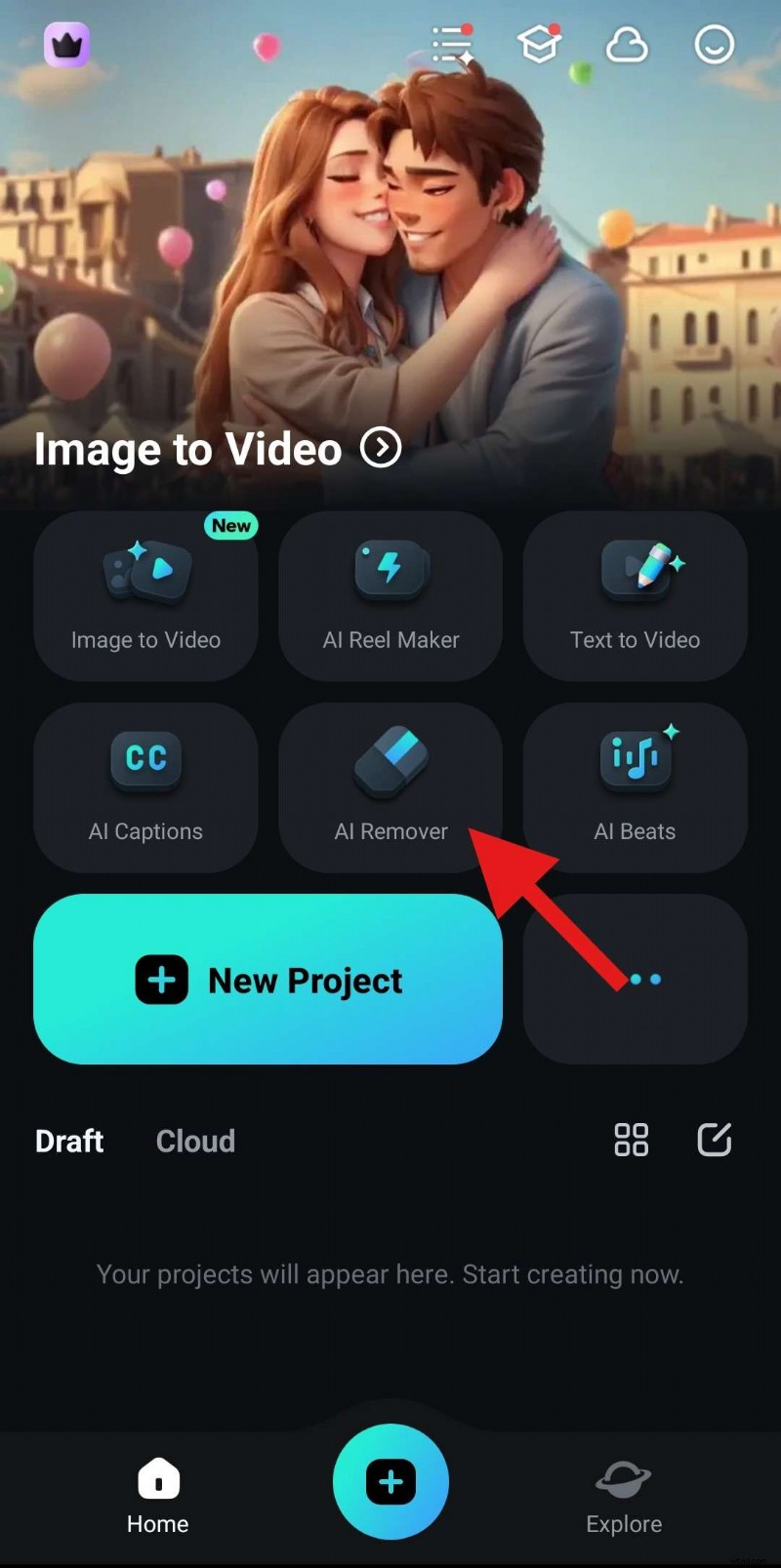
- Select Remove Text and tap on Try Now.
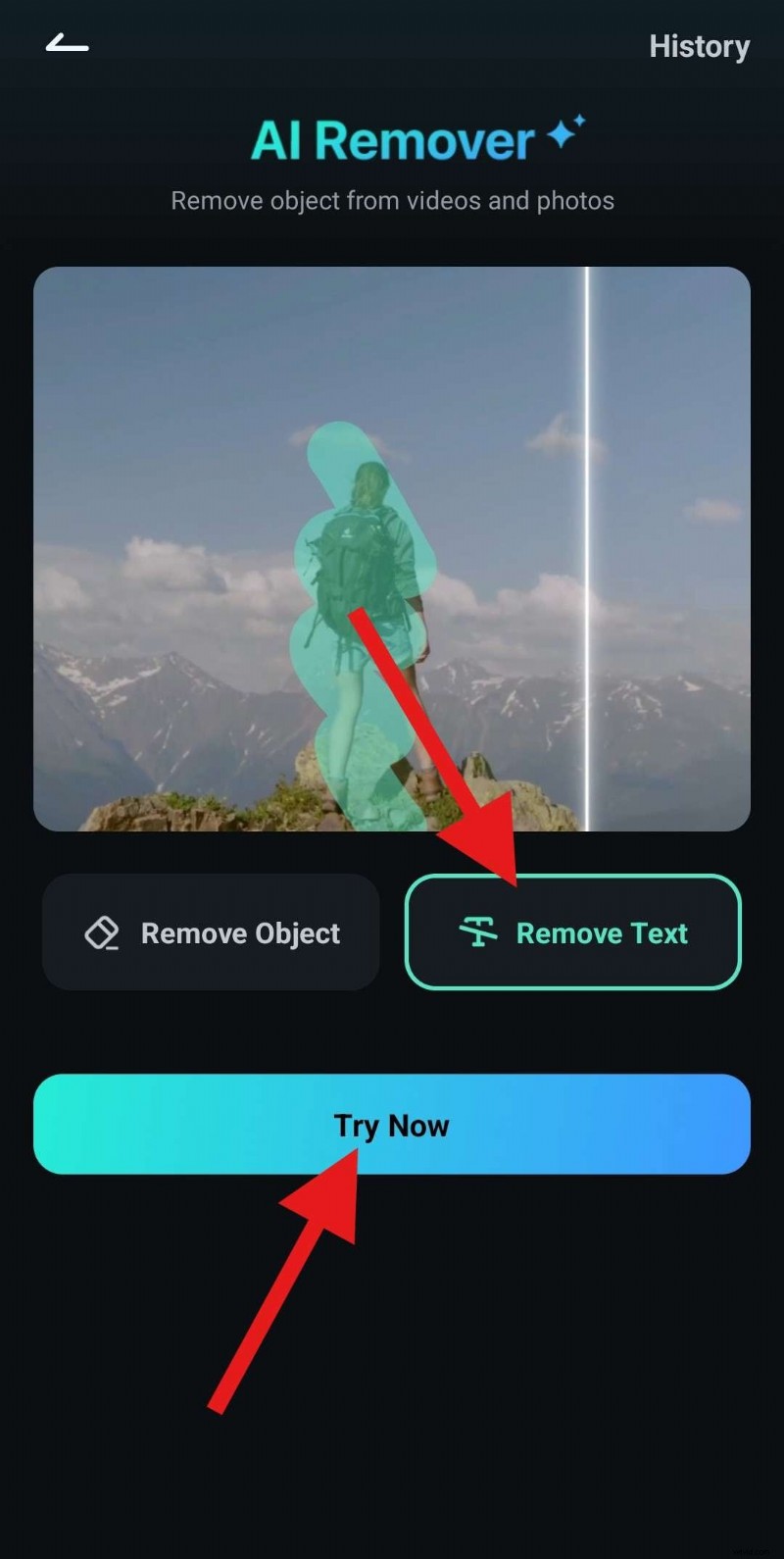
- Select the photo where you want to remove text and tap on Import.
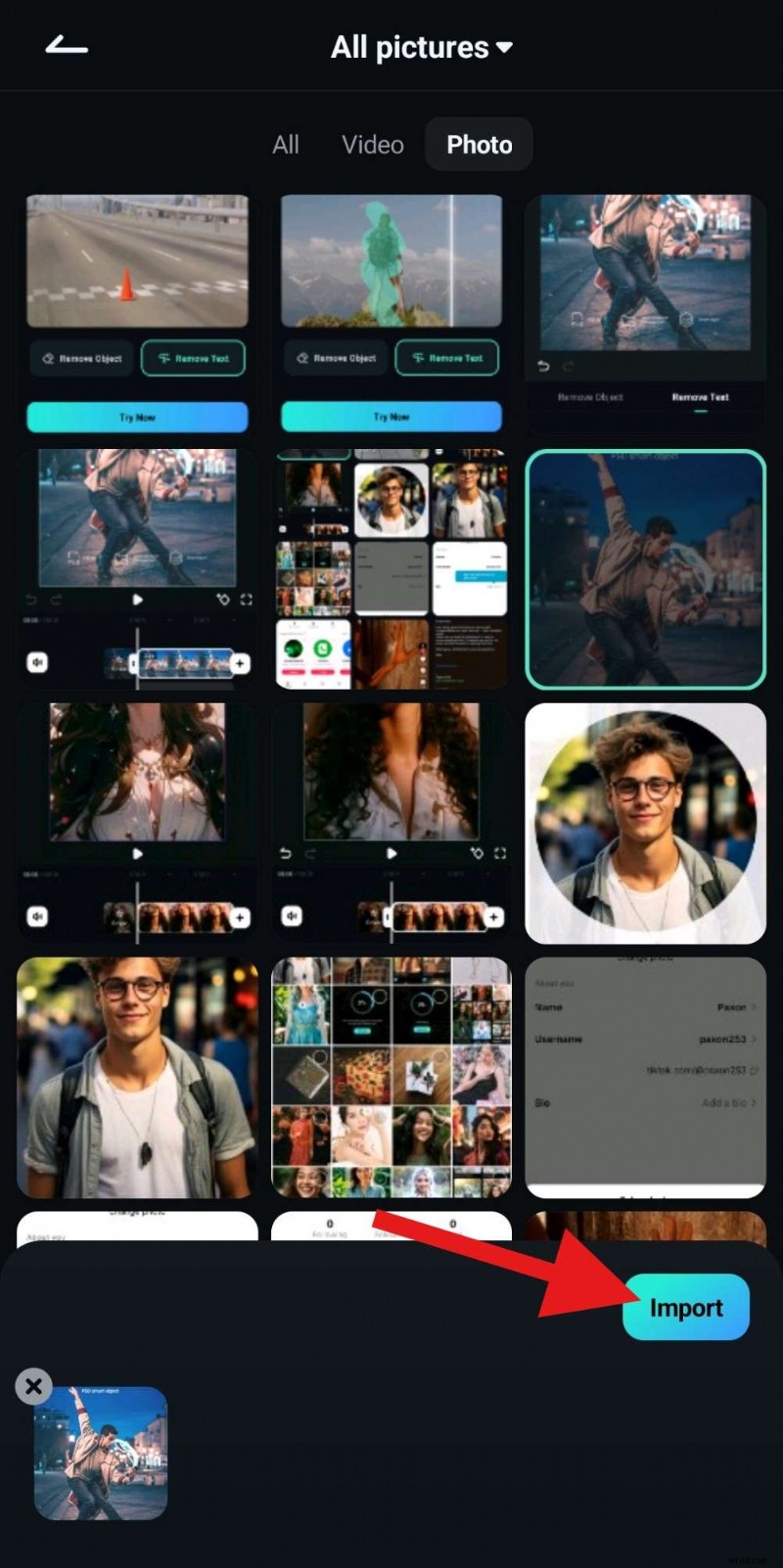
- Select the text that you want to remove and tap on Process Now.
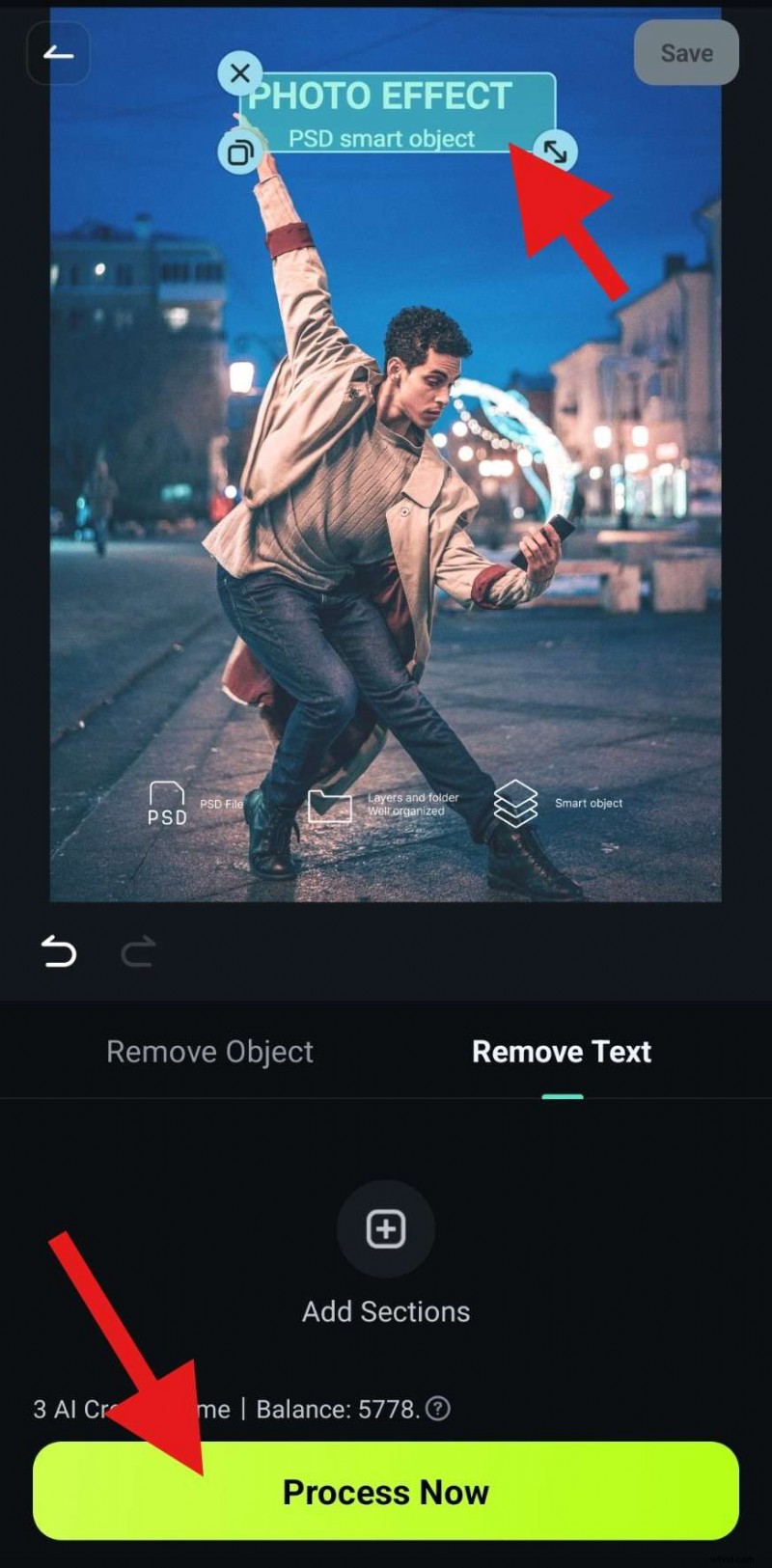
- Wait for a few seconds for the AI to process the request. This feature works fast, so you shouldn't wait long.
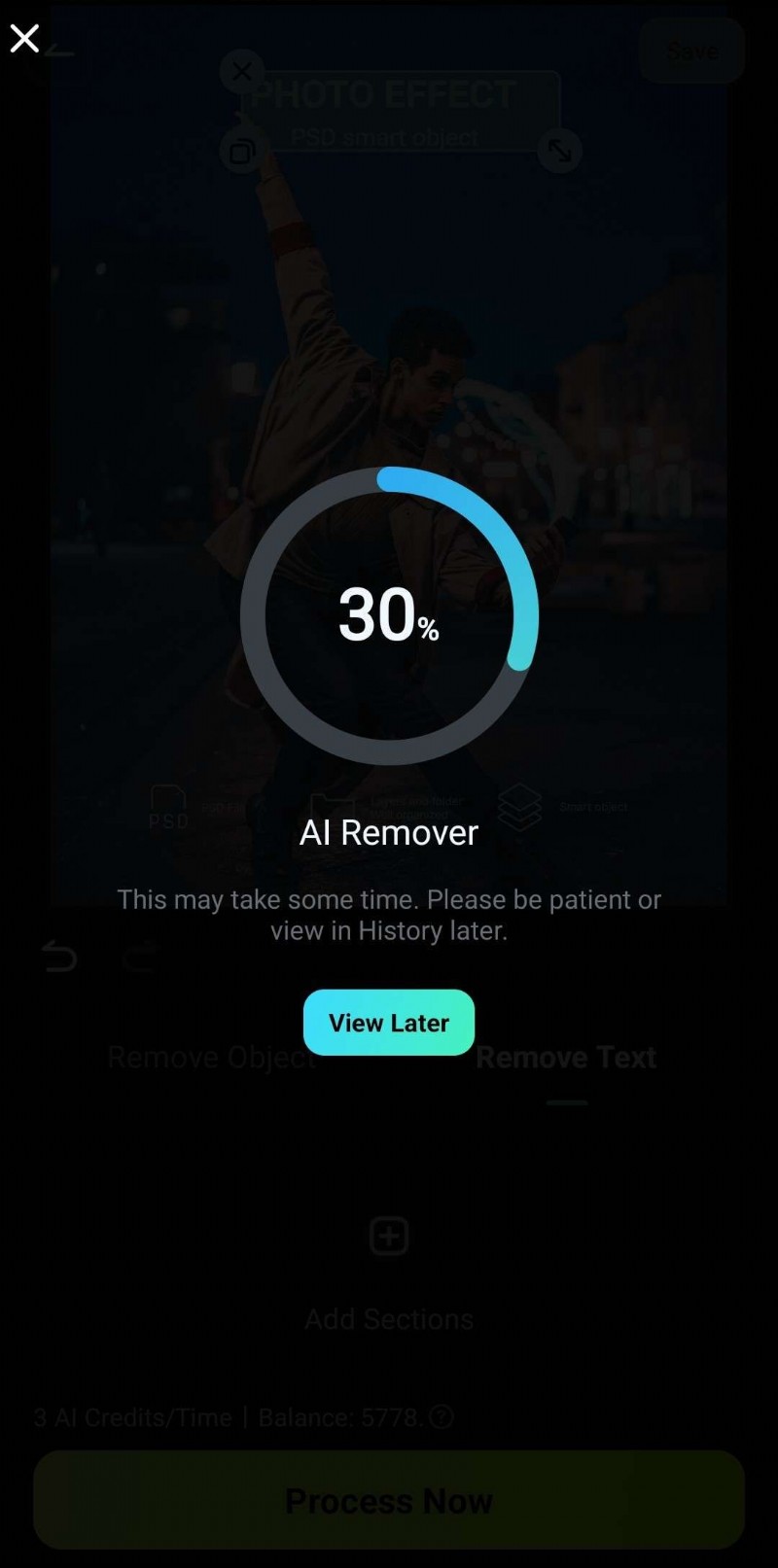
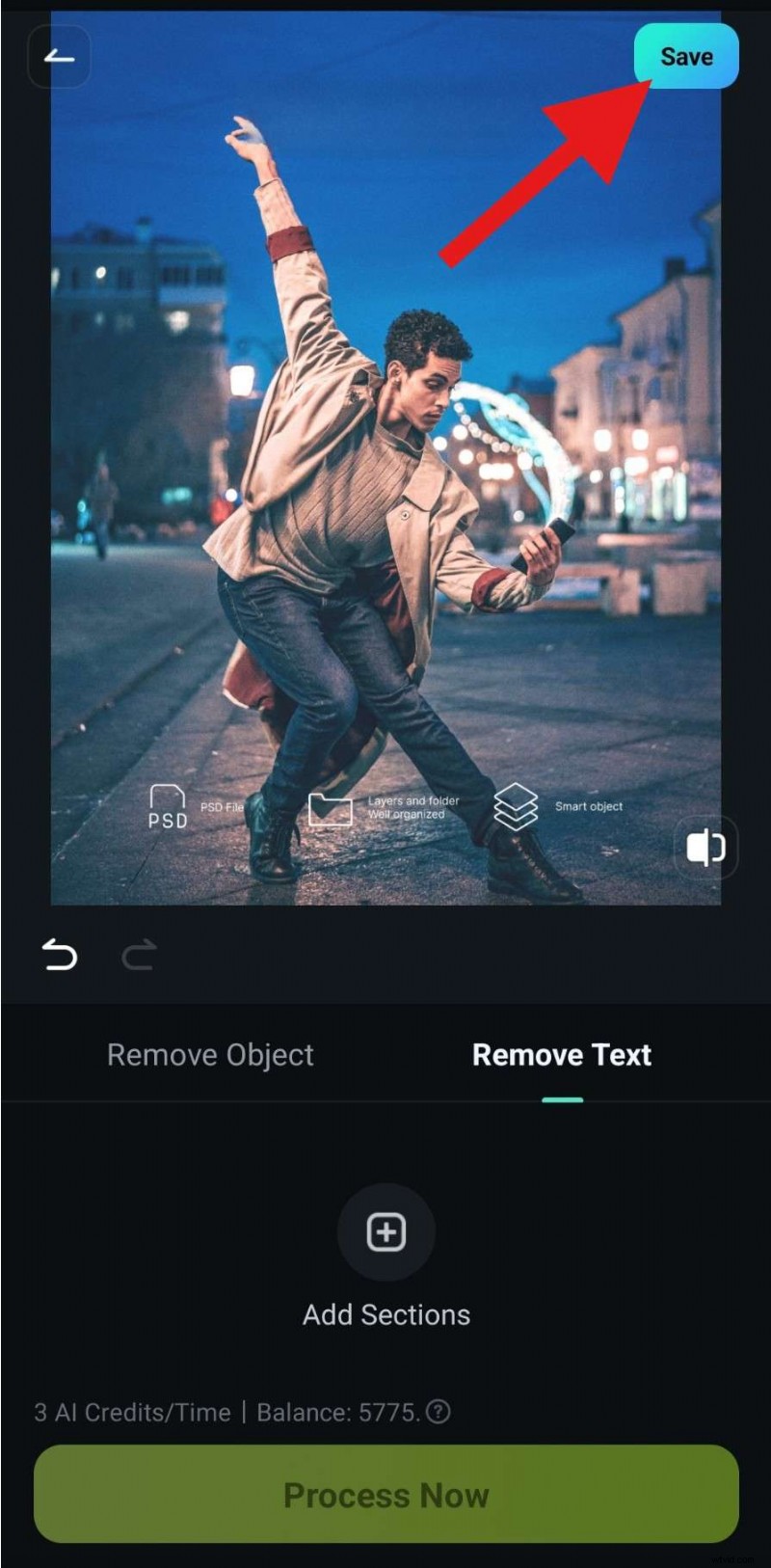
- Review the results and tap on Save to add the photo to your device.
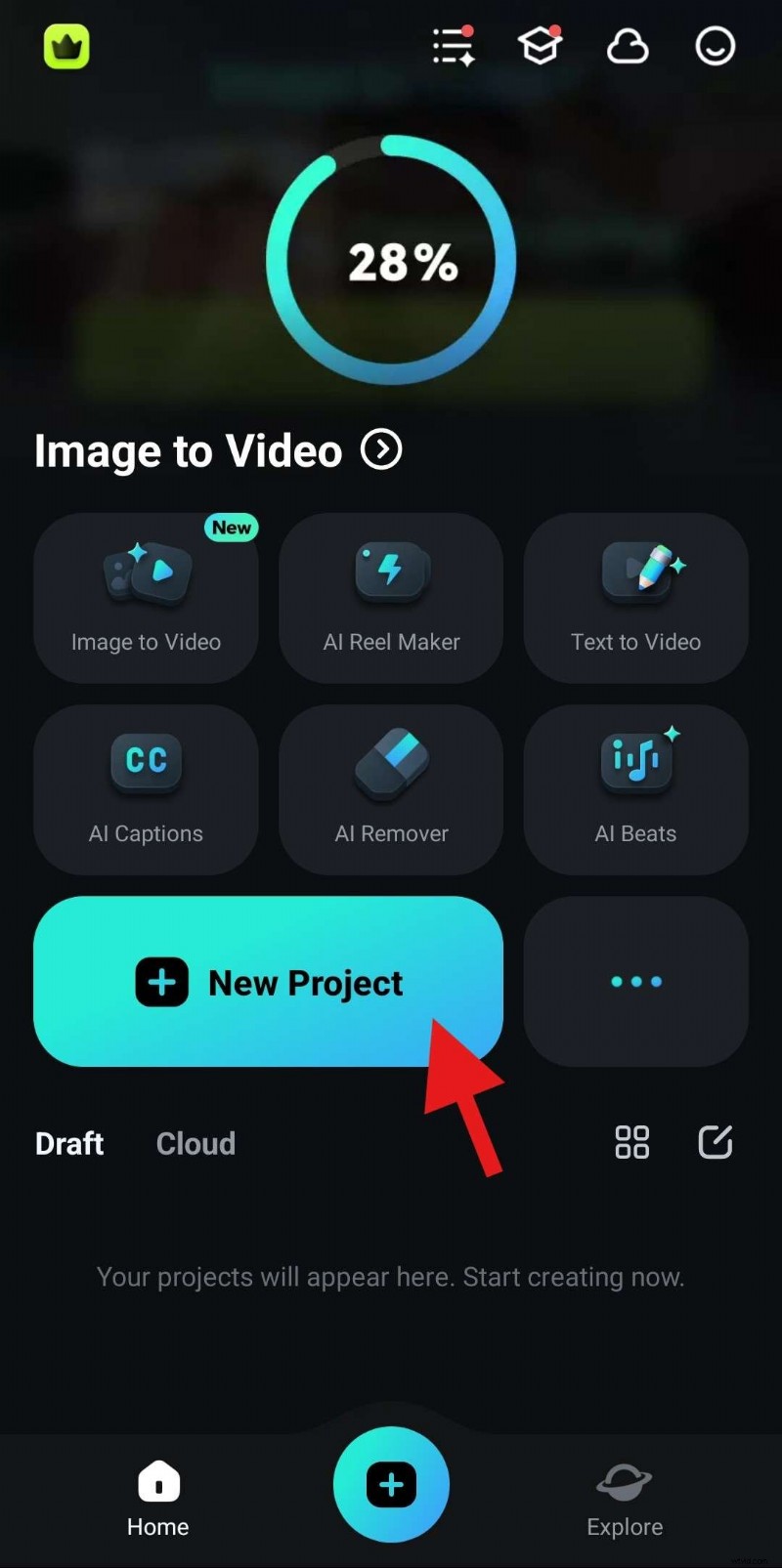
- Now that you have removed the text from the photo, let's hop back to the welcome screen. Tap on New Project.
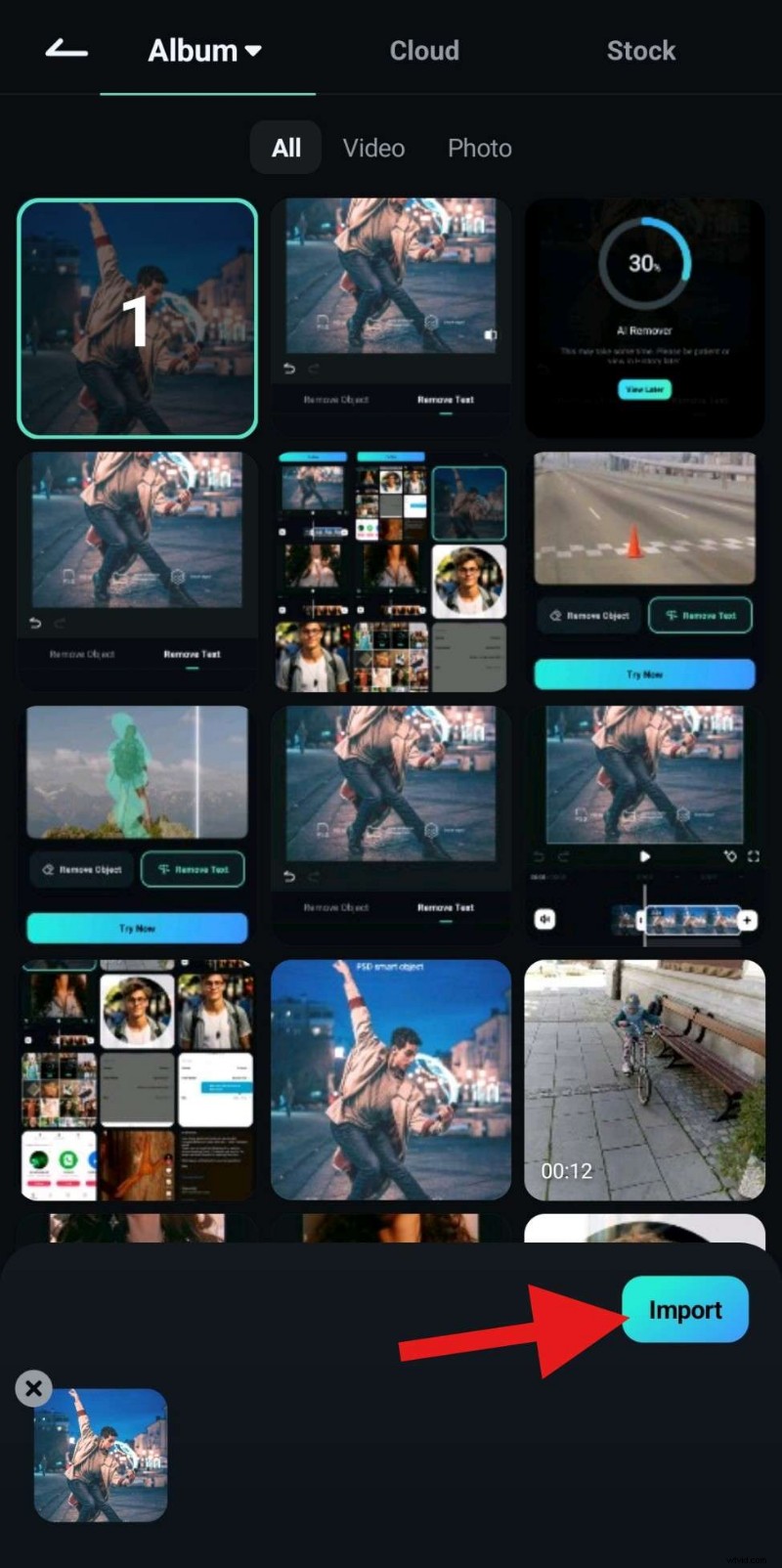
- Select the photo where you removed the text and tap on Import.
- Tap on Text.
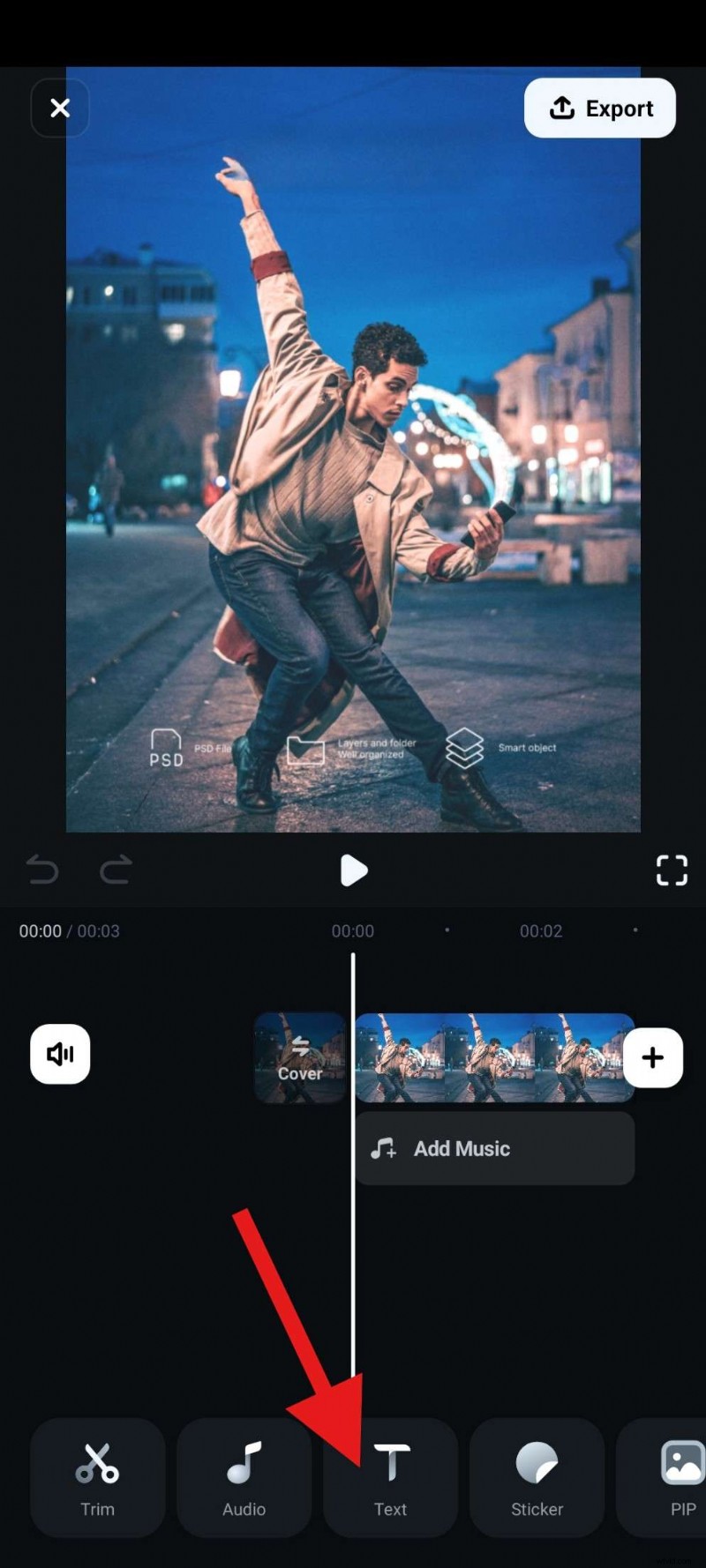
- Now, tap on Add.

- Go to the Template section and pick a template that you like. Then, type the text you want to see in the photo, position it where you want it, adjust the size, and accept the changes when you're done.
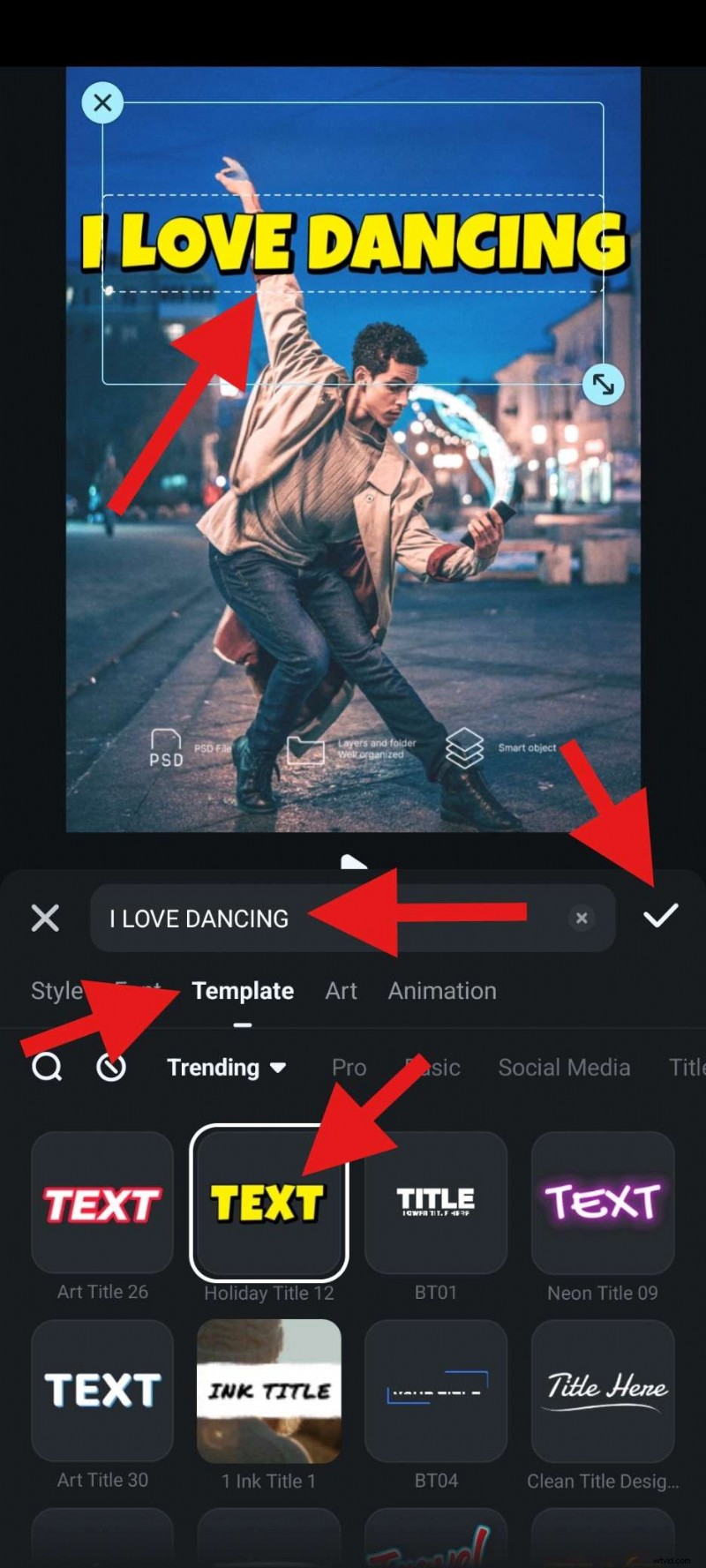
And that's it. In just a few minutes, you could not only remove text from a photo but also add new text to replace the old one and improve the photo immensely.
While following this tutorial, you undoubtedly saw that Filmora offers the option to add custom text in different styles and colors, change the font, and even explore animated titles if you want to convert your photo to a video. Try Filmora today and explore all these features at your leisure.
If you want to edit texts more precisely on a PC, you can also use Filmora.
Edit Photos Like a Pro with Wondershare Filmora
- 100+ advanced photo / video editing features.
- Vast creative assets.
- Powerful AI for effortless content creation.
- Intuitive, professional yet beginner-friendly.
- Works on Mac, Windows, iOS, and Android.


How to Add and Edit Text Onto an Image on a Desktop
The desktop version of Filmora is an excellent image and video editor with many useful AI features. What separates it from the mobile version is that this version has more text effects, and you can explore shapes such as curved text, which is a feature that you cannot find in the mobile app. You can also add custom text paths on PC, so there's much more freedom to bring your vision to life.
In terms of adding text to a photo, just follow the steps below and you'll get the hang of it in a jiffy.
- Run Filmora on your PC or laptop and click on New Project.
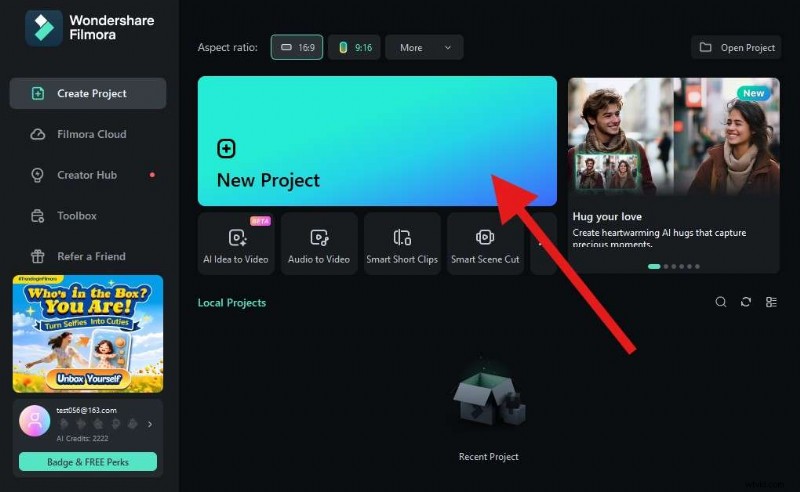
- Click on Import and proceed to upload an image file without text.
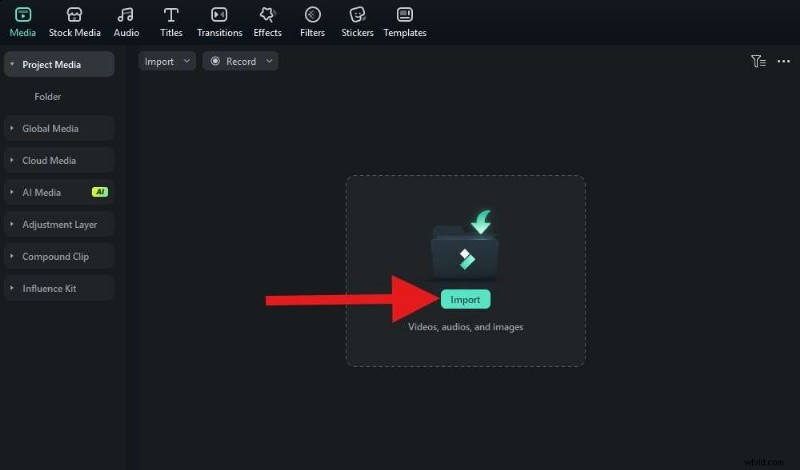
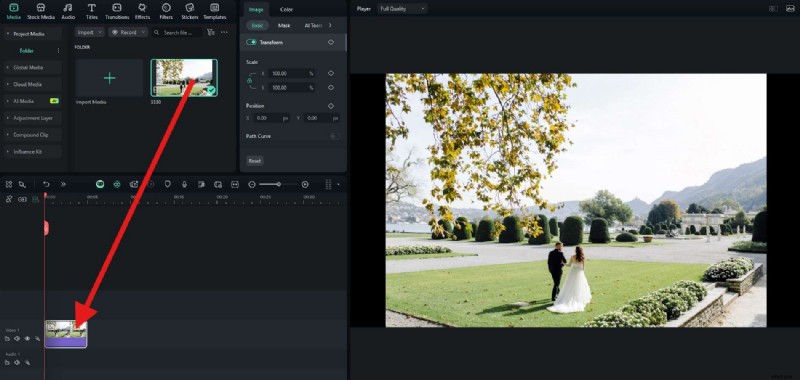
- Drag the image to the timeline.
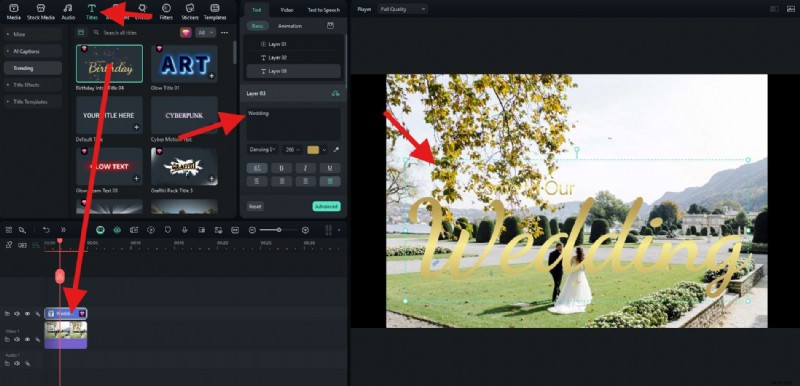
- Now, go to the Titles section and pick something that you like. Then, drag it to the timeline above the image. You can edit the text in the Text > Basic section and adjust the size and position of the text in the preview window.
- If you are satisfied, you can export or take a snapshot to save the photo.
Explore Advanced Text Effects on Filmora
If you want to make the texts on your photo more unique, you can apply the advanced text effects with Filmora.
1. Curved Text
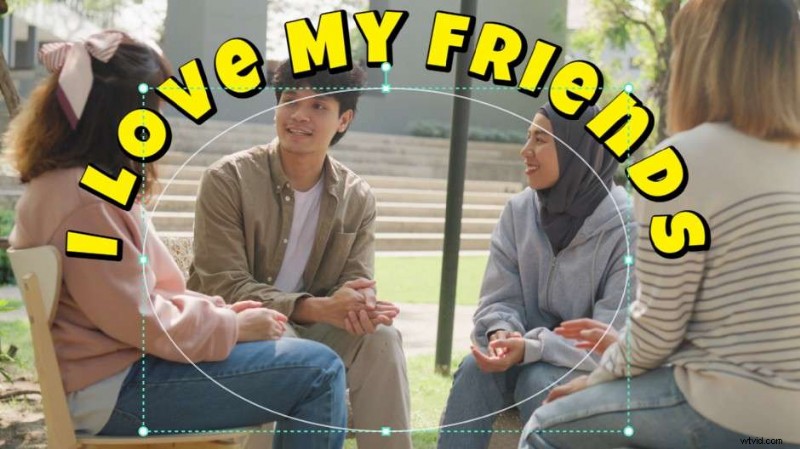
If you want to make your texts look like a shape, like a circle, you can apply curved text.
You can go to Text > Basic > and you will find the Shape feature. This lets you write the text over a curve, or by following a circle, which is a very interesting way to add text. Try it out!
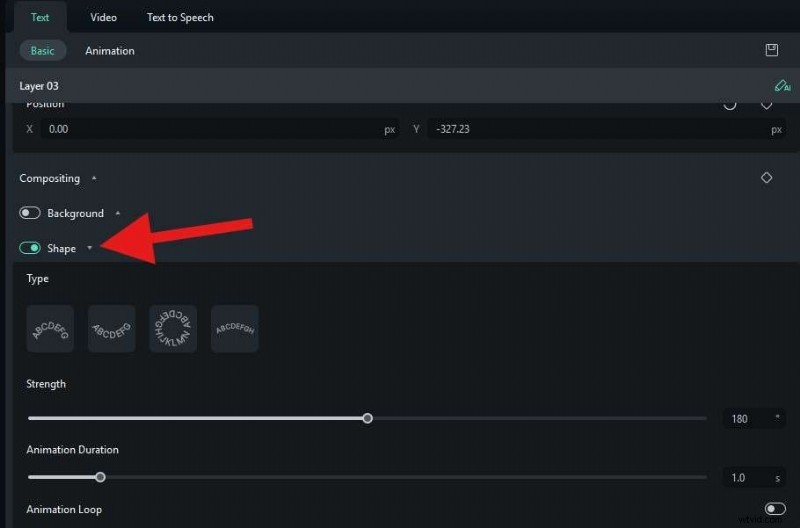
Here is what it looks like when you are setting up curved text in Filmora.
2. Text Animation
Some users like to add text animations, especially if they want to animate photos or make photos from videos.
The sheer number of text animation presets that you can find in both the desktop and mobile versions of Filmora is absolutely staggering. You can simply select the text, go to animation, and choose an in, out, or loop text animation for your photos or videos.
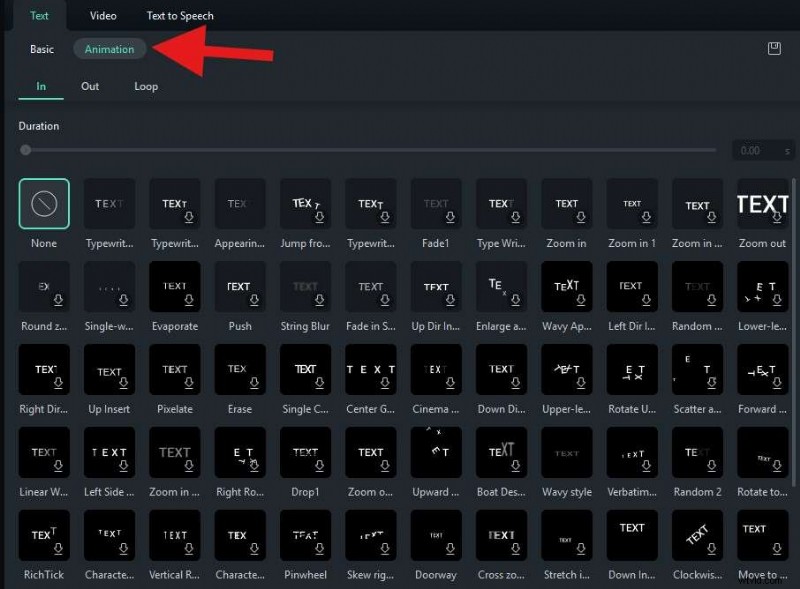
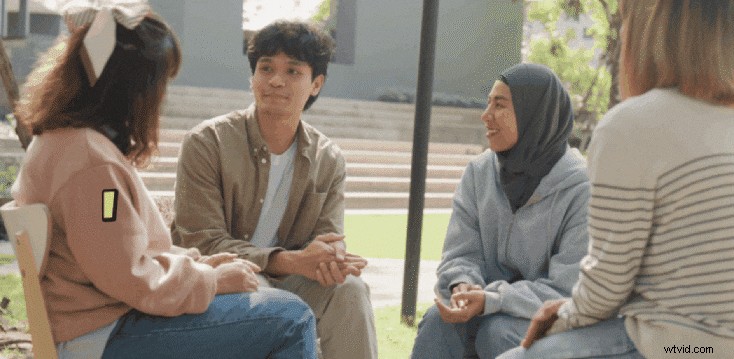
Here is how text animations can look in Filmora.
3. Text Distortion
If you go to the Titles section and search for “distortion,” Filmora will get back to you with several animated titles that offer a glitch or distortion effect. Alternatively, you can add regular text and then explore Filmora's effects library to add distortion.
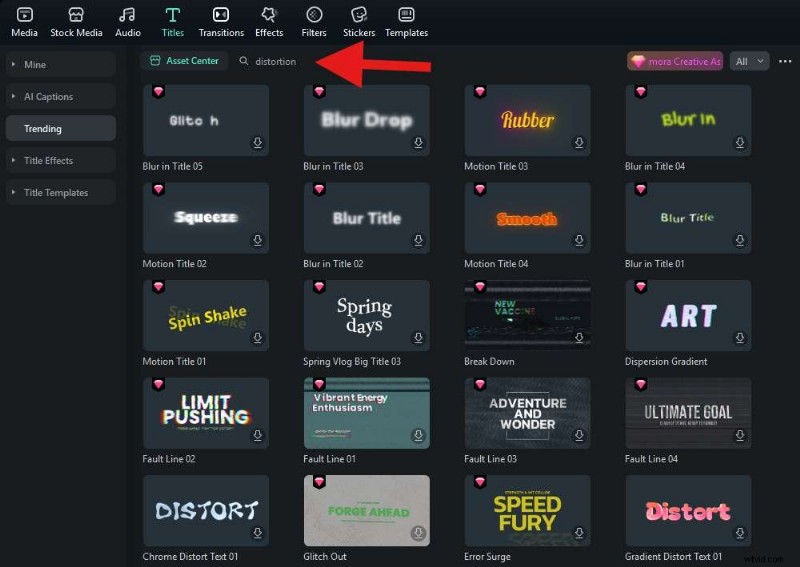
Here is what this type of effect would look like.

How To Edit Text in Pictures Online for Free
Last but not least, here's a free tool that helps you edit the text in the image online with more or less the same font for free, which is called PhoText. It uses AI to structure Image names, and you can choose different AI models in various languages.
You can use it to edit text in photos for free. However, it doesn't provide many text fonts and effects, and doesn't have any photo editing features.
Here are the steps to edit text in pictures online with Photext.
- Go to their website and click on Upload Image.

- When the image with text is uploaded, you can simply click on the text. The AI will recognize it, remove it, and give you the option to add new text from the text box.
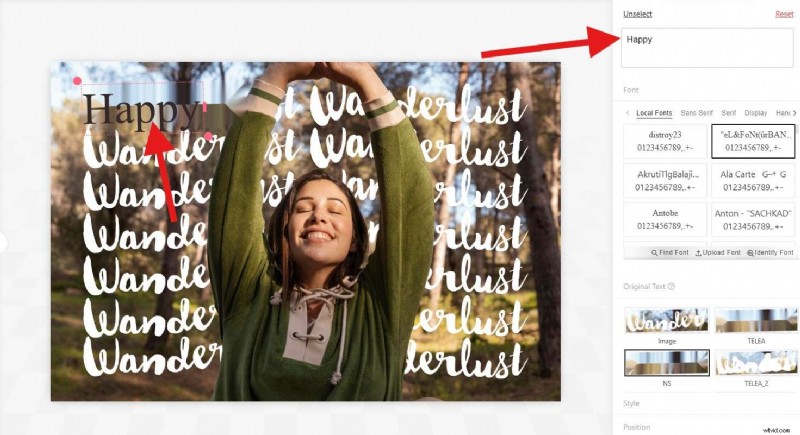
You can repeat the process for each piece of text you find in the image.
On paper, this tool sounds very good, but in practice, it is simply inferior to Filmora. You can clearly see that the text has been removed because the photo is distorted, and even though it claims to have found a similar font, the new font suggested is nothing like the original.
Therefore, we suggest you go with Filmora because you will have more freedom and the results will be several times better.
Conclusion
In this article, we have shown you a lot. You have learned how to edit text onto an image using one of the best text and image editors, followed detailed steps to make these edits in Filmora, and near the end, we also shared an online free Image name editor that can help you with some small tasks.
All in all, we hope that editing texts on images is now a topic you are familiar with. Download Filmora today and create awesome social media posts.