
No matter if you are a professional travel vlogger or just a regular social media user who went on vacation and wants to share their experience with their connections, learning how to make an attractive travel reel on Instagram is a skill that you should have. At the very least, you are creating a timeless memory from your travels that you can come back to whenever you want.
In this article, we will teach you how to make travel reels on Instagram, and we'll also show you a video editing tool with amazing features and teach you how to create a unique travel reel to amaze your followers.
In this article
-
- Create Travel Reels with AI
- Make Travel Reels with Templates
-
- Remove Objects from Your Travel Reel Video to Enhance Your Message
- Add Captions to Your Travel Reel Video in a Few Taps
- Get Awesome Background Music for Your Instagram Travel Reels
How to Make Instagram Travel Reels with the Instagram App?
The first thing to cover is a short tutorial on how to make Instagram reels the old-fashioned way. Open the Instagram app on your phone and follow the steps below.
- Tap on the + button to start creating a new post.
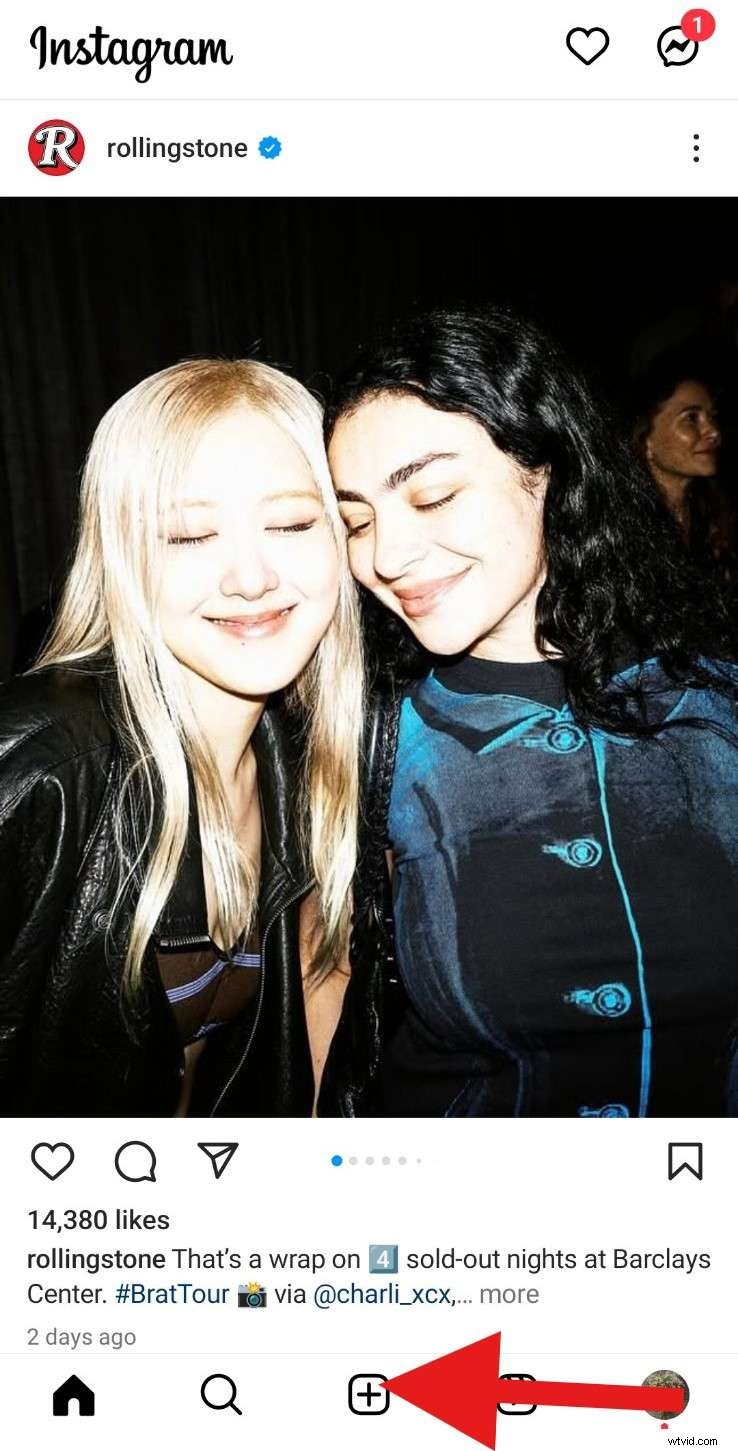
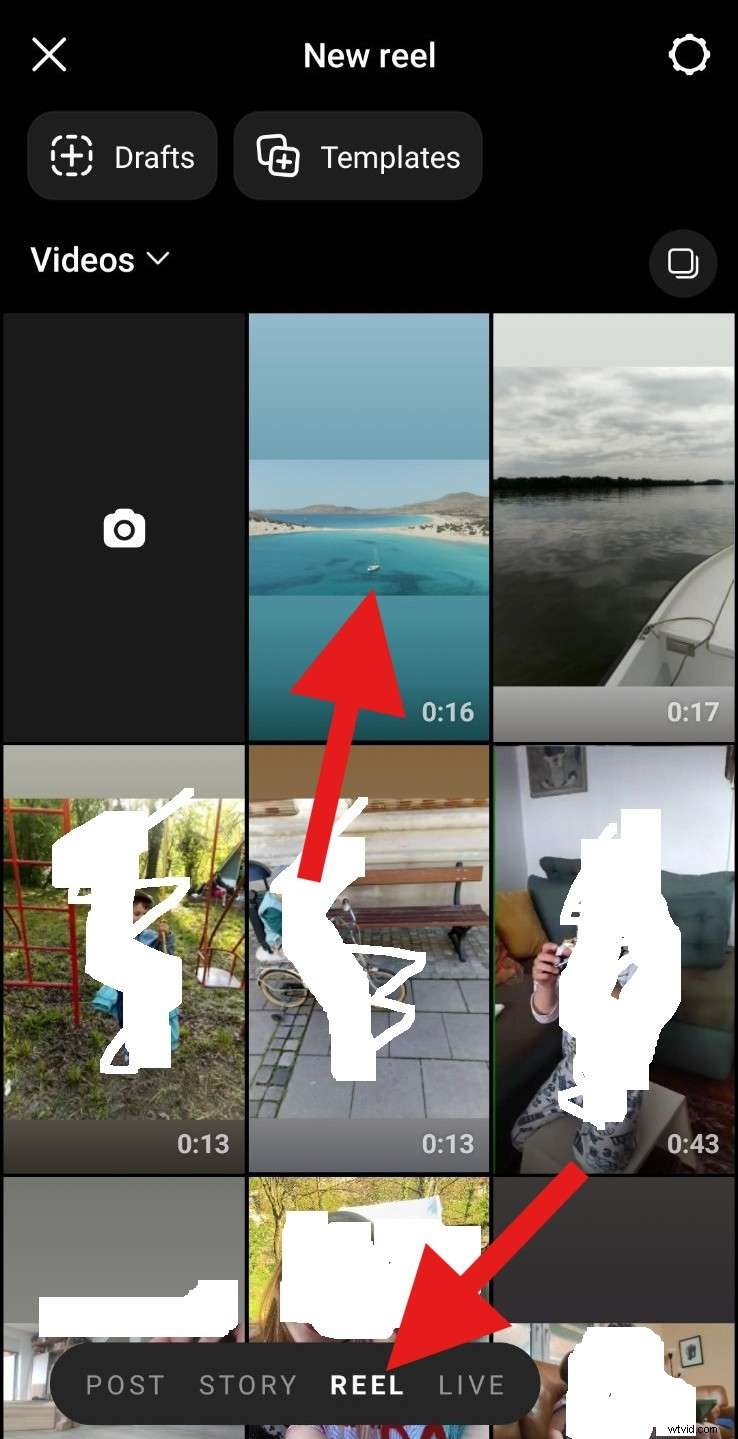
- At the bottom of the screen, select Reel, and then select a video that you would like to share.
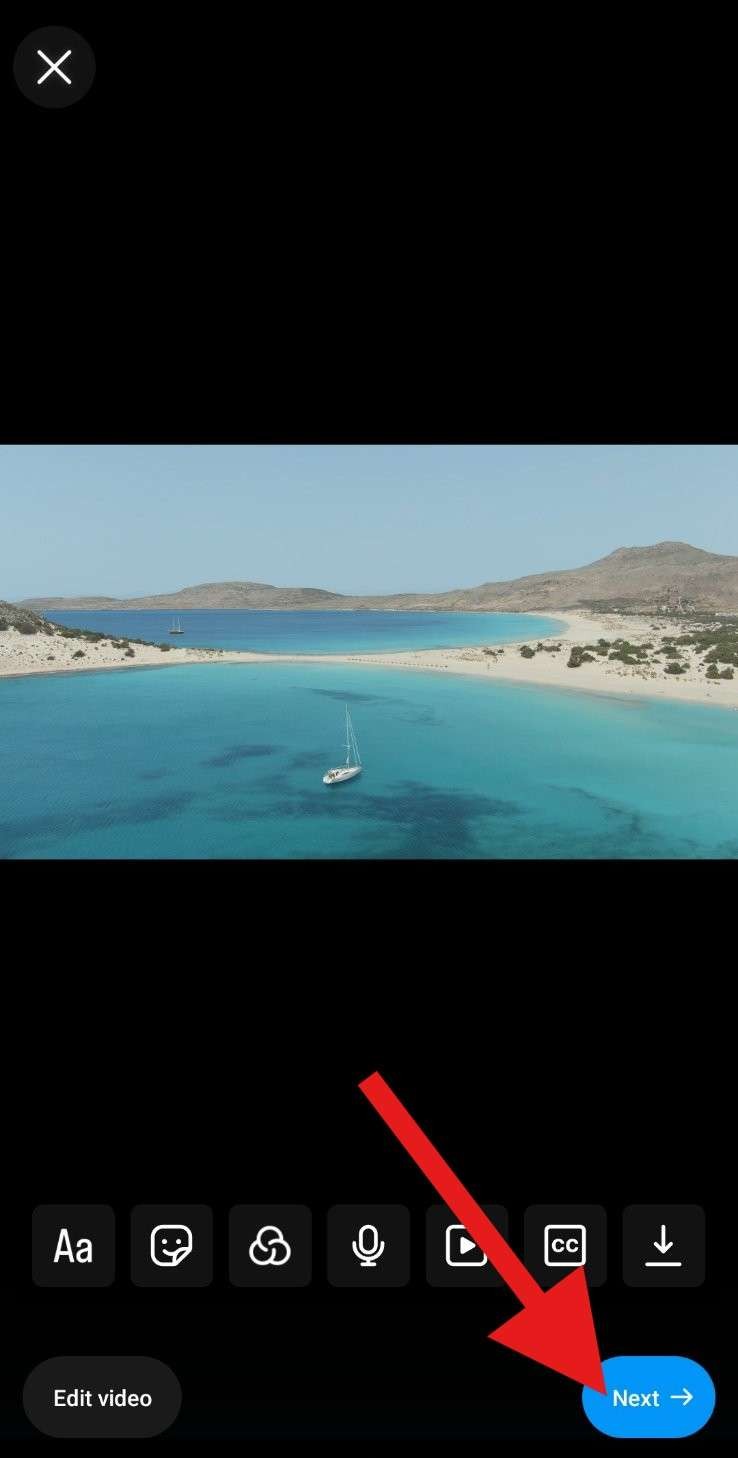
- Explore various editing options provided by Meta and tap Next when you are done editing.
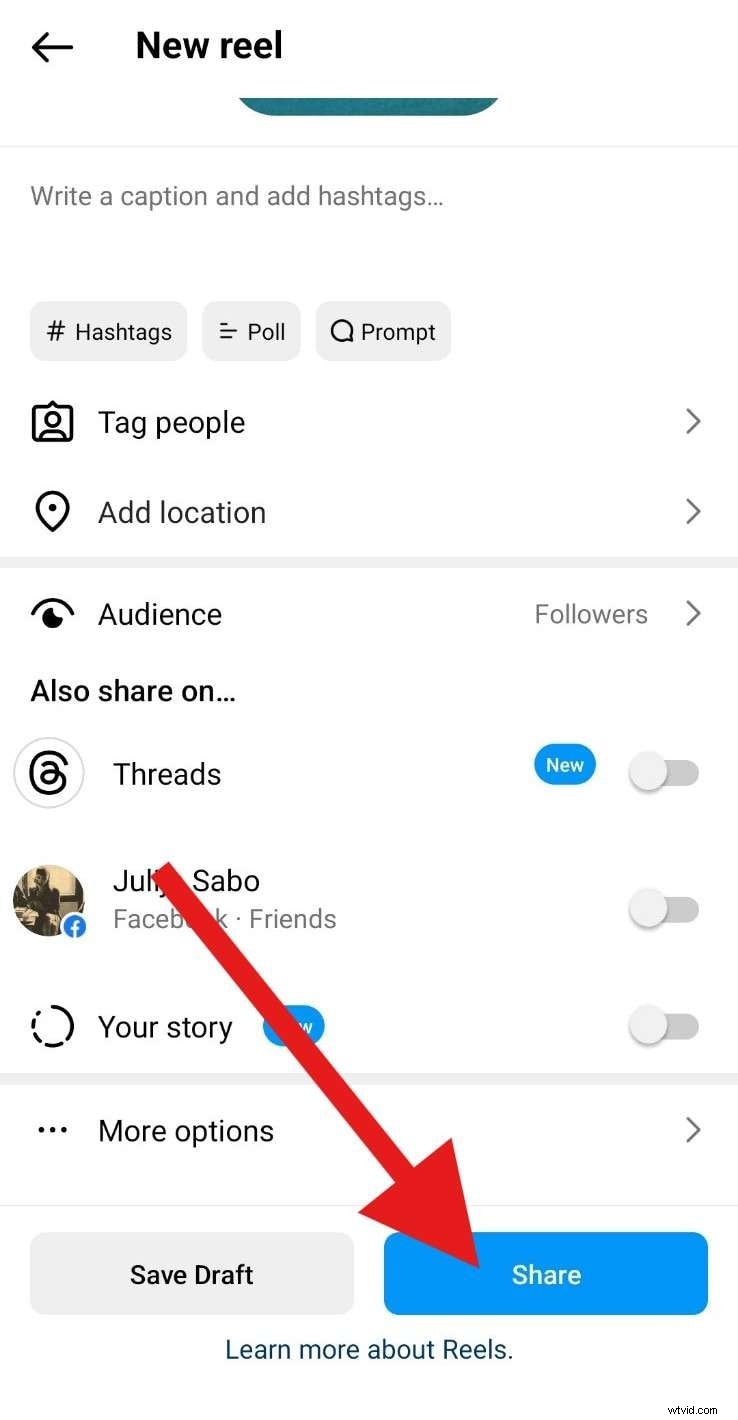
- Explore other options like writing captions, tagging people, adding a location, etc, and tap Share when you're done.
As you can see, the process is very simple. However, if you want to make your video stand out, we'll teach you how to create travel reels that stand out using the Filmora app. Strap in.

Filmora
AI Video Editing App & Software
Best tool for making videos anywhere for all creators!
How to Create the Best Travel Reels with a Simple App?
Filmora's mobile app is one of the most powerful video editing tools that you can carry in your pocket. It is available for Android and iOS, and when you download it and start using it, you will be stunned by the sheer number of creative assets like Hollywood-style effects, smooth transitions, creative filters, and helpful AI tools that help you edit videos on the go.
To make travel reels in Filmora, you can utilize the power of AI to extract highlights of the long videos and create reels, or you can simply use the attractive video templates to replace materials with your own photos or videos. These ways are perfect for beginners and those who want quick results. Filmora also allows users who want to create unique travel reels to customize the reels with maximum flexibility with its powerful video editing features.
We will discuss two ways to help you create stunning travel reels in seconds.
Create Travel Reels with AI

Filmora's AI Reel Maker is a perfect tool for Instagram reels. You can add a bunch of videos, pick a theme, set a few other parameters, and Filmora will automatically create a 30-second video that you can download and post immediately. Alternatively, you can continue editing the video to make it more personal. Let's see how it works in our easy tutorial.
- Open Filmora and tap on AI Reel Maker.
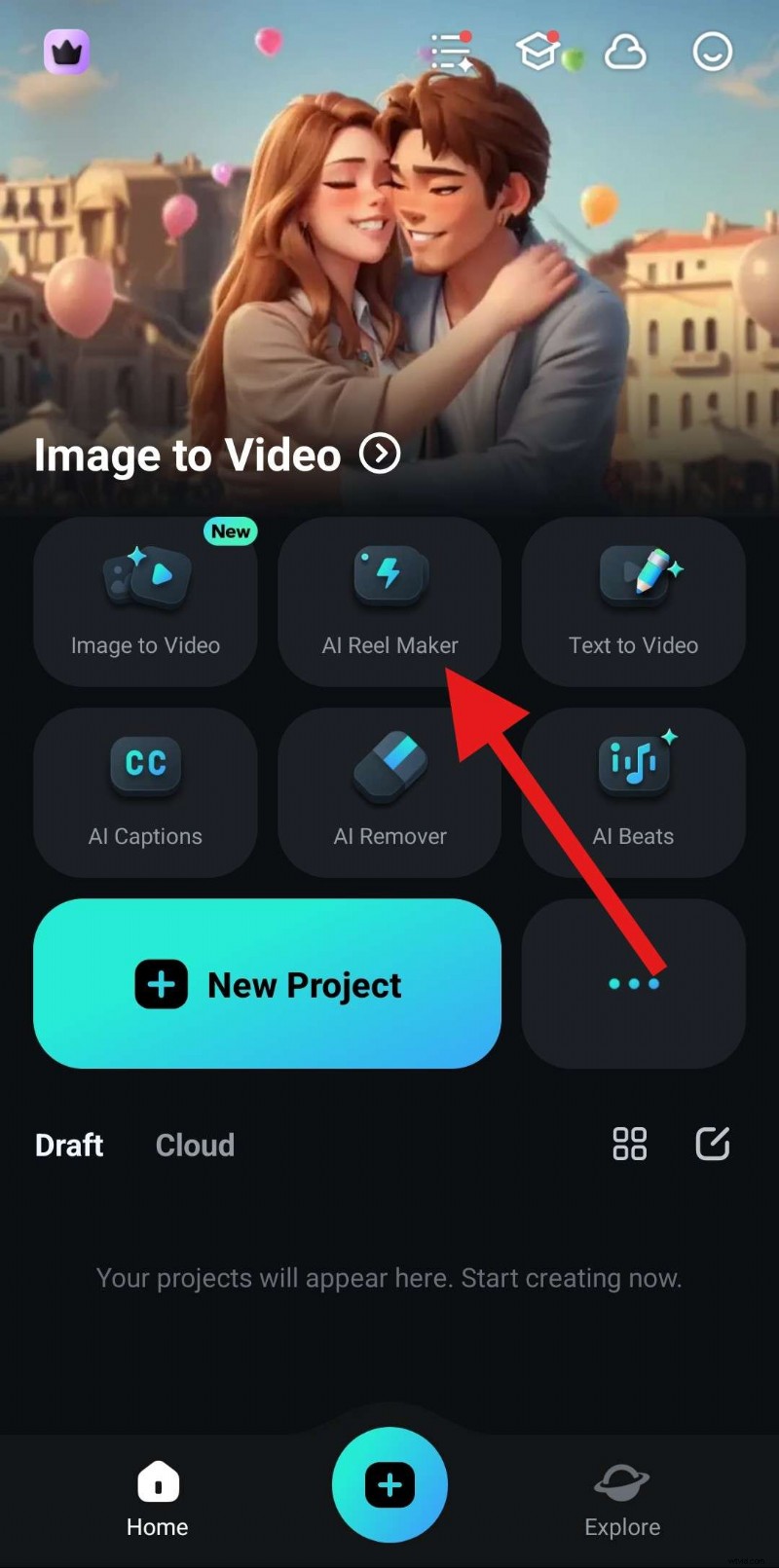
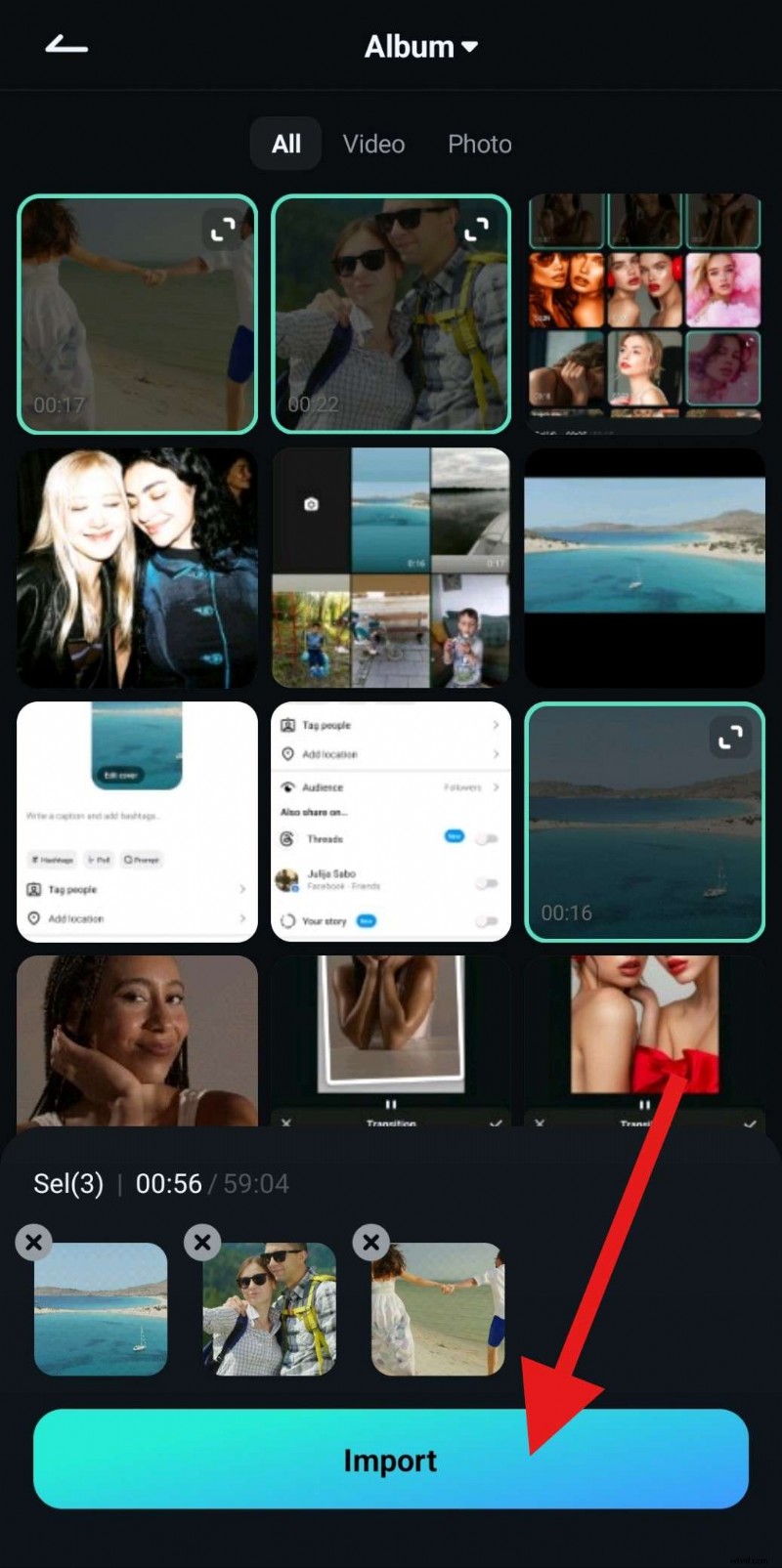
- Select several videos from your device, and make sure that the total duration is more than 30 seconds. Then, tap on Import.
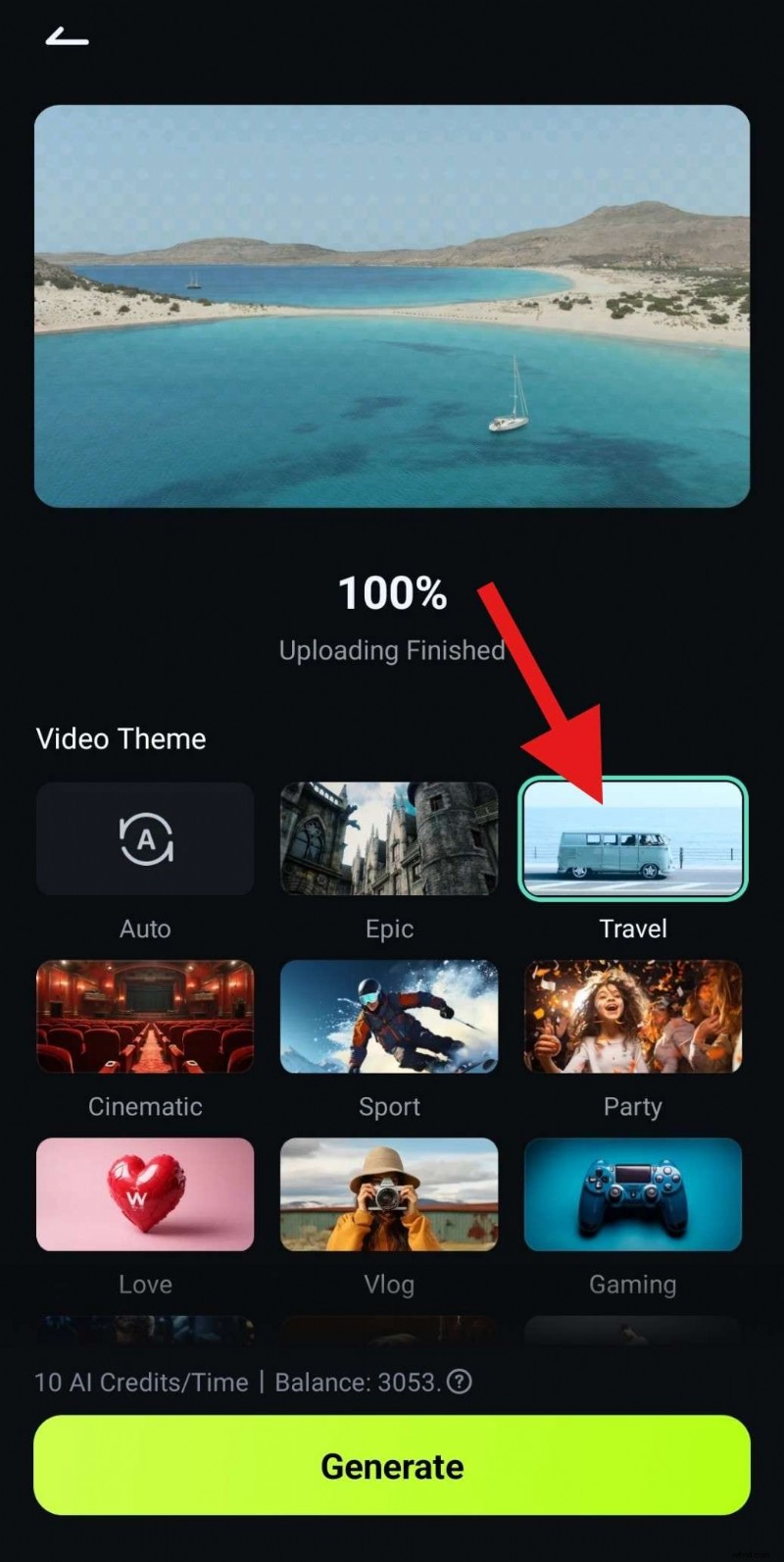
- Select a Video Theme. Naturally, we'll go with Travel.
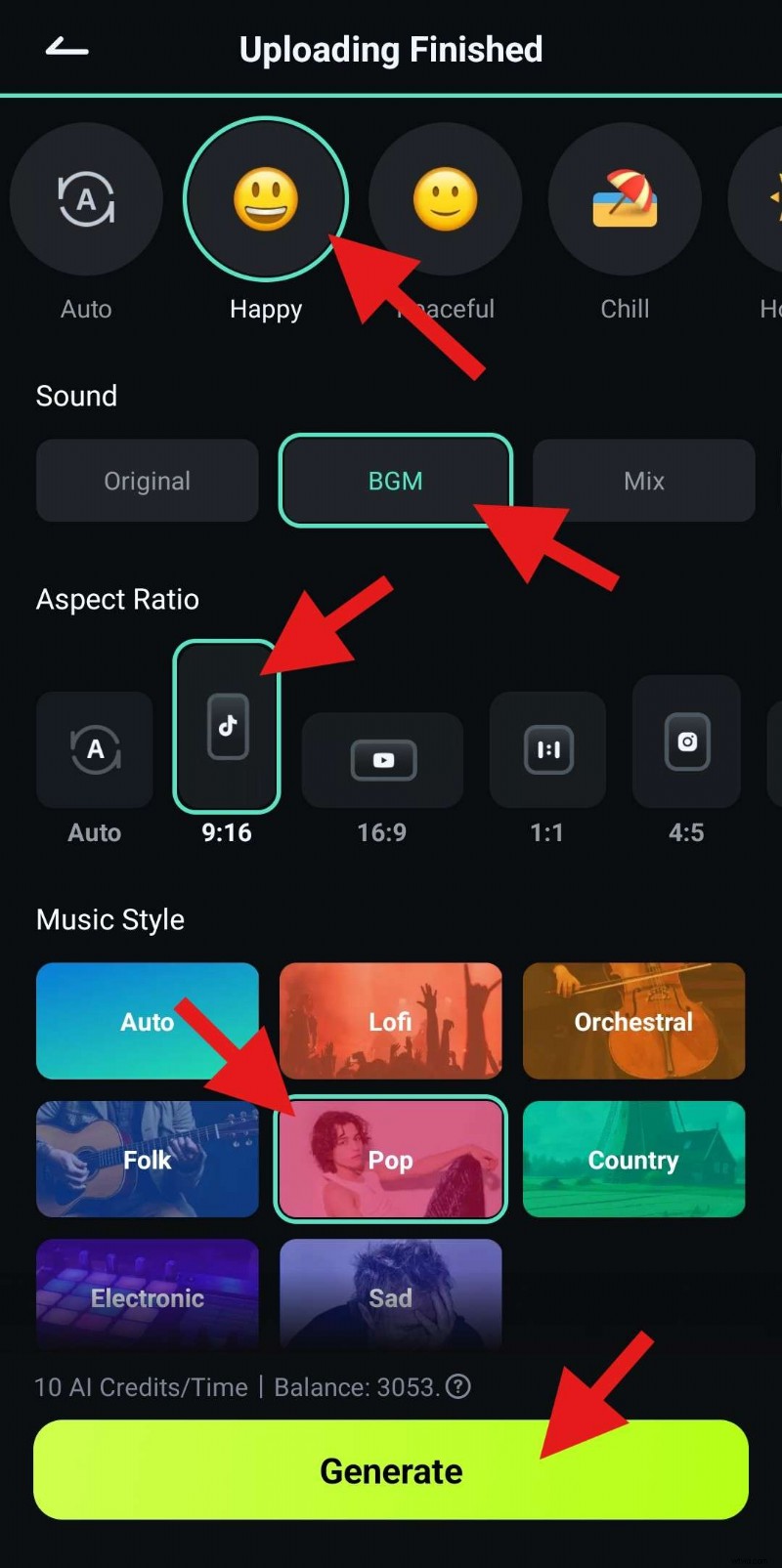
- Scroll down to pick a Mood, and under Sound, select BGM to get awesome background music. Then, select the Aspect Ratio and Music Style. Finally, you can tap on Generate. The AI process shouldn't take long.
- Now, pick one of the three songs suggested, review the footage, and tap on Project Edit to continue customizing your travel reel.
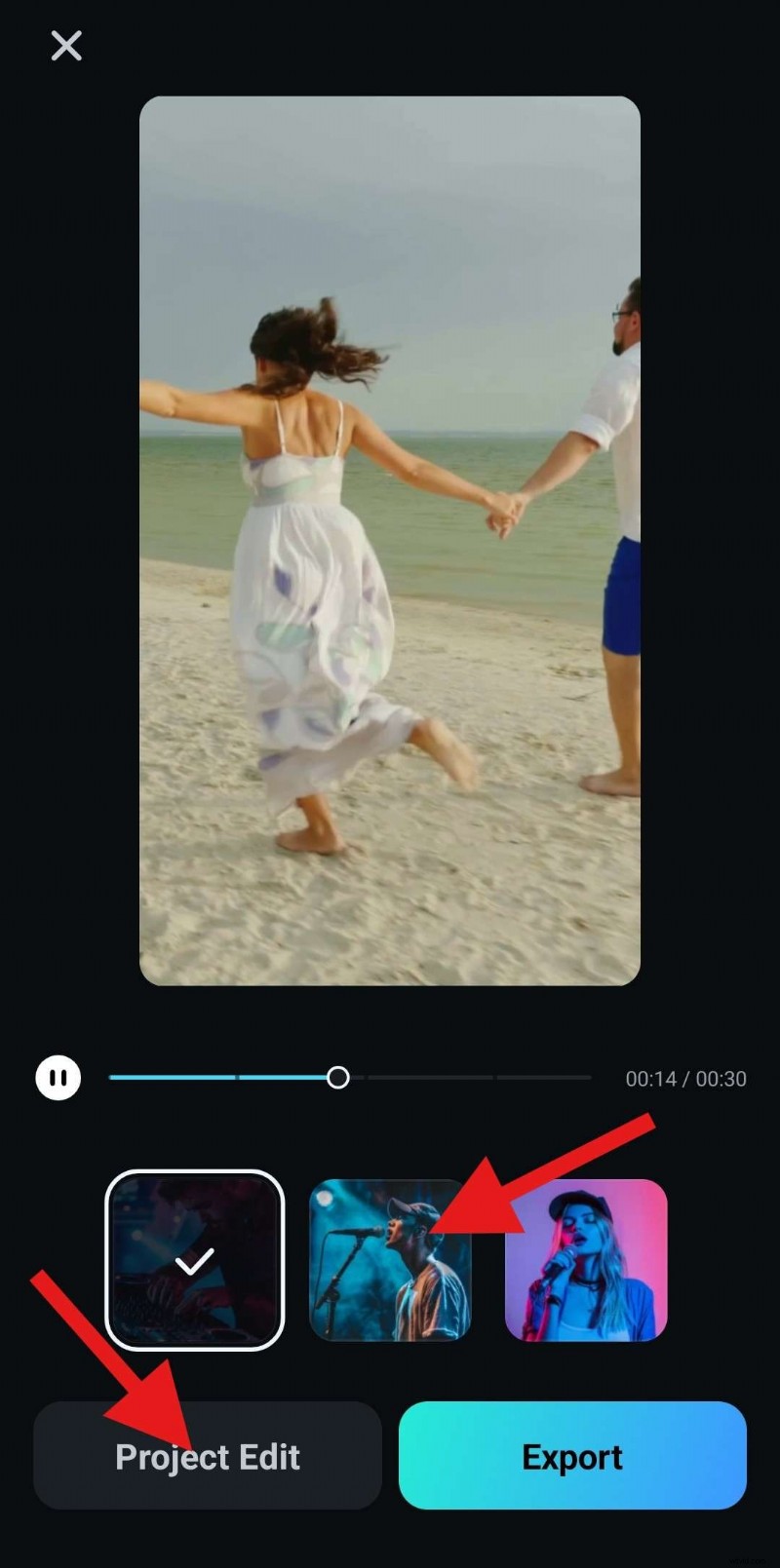
- When the Filmora project opens up, tap on the Text feature at the bottom. Then, tap on Add.
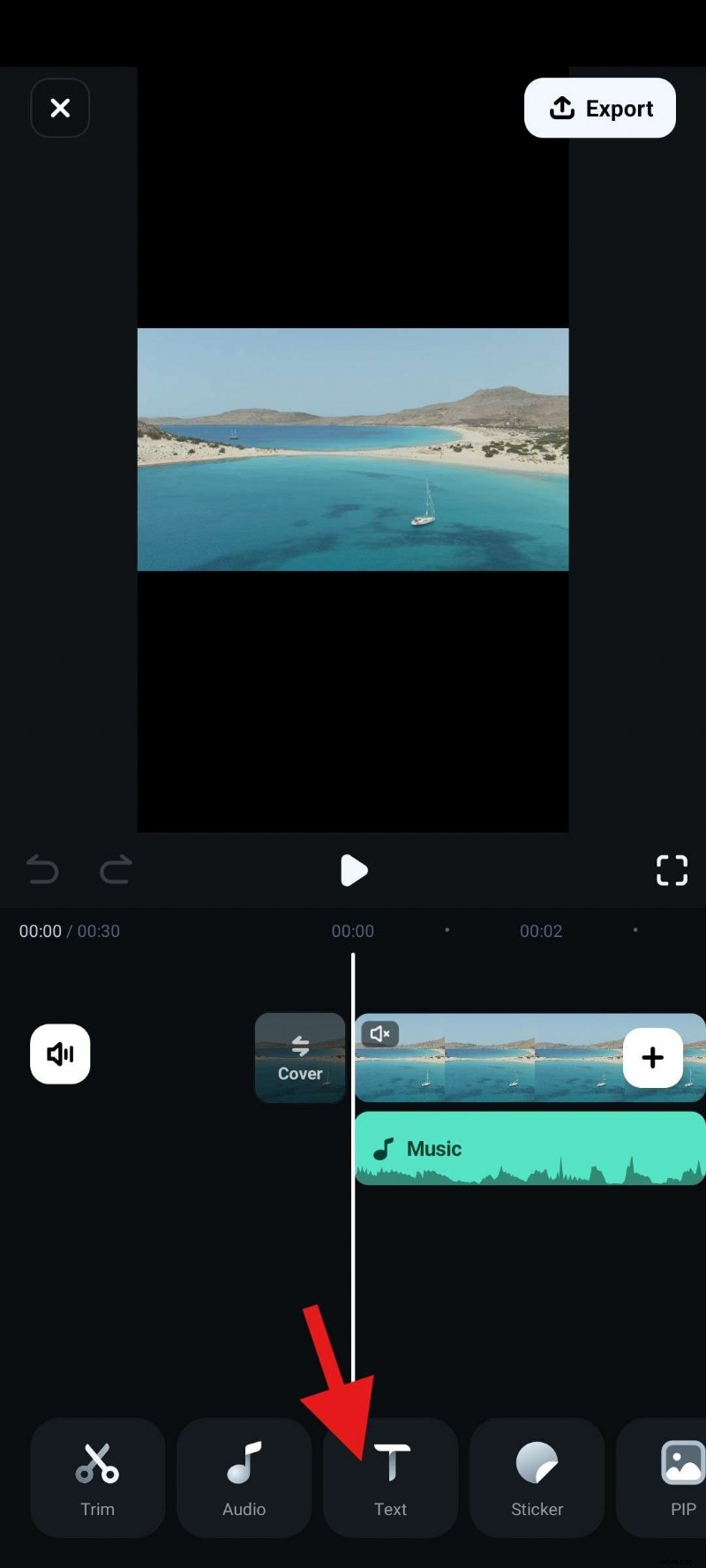
- Go to the Template section, and tap on the Magnifying Glass Icon.
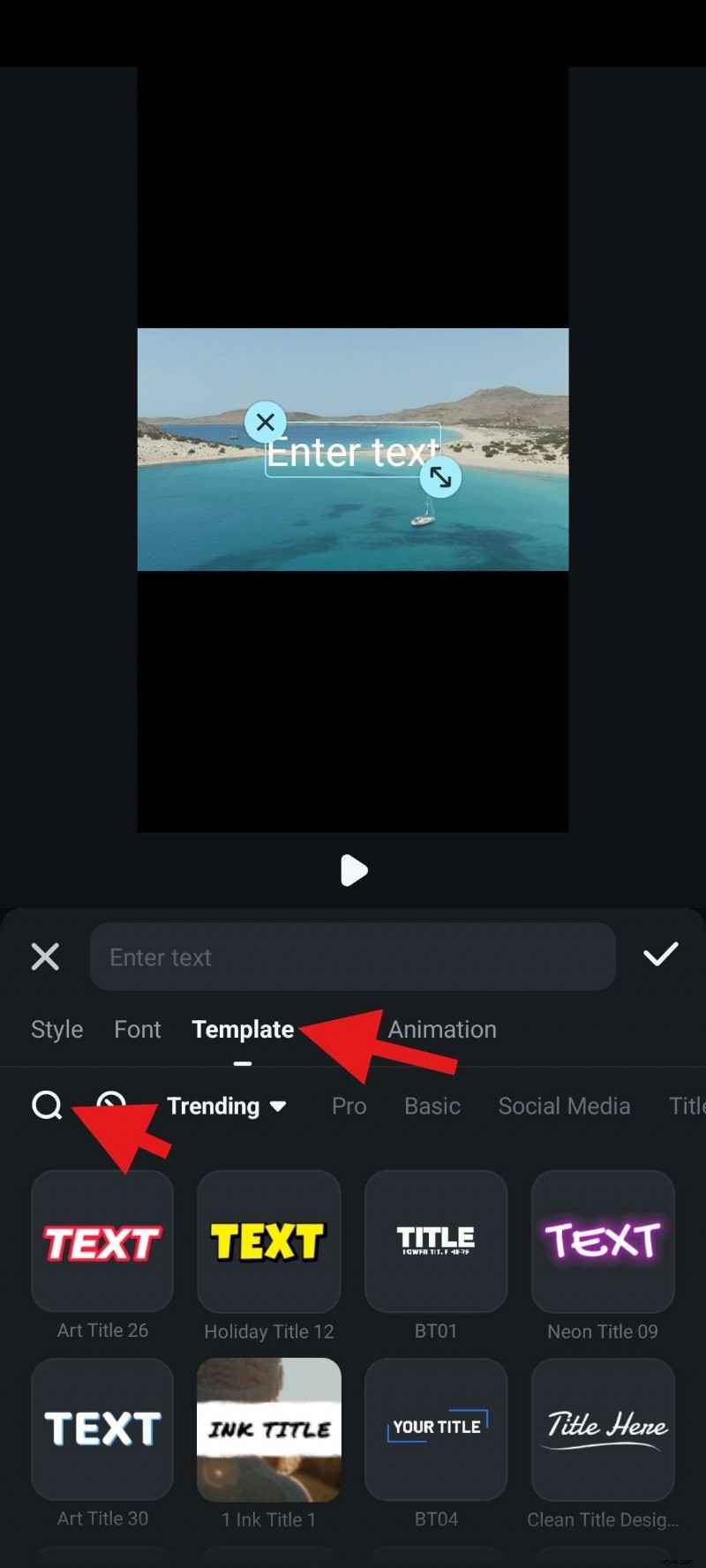
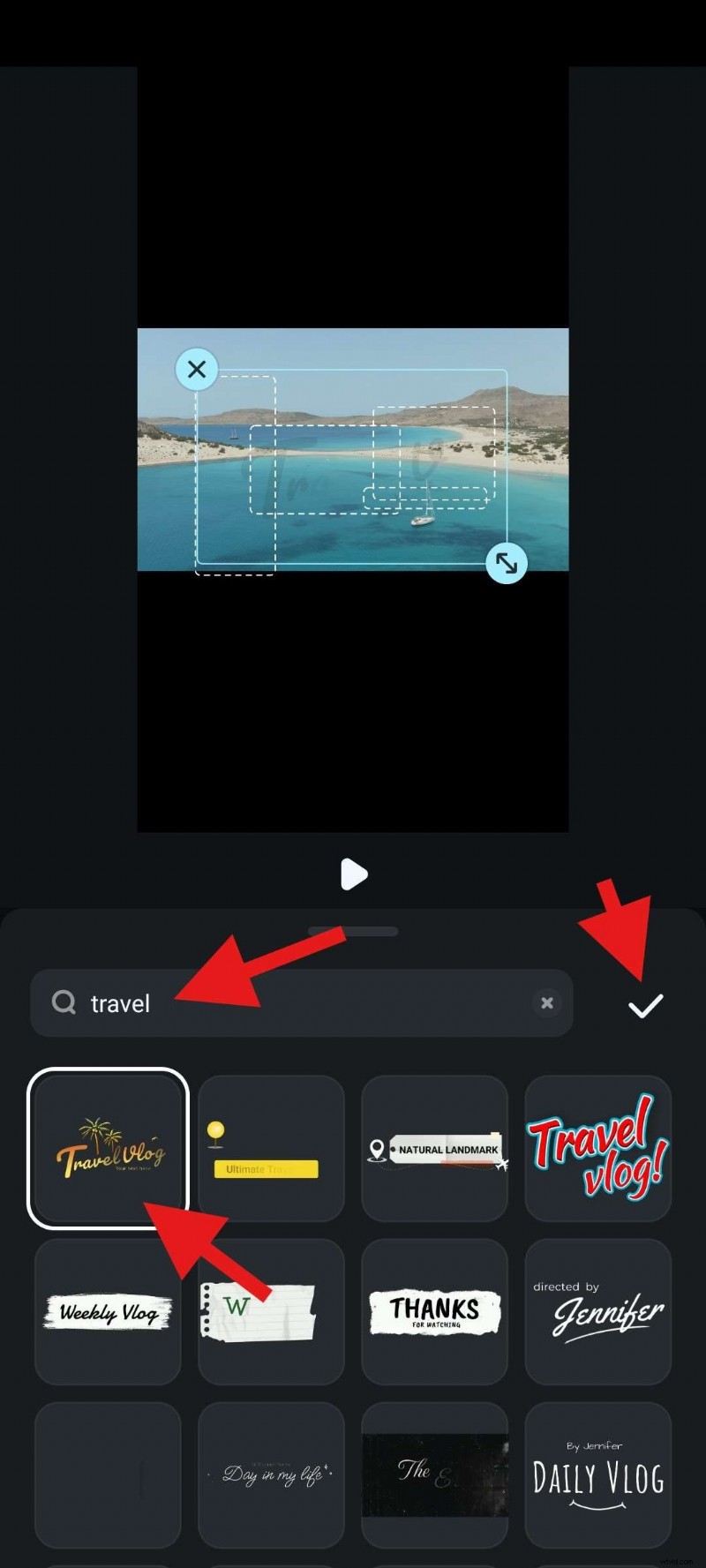
- Search for travel in the search bar, pick a template that you like, and tap the checkmark to add it to the project. In the preview screen, you can tap on each piece of text to change it.
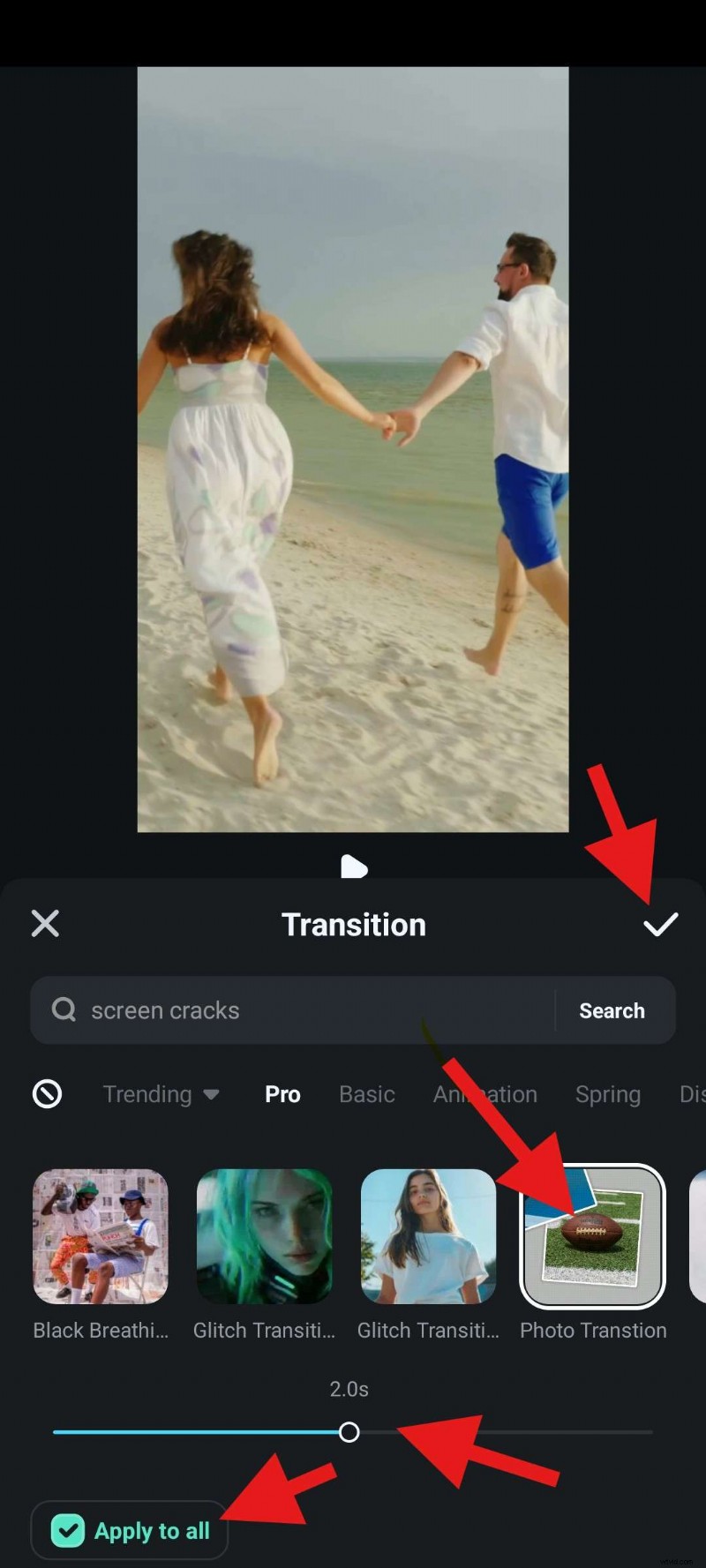
- Go back to the timeline, select any clip, and tap on the Add Transitions icon.

- Pick a transition effect that you like, adjust the duration of the transition effect, select Apply to all, and confirm the changes by tapping the checkmark.
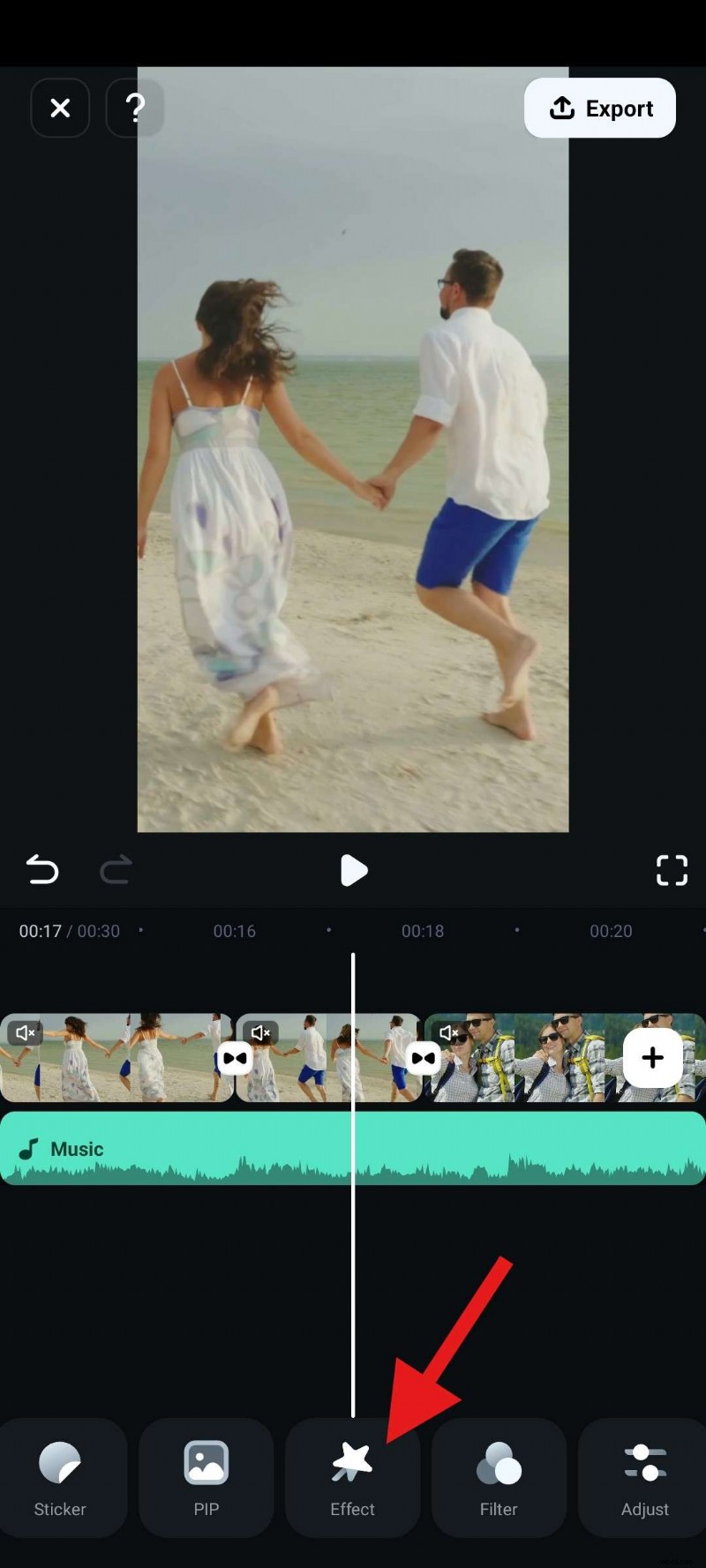
- Find the Effects section.
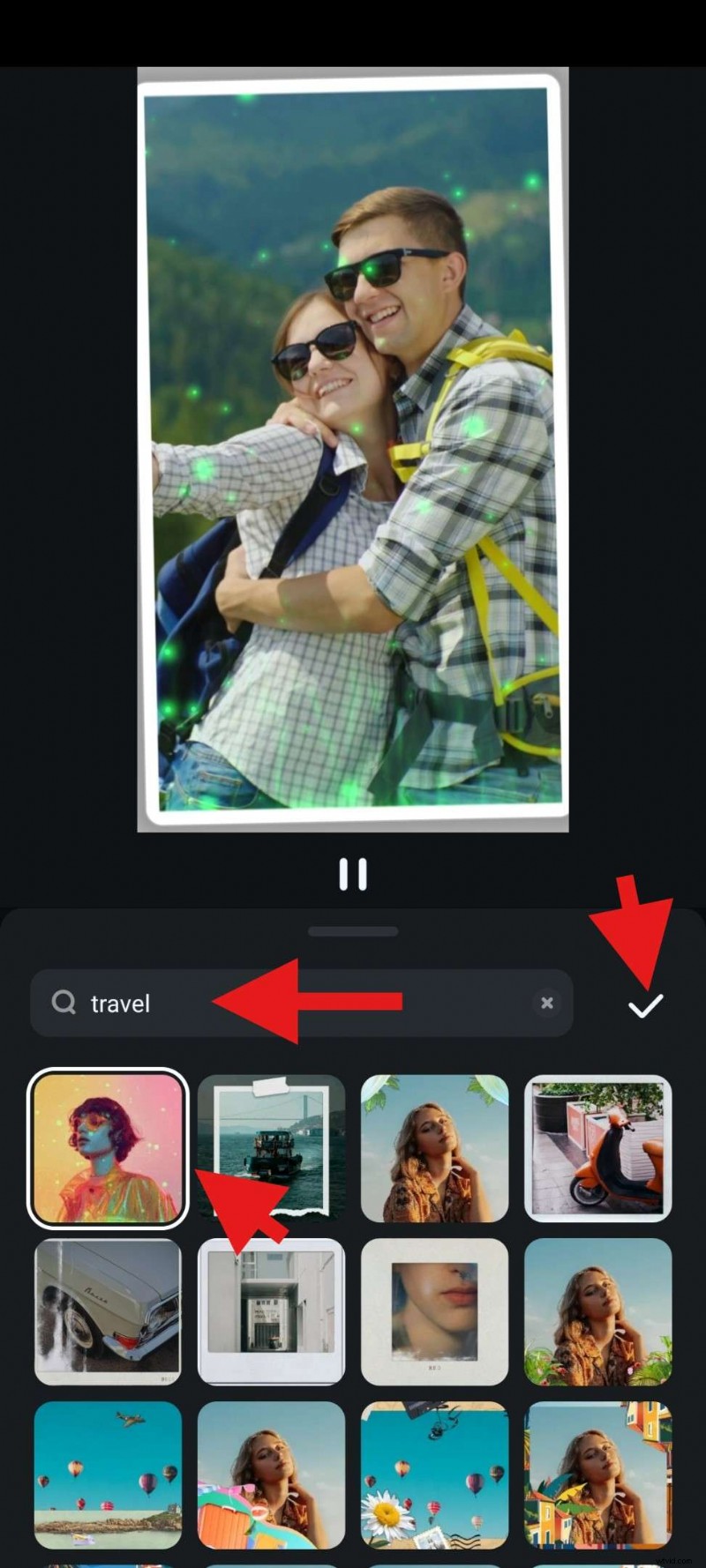
- Search for travel and pick an effect that you like. Then, accept the changes.
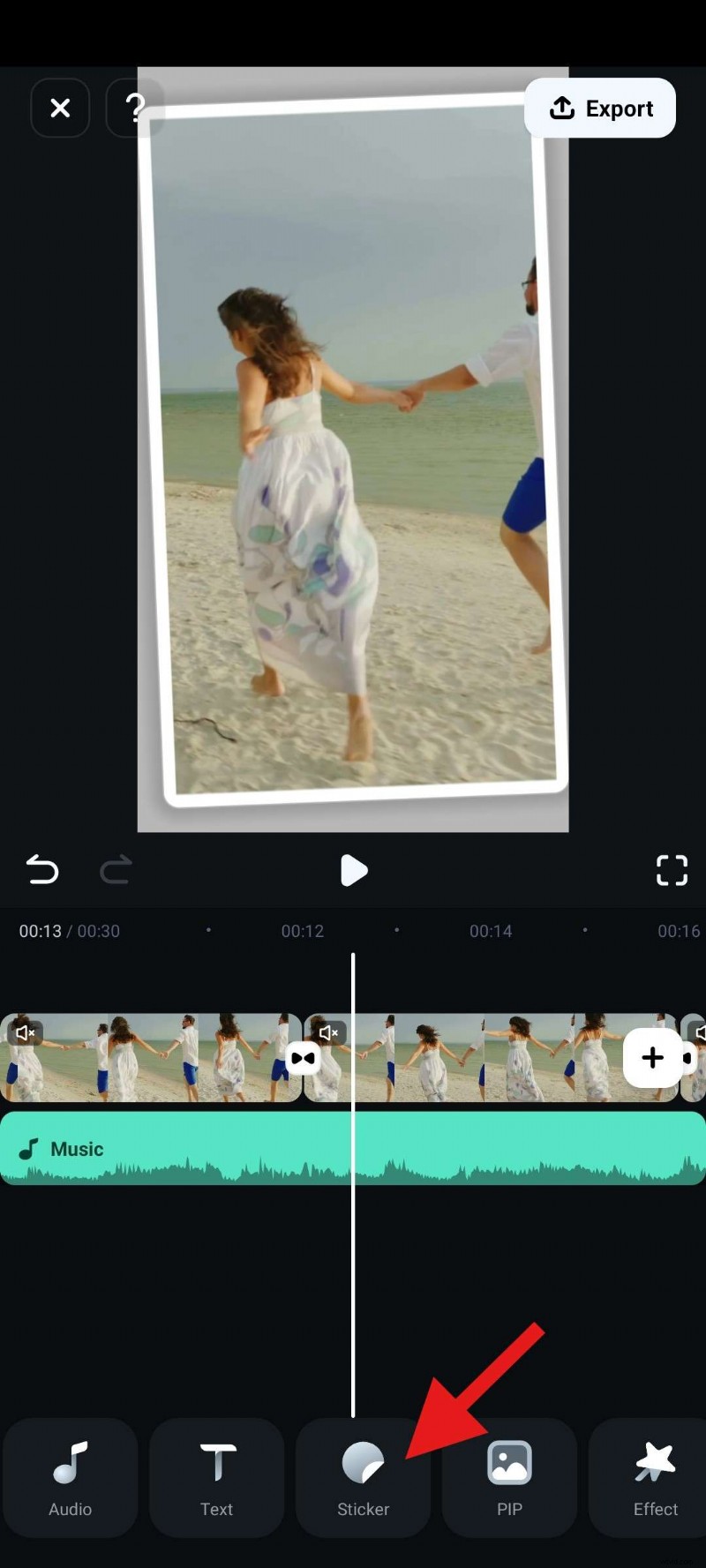
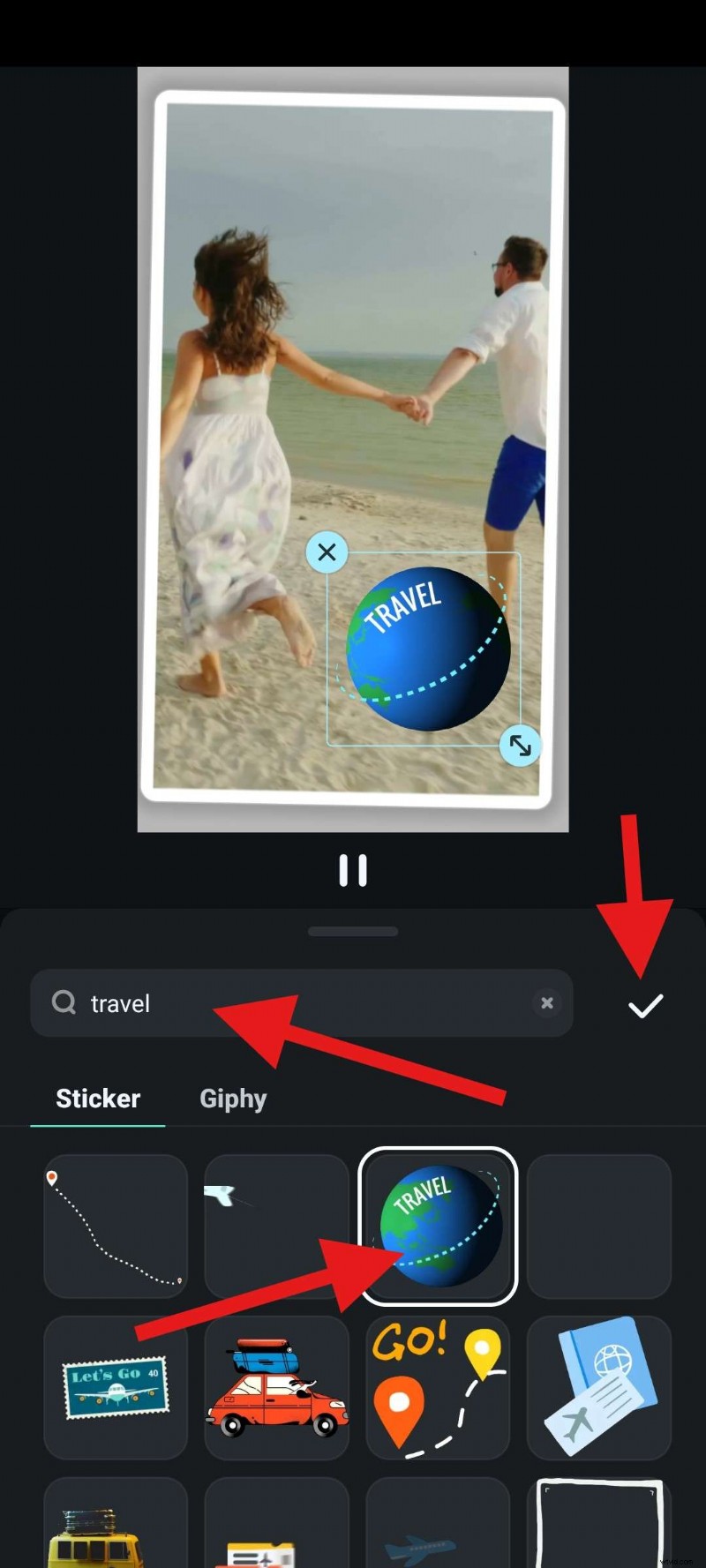
- You can also check out some cool Stickers.
- Again, search for travel, pick something that you like, and accept the changes.
- And now, since the AI Reel Maker feature already trimmed the video to 30 seconds, all that's left is to tap on Export.
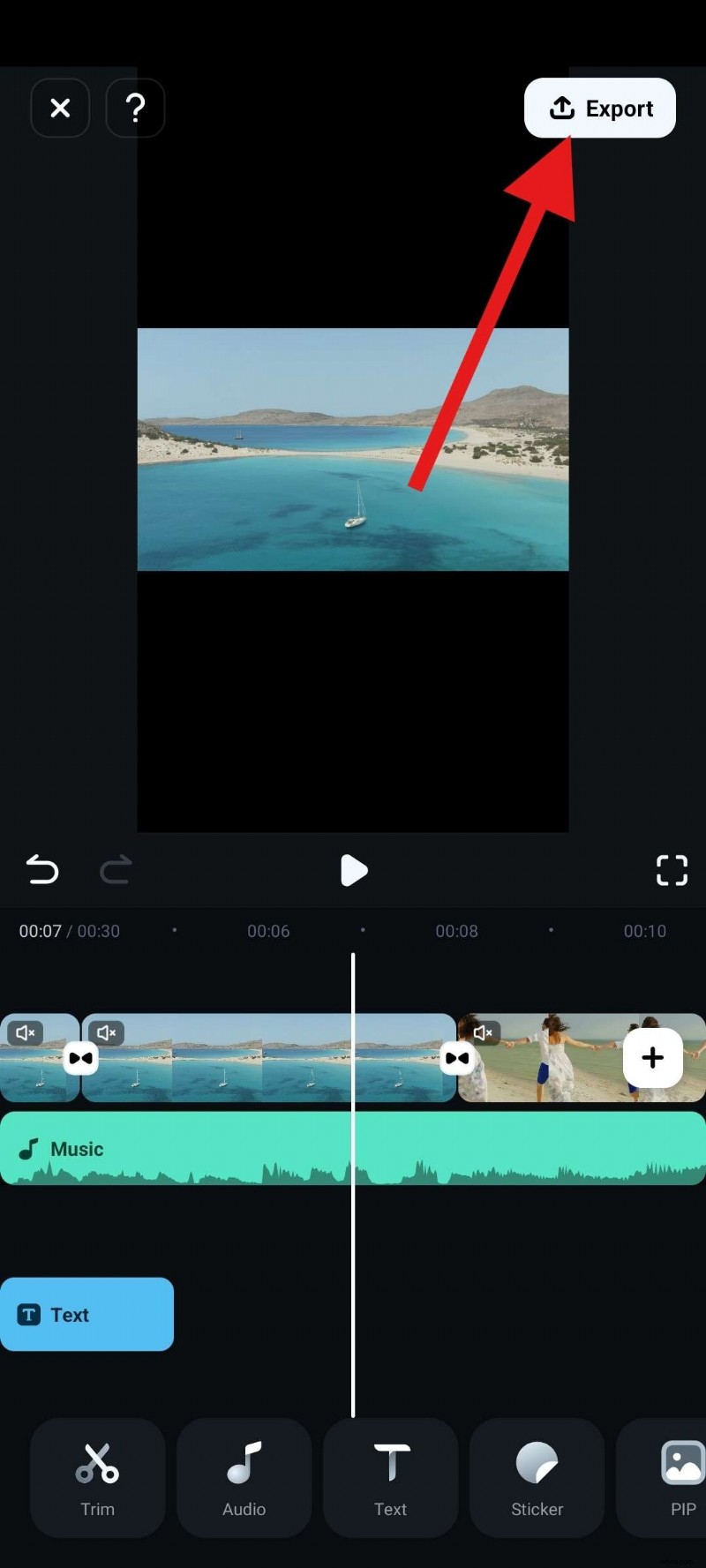
When the video is exported, you can simply reupload it and share it on Instagram.
Make Travel Reels with Templates
Filmora has an extensive library of templates. These are created to help you out if you are short on time or experiencing a creative block. In addition to providing usual templates, Filmora also provides hundreds of AI image-to-video templates that allow you to make travel reels by animating static images and turning them into short videos.
Here, we will discuss the method for making travel reels with standard travel video templates.
Filmora
AI Video Editing App & Software
Best tool for making videos anywhere for all creators!
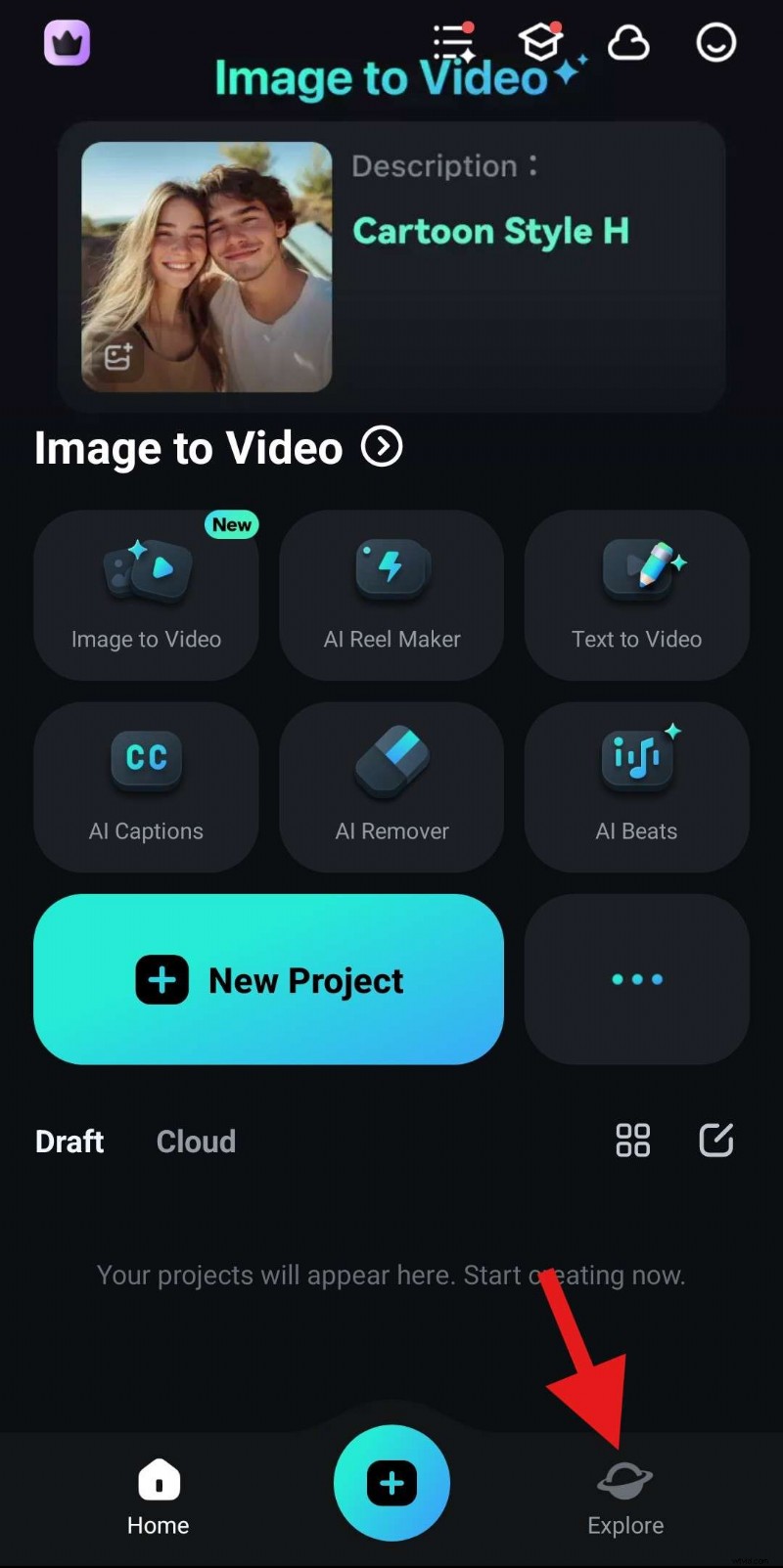
- From the welcome screen, tap on Explore in the bottom-right corner.
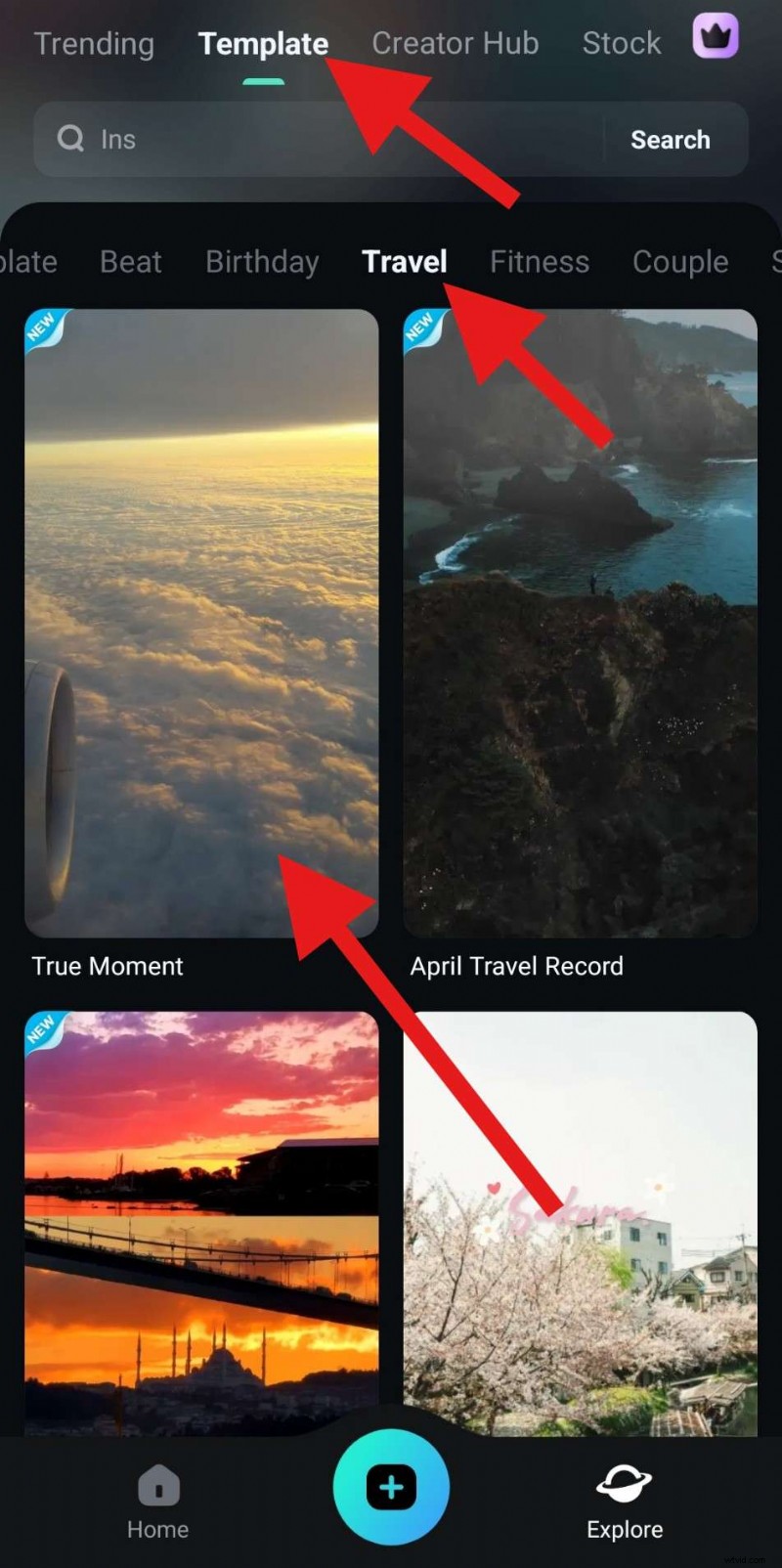
- Go to Template > Travel and pick a template that resonates with you.
- Review the template one more time and tap on Make Video.
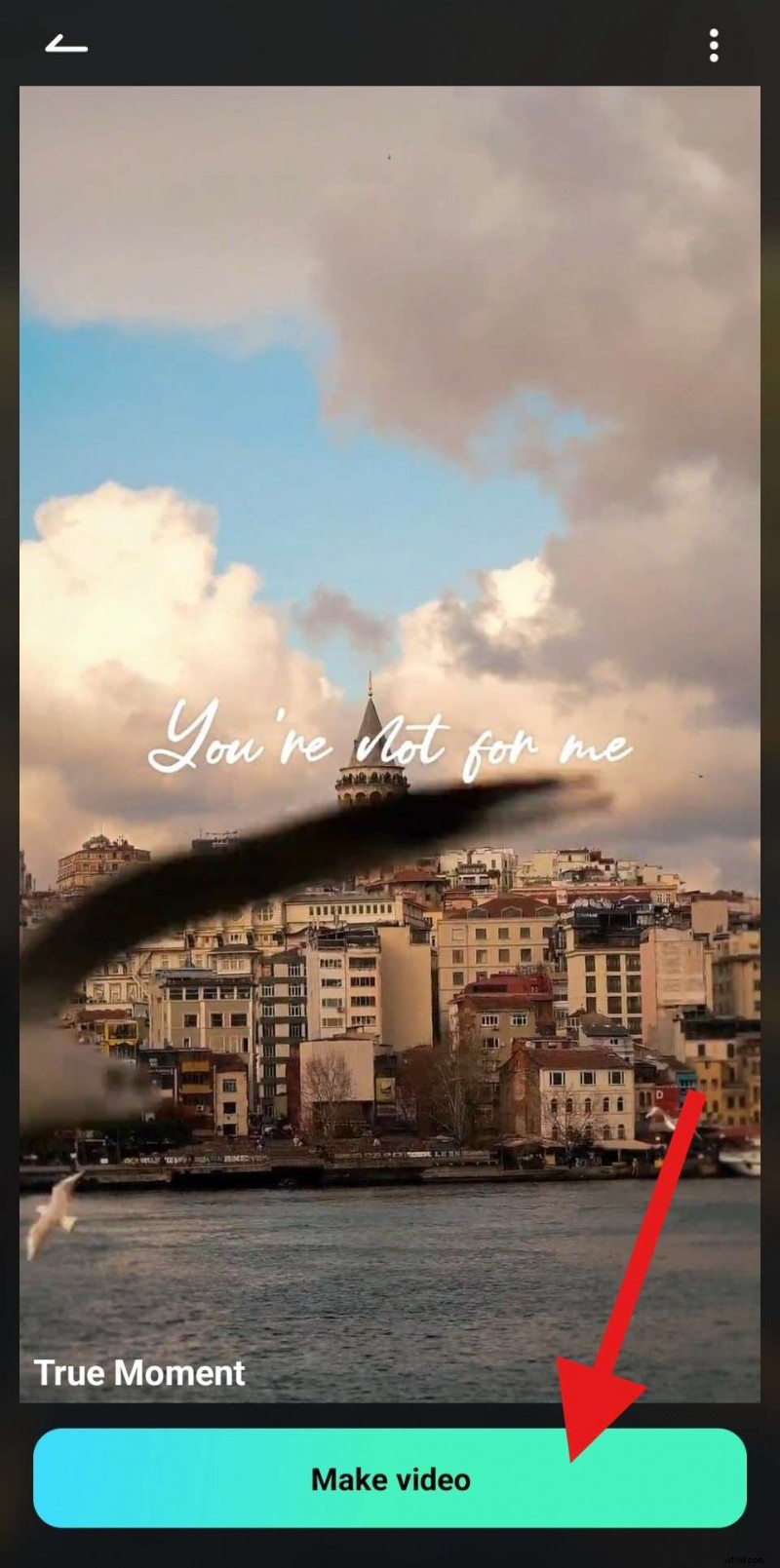
- Follow the instructions, add as many clips as required by the template, and tap on Import.

- Review the results and tap on Export if you are satisfied.
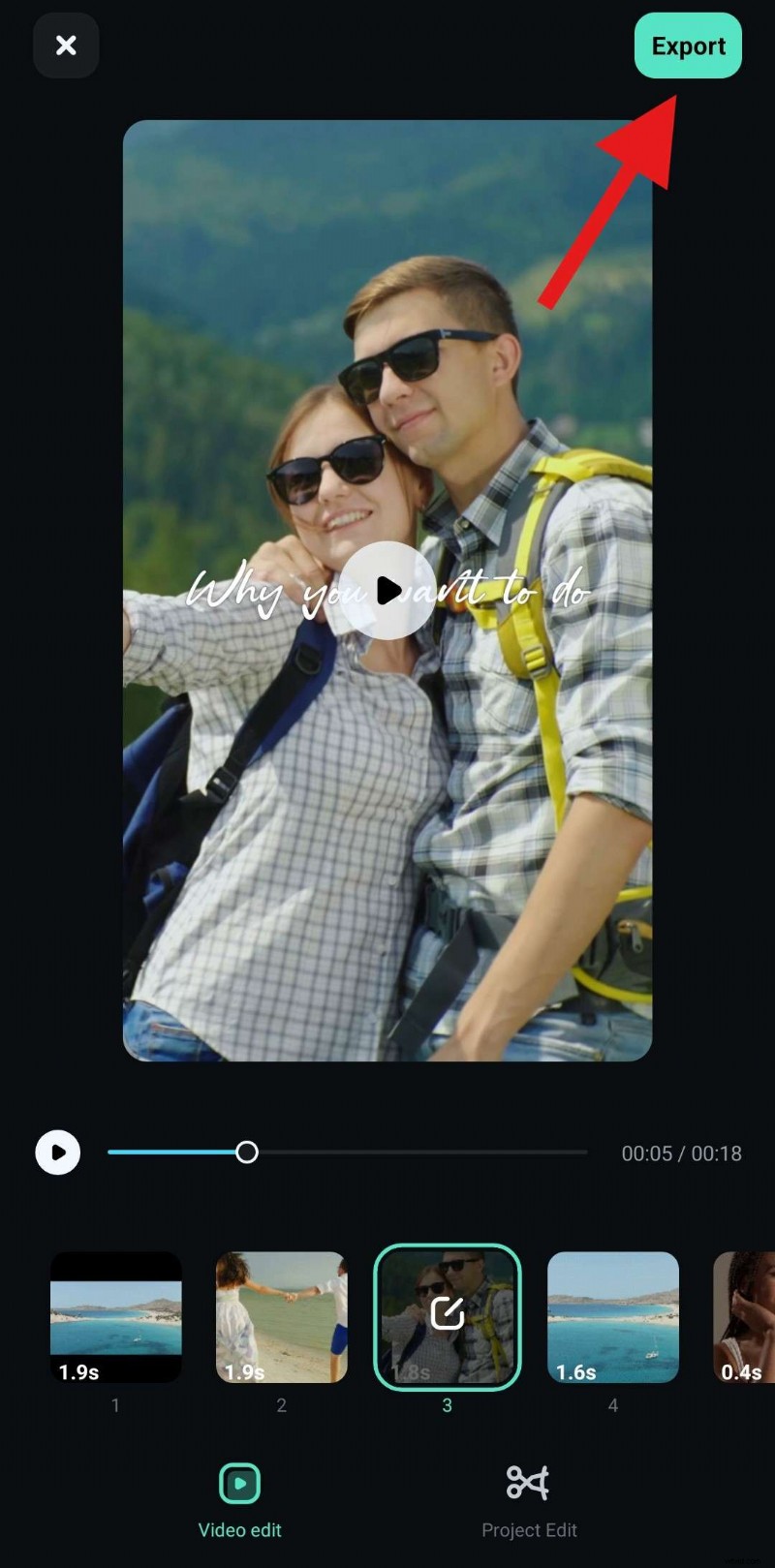
If you want, you can also click on Project Edit to continue editing the reel before posting. There are several cool features that you can use to make your video stand out. In the following section, we'll look over a few of those features.
Tips for Making a Good Travel Reel Stand Out
Imagine what you could do if you explored all the tools Filmora has in store for you. To that end, we would like to introduce you to a few other features that can help you make the perfect travel reel.
Filmora
AI Video Editing App & Software
Best tool for making videos anywhere for all creators!
1. Remove Objects from Your Travel Reel Video to Enhance Your Message
If there is a particular object, person, or piece of text that you want to remove from your footage, Filmora's AI Remover will take care of that for you in just a few taps. It's very easy to use, so give it a try.
2. Add Captions to Your Travel Reel Video in a Few Taps
Adding captions to reels improves viewer retention immensely. With Filmora's AI Captions feature, you can add captions in different languages to increase your reach. There are also cool customization options to fit your style.
3. Get Awesome Background Music for Your Instagram Travel Reels
As we have already shown you, Filmora has the option to generate music, but there is a dedicated feature called AI Music. You can use it to get royalty-free original music for your reel and stand out even more.
Conclusion
In this text, we have learned how to make travel Instagram reels using an awesome mobile app. But did you know that Filmora is also available for desktop devices, both Windows and Mac? You can also use the desktop version of Filmora for more precise edits. If you are an aspiring travel influencer, the desktop version is definitely worth checking out. It offers a lot of power, and you can use it to gain an edge over the competition.
 Secure Download