
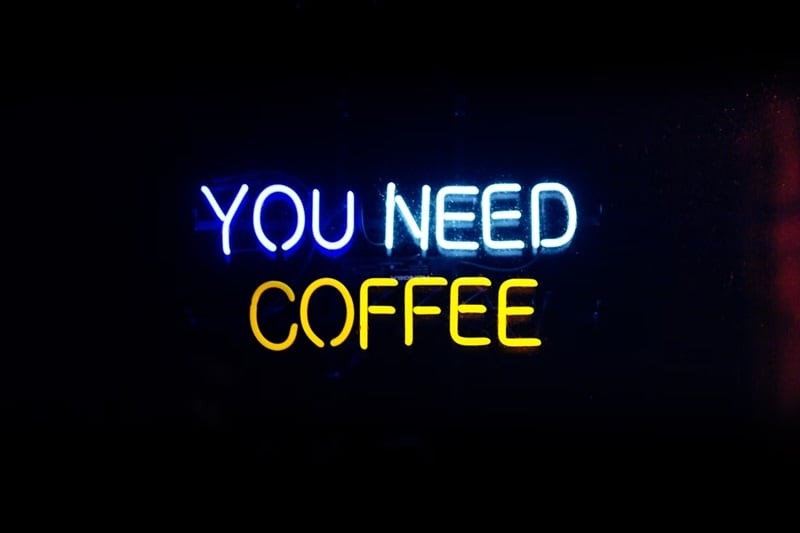
The bright neon sign effect you often see in many poster or cover designs can be created in Photoshop. This effect has become a popular design trend, known for its vibrant and eye-catching visuals. With bold and luminous colors, the neon signs can make your designs pop and add a fun vibe to your project.
Although it can be a bit challenging to navigate, Photoshop is still a preferred tool for creating these neon effects because of its robust layer and blending options. The software lets you apply effects like outer glow and color overlays that are essential for achieving realistic neon looks.
To get started, we've put together a comprehensive guide on creating a neon sign effect in Photoshop. You can even take it a step further by creating an animated neon text effect with our tips below.
In this article
-
- Popular Uses of Neon Effects
-
- Prepare the Background
- Create the Neon Sign
-
- How to Make Neon Text Effect with Filmora
- Tip: How to Make Neon Dance Effect
- Comparing Neon Effect in Filmora and Photoshop
Part 1 Understanding the Basics of Neon Effects
The neon sign effect is a popular design technique that replicates the appearance of glowing neon lights. This effect is known for its vibrant, saturated colors and illuminated edges, which create a dramatic visual contrast against darker backgrounds. It often conveys a modern, retro, or pop-culture vibe, reminiscent of classic neon signs you often find in bustling cityscapes.
Popular Uses of Neon Effects
Because of its eye-catching and vibrant appearance, neon glow effects are often used to grab attention in promotional materials, such as advertising or highlighting a new movie release at a theater. They are also popular in cyberpunk, vaporwave, and synthwave styles. It's perfect if you want to add a touch of modernity or a nighttime vibe to your project. Beyond that, neon effects are commonly seen in:
- Logos
- Advertisements
- Digital Art
- Flyers and Posters
- Social Media Graphics
- Cover Art (albums, books, etc.)
- Stream Overlays
Part 2 How to Create Neon Text Effect in Photoshop?
Creating a neon text in Photoshop involves a few key steps, including preparing the background and adding the text for edits. Let’s break them down how to make a text glow in Photoshop:
Prepare the Background
Step 1: Import and darken the background image
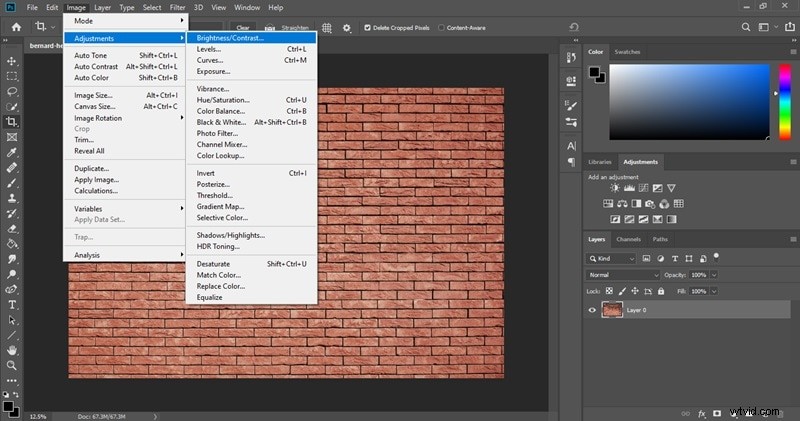
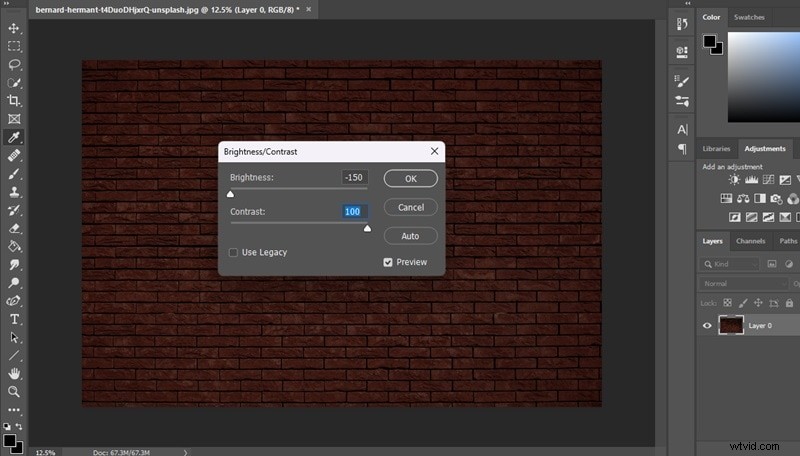
Start by adding or importing a background image. For the best effect with your neon letters in Photoshop, make sure the background is dark. To achieve this, you can adjust the image brightness and contrast. Go to Image > Adjustments > Brightness/Contrast.
Then, use the sliders to make the necessary adjustments until your background appears darker.
Step 2: Apply a vignette to the background (optional)
For additional dramatic effect and realistic look, you can apply a vignette. To do it, create a new layer, and use the Ellipse Tool to draw an ellipse just slightly smaller than the canvas.
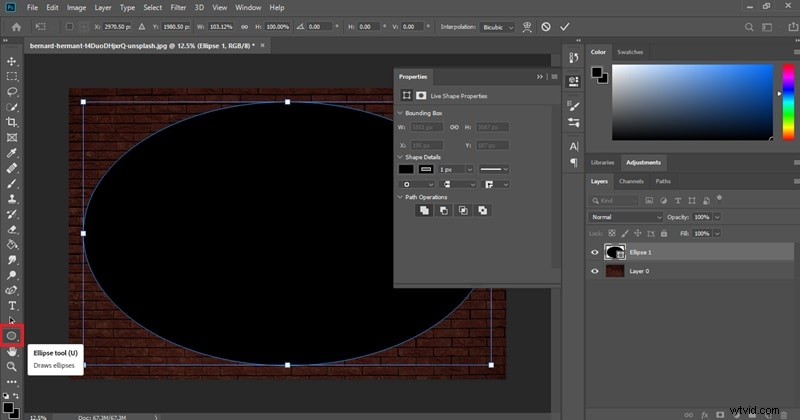
Next, open the Properties window and navigate to the Path Operations dropdown. Select ""Subtract From Shape"" to invert the ellipse.

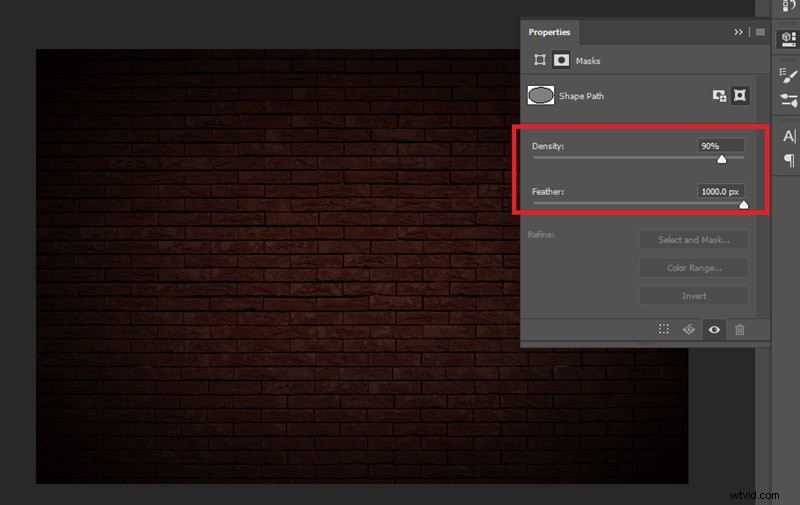
Under the Properties window, select the Mask option, and adjust the Feather setting to your preference to create a blurred effect around the shape. It should look like this.
Create the Neon Sign
Step 1: Add a text layer
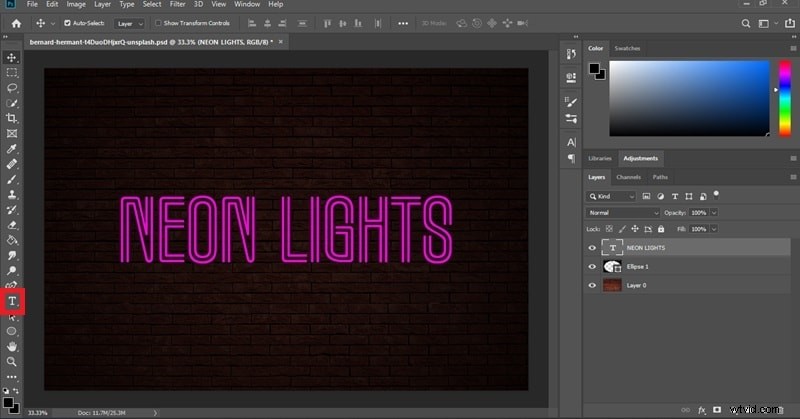
Once your background is ready, let’s create the glowing text. Start by adding a text layer and selecting a font that suits your design. Some popular choices include Beon Medium, Neon by Fenotype, Monoton, and Marquee Moon.
Step 2: Apply effects to the text layer
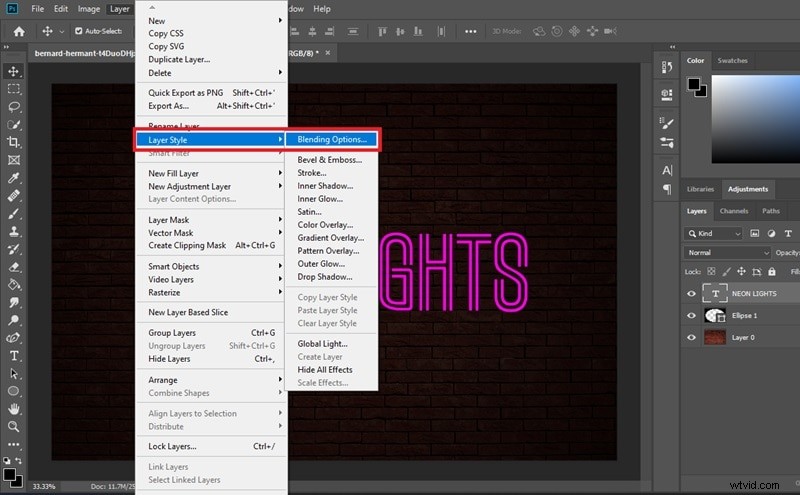
Next, access the ""Layer Style"" panel to apply various effects that will give your text a neon-like appearance. Go to Layer > Layer Style > Blending Options.
Add Bevel & Emboss
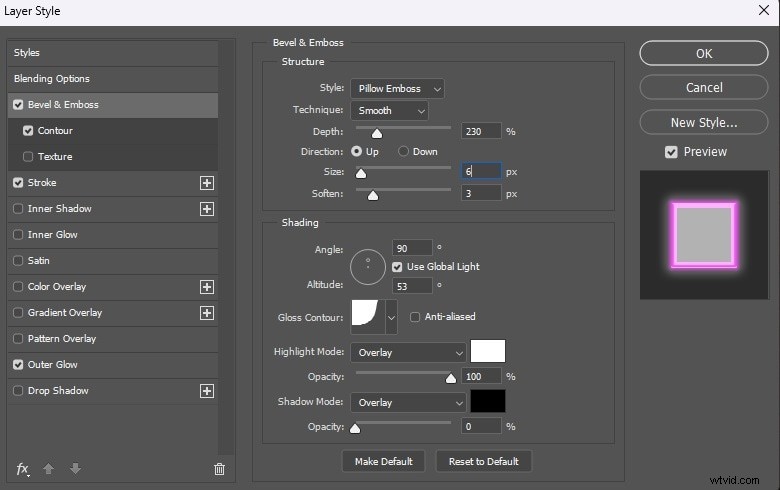
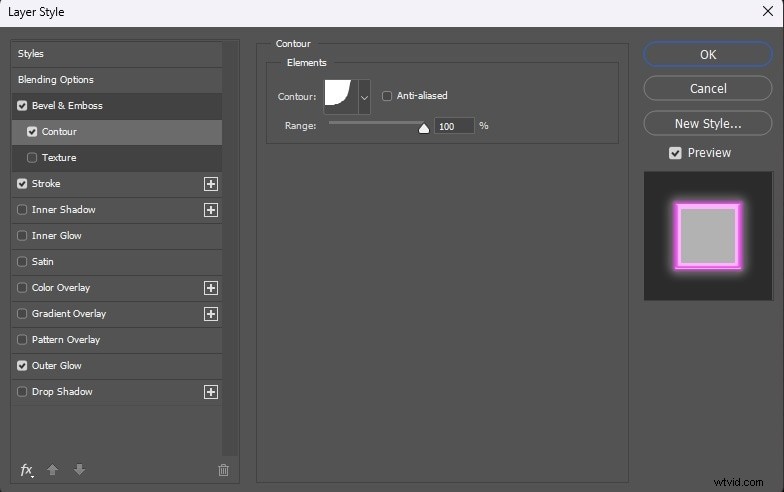
Then, enable ""Bevel & Emboss"" by checking the corresponding box. Adjust the settings in the Bevel & Emboss panel to achieve the look you want. You can preview the changes in real time, so experiment until you find the effect that works best. If not, you can try using our example settings below.
Next, enable the "Contour" panel by checking the box next to it. Choose a contour shape that suits your project. Here, we are using the Cove-Deep.
Add a Stroke
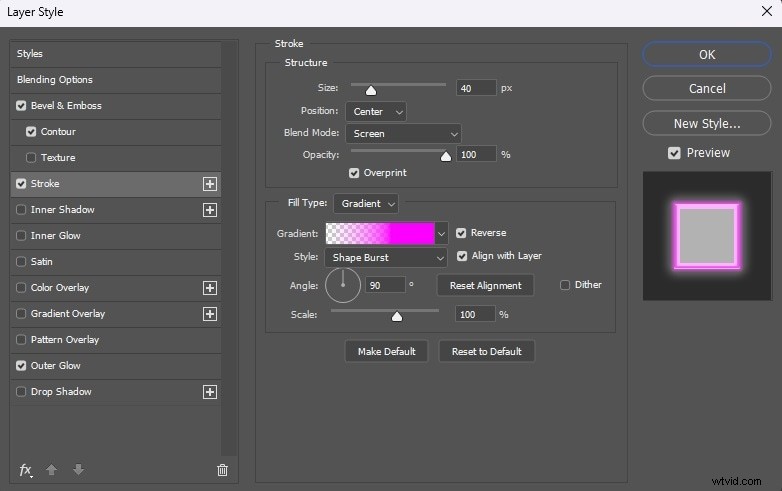
Next, open the ""Stroke" " panel and experiment with different settings. Adjust options such as blend mode, size, opacity, and pattern. For the blend mode, select the one that integrates the stroke well with the underlying layers.
Apply Outer Neon Glow
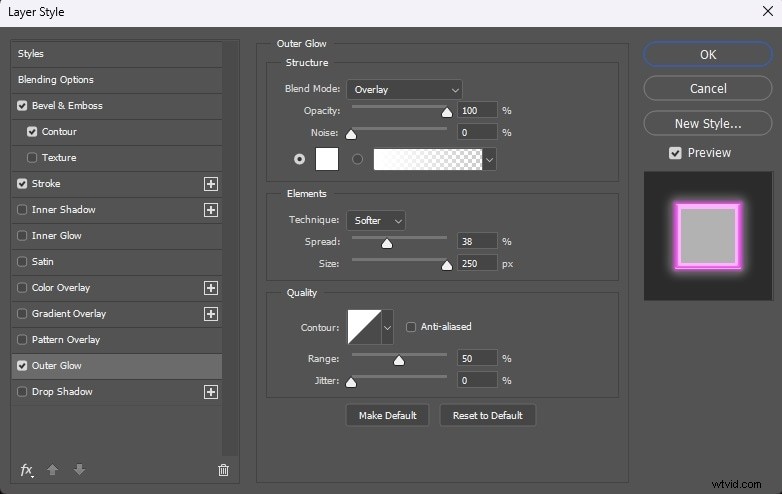
To create a vibrant neon effect, use the ""Outer Glow"" panel. Adjust the settings to enhance the neon effect.
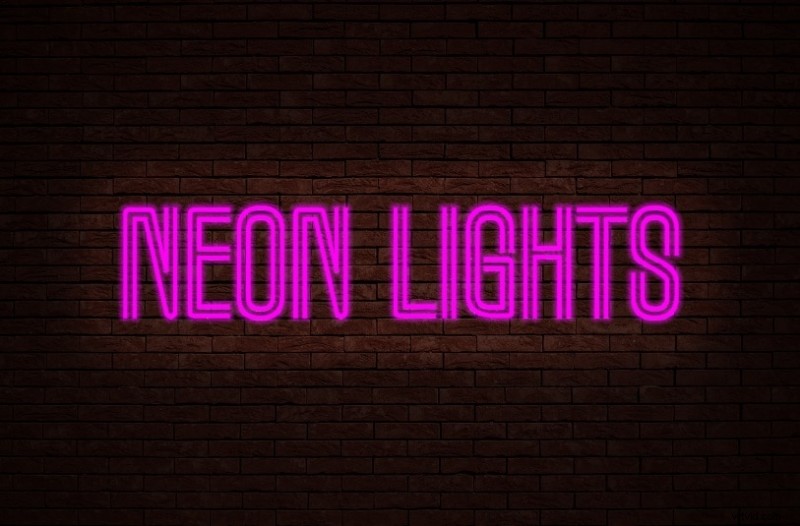
Now, you’ve successfully made a text glow in Photoshop. Click " "OK" " to save your changes and exit the Layer Style panel. If it still needs more adjustment, you can also try adding Inner Glow or Drop Shadow.
Part 3 Wondershare Filmora: An Alternative Makes Your Neon Effect More Creative
After learning how to create glowing text in Photoshop, you can take your project to the next level by incorporating motion effects and turning it into a video. To do it, you need Wondershare Filmora as your editing software.
Filmora offers a range of neon effects, including neon frames, neon title effects, and various neon overlays. Using these features, you can make your neon signs come to life with added movement and animation. What you need to do is select the style you want and customize it as needed.
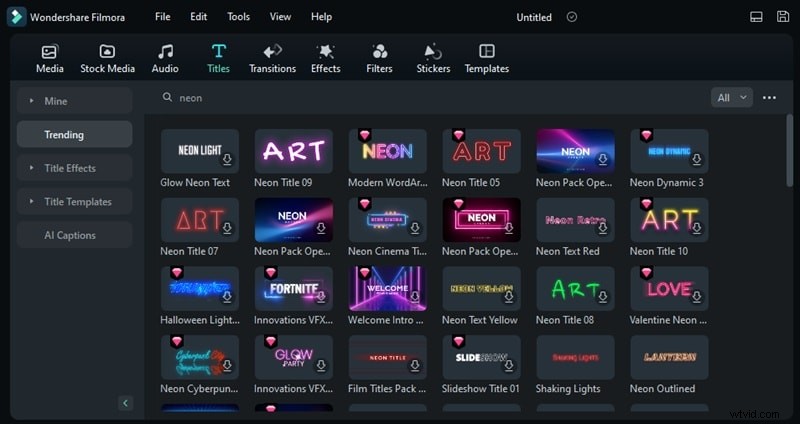
How to Make Neon Text Effect with Filmora
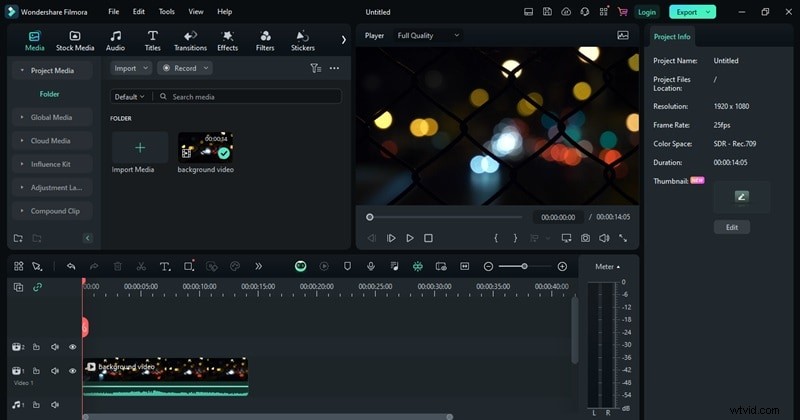
Step 1: Import background video or image to the timeline
After creating a new project, import a background video or image and drag it to the timeline. Same as before, make sure the background is in darker color to make the neon sign more pop up.
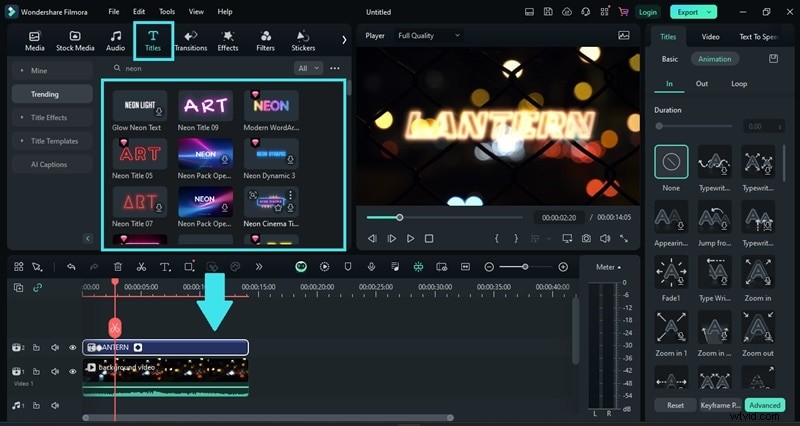
Step 2: Add neon title effects
Next, go to the Titles tab and search for “Neon” to filter the options. You will see several neon-themed title effects available. Select the one that best fits your project and drag it onto your timeline above the background layer. Adjust the text and positioning as needed.
Step 3: Customize the neon sign
Now, you can customize the neon sign, such as changing the text, font, size, color, and more. Select the Title track on the editing timeline, then go to Titles > Basic Settings in the property panel on the right.
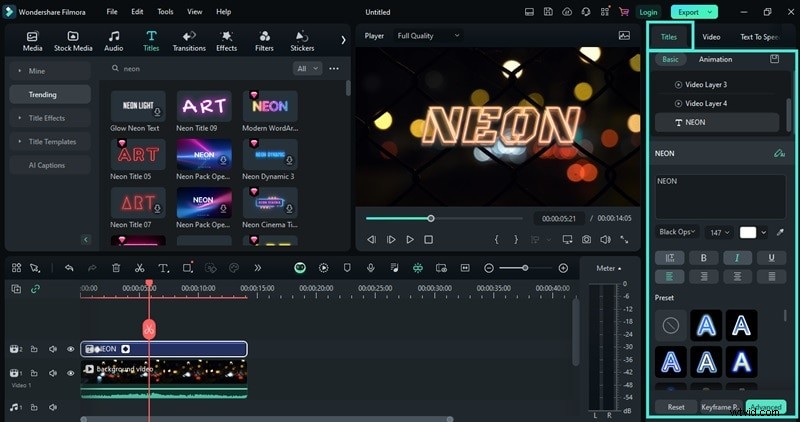
Filmora’s title effects often come with built-in animations. However, if you want to add additional animation, you can navigate to the Animation tab and choose the animation that best suits your needs.

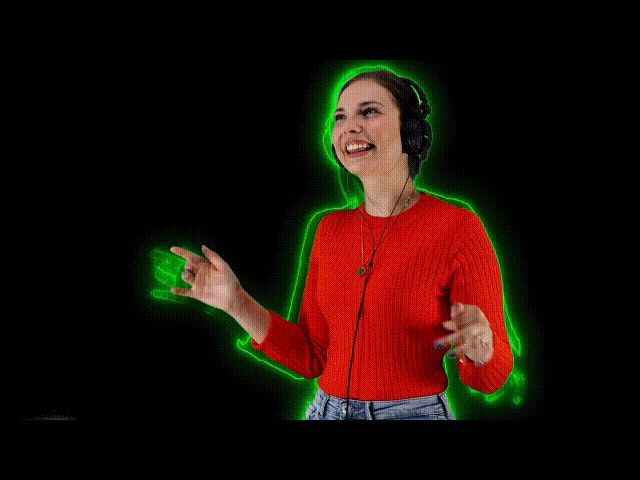
Tip: How to Make Neon Dance Effect
After learning the basics of using neon title effects to create an animated neon sign in Filmora, you can start exploring more creative ideas. For instance, if you have dance footage, try creating a neon dance effect by synchronizing neon animations with the dancing movement.
Watch how to make neon dance effects using Filmora here.
Comparing Neon Effect in Filmora and Photoshop
Between Filmora and Photoshop, you’ve learned how to add neon effects to your project. Both software offer different approaches to achieving these effects. To summarize their distinct features and functionalities, you can refer to the table below.
| Filmora | Photoshop | |
| Output Format | Video files (e.g., MP4, MOV) | Image files (e.g., JPEG, PNG) |
| Difficulty | Easy to use with pre-set effects and drag-and-drop functionality | More complex with a steeper learning curve for manual adjustments |
| Special Features | Pre-built neon effects, frames, and overlays, simple keyframing, ability to add animations, and tools for video editing | Detailed layer control and layer blending options to create custom neon effects |
| Ideal for | Making animated neon text in videos | Creating static neon signs in images |
Part 4 Common Mistakes You Need to Avoid When Using Neon Sign Effect with Photoshop
While creating a neon sign effect in Photoshop can be a creative way to make your designs stand out, there are some common mistakes people often make. Before you could fall for the same errors, it's important to be aware of them:
1. Not Using the Right Fonts
Using generic or hard-to-read fonts can diminish the neon effect's impact. You should choose fonts that mimic real neon signage. They usually benefit from bold, clean fonts with a retro or futuristic feel. Some neon fonts to try on Photoshop are Neon, Monoton, or similar styles.
2. Inadequate Glow Effects
Applying too little or too much glow can make the neon effect look unrealistic. Too little glow makes the text appear flat, while too much can overpower the design. To address it, use multiple layers for the glow effect. Apply a Gaussian Blur to a duplicate layer of your text to create a subtle glow. Adjust the opacity and blending mode to get a balanced, realistic glow.
3. Incorrect Color Schemes
Using inconsistent or unrealistic colors can make the neon sign effect in Photoshop look off. Neon signs often use vibrant, saturated colors with a consistent color scheme. Some of the best colors that work well for neon effects include bright pinks, electric blues, neon greens, and vivid purples.
Part 5 Where to Find the Best Neon Effect [FREE]?
You have learned how to make glowing text in Photoshop. If you need some inspirations, there are some online resources that provide you with the best neon effects for free, although many also have premium options that require a subscription. Some of them are:
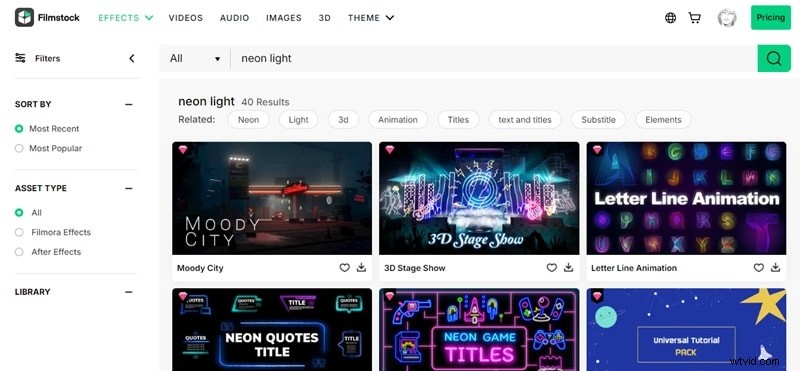
1. Filmstock
Filmstock is one of the largest online libraries for video resources. It offers a vast collection of media assets, including effects, HD videos, audio, and images, designed to complement your video projects. With over 10 million assets available, Filmstock is a great resource for finding neon light effects and other creative elements.
2. Mixkit
Mixkit provides a curated selection of high-quality video and audio effects, stock video clips, templates, and music tracks. You can download neon light effects and other assets for your video projects free of charge.

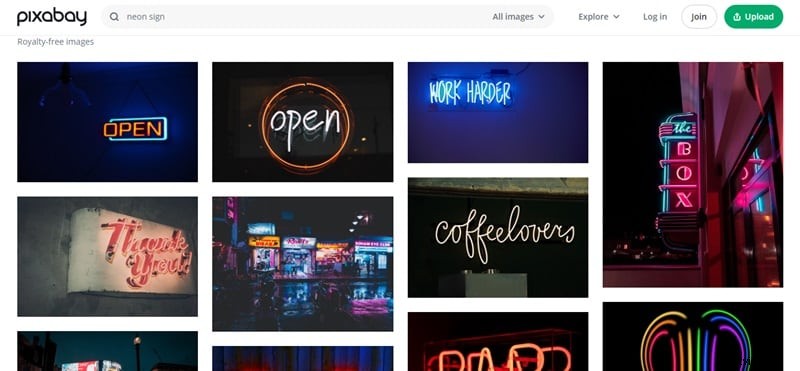
3. Pixabay
Pixabay is a go-to platform for downloading high-quality stock video footage, video effects, music, and images. The site exclusively offers licensed content that is safe to use without requiring attribution or credit.
Part 6 Where to Find the Best Neon Text Templates?
What about some neon text templates? There are also various sources where you can download and use high-quality neon templates, be it for videos or images.
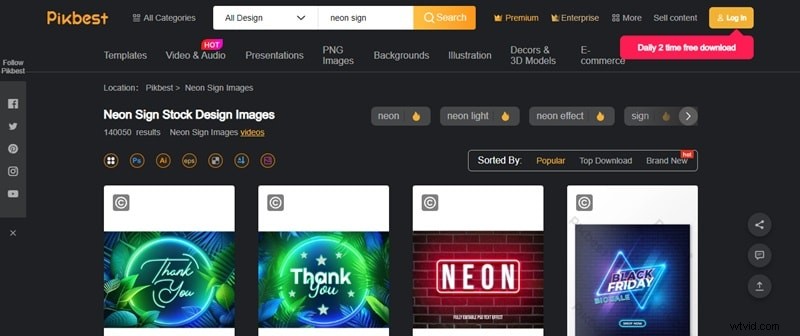
1. Pikbest
Pikbest offers an extensive collection of design resources, including but not limited to templates for posters, flyers, and social media graphics. It’s a go-to resource for professional graphic designers seeking tools to create impressive and creative designs. Some of its collections involve neon light designs, perfect for adding a bold and modern look to any project.
2. Freepik
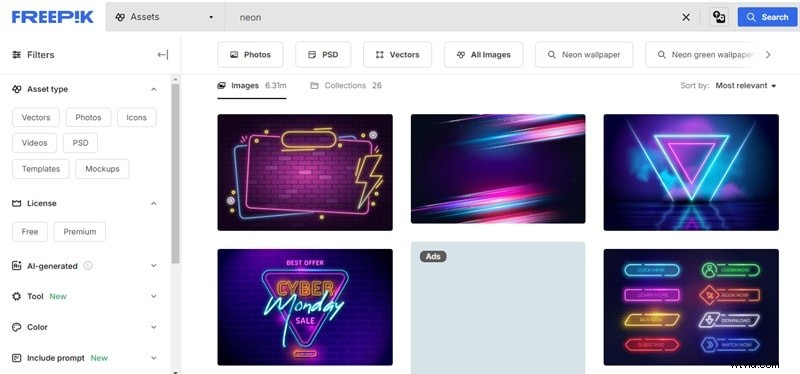
Freepik is a valuable resource for graphic designers and video editors looking to improve their projects with creative assets. The platform offers an extensive collection of resources, including templates, high-definition images, mockups, illustrations, and icons, all designed to help bring your creative ideas to life. Many of its assets are customizable, depending on the supported file formats.
3. Canva
Canva is a user-friendly design tool that provides a diverse selection of neon text templates. Its extensive library features customizable templates for a variety of uses, including social media posts, presentations, and promotional materials. To access and use these neon text templates, you’ll need to work directly within Canva's web platform.

Conclusion
To create a neon sign effect in Photoshop requires an effective use of layer styles and blending options. Start by setting a contrasting, dark background to make the neon effect stand out. Then, apply key effects such as Bevel & Emboss, Stroke, Inner Glow, Outer Glow, and Drop Shadow to your text to achieve a vibrant and realistic neon appearance.
To add dynamic animations and motion, you can use Filmora to bring your neon signs to life in video formats. You can also try making a neon dance effect by synchronizing neon animations with movement in your video footage. Your imagination is the only limit—find more tutorials on Filmora website to expand your creativity.