
Are you looking for a reliable, cost‑effective, and intuitive video editor for macOS 15? You’re in the right place. The market offers a wide array of tools—each with unique features and capabilities—but one solution stands out for its blend of power, ease of use, and AI‑powered assistance: Wondershare Filmora.
Filmora is not just a beginner’s starter kit. It is a full‑featured video and audio editor that supports everything from basic trimming to sophisticated keyframing, motion tracking, and AI‑driven music creation. The platform is available across Mac, Windows, Android, iPhone, and iPad, making it a versatile choice for creators who work across devices.
In this article
- Why macOS 15 Sequoia needs a dedicated video editor and what sets Filmora apart
- Key Filmora features that give you a professional edge
- AI Copilot for instant editing guidance
- Quick Split Mode for fast trimming and cutting
- Keyframes for dynamic visual animations
- AI Music Generator for royalty‑free background tracks
- Step‑by‑step tutorials on using Filmora’s core tools
- Conclusion and next steps for mastering your workflow
Why Choose Wondershare Filmora to Edit Videos On Mac Sequoia?
Filmora delivers a complete editing experience that balances simplicity and depth. Basic operations—such as trimming, cutting, zooming, panning, and speed adjustments—are just the starting point. Advanced users gain access to features like keyframing, drawing masks, speed ramping, AI smart cutout, and more.
Below are the standout capabilities that differentiate Filmora from other macOS 15 editors:
- AI Copilot – an AI assistant that proposes editing ideas tailored to your project’s needs.
- AI Music Generator – create custom background music in seconds without searching royalty‑free libraries.
- AI Vocal Remover – isolate and export vocals in your preferred audio format, or remove them entirely.
- AI Smart Masking – effortlessly outline objects and apply seamless cuts for a polished look.
- Keyframing – craft engaging animations by adjusting opacity, color, rotation, and size over time.
- Motion Tracking – attach text, graphics, or video to moving subjects for dynamic effects.
- Auto Synchronization – automatically align audio with video to improve clarity.
- AI Audio Denoise – reduce background noise for cleaner soundtracks.
- Silence Detection – quickly remove silent segments to keep your footage concise.
These features are just the beginning. Visit the official Filmora website to explore the full suite of tools available for macOS 15.
How to Edit a Film on Mac Sequoia With Filmora in Minutes? [4 Tricks]
Below are concise steps that show how to harness Filmora’s most powerful tools for swift, high‑quality video creation.
Quickly Edit a Video With Filmora AI Copilot On MacOS 15
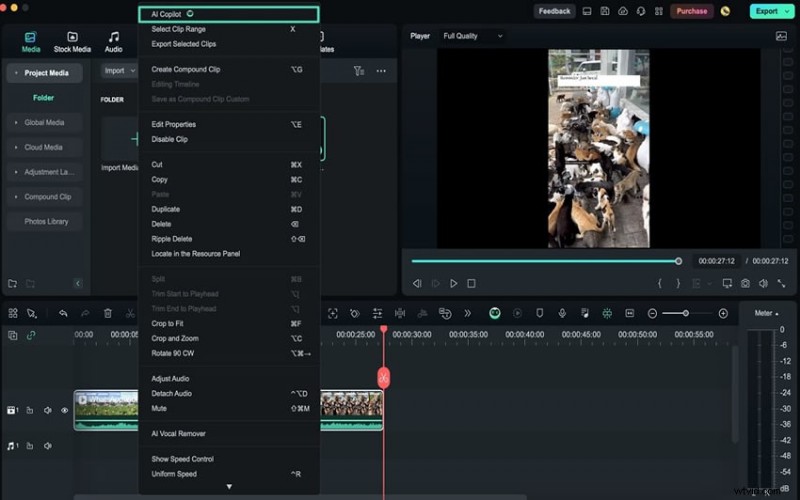
New to video editing? AI Copilot is your on‑screen guide, offering real‑time suggestions that transform your workflow and eliminate common pitfalls.
Install Filmora on your Mac Sequoia and follow these steps to activate AI Copilot:
- Launch Filmora, then select Create Project > New Project from the main menu.
- In the editing interface, click the AI Copilot icon on the toolbar.
- Type a question—such as “How do I add a transition?”—and press Ask AI to receive actionable guidance.
Split or Trim Videos on MacOS 15 using Quick Split Mode
Filmora’s Quick Split Mode lets you divide footage into multiple clips or trim unwanted sections with minimal effort.
To use Quick Split Mode:
- Import your video into the project and drag it onto the timeline.
- Click the Quick Split Mode icon at the top of the timeline, then click the segment you wish to split.
- Use the red scissor icon to adjust the start or end points of a clip.
- Right‑click an unwanted section and choose Trim Start to Playhead or Trim End to Playhead.
- After splitting, you can remove sections by selecting them, right‑clicking, and choosing Cut.
Create Fantastic Visual Animations with Keyframes on Mac OS 15
Keyframes unlock dynamic visual storytelling—allowing you to animate properties like opacity, scale, rotation, and color over time.
Follow these steps to animate a sticker:
- Import your video and drag it onto the timeline.
- Click the clip to open the Editor panel.
- Navigate to Video > Basic > Transform to access animation controls.
- Add a sticker from the library and place it on the timeline; adjust its size manually.
- Click the diamond icon to set a keyframe at the start of the sticker.
- Move the sticker in the preview panel; additional keyframes will appear automatically.
- Add as many keyframes as needed to create smooth motion.
- Press Play to preview the animation.
Generate Royalty-Free Music With AI Music Generator On MacOS 15
Background music elevates video quality. Filmora’s AI Music Generator lets you craft custom tracks without external searches.
To generate music:
- Start a new project and locate the Audio tab in the toolbar.
- Select AI Music > Tool > Start to open the generator.
- Configure the Mood, Music Duration, and Generated Music Count to match your vision.
- Click Start and wait for the AI to produce tracks.
- Download any track by clicking the downward arrow beside it.
- All generated music is automatically saved under Audio > AI Music > Generated.
- Drag the chosen track to the timeline, then export your final video.
Conclusion
This guide has walked you through the essential steps of editing videos on macOS 15 using Wondershare Filmora. By focusing on compatibility, user‑friendliness, and feature depth, you can quickly select the right tool for your creative needs.
For a streamlined, professional editing experience on Mac Sequoia, Filmora remains the top recommendation. Download it today and transform your video projects with confidence.