
In today’s fast-moving content landscape, a captivating thumbnail is essential to stand out. While CapCut and TikTok faced a temporary service halt in the U.S. early 2025 due to regulatory challenges, many creators experienced disruption and uncertainty. If you’re concerned about workflow interruptions, app availability, or maintaining professional-quality thumbnails, Filmora offers a powerful, easy-to-use alternative. With its AI-powered tools, customizable templates, and intuitive editing features, Filmora enables you to create stunning thumbnails and videos seamlessly, helping you stay creative and competitive—no matter the changing platform landscape.
In this article
How to Create Thumbnails with CapCut?
CapCut’s thumbnail maker is a straightforward tool that allows users to design visually appealing thumbnails. Here is a step-by-step guide to using it:
Step 1: Launch the Software
Open CapCut and tap on "New Project."
Step 2: Add the Thumbnail
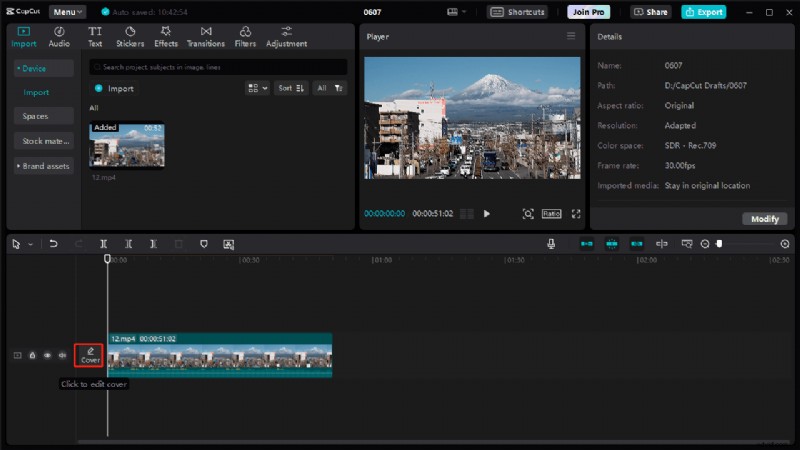
Import the videos that you want to add a thumbnail, and ten click on "Cover" icon to the left of the video track.
Step 3: Edit the Thumbnail
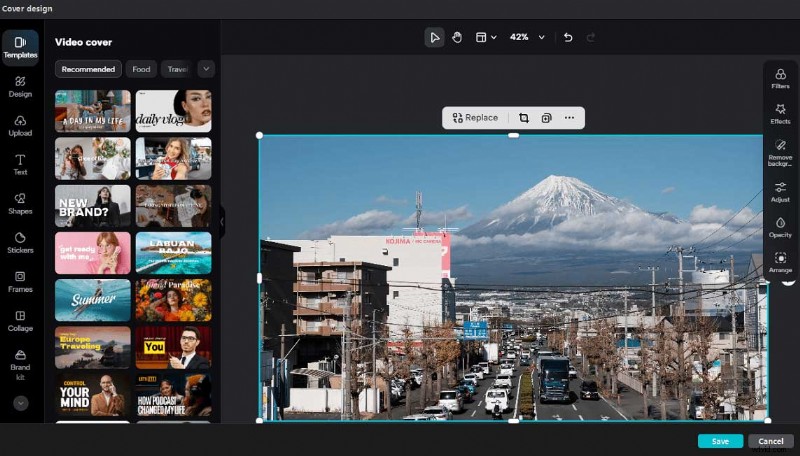
In the Cover Design window, you can customize the thumbnail:
- Replace the frame or upload an image/logo.
- Select a template and set an aspect ratio (e.g., 9:16, 1:1).
- Apply filters, color themes, and effects.
- Adjust color and lighting or remove the background.
- Add text, stickers, photo collages, frames, and shapes.
Step 4: Save the Thumbnail
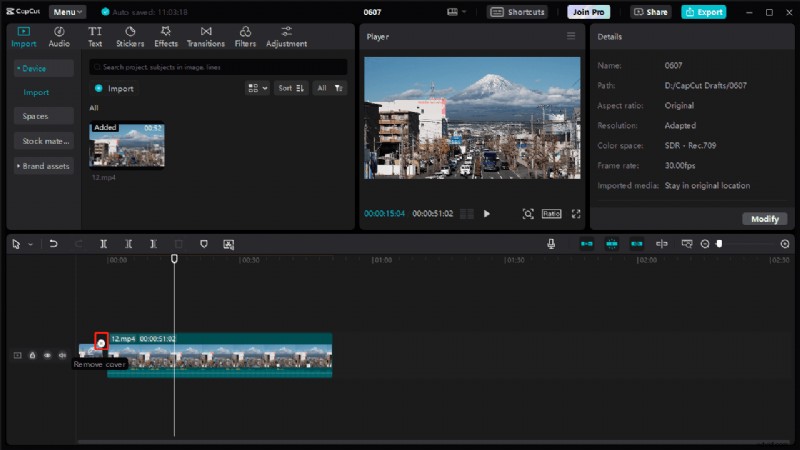
Click "Save" to attach the thumbnail to the video in CapCut. To remove it, click the "x" in the top-right corner.
Step 5: Finalize and Export
Continue editing the video and export when done.
Are you asking yourself, "What happens now that CapCut is unavailable?" or "How can I keep creating eye-catching thumbnails?" While CapCut’s thumbnail feature is easy to use, its unavailability in the U.S. has created a demand for reliable alternatives. Enter Filmora.
How to Make Thumbnails Without Capcut? A Perfect Alternative
Unluckily, if you can't use Capcut thumbnail maker now, I have a good idea for you. Filmora is a robust video editing platform that offers a wealth of tools for creating high-quality thumbnails. You can choose the thumbnail from the video you uploaded, or generate a thumbnail through AI. Let's explore how to achieve this!
Method 1: Set the Thumbnail Manually
Here’s how you can use Filmora to design your thumbnails manually:
Step 1: Launch Filmora and create a new project.
Step 2: Import your desired image or video frame into the media library.
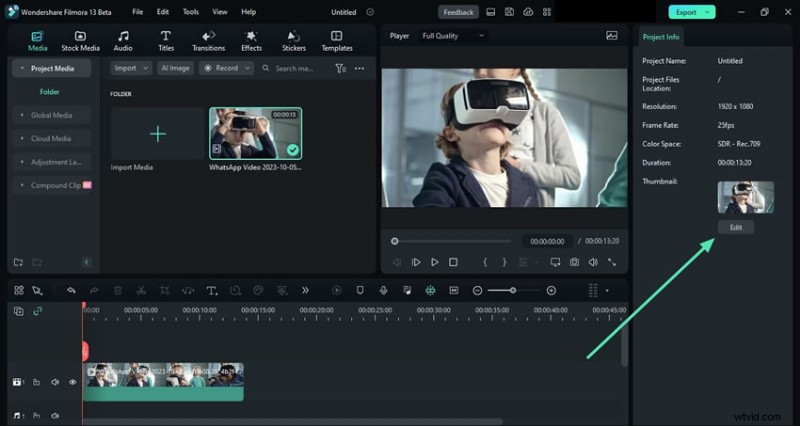
Step 3:After editing, click outside the media clip on the timeline to open the "Project Info" panel on the right. Click "Edit" to access the "Set Thumbnail" window, where you can create thumbnails in the "Video" tab and export them as described earlier.
Method 2: Henerate a Thumbnail With AI
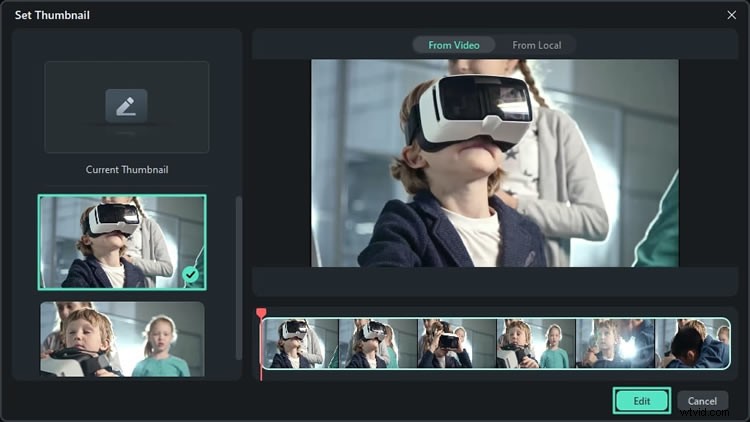
Step 1: Choose a Frame as a Thumbnail
Open the thumbnail generator and navigate left to view AI-recommended frames. Select a frame and click "Edit."
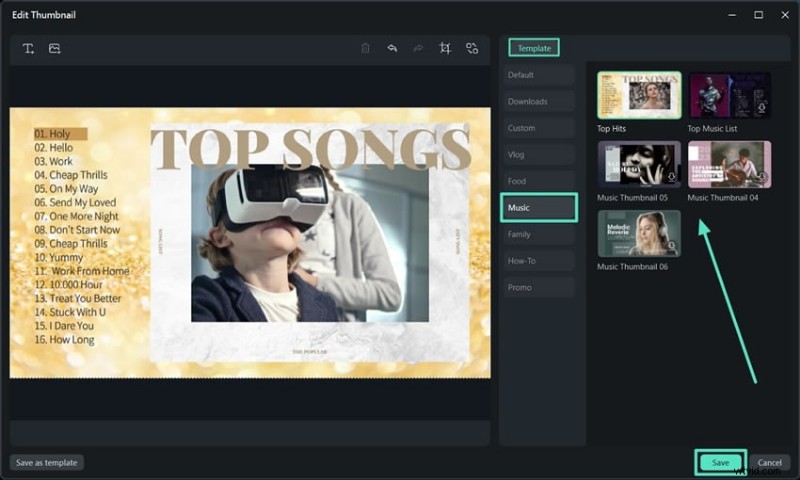
Step 2: Choose a Template
In the editing window, pick a category and template from the AI options provided, then click "Save."
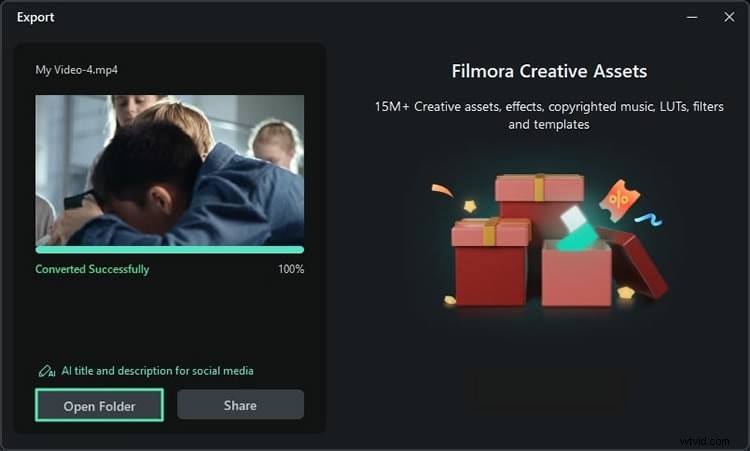
Step 3: Export the Thumbnail
Click "Export" in the export window to convert the frame into a thumbnail image. Once done, click "Open Folder" to view your thumbnail.
"How do Filmora’s tools compare to CapCut?" or "Can I create professional thumbnails without advanced skills?" are common questions among content creators. Filmora’s intuitive design ensures you don’t need to be an expert to produce stunning visuals. That's why I recommend it.
How Filmora Excels as a Thumbnail Maker
Filmora isn’t just about video editing; its robust thumbnail creation capabilities make it a standout choice. Here are additional reasons why Filmora excels as a thumbnail maker:
- Customizable Templates: Filmora offers ready-made templates that make thumbnail creation easier for beginners, helping you save time while keeping professional quality.
- Extensive Font Library: Access a wide variety of fonts to perfectly match your brand style, making it simple to choose the right one for your thumbnails.
- Shape and Icon Integration: Add shapes, icons, and graphic elements like arrows or circles to highlight important parts of your thumbnail.
- Layer Editing: Edit each element—text, images, effects—separately for precise control over your thumbnail design.
- Color Grading Tools: Use Filmora’s advanced color grading to enhance the vibrancy and overall look of your thumbnails, making them more visually appealing.
Except for the Thumbnail Maker, What Else Can Filmora Provide?
Filmora goes beyond basic editing tools, offering advanced features that cater to both beginners and professionals. Let's see what else can Filmora help with you except for making video thumbnails:
- Smart Short Clips: Filmora enables creators to easily extract short, engaging highlights from longer videos. This feature is particularly helpful for social media content creators who want quick and compelling snippets to drive traffic to their main content.
- AI Audio Stretch: Automatically adjusts audio tracks to match video length seamlessly. This feature is a game-changer for those who struggle with syncing audio and visuals.
- AI Audio Denoise: Removes background noise for clear audio. Wondering, "How can I improve audio quality in my videos?" This feature has you covered.
- Silence Detection: Identifies and eliminates silent segments to streamline editing.
- Motion Tracking: Tracks moving objects to attach elements like text or effects, answering the question, "How do I make text follow a moving object in my video?"
- Chroma Key (Green Screen): Allows for creative background replacement.
- 4K Resolution Editing Support: Ensures professional-quality outputs. Ask yourself, "Is 4K editing support necessary for modern video content?" The answer is yes for quality-conscious creators.
- Integrated Stock Library: Access a vast collection of royalty-free media assets, eliminating the need to search elsewhere for resources.
In addition to these features, Filmora offers tools such as split-screen templates, keyframing, and customizable animations, allowing creators to elevate their videos and thumbnails effortlessly. For a full list of features, visit Filmora’s official page.
Pro Tips for Thumbnail Design with Filmora
Creating impactful thumbnails is essential for capturing audience attention. But why are thumbnails so critical? Statistics show that videos with compelling thumbnails can achieve up to 50% higher click-through rates. If you’re wondering, "How can I ensure my thumbnails stand out?", here are some proven strategies:
- Focus on Faces: Use clear, expressive faces to attract viewers. Make sure the image is sharp and clear.
- Highlight Key Text: Keep text short and bold. Use colors that stand out for easy reading.
- Experiment with Layouts: Use the rule of thirds to place important elements. Good layout helps get more clicks.
- Leverage Branding: Add your logo or consistent style to help viewers recognize your videos.
- Test Variations: Try different thumbnail versions and see which works best.
- Consistency: Keep a uniform look across thumbnails to build your brand.
- Clarity: Use high-quality images and readable fonts. Avoid blurry, low-res pictures.
Conclusion
The ban on CapCut in the U.S. has undoubtedly impacted its loyal user base, especially those relying on its thumbnail maker. However, "What is the best alternative to CapCut?" and "Can I find an equally powerful tool?" are questions Filmora answers with ease. Filmora emerges as a powerful alternative, offering not only thumbnail creation tools but also a wide range of features that cater to all video editing needs. Whether you’re a beginner or a professional, Filmora provides the perfect platform to take your content to the next level.
Are you ready to elevate your video creation game? With Filmora, you’re not just creating content; you’re crafting stories that leave a lasting impact.

Filmora
⭐⭐⭐⭐⭐
The Best AI-powered Video Editing Software and App