
Imagine you have taken a few incredible clicks as Live Photos on your iPhone and they turn out pretty amazing. You thought of sharing it on various online photography platforms to showcase your skills. However, the Live Photos format restricts the sharing as it is not compatible with the formats supported by the platform. The best solution to this is to convert the photo into videos without a second thought.
However, for users who do not know how to convert Live Photos into video, read this article till the end. The article discusses various ways to change the format of your dynamic photos into videos effortlessly.
In this article
-
- Converting Multiple Live Photos into Videos
-
- Steps for Using Filmora App to Convert Live Photos to Videos
- Steps to Transform Live Photos to Videos Using Filmora Desktop
Part 1. What are Live Photos? Everything You Need to Know
This is a unique capability of iPhone devices that enables one to capture the moment more than a still picture. Your phone captures 1.5 seconds of video and sound to generate a moving clip. This short clip is a hybrid file that is a combination of a short video and high resolution image. You are able to view, edit and share these photos within the Apple ecosystem without any problems.
Part 2. How To Convert Live Photos to Video Using Apple's Built-in Method
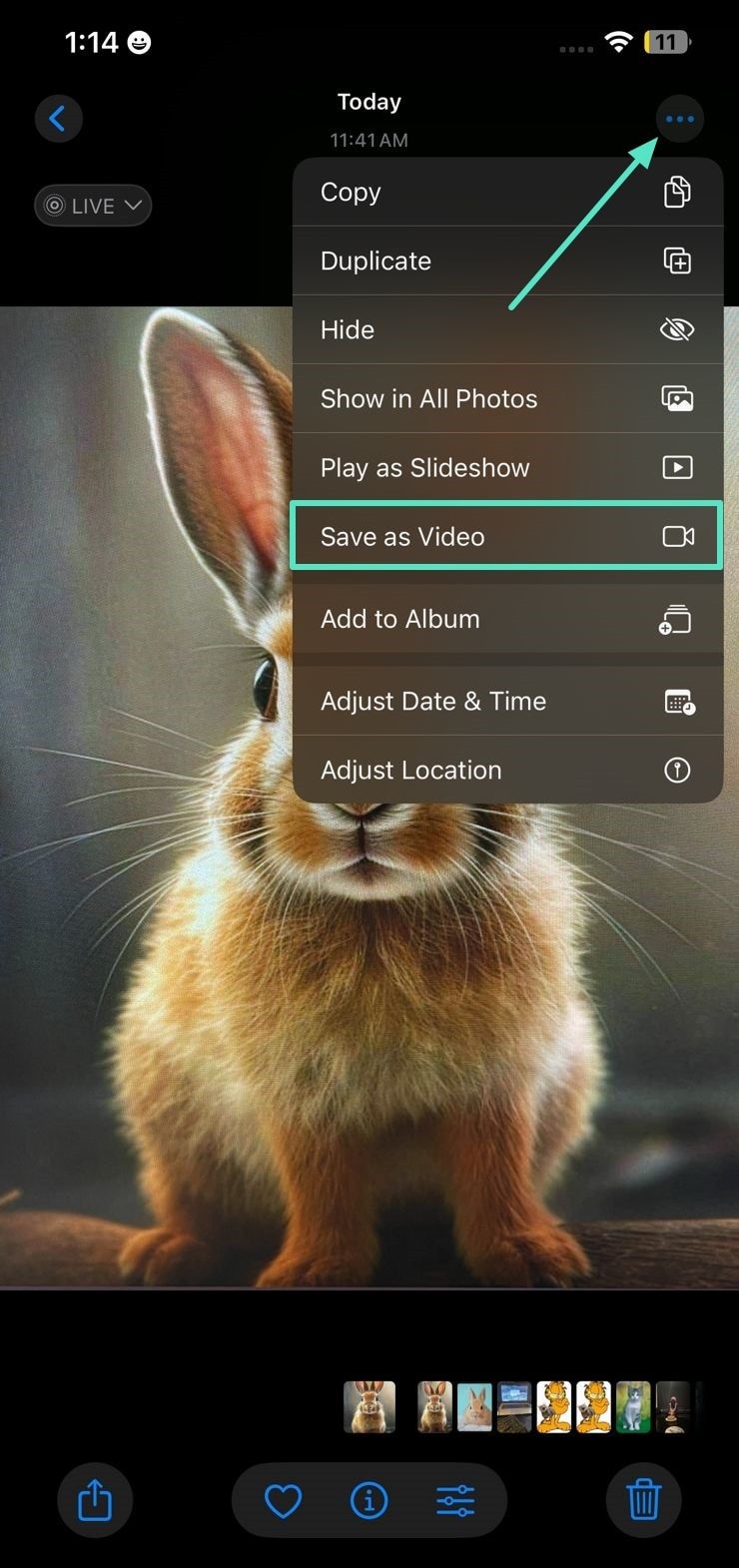
The native Photos app on your iPhone provides you the utility of transforming your dynamic pictures into video with only a few taps. You can share the converted dynamic images to various platforms without any compatibility issues. Read the instructions mentioned below to learn how to save Live Photos as videos using the built-in utility:
Instructions. Start the process by accessing the Photos app on your iPhone and selecting the Live Photo that you want to convert into a video. Next, head to the top-right corner of the interface and press the "Three Dots" icon. Successfully save the video to your phone by tapping on the "Save as Video" option.
Converting Multiple Live Photos into Videos
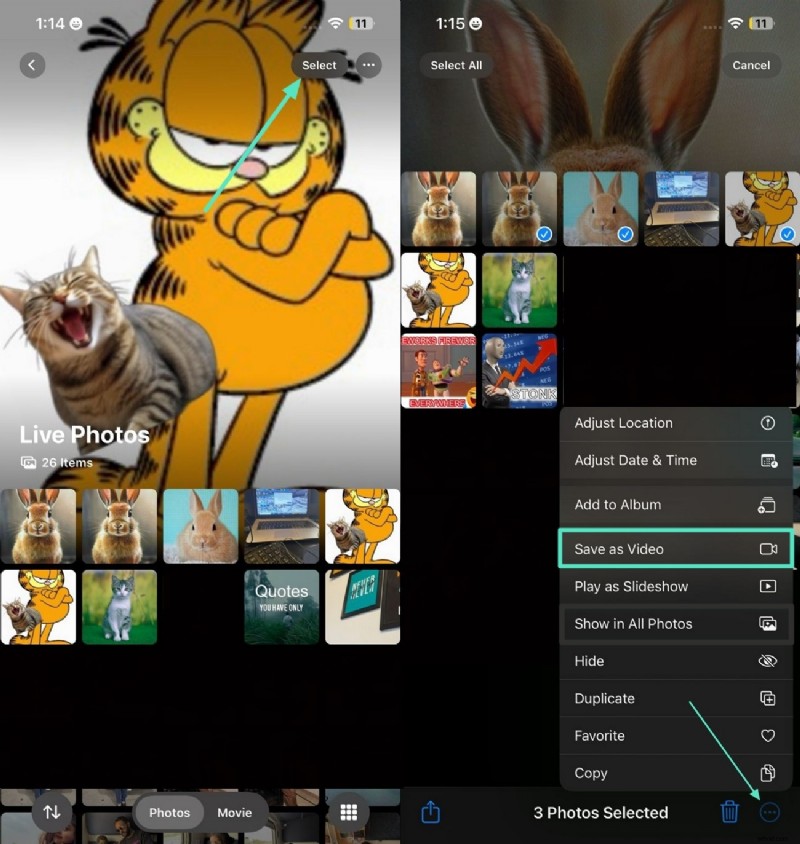
The built-in utility of the Photos app lets you convert multiple Live Photos into video effortlessly. Follow the instructions mentioned next to learn how to make multiple Live Photos into a video using the Photos app:
Instructions. Head to the top-right corner of the interface and press the "Select" button after launching the Photos app on your device. Now choose multiple Live Photos by tapping on them and head to the bottom right corner of the interface. Select the "Save As Video" option to save the selected Live Photos as videos after tapping on the "Three Dots" icon.
Part 3. Effortlessly Convert Live Photos into Videos Using the Right Resources
If you are looking for a more convenient solution that lets you transform Live Photos into videos using AI, you can use tools like Wondershare Filmora. This AI-powered multimedia editor provides the utility of importing various file formats and refining the overall visuals. The AI Image to Video feature, embedded with the all-new VEO 3 technology, automatically converts your images into videos using AI.
Before exporting the Live Photo as video, you can perform various editing functions to enhance the overall quality. The functionalities of Filmora are not limited to desktop only; you get the ability to generate visual content on your smartphone using the Filmora App [iOS/Android].
Steps for Using Filmora App to Convert Live Photos to Videos
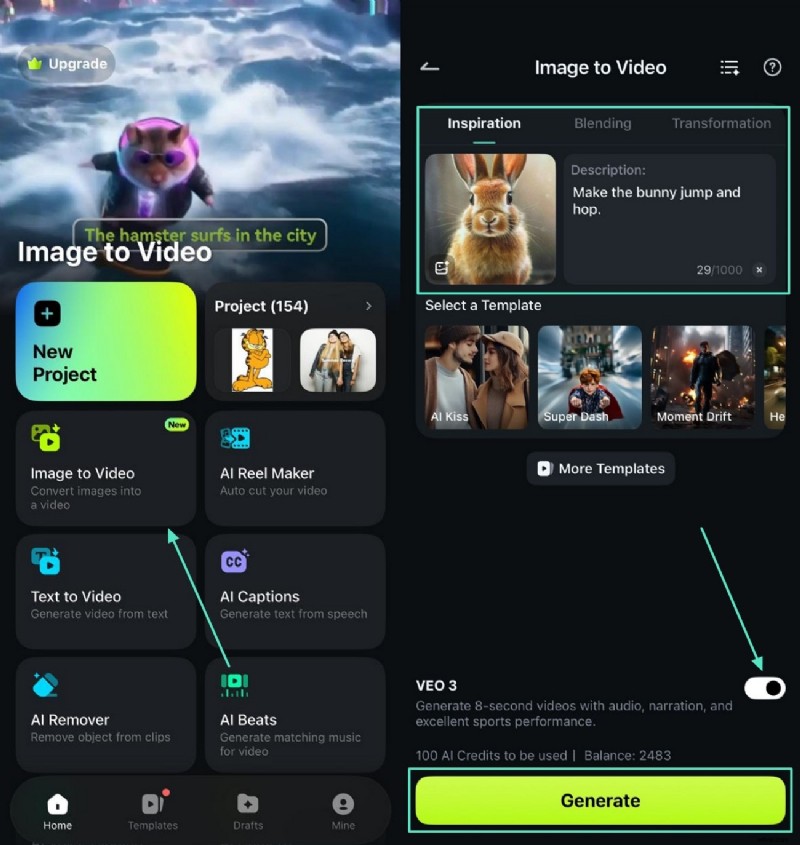
As discussed, the Filmora App offers the utility of creating videos using different image formats. To learn how to make a live picture a video using the Filmora App, read the steps mentioned below:
- Step 1. Begin by Choosing Image to Video. Tap on the "Image to Video" feature located on the homepage after launching the Filmora App on your smartphone. Next, import the Live Photo from your phone's storage and add the text prompt for your video. Enable the "VEO 3" toggle and press the "Generate" button located at the bottom.
- Step 2. Preview the Generated Video and Edit. Preview the created video in the following interface and tap on the "Edit" button located at the bottom right to make further enhancements. Use the toolbar at the bottom to apply elements and save the created video using the "Export" button located at the top-right corner of the interface.
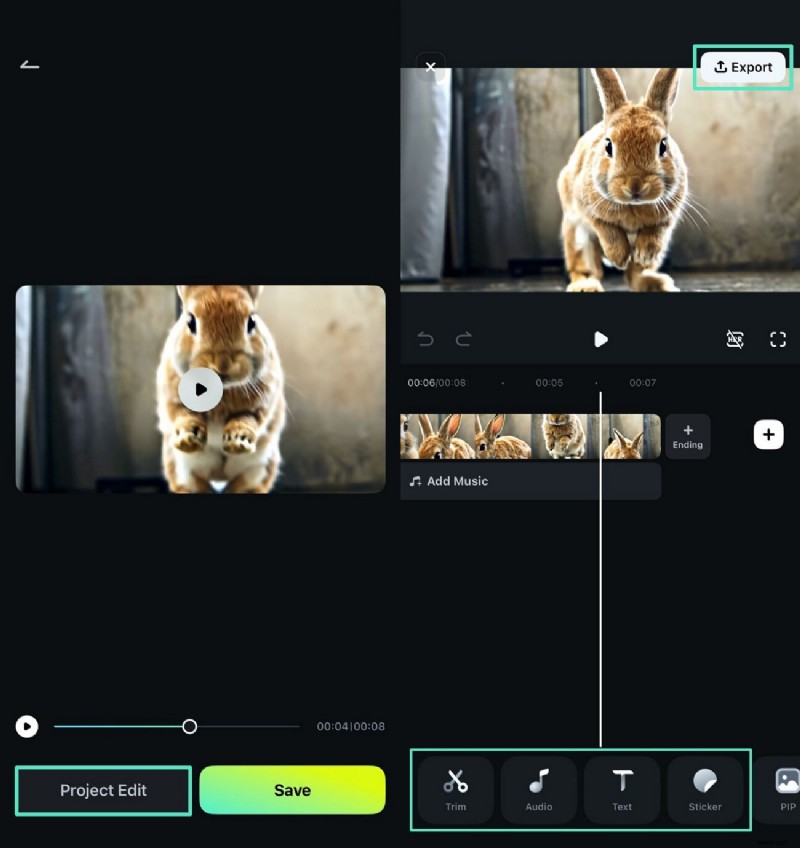
Here is the generated video:
Steps to Transform Live Photos to Videos Using Filmora Desktop
Filmora provides the utility of creating videos from images on your Mac and Windows devices by offering various basic and AI-powered features. The methods for creating videos from Live Photos on both operating systems are mentioned below:
Method 1. Guide to Convert Live Photos into Videos on Mac
Users get the ability to add their dynamic photos from their MacBook's storage and generate compelling videos. To learn how to change Live Photos into videos, read the steps provided below:
Please see the video below showing the export effect.
Method 2. Step By Step Guide to Turn Live Photos to Video With AI
Filmora's AI Image to Video utility provides you the ability to create compelling visual content from your Live Photos on your Windows and Mac devices. To learn how to turn Live Photo into video using Filmora on your desktop, read the steps mentioned below:
- Step 1. Opt for The Image to Video Feature from Homepage. Launch Filmora on your desktop device and hit the "AI Image to Video" feature from the homepage to begin the process.
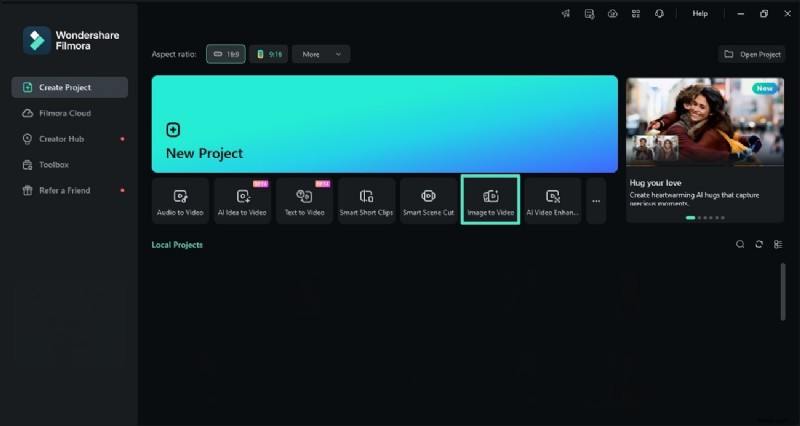
- Step 2. Import the Live Photo and Add Prompt. Access the "Video Generation" section and enable the "Image to Video - VEO 3" option ion the following interface. Next, import your Live Photo within the interface and enter the text prompt. Press the "Generate" button located within the interface to execute the process.

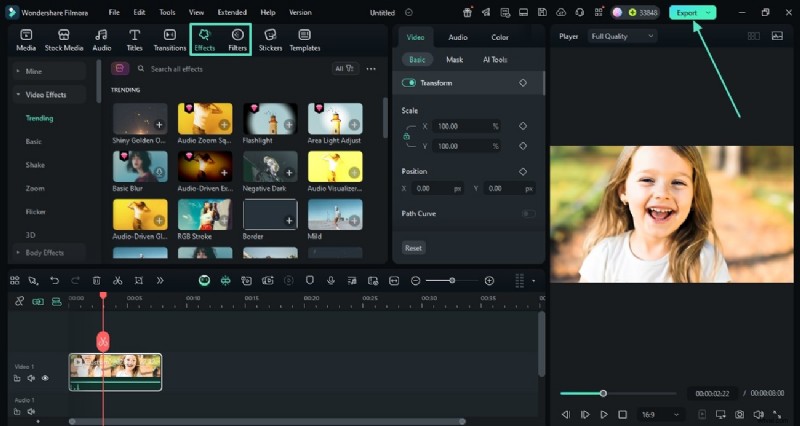
- Step 3. Edit the Generated Video and Export. Once the video is generated successfully through AI, drag it to the timeline and add multiple elements like "Effects" and "Filters" according to your preferences. When you are satisfied with the results, hit the "Export" button to save the video successfully.
Conclusion
To wrap it up, this article discussed various ways to convert Live Photos into videos using different methods. Users get multiple methods to transform the dynamic photos into videos using the native Photos app. However, one of the convenient ways to transform Live Photos into compelling videos with other refinements is Wondershare Filmora.