
Ever had an awesome photo that's totally spoiled by an annoying blur or censor? You're not alone. Sometimes, images have these censors or blurry patches placed to hide faces, sensitive info, or details someone doesn't want to be shown. But what if you want to remove that part?
Have you ever noticed a small logo or a "Subscribe" button in the corner of a YouTube video? That's a watermark—and it plays a bigger role than you might think. A watermark not only reinforces your channel identity and protects your content from unauthorized use, but it can also encourage viewers to subscribe with just one click. Adding a watermark is a simple yet powerful way to boost engagement and grow your channel.
In this guide, we'll show you how to create and add a watermark to YouTube videos step by step, using both YouTube's built-in features and professional editing tools for a polished result.
In this article
-
- Create and Add a Watermark for YouTube Videos from Scratch
- Add a Watermark to a YouTube Shorts with AI
- Why Choose Filmora for YouTube Watermarks
- Best Practices for YouTube Watermark Design
- Conclusion
YouTube Watermark Requirements and Best Practices
Before you start designing, it's important to understand YouTube's requirements. If your watermark doesn't meet these standards, it may appear blurry, cropped, or not displayed correctly at all. Check out this quick table that explains what you should aim for.
| Requirement | Details |
| File format | PNG, JPEG, or GIF (PNG with transparency recommended) |
| Resolution | 150 x 150 pixels (square ratio works best) |
| Maximum file size | 1 MB |
| Background | Transparent backgrounds create a cleaner, more professional appearance |
Best Practices for Making Perfect Watermarks for YouTube Videos

Now that you know the requirements, check out the best practices for creating a watermark for YouTube.
- Keep it minimalistic — A watermark should be subtle, not overwhelming. Avoid flashy graphics that distract from your actual content.
- Use transparent PNGs — Transparent PNGs let your watermark blend naturally into videos, avoiding a blocky, intrusive look.
- Choose high contrast colors — Choose colors that contrast with your video backgrounds. White, black, or bold accent shades often work best.
- Consistent placement — YouTube places watermarks in the bottom-right corner by default. Stick with this position since viewers are used to it.
- Test across devices — Preview your watermark on mobile, desktop, and TV apps. A watermark that looks good on a desktop may appear too small on a phone.
You should consider your watermark part of your channel's overall branding strategy. Like a logo on packaging or a signature on artwork, it should be simple and memorable.
How to Create a Watermark for YouTube Videos
If you want to create a custom text YouTube watermark online for free, Canva is a solid option. To do so, you just need to log in to their website, open their editor, and follow the steps below.
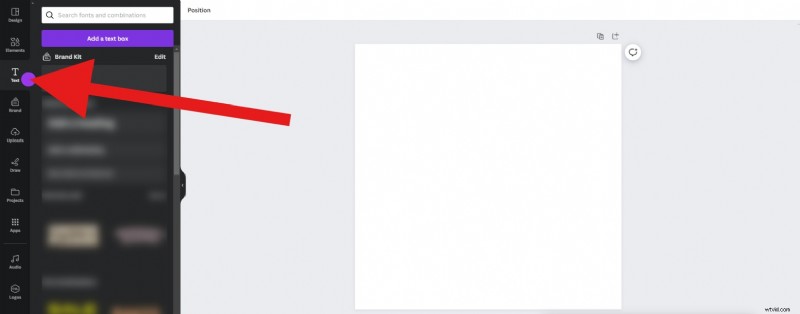
- Click on the Text tab in the editor toolbar.
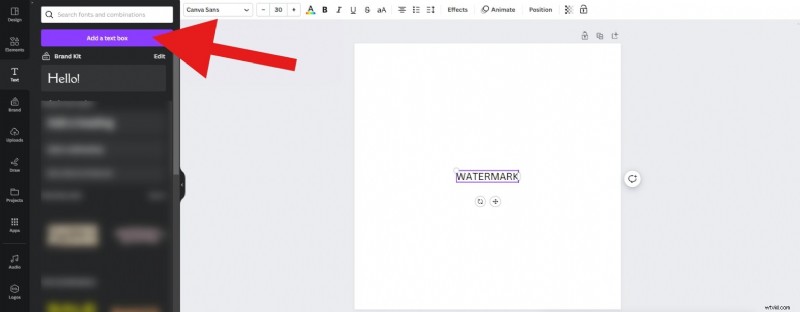
- Next, click on Add a text box.
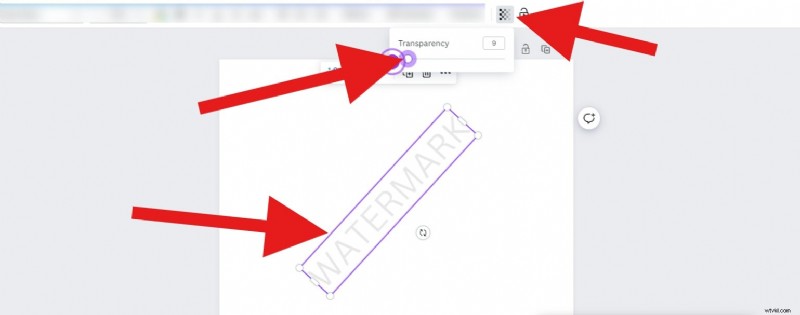
- Adjust the size and position of the watermark on the page, and then click on the Transparency button, where you will lower the transparency to the desired value.
You can now follow Canva's intuitive interface by clicking on the Share button, where you will see the option to download your watermark to your hard drive. After creating your own watermark for YouTube videos. Now, you will need to upload the watermark to your YouTube channel. Here's how.
How to Add a Watermark to YouTube Videos Using YouTube Studio (Standard Method)
If you want to add a watermark to a YouTube video already on your channel, you can use YouTube Studio. This is the simplest option because it doesn't require editing software. Once set up, the watermark automatically applies to all your videos. We have prepared a step-by-step guide for this process.
- Sign in to your YouTube Studio by going to studio.youtube.com.
- Navigate to the Upload watermark button by going to the Customization tab and scrolling down to the bottom.
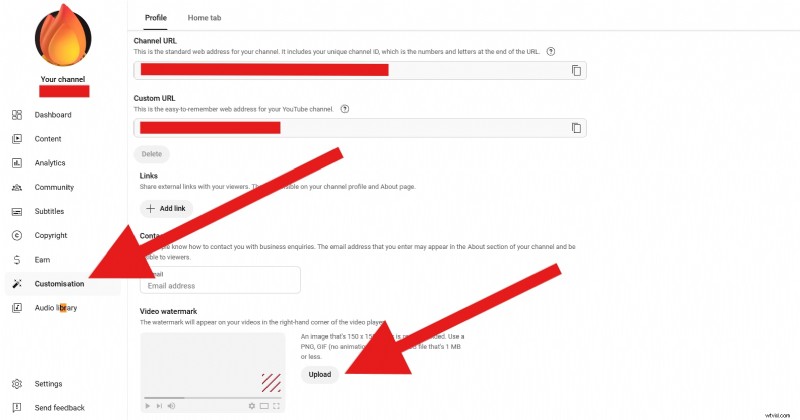
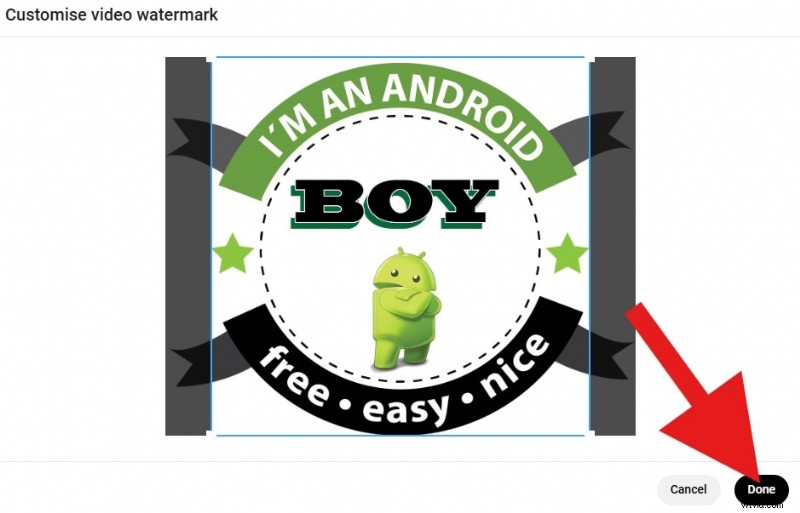
- Upload your YouTube watermark from your hard drive. The ideal size is 150x150 px, and you should use a PNG file with a transparent background. Crop it if needed and click on Done.
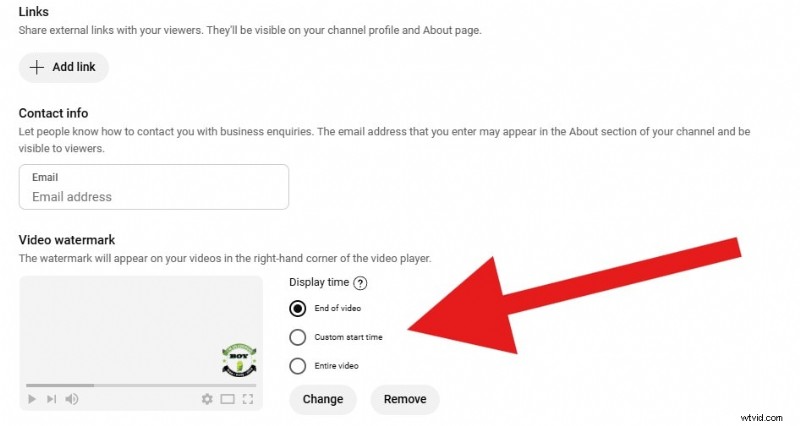
- Choose when you want the watermark to be displayed. You can pick the End of Video option, and the watermark will appear near the end. You can pick a Custom Start Time or simply leave it there for the Entire Video, which is actually recommended for maximum visibility.
But what happens if you want to add a watermark to a video while you are editing it? Is there an app that lets you do this while also offering direct posting to YouTube? Of course, there is, and we'll talk about it in the next section.
Create and Add a Watermark for YouTube Videos Using Filmora (Best Method)
If YouTube Studio and Canva feel a bit too limiting and you want more creative control, then Filmora is undoubtedly the best alternative. It allows you to create custom, animated, and professional watermarks directly within the video editor. Unlike YouTube Studio, where the watermark floats above the video as an overlay, Filmora can stamp it directly over the video.
Filmora was released as a desktop app for Windows and Mac and a mobile app for Android and iOS. We'll show you how to add a text watermark to a video using both versions. Make sure that they are installed on your preferred devices before you start the tutorial below.

Filmora
⭐⭐⭐⭐⭐
The Best AI-powered Video Editing Software and App
Method 1: Create and Add a Watermark for YouTube Videos from Scratch
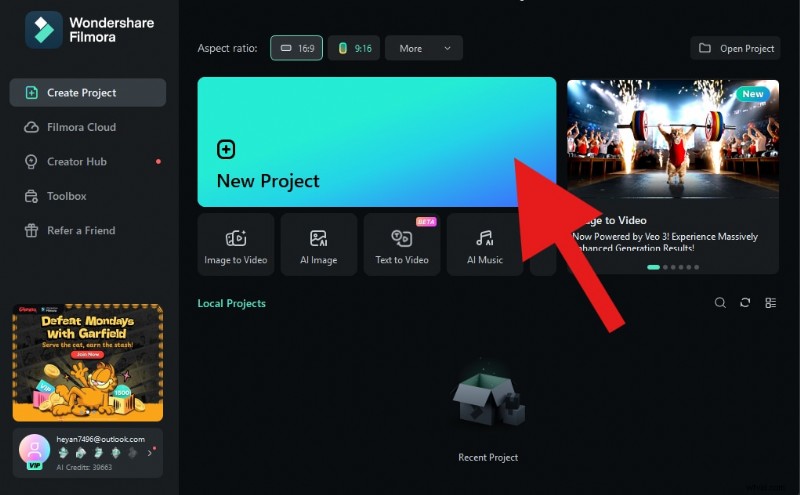
- Open Filmora and create a New Project.
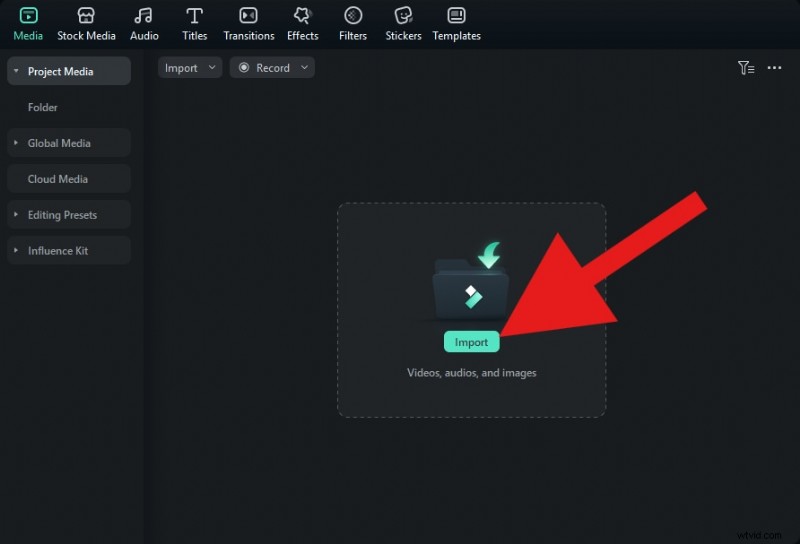
- Click on Import and add a video where you want to add a watermark.
- You can now drag the video to the timeline.
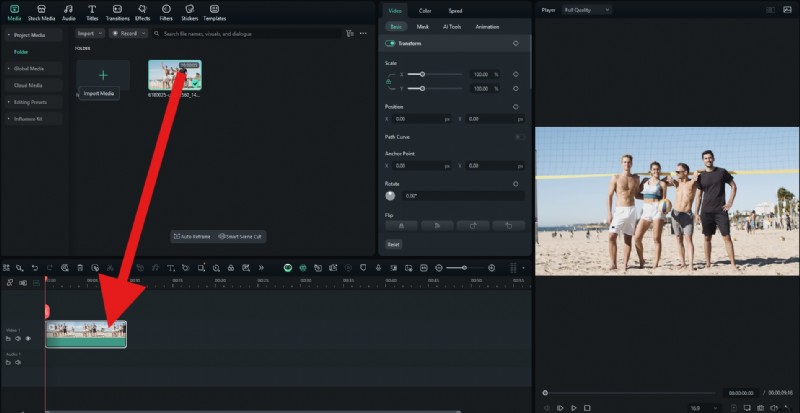
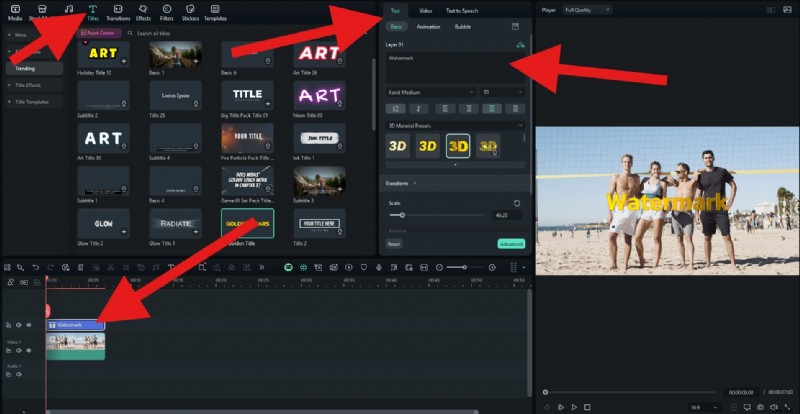
- Now, go to the Titles section and pick something that you like. Drag that to the timeline above the video clip and then go to Text > Basic to edit the placeholder text to anything you want.
- You can now go to Video > Basic and adjust the Opacity. You can also adjust the size and position of the text in the preview section of the interface.
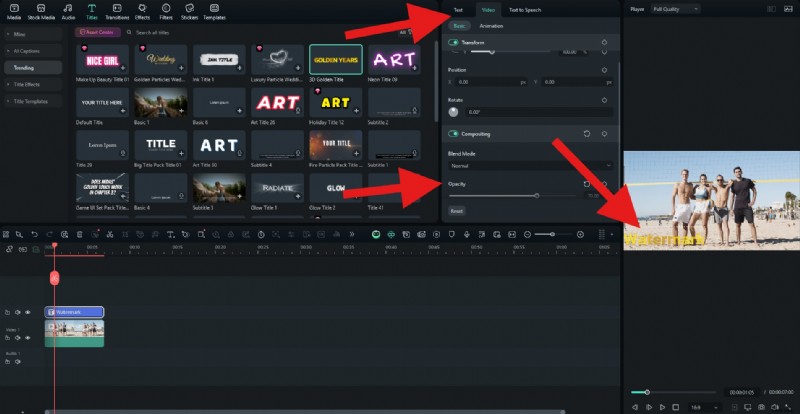
- Take a look at the result.

For the mobile version, we'll show you how to add a photo as a watermark using the Picture-in-Picture feature. Open the Filmora app, create a new project, upload the video you want to work on, and follow the steps below.
- Find the PIP feature in the bottom menu. Tap there, and you will be prompted to import a different photo. Choose a transparent PNG.
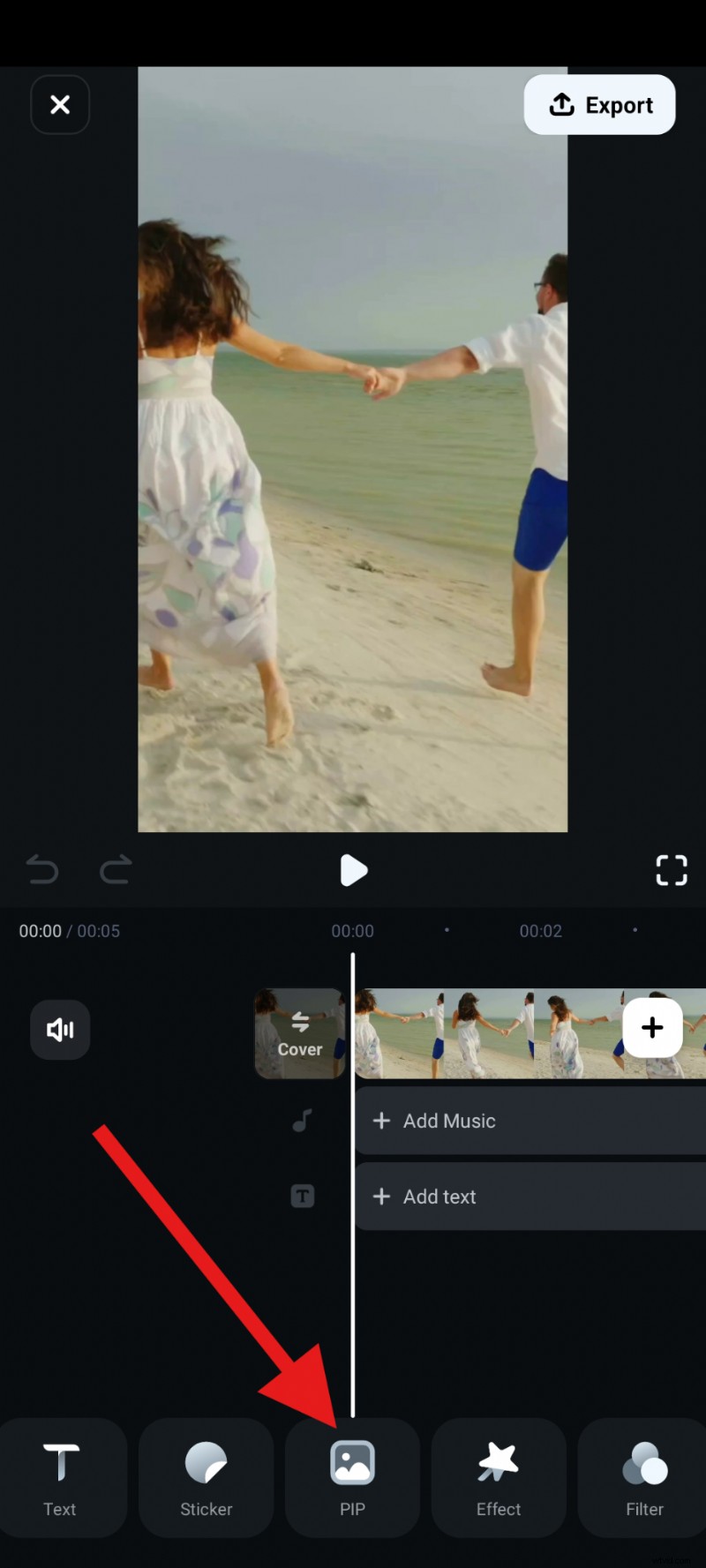
- Position it where you want and resize it in the preview section of the interface, and then tap on Blending in the sub-menu.

- Adjust the Opacity and accept the changes.
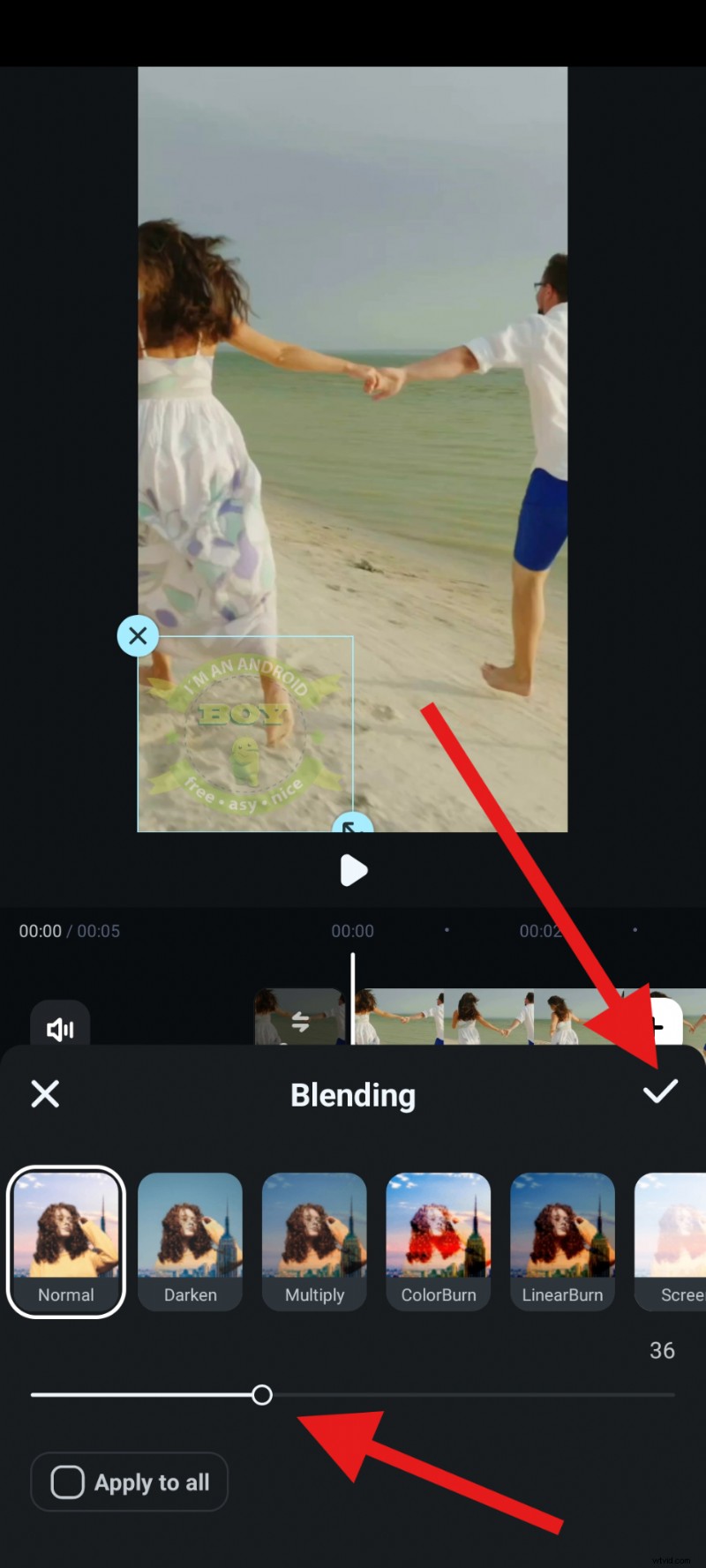
- Check out the result now.

Method 2: Add a Watermark to a YouTube Shorts with AI
- Download and install Filmora on your computer.
- Start a New Project > go to Stock Media > AI Media > Image to Video > and find Video Element Editing.
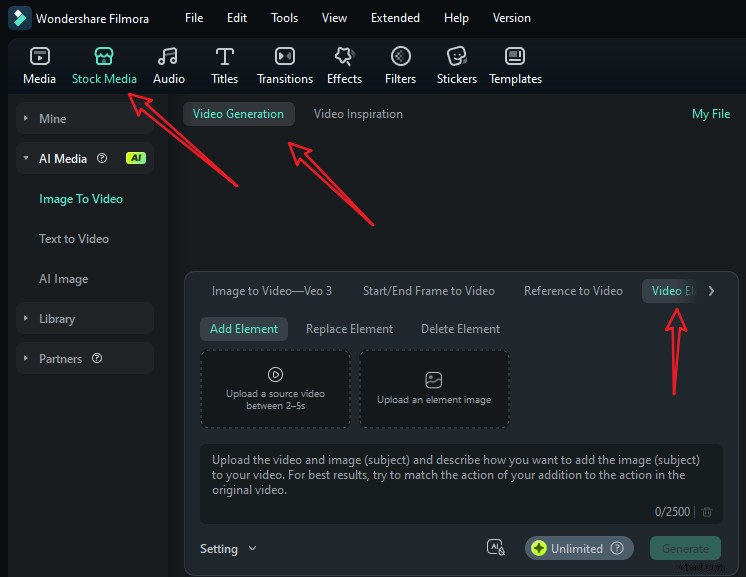
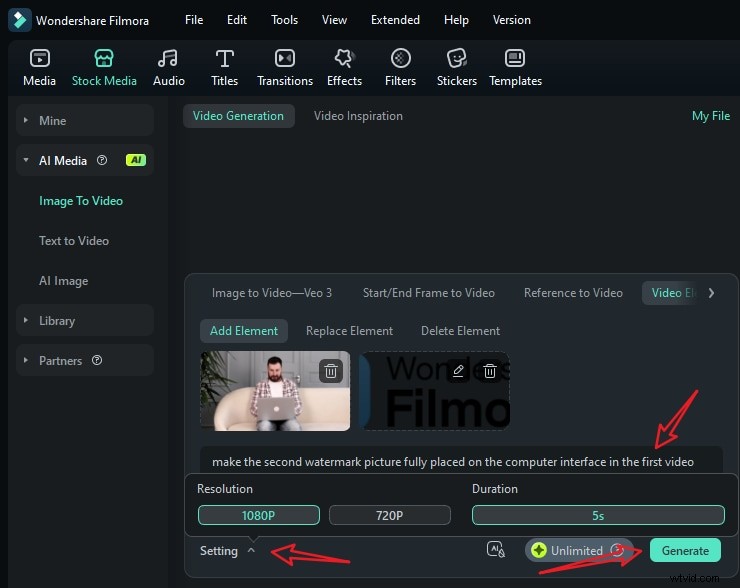
- Upload your short video and a reference picture, type in your prompts, and go to settings to adjust the video resolution. Finally, tap on Generate to start adding a watermark to the video with AI.
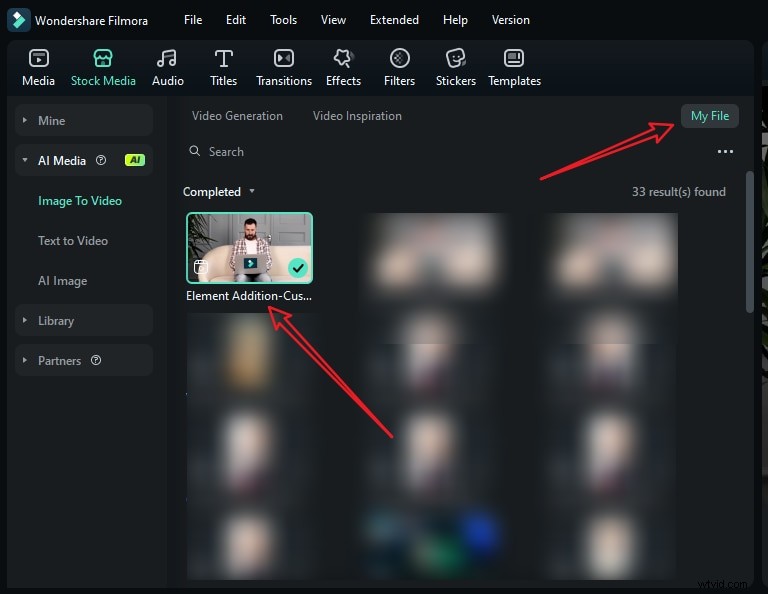
- When it finishes adding the person to the video, go to My File > preview the video and add it to the timeline.
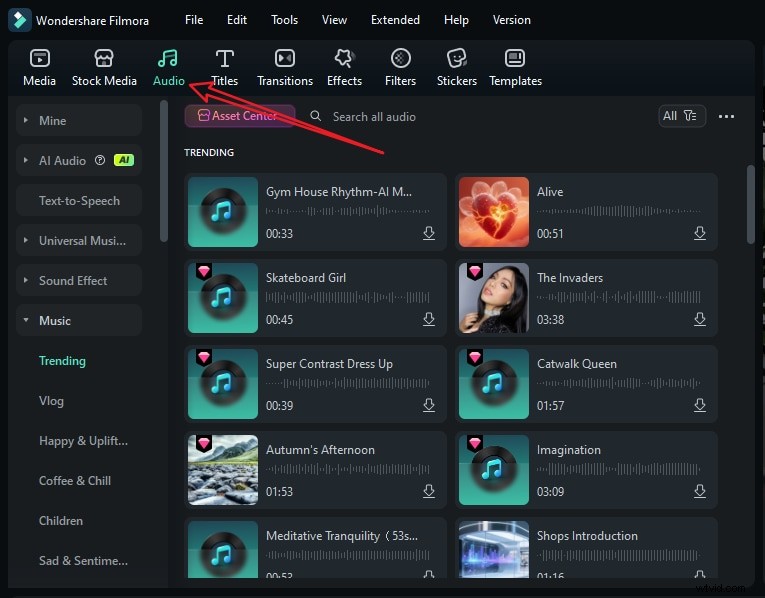
- You can then edit the video further. If the video has no background music, just switch to the audio tab > pick a music according to your preference and drag it to the timeline.
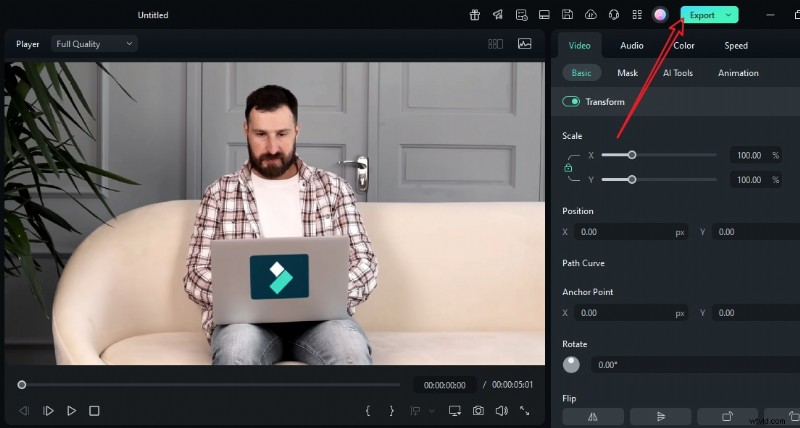
- Playback the video, and tap on Export if you are satisfied.
Why Choose Filmora for Watermarking YouTube Videos
- Lots of video watermark templates: Explore plenty of video watermark animation templates and put them at the beginning of videos easily.
- Customizable transparency — Fine-tune the opacity so that it blends smoothly into your video.
- Batch watermarking —Apply the same watermark settings across multiple videos to ensure brand consistency.
- AI-assisted design — Create a sleek watermark in minutes with a text prompt.
- Powerful video editor - Edit YouTube videos with both basic and advanced video editing features in Filmora, and enjoy creative assets to engage your YouTube viewers.
Best Practices for YouTube Watermark Design
Choosing the right watermark style can make the difference between something that viewers will ignore and something that strengthens your channel identity. Here are some creative watermark ideas tailored to different channel niches, with a focus on visibility, brand consistency, and minimalism (to avoid distracting viewers).
- Typography-Centric Watermarks: Use your channel name (or its abbreviation) as the watermark—focus on bold, clean fonts so it's readable even at small sizes. If your channel name is long (e.g., "Emma's Daily Vlogs"), use initials (e.g., "EDV") in a thick, rounded font (friendly vibe) or sharp sans-serif (modern vibe).
- Subtle "Subscribe" Prompt Watermarks: Combine a brand element with a tiny "subscribe" cue to encourage action (without being pushy). A mini "SUBSCRIBE" text (all caps, small font) next to your channel initials. A tiny bell icon (for notifications) merged with your brand icon (e.g., bell + coffee cup for a morning vlog channel).
- Niche-specific icons — If your channel is focused on a particular topic, you can design your watermark to reflect that. For instance, a gamepad icon instantly signals gaming, a suitcase suggests travel vlogs, and a camera represents tech or photography reviews. These icons make your watermark more relatable.
- Seasonal versions — Adding some variety to your watermark can keep your content fresh without losing consistency. For example, you could adapt your logo to feature holiday colors in December or release a limited-edition design to celebrate subscriber milestones. This keeps loyal viewers engaged and reinforces your core branding.
Conclusion
Adding a watermark to your YouTube videos isn't just about aesthetics. It's about branding, protection, and growth. With YouTube Studio, you get a quick and simple option. With Filmora, on the other hand, you unlock advanced customization, animations, and batch watermarking that make your content look professional. The best approach depends on your needs. If you're new to YouTube, start with Studio's built-in branding tool. As your channel grows, switch to Filmora for more creative control and consistency.
Download Filmora today and start creating custom YouTube video watermarks in minutes.