
Have you ever had your Instagram posts reshared without credit, Stories screen-recorded, or Reels remixed without tags? Learn how to watermark Instagram photos, Stories, Reels, and videos with subtle, professional marks—using easy-to-use phone apps and step-by-step methods that protect your brand without compromising your aesthetic.
In this article
- How to Watermark Instagram Photos?
- How to Add a Watermark to Instagram Stories?
- How to Put Watermarks on Instagram Reels and Videos?
- Format Playbooks: How to Watermark Each Type of Instagram Post
- Conclusion
How to Watermark Instagram Photos?
If you are a photographer and want to share your work on Instagram but want to avoid your pictures from being stolen or reused, adding a watermark to your Instagram photos ensures your work always points back to you.
You can use Instagram's built-in features to add a signature to a photo, add text watermarks, or overlay a watermark picture to the photos. Here are the steps to watermark Instagram photos with a text watermark.
- Open the Instagram app on your phone, select to create a new POST, pick a photo from your device, and then tap on the Aa Text icon.

- Write your signature and position it where you want it. Then, tap on Next and proceed to posting.

That's all for adding text watermarks to Instagram photos; However, if you prefer more customizations for the watermarks, such as opacity, location, animations, and more, you can use a more powerful third-party app. We will introduce Wondershare Filmora today, which not only allows you to watermark photos for Instagram posts but also enables photo editing, turning photos into viral reels, and more.
- Open Filmora on your iPhone, create a New Project, and import a photo where you want to add the watermark.

- Find the Text feature in the bottom menu.

- Go to the Font section and pick something that resonates with you. Type in your Instagram handle and accept the changes.

- Reposition and resize your signature in the preview section and tap on Style.
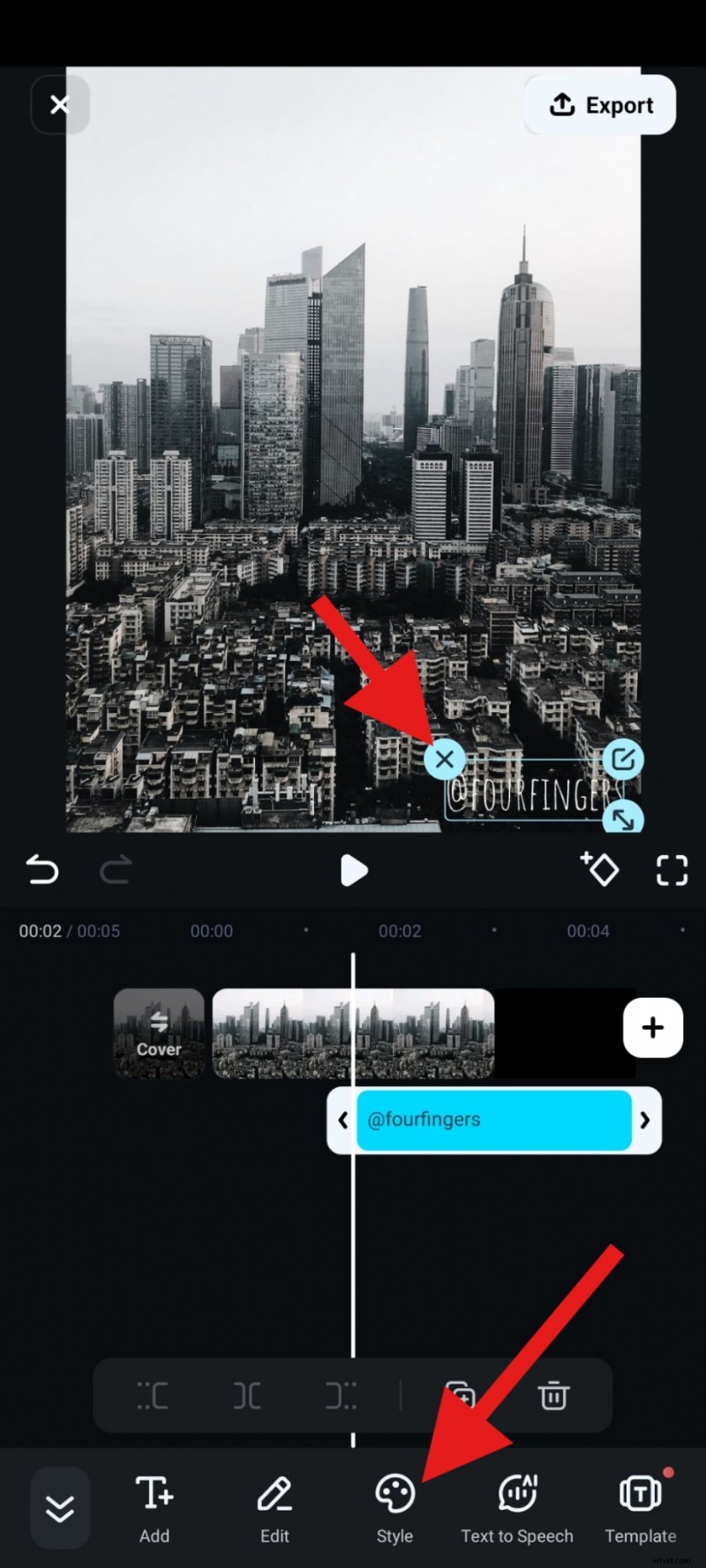
- Scroll to the bottom to change the Opacity slider and accept the changes.

Here's how it looks.

How to Add a Watermark to Instagram Stories?
Although you cannot upload your logo to use as a watermark for Instagram stories, you can add some stickers and texts to watermark Instagram stories for free in the Instagram app. Here's how to do it with stickers.
- Open Instagram, tap to create a new post, select to create a story, snap a photo, or record a video, and before you post, tap on the Smiley Face icon.

- Pick a sticker that you like and tap on it.

- Adjust the size and position of the sticker and proceed with the posting process.

If you really want to watermark Instagram stories, you can add watermarks to the photos or videos you have taken before uploading to Instagram. Here are the steps to watermark Instagram stories with an animated watermark using Filmora.
- After you upload your photo to Filmora, find the PIP feature and your transparent logo PNG to the project.

- Reposition your watermark and activate the Motion feature in the bottom sub-menu.
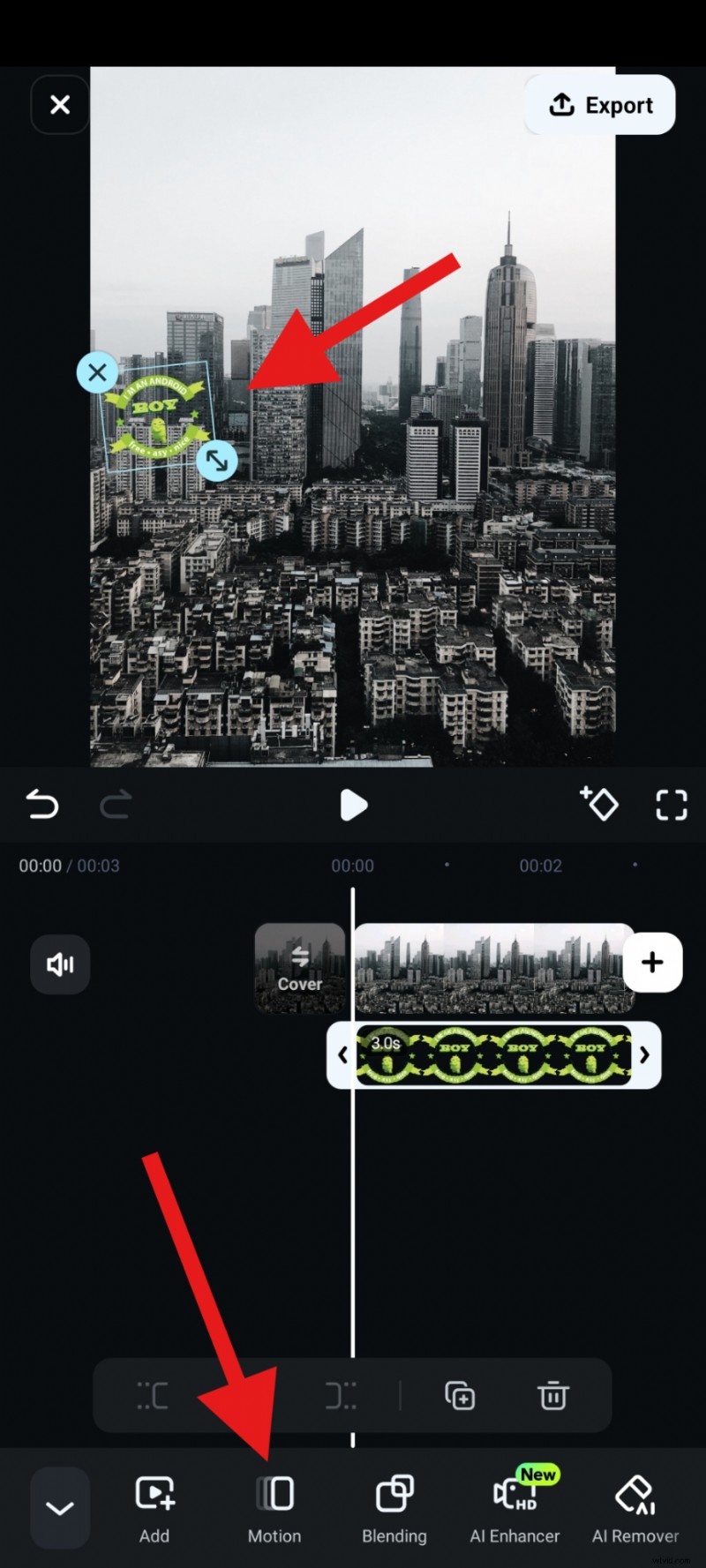
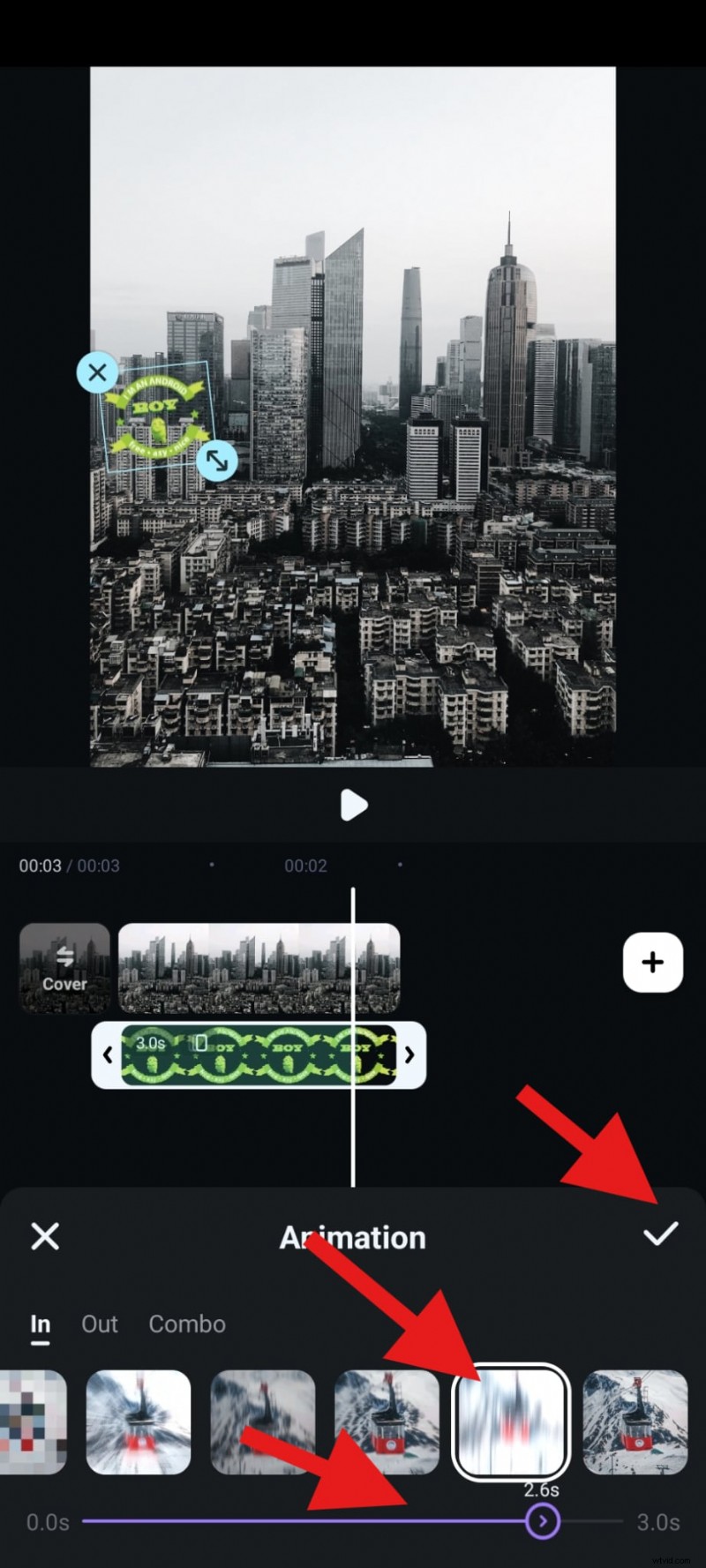
- Pick an animation, adjust its duration, and accept the changes.
- Now, go to the Blending feature.
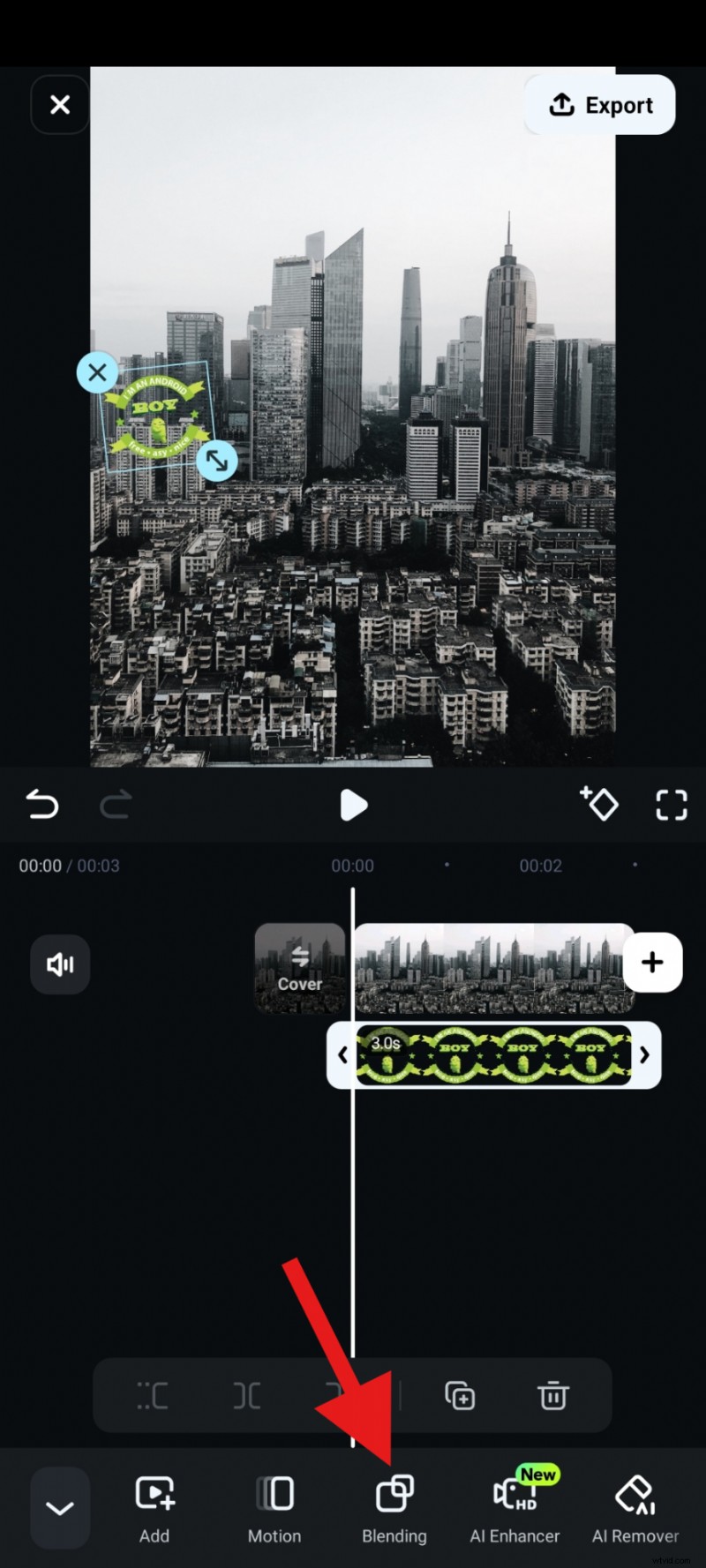
- Adjust the Opacity slider and accept the changes.

- Let's see the result.

How to Put Watermarks on Instagram Reels and Videos?
Reels and videos are formats that are most likely to go viral, but they're also the easiest for others to download, crop, and use in various remixes.
Let's see how to put watermarks on Instagram Reels and videos. We'll start with Instagram's built-in method to add a type of text watermark to your Reels. Here's what you need to do.
- Open the Instagram app, start creating a new post, and proceed to create a REEL. Add a video from your device and swipe up to open the editing interface. Then tap on the Aa button (or the sticker button if you want to add a sticker). Then, write your creator tag.

- Adjust the size and position of the added element and tap on Next to continue with the posting process.

As a powerful video editor, Filmora offers plenty of video editing features and excellent options to add motion animations to your watermarks in videos and make them more interesting. Here's how to do it.
- After you import a video and use the PIP feature to add a watermark PNG, adjust it and place it unintrusively, and go to Motion.

- Go to the Combo section and pick a motion animation, and then accept the changes.

Let's check the video with an animated watermark.

On top of all this, Filmora's AI Video Element Editing feature lets you upload a video and add another image with your desired watermark. After that, you can simply add a text prompt explaining that you want the AI to add the watermark to the video in a specific way.
- Launch the app and tap on VideoGen > Choose Add.

- Import your video > import an element you want to add, then you can add the prompts if you want. After that, tap on Generate to start generating the video.
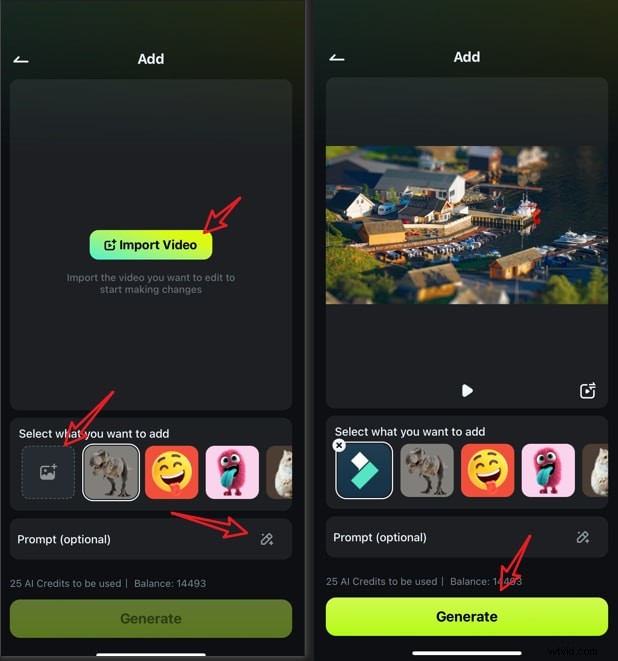
- Save the result directly if you are satisfied.
Format Playbooks: How to Watermark Each Type of Instagram Post
If you want to create the perfect watermark for your type of post, you should know that each Instagram post format has its quirks. Let's see the details.
- Photos (Feed posts): Make sure that your watermark is small and semi-transparent in the bottom-right corner. If you want to be creative, incorporate your watermark into the composition, like blending your logo into a background texture.
- Stories: Use a vertical watermark along the left-hand side. Avoid large logos that cover stickers. A good idea would be to design a Story template with your watermark built in for faster posting.
- Reels: If you're posting a Reel, avoid the bottom area where you can see Instagram captions and likes. Place the watermark in the upper-left or upper-right corner. Animating the watermark so that it slides in or adding some form of motion is a solid option, but make sure that it stays fixed after.
- Videos (Feed or ads): Use a permanent watermark in one corner throughout the entire video. Add a second, larger watermark or username at the end of the video as a reinforcement. A good idea here would be to use a subtle animated "Subscribe" or "Follow" button as your watermark.
Conclusion
Adding a watermark to your Instagram photos, Stories, Reels, and videos is a quick way to protect your content and highlight your brand. Don't wait until your posts get reshared without credit—start watermarking today with the tools we've covered and make sure your creativity always gets the recognition it deserves.
Try Filmora today to see which workflow fits you best—and start watermarking your Instagram content like a pro.

Filmora
⭐⭐⭐⭐⭐
The Best AI-powered Video Editing Software and App