
In this era, entertainment is a click away, but only if you have a continuous internet connection. Then, why go through the trouble to download Amazon Prime videos when you can stream it online?
Because, what if you're going to someplace without an internet connection? Or if you are traveling? To avoid boredom and use your time wisely (or amusingly in this case), you can download Amazon Prime videos for offline viewing while you travel long and boring distances.
If you are worried about the restriction on downloading to P.C., don't fret. We have just the solution to download Amazon Prime videos to P.C. too.
Follow our lead.
- Part 1: Download Amazon Prime Video on Android
- Part 2: Download Amazon Prime Video on iPhone
- Part 3: Download Amazon Prime Video on PC
- Part 4:Bonus Tip-Record Amazon Prime Video with Wondershare Filmora
Part 1: Download Amazon Prime Video on Android
The majority of us are Android users, and since a phone is always with us, it is the perfect companion in times of need. So, keep your phone close because now you can download Amazon Prime videos and stream them even while you pass through a no Wi-Fi zone.
Step 1-Amazon Prime Video
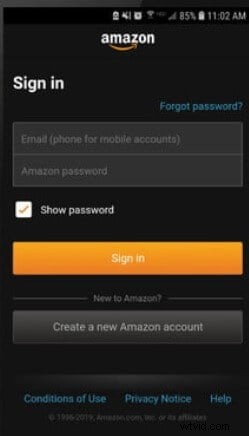
Download the Amazon Prime Video app from Google Playstore. Sign In to your Amazon Prime account.
Step 2-Choose A Video
Browse and select a movie or series you wish to download. Click on it to see the details. Tap on Download to start downloading the whole series. You can also download individual episodes by clicking the download icon beside every episode.
(Note-Not all videos are available for Download if you are not in the U.S)
Step 3-Choose Destination
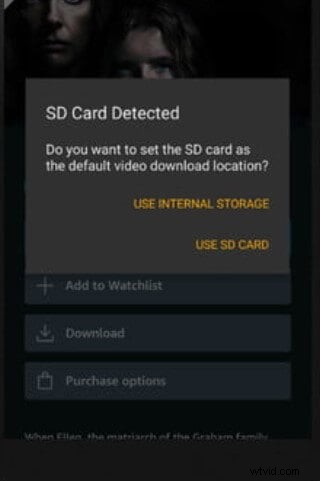
If you have a memory card inserted into your phone, you will get a pop-up. You can choose to save it in the internal memory or on an S.D. card to save space
Step 4-Choose Resolution
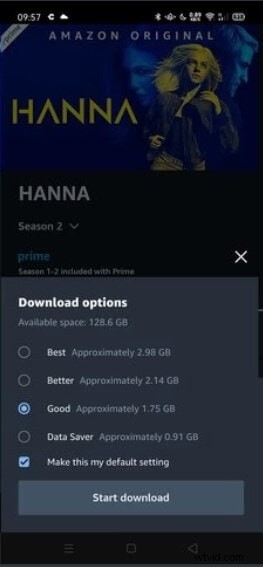
Now you can decide the resolution you want to download Amazon Prime videos in. But remember that the better the quality, the more space it will take. Finally, press Start Download.
Step 5-My Stuff
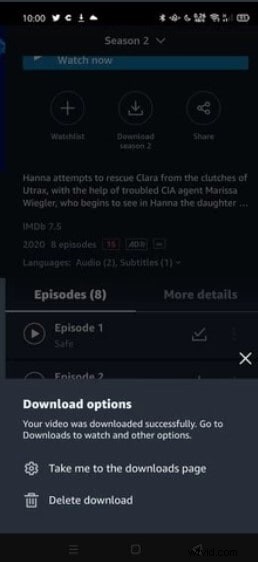
Once your download is complete, a pop-up will open. Click on the Take me to downloads page. You can also click on the My Stuff tab on the bottom to view and browse your downloaded titles.
Part 2: Download Amazon Prime Video on iPhone
Most of the apps on Android are unavailable in the iOS App Store. But luckily, iPhone users can also enjoy unlimited streaming by downloading the videos using the Amazon Prime Video app.
Streaming videos on data can finish it off in a jiffy. So, a smart solution is to download Amazon Prime videos beforehand and watch it while you commute or stay in a no Wi-Fi zone.
Here is a step-by-step guide:
Step 1-Download the Amazon Prime Video app
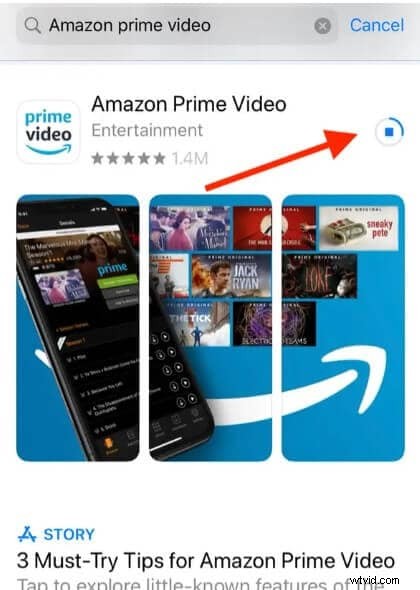
Open the App Store on your iPhone. Find the Amazon Prime Video app. Install it.
Step 2-Sign In
Launch Amazon Prime Video and Sign in to your Amazon Prime account
Step 3-Choose A Video
Browse through the popular videos or search for the video title. Click on it for details
Step 4-Start Download
Tap Download to start the process
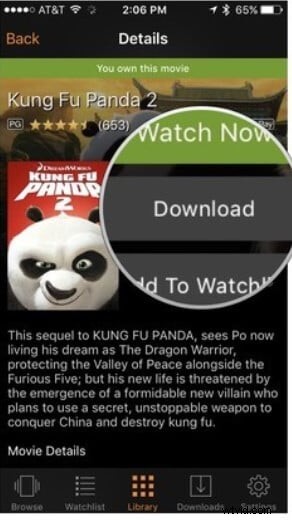
If you wish to download all the episodes, click on Download Season
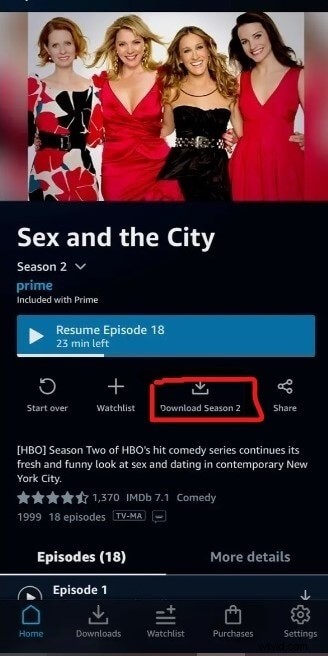
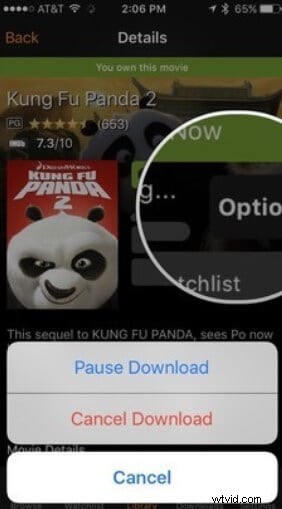
If you wish to stop downloading or just pause it to resume later, click on Options and choose Pause Download
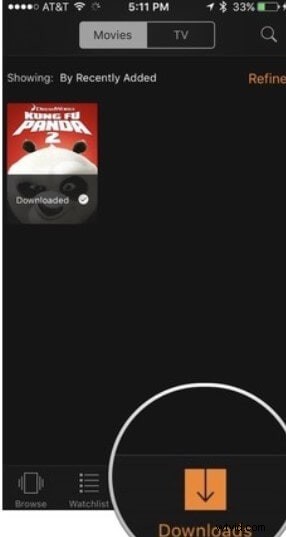
Step 5-Downloads
Click on Downloads at the bottom to view or manage your downloaded videos.
Part 3: Download Amazon Prime Video on PC
If you plan to watch an Amazon movie while you camp at the beach with your friends, you will need to download it for offline viewing. But Amazon only allows you to download Amazon Prime videos to your phones or tablets.
Since you cannot directly download Amazon Prime videos to P.C., you still have the option to screen record. No matter how long the video, you can just record it all. Yes, now you can enjoy offline viewing on a bigger screen anywhere, anytime.
PlayOn is a desktop screen recorder. You can download this app for free and record ad-free videos. Whether you wish to download a movie or a series, it's all just a click away.
Here is how you go about it.
1. Download and install PlayOn on your P.C. Launch it.
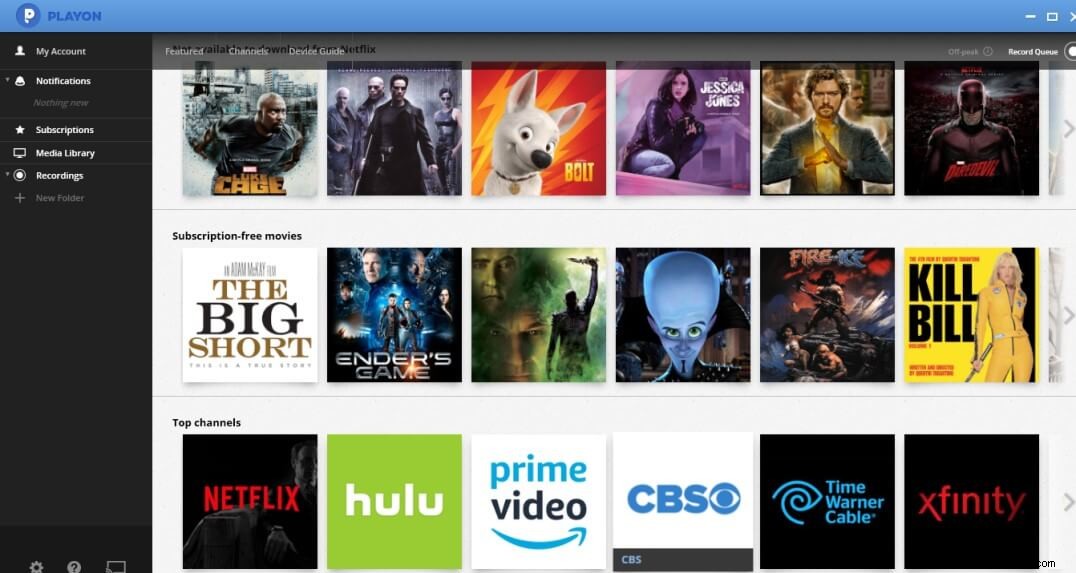
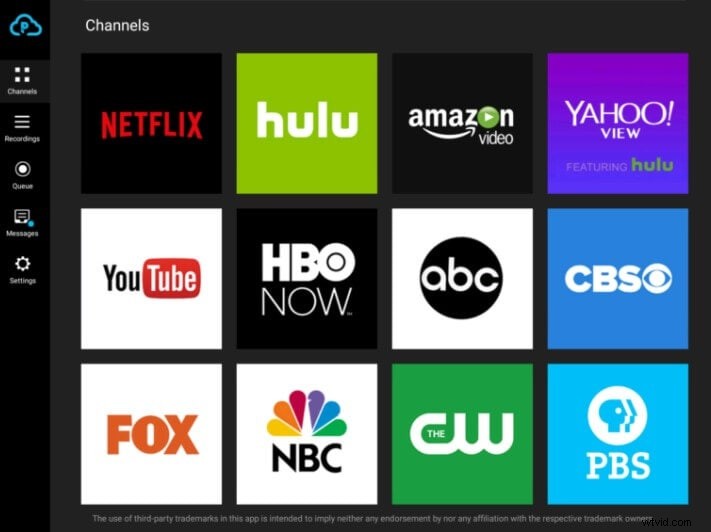
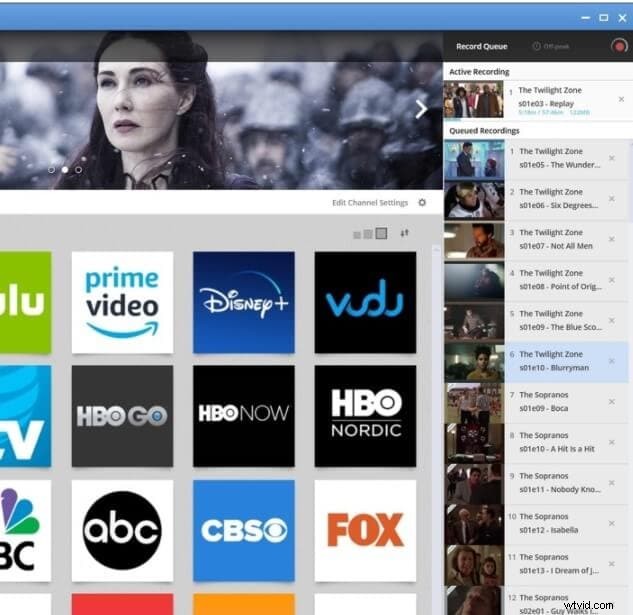
2. In the Channels tab, click on the Amazon Prime Video icon. Browse the streaming videos or find it using the search bar at the top. Click on the video you wish to record.
3. Tap Record All to record all episodes with one click, or if you wish to record only selected episodes, click on an episode and press Record. The video will be recorded in MP4 format and saved to your P.C.
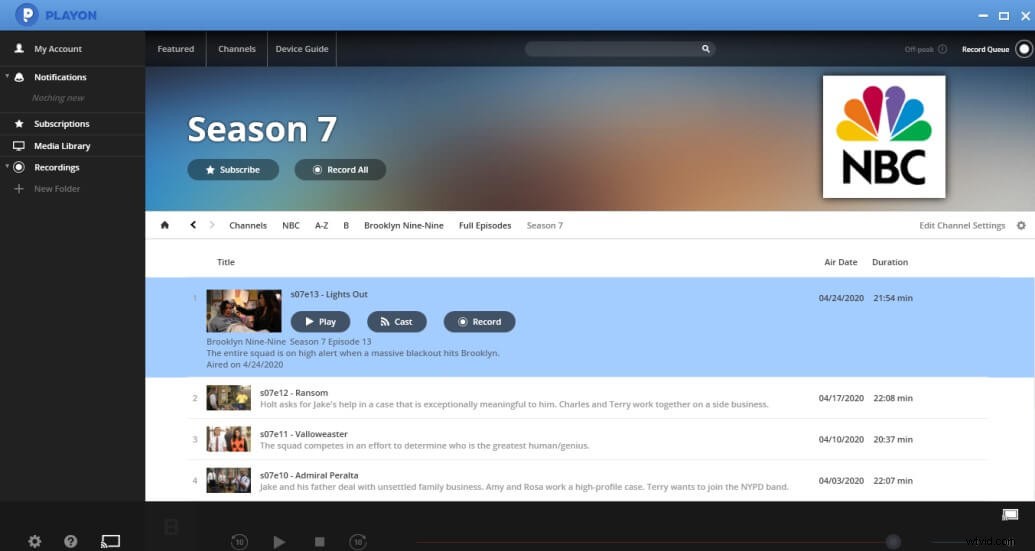
4. You can check the videos that are queued by clicking on Record Queue. The video that is currently being recorded will be displayed and those that are queued for later. Pause or resume recording as you please.
Bonus Tip-Record Amazon Prime Video with Wondershare Filmora
Wondershare Filmora is a top-of-the-list video editor that offers advanced editing tools that are relatively easy to use even for novice editors. Filmora has a user-friendly interface and offers professional editing tools like keyframing, motion tracking as well as audio ducking. Color match or refine your videos with Filmora for Hollywood style effects. Moreover, you can screen record with Filmora.
If all the above-mentioned methods to download Amazon Prime videos fail, you can turn to Filmora. Recorded videos can also be further edited to share your favorite clips with your friends and family.
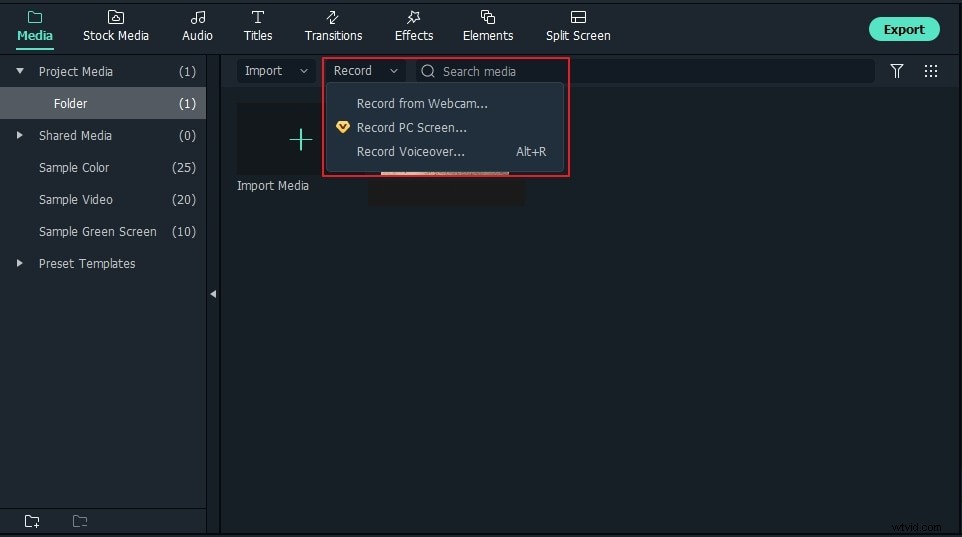
1. Launch Filmora X. Tap on Record and click on Record P.C. Screen.
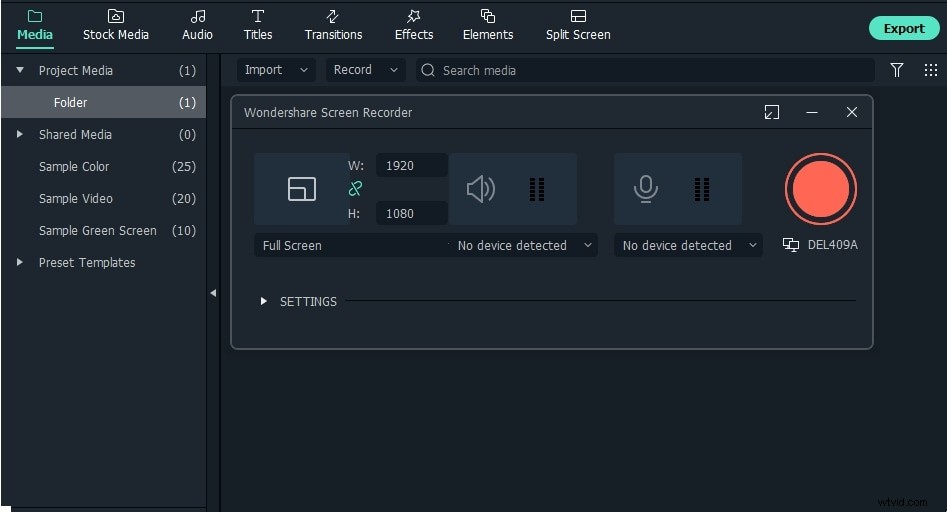
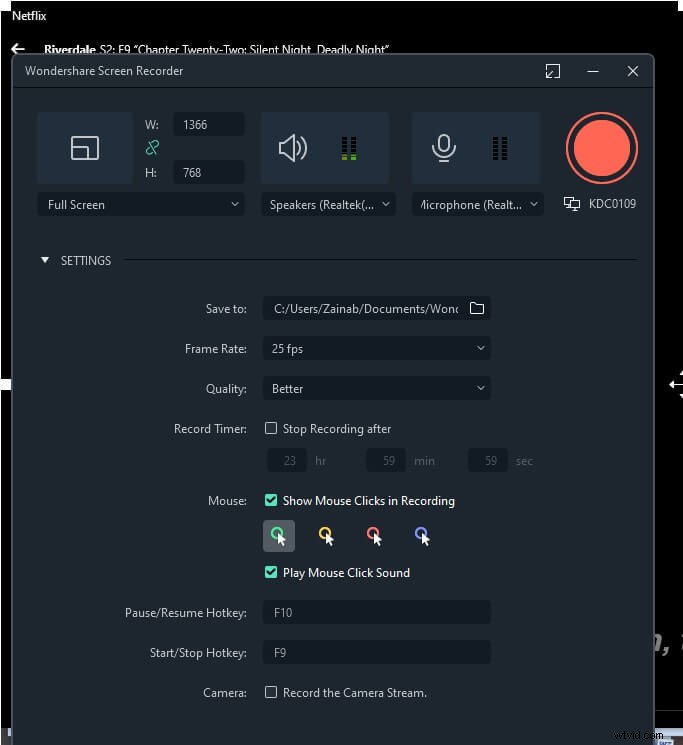
2. Amazon Prime window will automatically open with a dialogue box. Choose Full Screen, Custom, or Target Window from the drop-down menu. Press the red record button—press Settings for additional settings such as setting a timer to auto record the specified period.
3. The recording will start in 3 seconds.
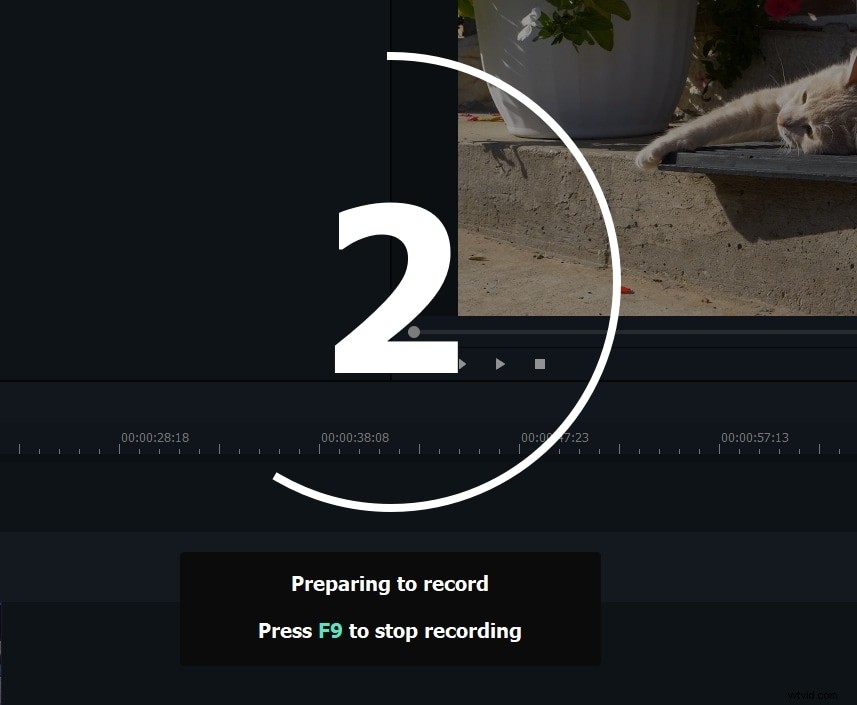
4. Press F9 to stop recording. Choose a destination to save the video. Also, select the quality/ resolution of the video.
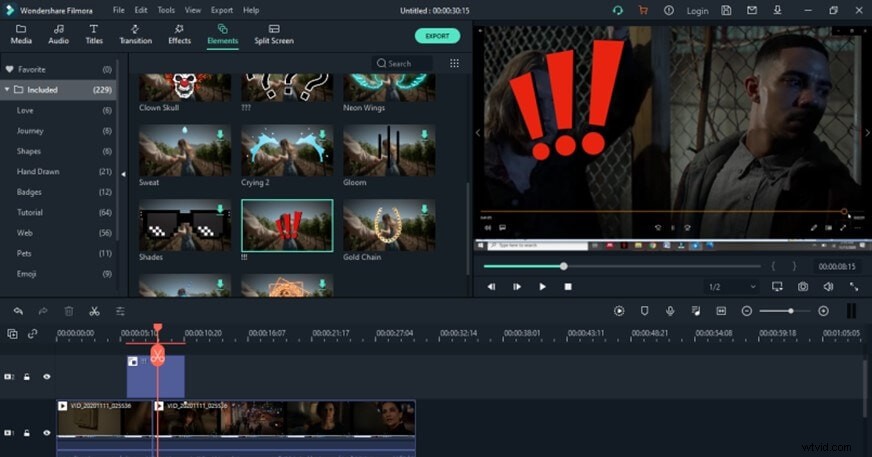
5. The recorded video will also be displayed in your Media Library in Filmora. Add catchy captions or emojis to attract views. Apply motion tracking or blur faces.
Ready to Watch Amazon Prime Videos Offline?
Now you will never have to miss an episode or movie if you are too busy. You can just download Amazon Prime videos to P.C. or your phones for unlimited offline viewing later or when you eventually get around to watching it.
In case you are going to a no Wi-Fi zone this weekend, remember to download a few comedy movies for a good laugh with your friends. Use PlayOn to download Amazon Prime videos in MP4 format so you can transfer them from your laptop to an even bigger screen for a bigger audience to sit together and enjoy
If all else fails, Wondershare Filmora has got your back. Just record with customized settings and edit the recording by adding titles, motion tracking, or even color match.
Happy Streaming Folks!