
If you are a post-production beginner or an editing enthusiast, you must learn how to make objects move in a video. When it is about moving the objects, there are the following two ways this can be done:
- Follow an Object or Person in the Footage
In this case, one object follows the movement of another entity that the footage has. For instance, if the clip has a car in motion, you can make a text or any other external element tail the car. This way, wherever the vehicle goes, the external object follows.
- Freeform Movement
In this method, you can make any external object move freely within the screen, i.e., without following any other entity. For instance, if a person is walking on a side path of a street, you can make a third-party element (e.g., a vector art) move on the other side of the road, or fly in the sky, etc.
With that said, the sections given below cover both the approaches and teach you how to make objects move in a video using one of the best and easiest video editing applications, Wondershare Filmora:
Part 1: How to Make the Objects Move with Your Motion in Filmora?
This method explains how you can make any external object (a location symbol in this example) move along with an entity that footage has. Here, the Motion Tracking feature plays a vital role where it tracks the motion of the target element in the video, and enables you to associate an external object to it. You can learn the process by following the steps given below:
Step 1: Import the Ingredients and Add to the Timeline
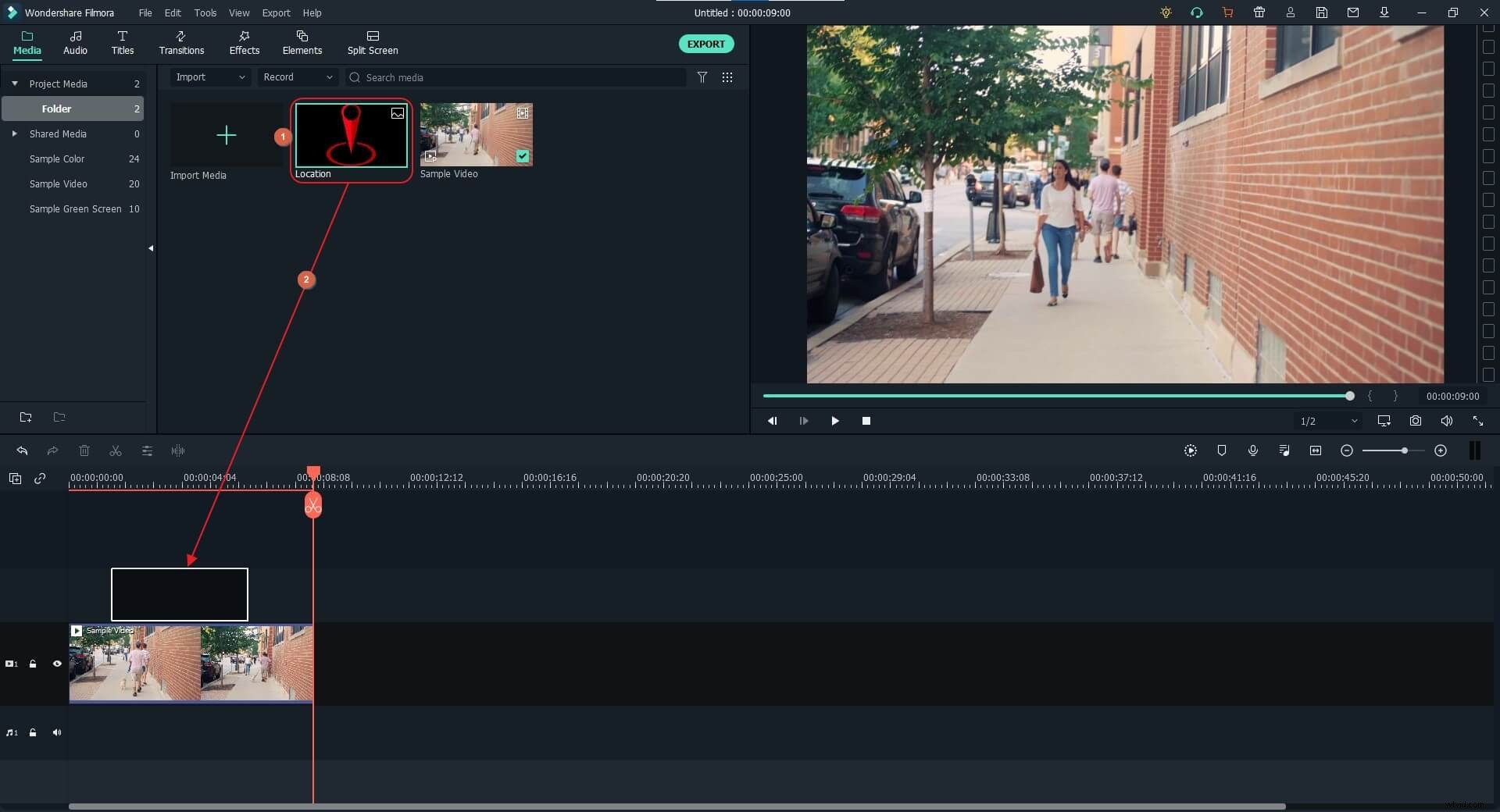
Launch Wondershare Filmora on your Windows or Mac computer (a Windows 10 PC here), click anywhere inside the Media window, and locate and import the source video and the object you want to move along to the application. Next, hover the mouse over the icon of the video clip, and click the + icon that appears at the bottom-right corner of the thumbnail. On the confirmation box, click the button under the Match to Media or Keep Project Settings section to add the footage to the Timeline.
After this, drag the external object from the Media window to the Timeline, and place it on a new track. Now, drag the object in the Timeline, and position its left side on the frame from where you want it to appear in the movie. Drag its right handle to extend or reduce its visibility duration in the video. If need be, click the object in the Preview window, and use the scaling handles to resize it.
Step 2: Start Motion Tracking
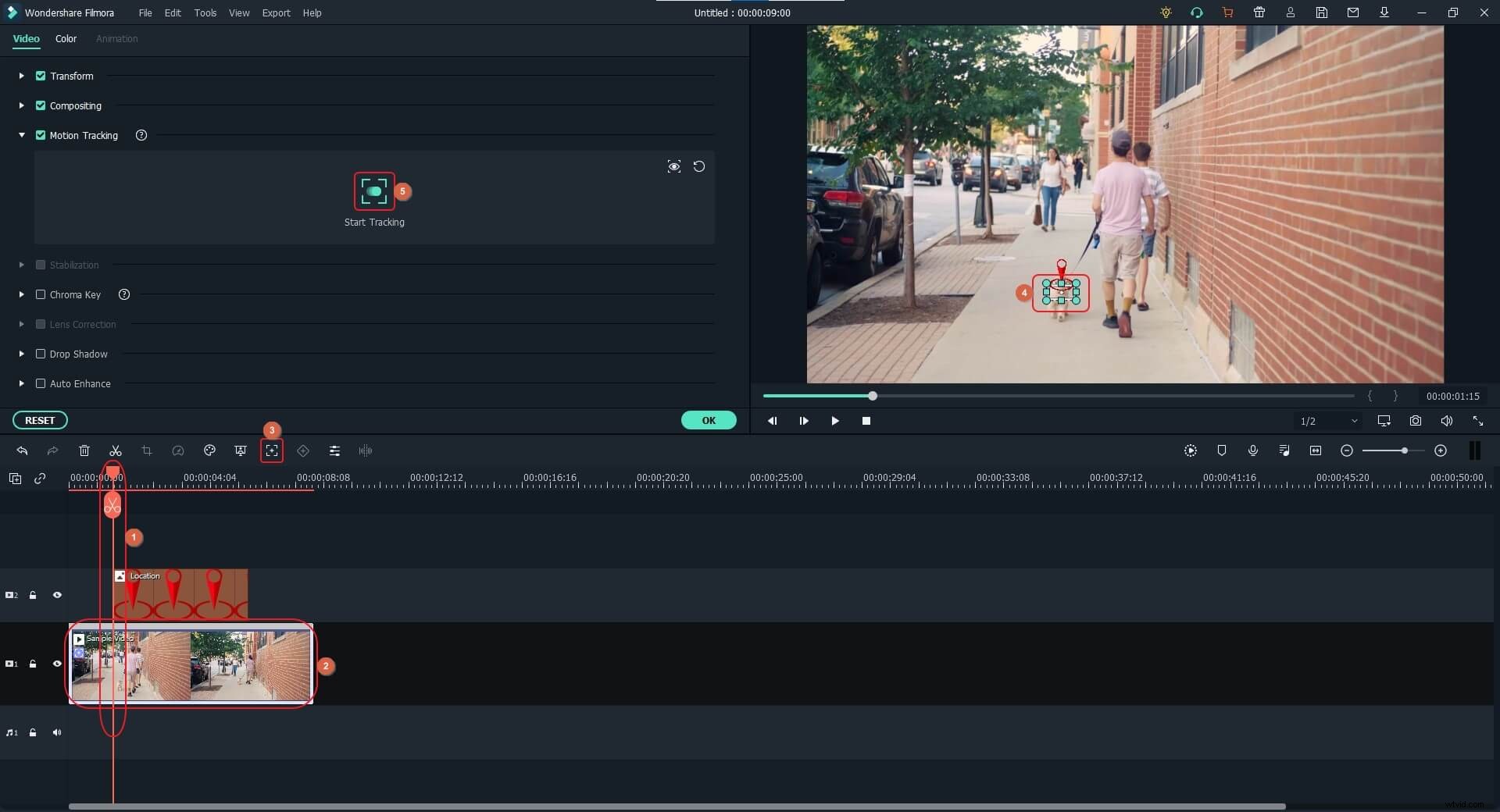
Place the Skimmer ( Playhead ) on the frame you want to start the third-party object to follow. Select the video layer, and click Motion Tracking from the left toolbar present above the Timeline. Click the tracking frame in the Preview window, use the scaling handles to resize the frame to cover only the area/element (the dog for this example) that needs to be followed by the object, and then place the frame right above the target area/object. Click Start Tracking from the window in the upper-left area, and wait while Filmora tracks the movements of the target object.
Read this article to explore more motion tracking usage in Filmora.
Step 3: Bind the External Object with the Tracked One
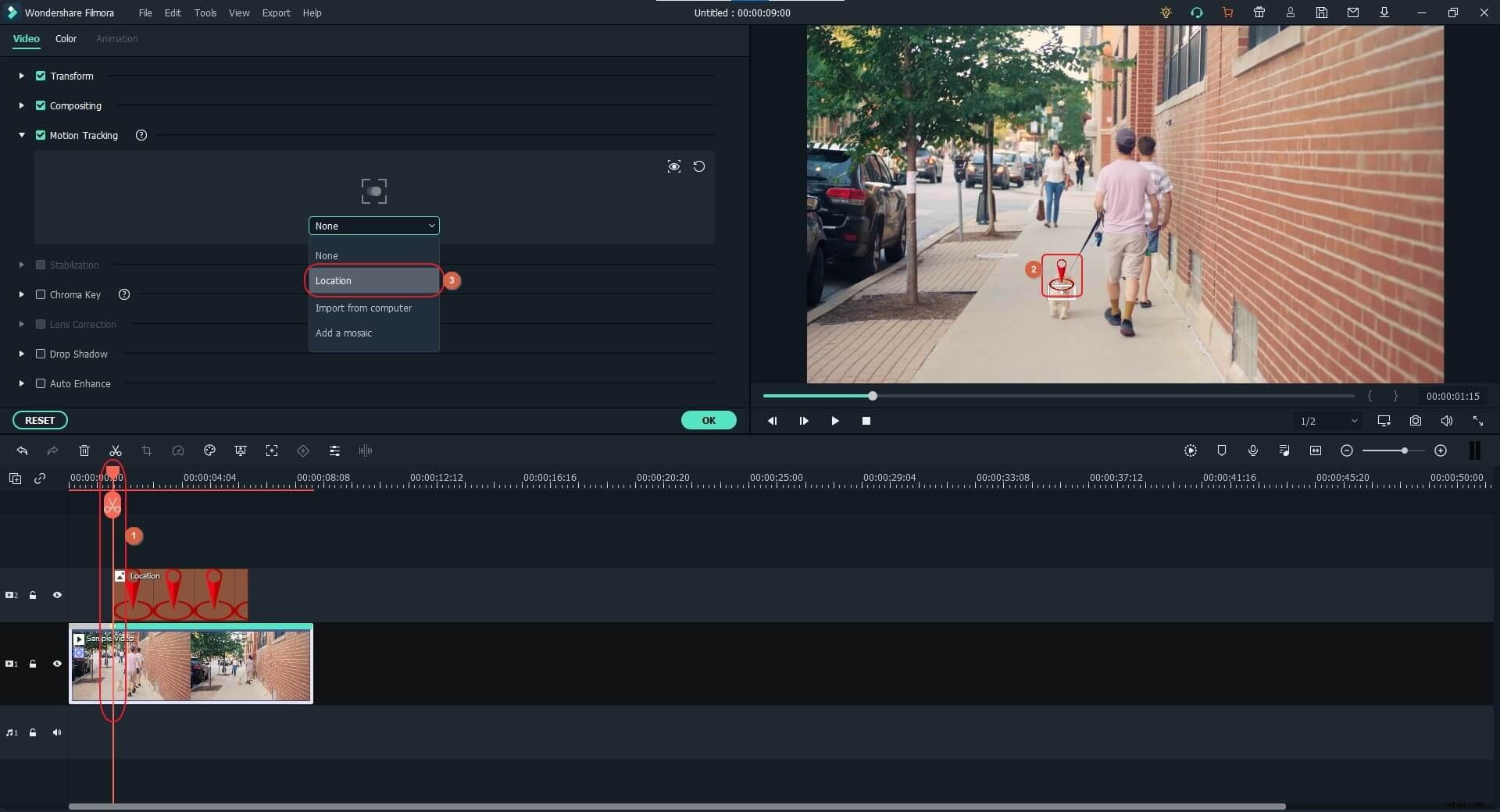
Make sure that the Playhead is positioned on the frame where the left side of the third-party object is, drag the object in the Preview window to set its location correctly, and choose the object from the drop-down list present under the Motion Tracking button (an object called Location is selected for this example).
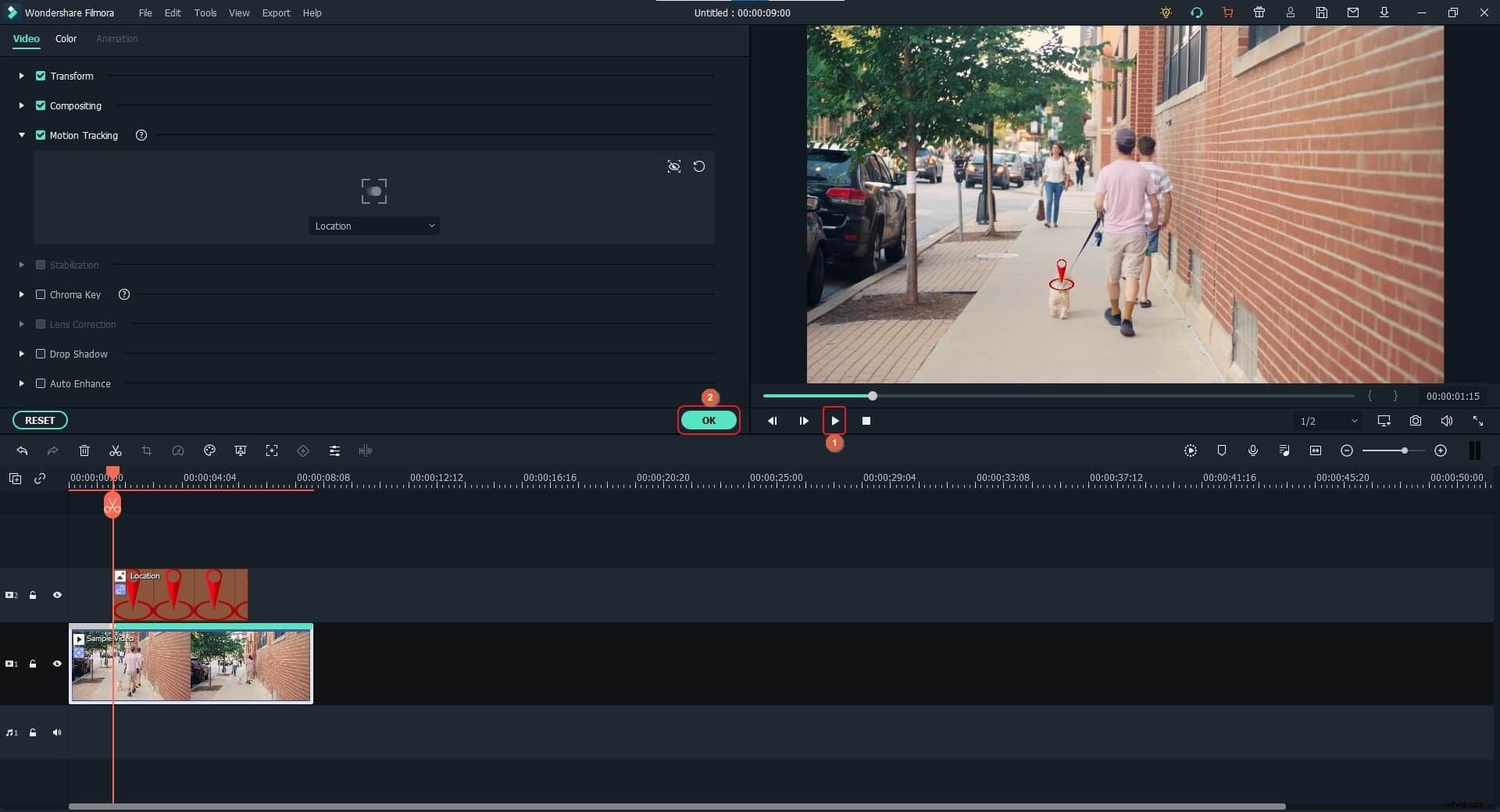
Click the Play button under the Preview window to see if everything looks acceptable. Feel free to make any other changes if required, and click OK from the bottom-right corner of the Motion Tracking window. Export the video for final output.
Part 2: How to Make Objects Move in Any Way You Like in the Video?
Wondershare Filmora X uses the keyframe approach to add animations to the objects, thus making it easy for you to move them in any direction you want. Multiple keyframes can be added to make each object change its direction or scale. You can learn how to make objects move in any direction in Filmora by following the instructions given below:
Step 1: Import the Ingredients and Add to the Timeline
Use the method explained above to add the source video and the third-party object to Filmora, and then bring both of them to the Timeline in a way that the object layer remains above that of the video. Position the third-party object on the frame in the Timeline you want it to appear in the movie from.
Step 2: Add the Keyframes
Select the object layer, position the Skimmer on the frame from where you want the object to start moving, and click the Keyframing button present in the left toolbar above the Timeline.
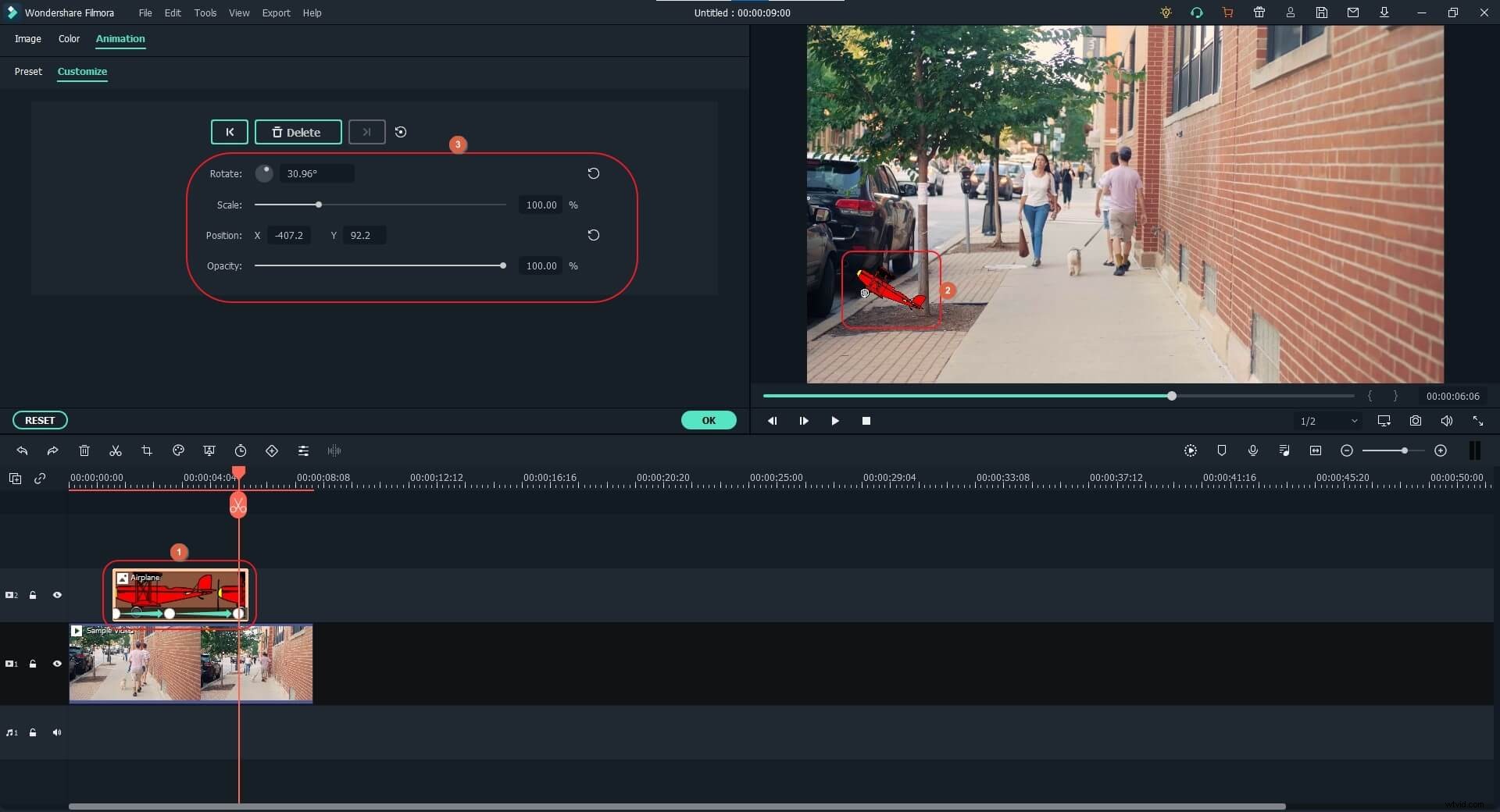
Next, move the Skimmer to the frame where you want to stop the movement of the object.
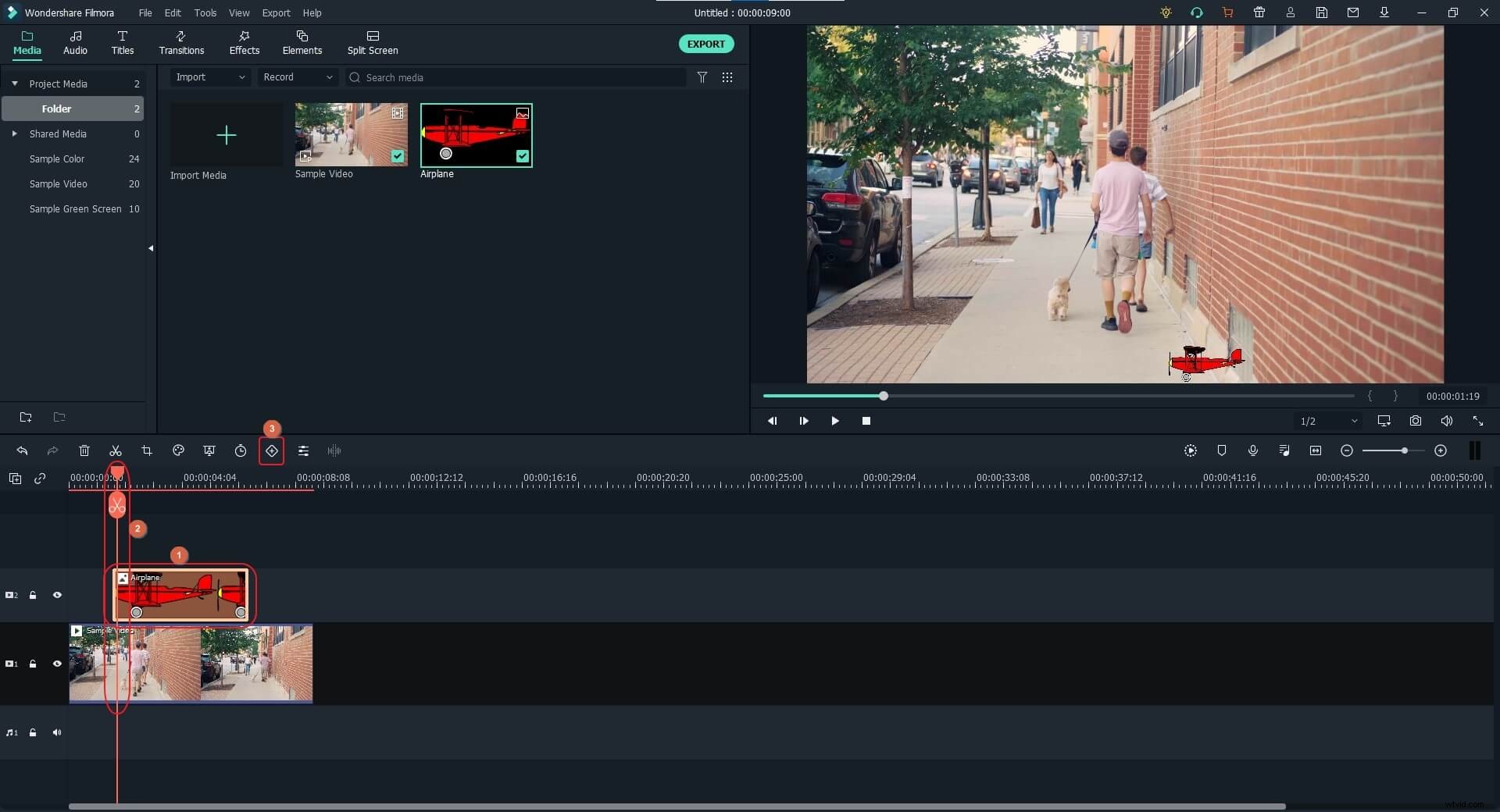
Move the object in the Preview window to its destination position. You can also change the Rotation , Scale , Position , and Opacity values to make the animation more dynamic. Notice how the keyframes are automatically added for each animation that you add.
Step 3: Preview and Export
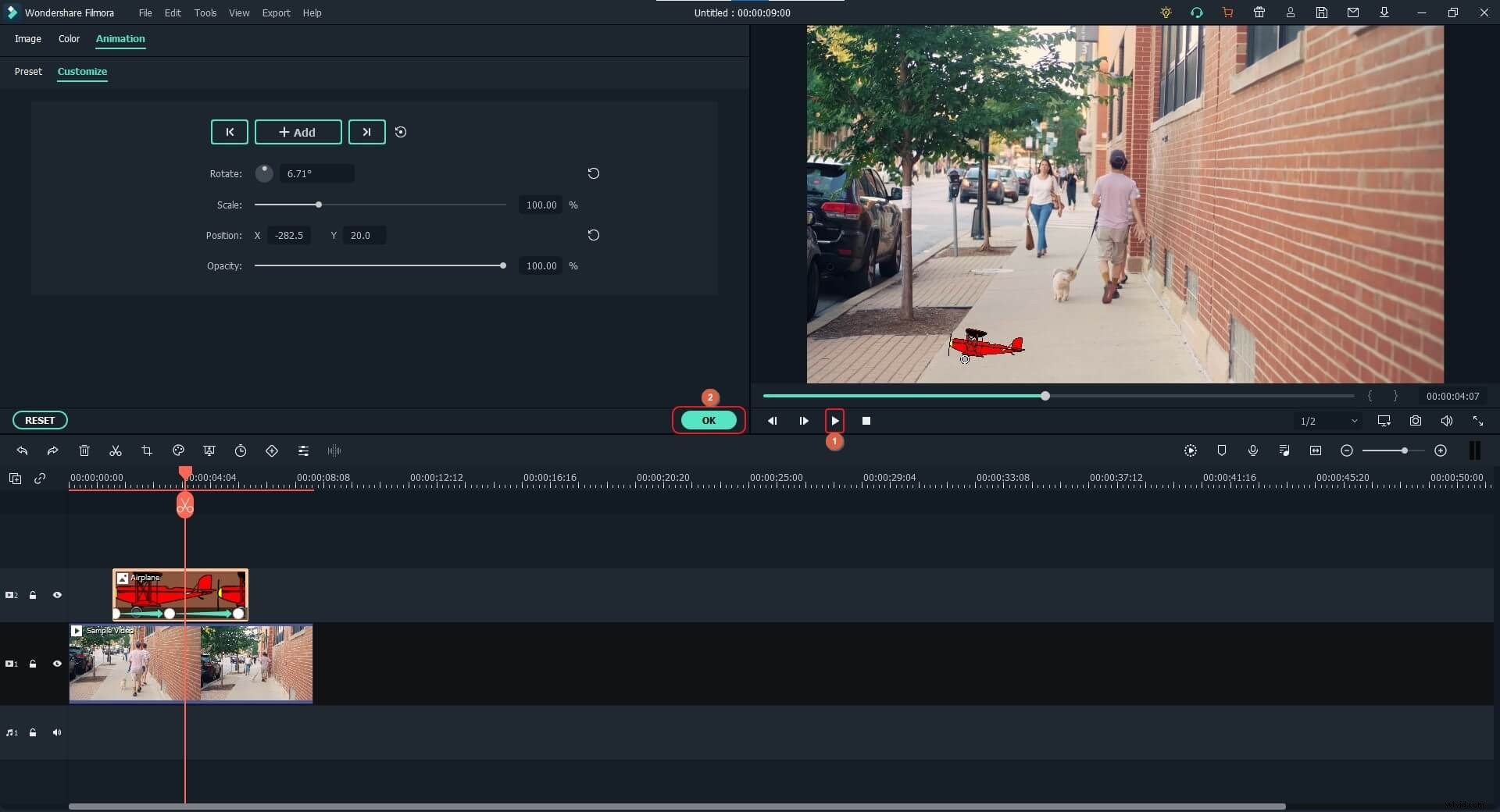
Click the Play button under the Preview window to see if the object moves as expected, and click OK from the bottom-right corner of the Animation window. Back in the previous mode, click EXPORT from the top-center area to export the video for distribution and/or sharing.
Want to learn more about keyframing animation? Check this creative tutorial about Filmora keyframing animation.
Conclusion
Making the third-party objects move in an already recorded video is an easy task when you are with Wondershare Filmora. Where Motion Tracking is used to make an external element follow something that is within the video, the keyframing approach allows you to move an entity freely and in any direction you want. The good thing is, as you move an object in the Preview window and/or change its direction, a new frame is automatically added, hence making it convenient for you to animate the third-party element within the video.