
Sooner or later, every filmmaker finds dust in their shot — either on the lens or sensor. Here’s how you can get rid of it without sacrificing your footage.
One of the worst feelings in the world is finding out that unwanted dirt on your lens has ruined your footage. So how do you get rid of it? Well have no fear — I have a solution. All you’ll need is non-linear editing software and some footage to save.
In the following tutorial, I’ll show you how to remove sensor dust in Premiere Pro, but this technique also works in After Effects, FCPX, and other NLEs.
How to Remove Dust in Post (Method 1)
I have two methods for fixing this problem. Method one is pretty simple and can usually fix the really small specks that catch your eye.
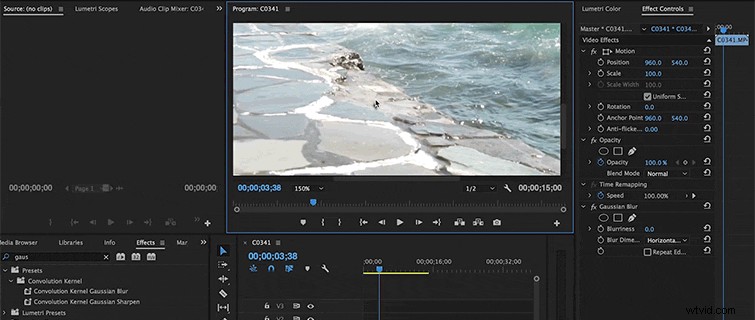
1. The first step is to apply a Gaussian blur to your footage.
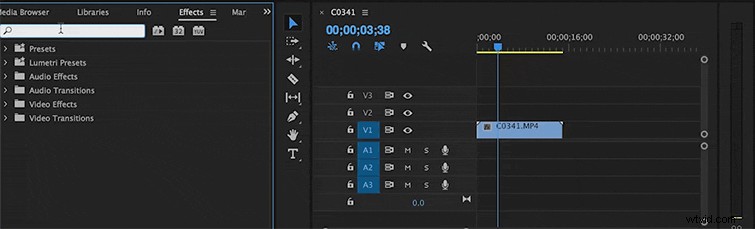
2. Afterward, go into your effects panel and create a mask for the layer. Make the mask into the shape of a circle that covers up the dirt.
3. If necessary, you can adjust the scale of the effect by shifting the expansion size under your effects panel. For this method to work, you need to make sure this effect is over the dirt in your footage.
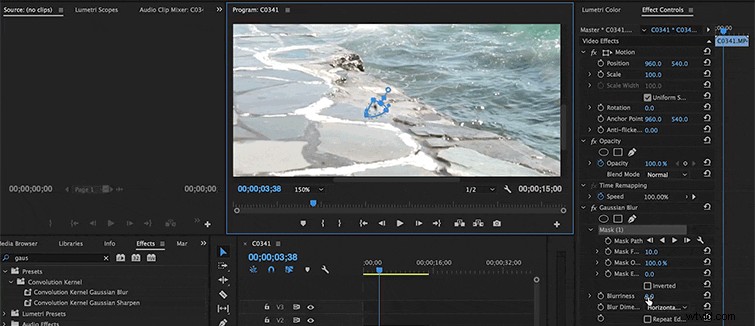
Quick Tip: You can make this effect more subtle by feathering the edges of your mask.
How to Remove Dust in Post (Method 2)
The next trick works pretty well, and depending on your footage, you can improve the picture quality anywhere from 70 – 90 percent. Here’s how it works.
1. Duplicate your shot, and layer the double above the original.

2. On the duplicated video, create a circular mask that fits the same size as the dust particle. The trick is to make this mask right beside the dirt.

3. Once you’ve created your small masked layer, go into Motion (under your effects panel) and slide the position of your clip over the affected video.
This will patch your original clip with a section of footage from the duplicated video. Essentially, you are creating the photoshop clone stamp effect for video.
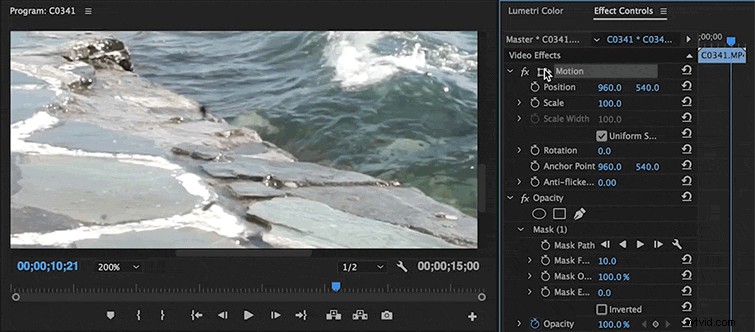
If done correctly, these two methods can really save some of your shots — and possibly an entire production.