
Content creators often need to capture several video feeds—such as a screen recording, webcam, and system audio—into a single, polished file. Wondershare Filmora makes this simple on both Windows 10 and macOS.
Why Record Multiple Sources?
- Streamlined workflow: Capture and edit all footage in one place, eliminating the need for post‑production syncing.
- Engaging content: Combine on‑screen demonstrations with live commentary for tutorials, gaming streams, and business presentations.
- Versatility: Export a unified file ready for YouTube, LinkedIn, TikTok, or Instagram Reels.
Equipment Checklist
| 🎤 Microphone | Record clear voice‑overs or live commentary. |
| 📷 Webcam | Show your face or annotate screens during a tutorial. |
| 💻 Second monitor (optional) | Facilitate multi‑screen recordings or separate workspace. |
| 📹 Filmora (Screen Recorder & Editor) | All‑in‑one AI‑powered tool for capturing and editing. |
Setting Up Your Devices
On macOS
- Connect your webcam and microphone.
- Navigate to Apple Menu > System Settings > Privacy & Security > Camera and enable access.
- If using a second display, attach it before launching Filmora.
On Windows 10
- Connect your webcam and microphone.
- Go to Start Menu > Settings > Privacy > Camera and allow app access.
- Connect any external monitors.
Installing Filmora
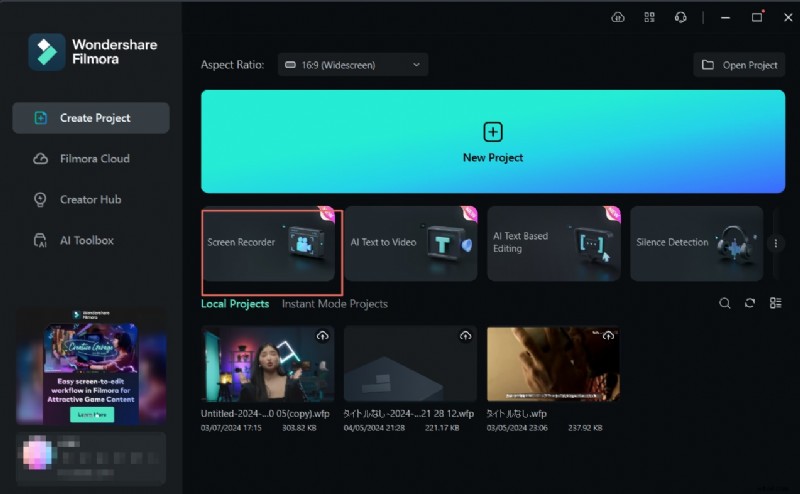
Download the latest version from the official website and follow the installer prompts. Once installed, launch the application and select Screen Recorder from the main menu.
Recording Multiple Sources in Filmora
- Open Filmora and click Screen Recorder.
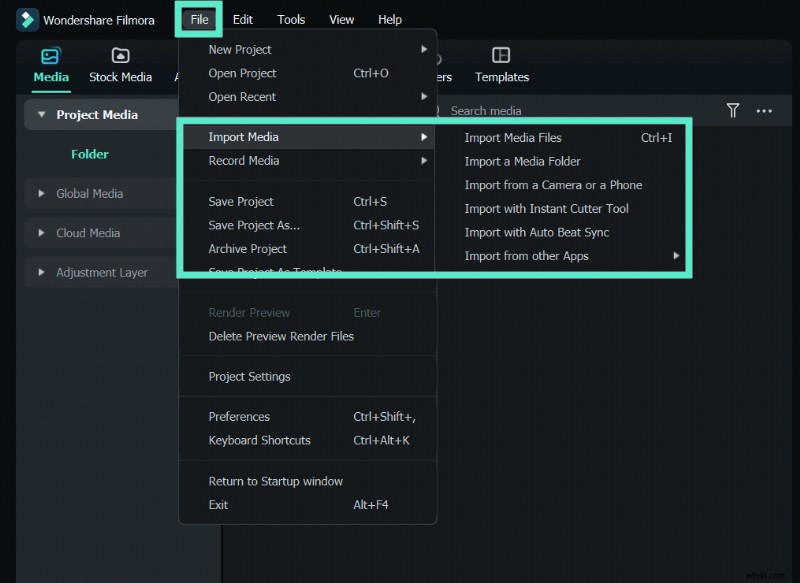
- Choose Record PC Screen from the File menu.
- In the recording window, enable Screen + Webcam.
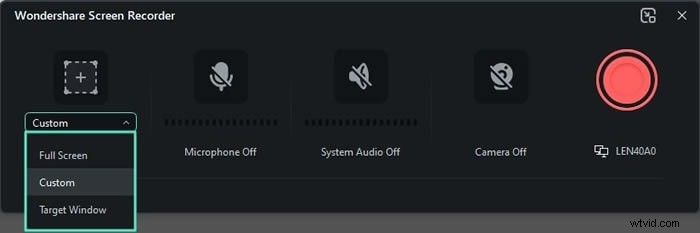
- Select the area to capture: Target Window, Custom, or Full Screen.
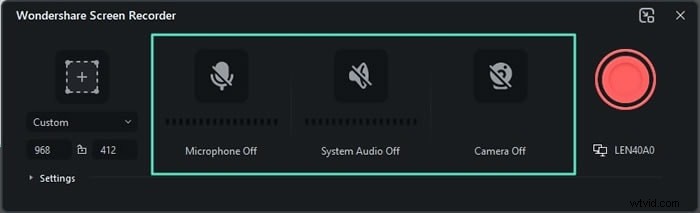
- Toggle System Audio and Microphone to capture background sounds and narration.
- Click the Settings tab to adjust frame rate, resolution, and video quality.
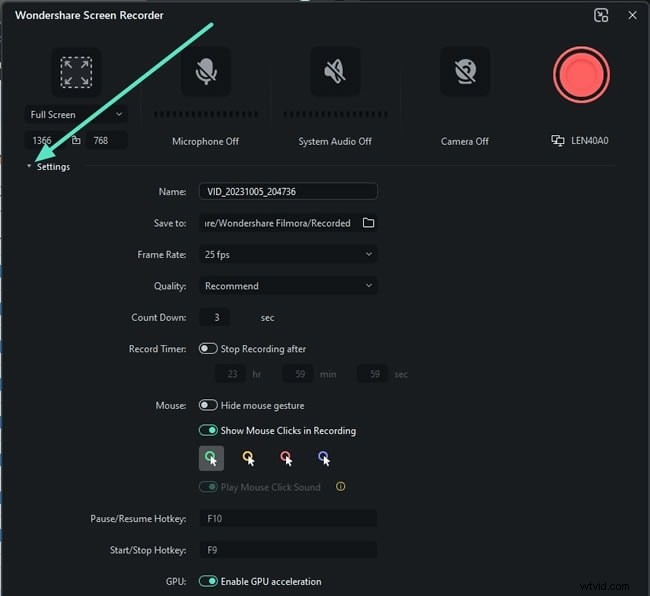
- Press the red REC button to start.

- When finished, hit REC again to stop. The clip appears in Filmora’s Library for editing or immediate export.
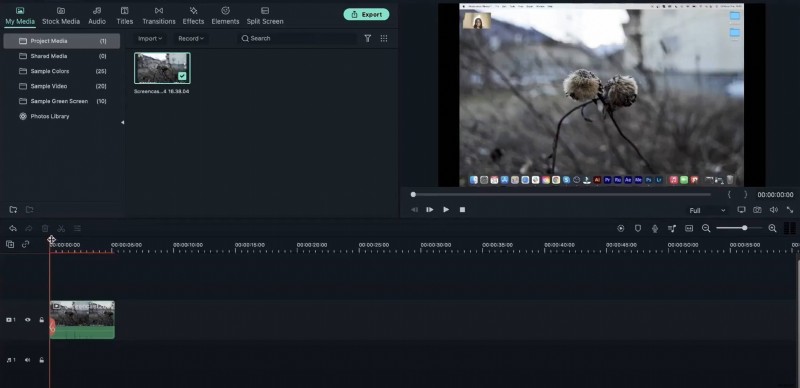
Editing Your Multi‑Source Video
Filmora’s AI editing suite lets you trim, add transitions, overlay text, and insert background music—all while keeping separate layers for each source. Use the built‑in templates or create a custom storyboard.
Tips for High‑Quality Recordings
- Record the webcam in a well‑lit, quiet room to avoid shadows and background noise.
- Test audio levels for each source before starting the full recording.
- Explore Filmora’s Auto‑Sync feature to align audio and video tracks automatically.
- Export in the desired format (MP4, MOV, etc.) and resolution (1080p, 4K) for your platform.
FAQs
- Can I record multiple video sources on a Mac? Yes—use Filmora or launch multiple QuickTime Player instances with different input devices.
- What is the best software for Windows? Wondershare Filmora remains the top choice due to its comprehensive multi‑source capture and AI editing tools.
- Which tools are essential? A high‑quality webcam, external microphone, optional second monitor, and Filmora for capture and editing.