
Capturing your favorite moments on PlayStation 5 is simpler than ever. Whether you’re planning a YouTube vlog, sharing highlights with friends, or just preserving epic gameplay, the PS5’s built‑in tools and external software options make recording, editing, and sharing a breeze.
Part 1: Record Gameplay with Face‑Cam and Voice
The PS5 can record up to 60 minutes of gameplay directly on the console, but adding a webcam and commentary takes the experience to another level. For extended sessions, high‑quality audio, or smooth streaming, many creators turn to a screen‑recording application like Wondershare Filmora.
Filmora offers:
- Custom Recording Area – Capture the full screen, a specific region, or a single window.
- Timer & Auto‑Stop – Set a duration and let the software handle the rest.
- Screen + Webcam Recording – Record gameplay, your face, and voice simultaneously.
To capture a session with Filmora:
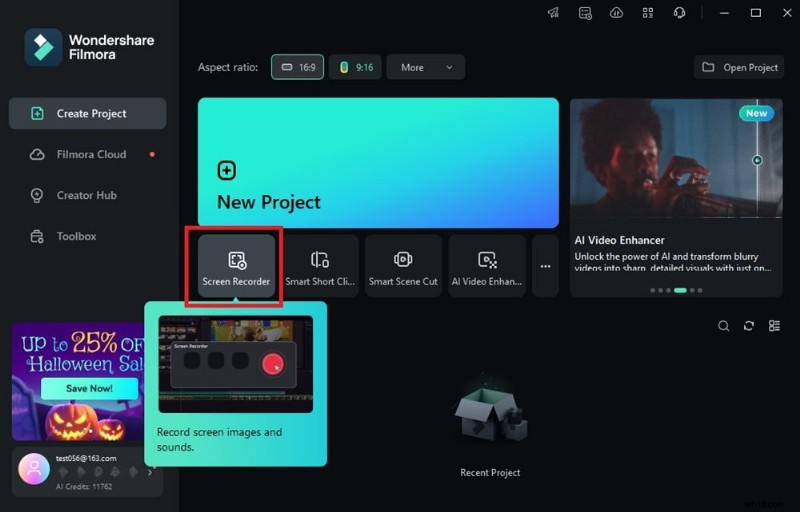
- Launch Filmora on your PC and open Screen Recorder from the start menu.
- Enable Microphone, System Audio, and Camera in the pop‑up window.
- Choose your recording area (full screen or a custom region) and adjust the frame rate in Settings.
- Click the record button to start. Stop when finished, either from the floating toolbar or the main window.
- Use Filmora’s editing suite to trim, add transitions, stickers, and text before exporting directly to YouTube or saving locally.
Part 2: Built‑In PS5 Screen Recording
For quick captures, the PS5’s native Create menu is all you need. Follow these steps:
- Press the Create button on your DualSense controller.
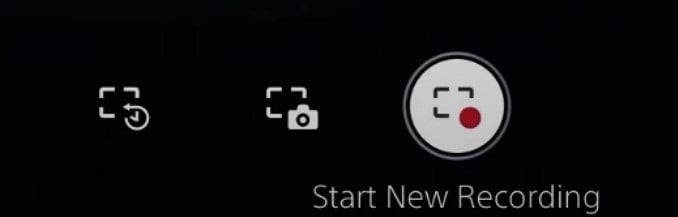
- Select Record – the console will start capturing from that point, up to 60 minutes.
- If you want audio, choose a Video Clip format in Settings > Captures & Broadcasts.
- Press Create again and choose Stop Recording when finished.
- All recordings are saved in the Media Gallery for quick review, editing, or sharing.
Part 3: Beyond Recording – Screenshots, Editing, and Sharing
Capture a Screenshot
Press Create → Take Screenshot to snap the current frame. View it in the Media Gallery.

Edit Your Recordings
From the Media Gallery, select a video and click Edit to trim start/end points. This quick editor keeps your clips polished before sharing.

Share Directly from PS5
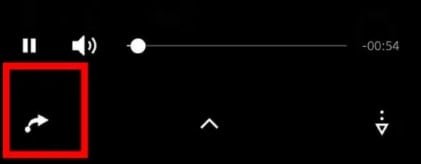
Choose a video, tap the share icon, and pick your destination—social media, a friend, or your own cloud. A single tap sends the file directly.
Conclusion
Recording gameplay on PS5 is straightforward, whether you use the console’s built‑in features or an external tool like Filmora for more advanced needs. With these tips, you can capture, edit, and share your gaming moments effortlessly.
FAQ
- Can you record gameplay and camera on PS5? Yes—up to 60 minutes of gameplay plus the last 15 seconds of recent play. For webcam and voice, use a screen recorder such as Filmora.
- Can I edit videos on PS5? You can trim clips directly on the console; for more effects, use Share Factory Studio or Filmora.
- Do I need a capture card? No. The PS5’s internal recorder handles gameplay capture, while external software offers extended features.