
One of the most significant advantages of virtual meetings is the ability to capture them for future reference. A Teams screen recording lets you revisit discussions, extract critical points you may have missed, share highlights with colleagues, and more.
But how do you screen record on Teams? Does Microsoft provide a native recorder, or should you turn to a third‑party solution? Let’s explore the options.
In this article
Does Microsoft Teams Have a Built‑in Screen Recording Feature?
Microsoft Teams does include a native screen‑recording function. The feature captures video, audio, and any screen‑sharing activity during a meeting. It does not record chat, whiteboard annotations, shared notes, or background application windows.
Note that the built‑in recorder only works within a meeting context; you cannot record the screen outside of a Teams meeting.
Who Can Record the Screen in Microsoft Teams?
Access to the Teams recorder is gated by licensing and administrative permissions:
- Hold a qualifying Teams license (Office 365 Enterprise E1/E3/E5, F3, A1/A3/A5, M365 Business, Business Premium, or Business Essentials).
- Have your IT administrator enable recording permissions.
- Be the meeting organizer or belong to the host organization.
How to Screen Record on Teams With the Built‑in Recorder?
Once the prerequisites are met, recording in Teams is straightforward:
- Open the Teams app and join or start a meeting.
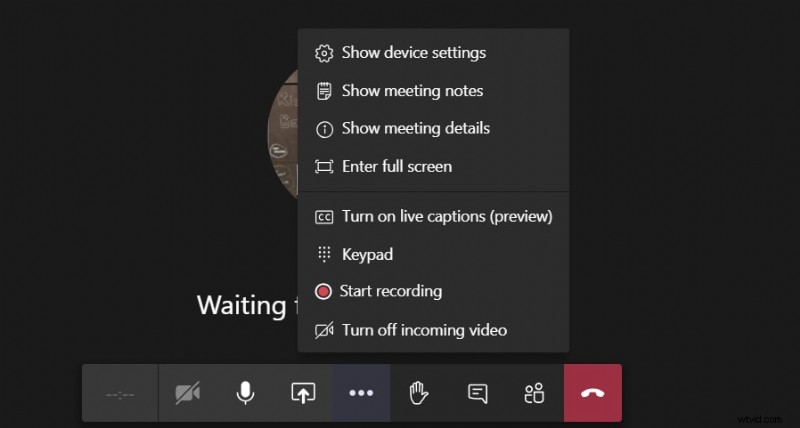
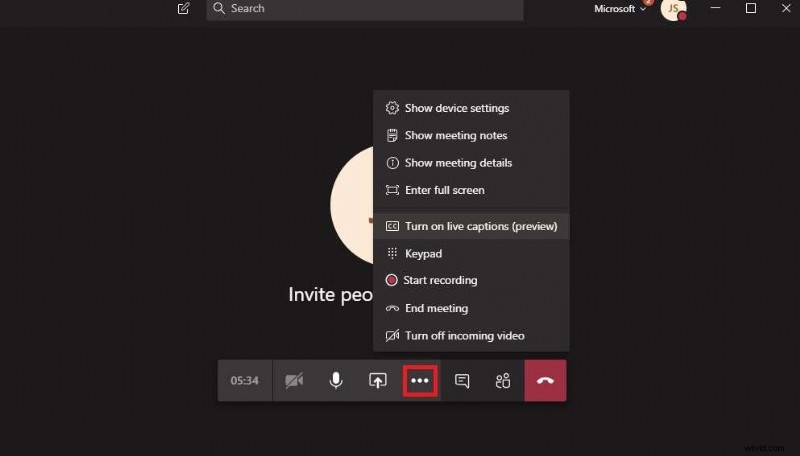
- Click the More actions button (three dots) on the control bar.
- Select Start recording.
- To stop, go to More actions ► Stop recording.

Advantages and Disadvantages of Using the Teams Screen Recording Feature
Here’s a quick pros and cons list to help you decide:
- Pros
- High‑quality output
- Recording continues after you leave the meeting
- Automatic stopping and saving of the file
- Captures all audio, video, and screen‑share content
- In‑app trimming support
- Cons
- All participants receive a notification that the meeting is being recorded
- Cannot record outside of a meeting
- Chat, whiteboard, and other app content are omitted
- No built‑in video editing tools
Using Third‑Party Software to Record Teams Screens Without a Meeting
While the native Teams recorder is convenient, it can feel restrictive and intrusive. If you need a discreet, flexible solution, consider a dedicated screen‑capture tool.
Wondershare Filmora offers robust recording capabilities that work across any platform—including Teams—without alerting participants.

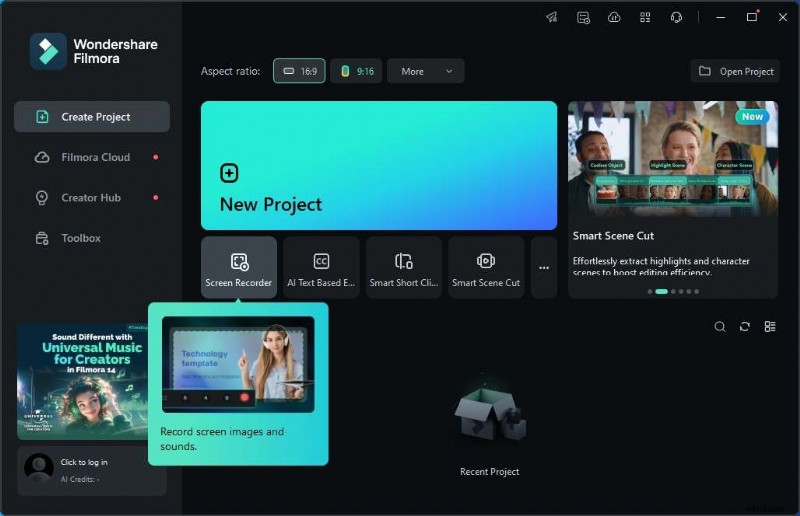
Filmora lets you select the entire screen, a specific window, or a custom region, record system audio, microphone input, webcam, and even display keystrokes and mouse clicks. The editor lets you polish the footage, add effects, captions, and background music to produce a professional‑grade video.
How to Screen Record on Teams With Filmora?
Getting started with Filmora is simple:
- Open Wondershare Filmora and sign in.
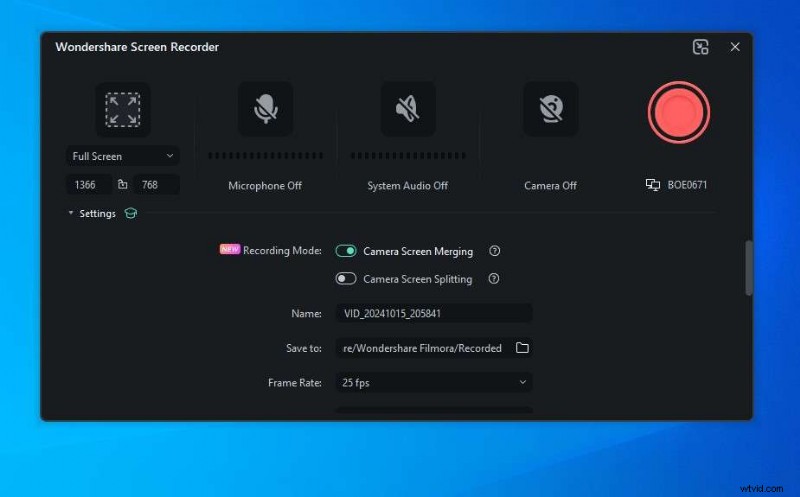
- Choose Screen Recorder from the main menu.
- Launch the application you want to capture (e.g., join your Teams meeting).
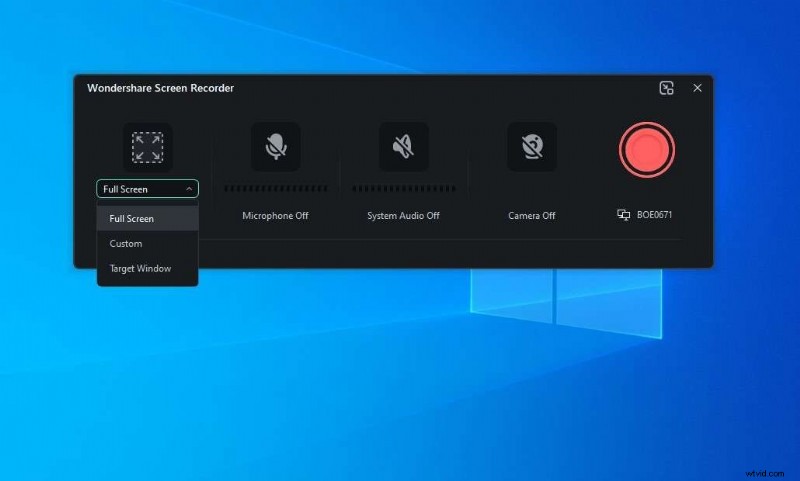
- Define the capture area: Full Screen, Custom, Target Window, or set a specific resolution.
- Toggle microphone, system audio, and webcam as needed.
- Adjust advanced settings—frame rate, quality, timer, and more.
- Click the red Record button to start.
- Click Stop when finished.
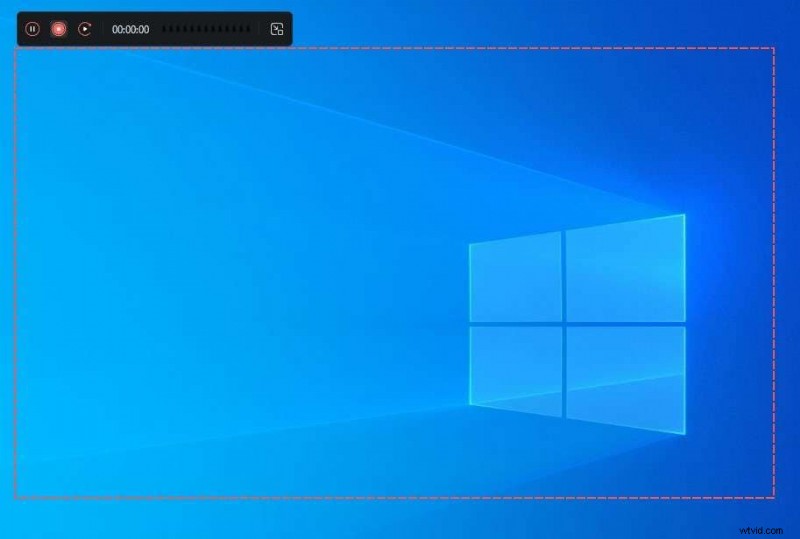
Afterward, you can immediately edit the clip in Filmora’s built‑in editor or locate the file in your chosen save path.
Built‑in Recorder vs Third‑Party Software
| Feature | Microsoft Teams | Wondershare Filmora |
| Discreet recording | ❌ | ✅ |
| Recording length | 4 hours | Unlimited |
| Automatic stop | ❌ | ✅ |
| Customizable area | ❌ | ✅ |
| Editing capabilities | ❌ | ✅ |
| Recording quality | ⭐⭐⭐⭐ | ⭐⭐⭐⭐⭐ |
Conclusion
Microsoft Teams’ native screen recorder is handy for straightforward meeting captures, but it has notable limitations. For discretion, flexibility, and professional polish, a third‑party solution like Wondershare Filmora is the better choice.
Filmora records everything on your screen—whether it’s a Teams meeting, an online webinar, a game, or a simple desktop—and offers a full‑featured editor to transform raw footage into polished videos.