
When you want to save some important things on your screen, the best solution is to record a video with a powerful screen recorder. It's well known that Windows 10 operating system offers you a default recording program, but if this primary tool can meet all your recording demands? If your answer is "no," this post is for you.
This post will introduce five workable screen recording applications on Windows 10, including online screen recorders for Windows 10 and offline recorders, and teach you how to record screens on Windows 10 with them step by step.
Quick Steps to Record Screen on Windows 10:
- 1. Search for Game Bar or press the "Windows" + "G" key simultaneously to launch it on your Windows 10 or Windows 11 PC.
- 2. Click on the "Record" button to get the recording started. Or you can press the "Windows" + "Alt" + "R" keys instead.
- 3. Hit the "Stop Recording" button on the floating toolbar to save the recorded video to your computer.
Record Screen on Windows 10 with Xbox Game Bar
As many people know, there is a vendor-supplied application on Windows 10 and Windows 11 devices. Microsoft designs this tool to help users capture video and audio in the most basic ways. As this is essentially a game recorder, you should define what you record as a game and start recording with the Game Bar.
One of its apparent shortcomings is that Game Bar only supports recording the audio along with the screen, so you cannot record only the audio files using it. Besides that, Game Bar is not integrated with any video/audio editing tool. You have to find a video editor, even if you only want to trim or cut the recorded videos. Although Game Bar lacks some advanced features, it's also an optional recorder to screen record in Windows 10 PC as it's easy to use.
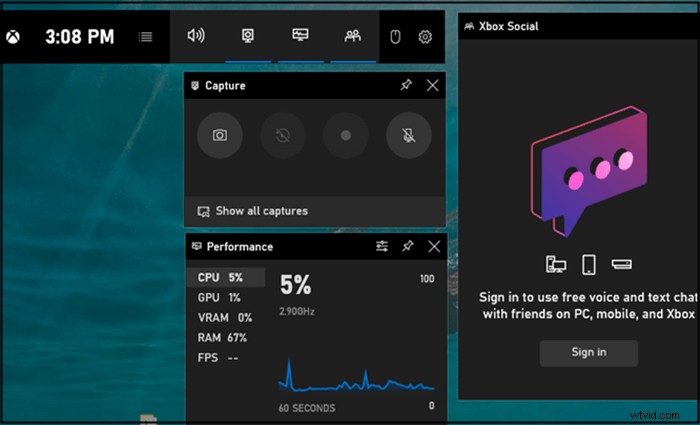
Steps to Record Windows 10 Screen with Xbox Game Bar:
Step 1. Launch this software on your Windows 10 or Windows 11 PC. You can type its name into the search box at the right bottom corner to find it, or press the "Windows" + "G" key simultaneously to do that.
Step 2. Click on the "Record" button to get the recording started. Or you can press the "Windows" + "Alt" + "R" key instead.
Step 3. Hit the "Stop Recording" button on the floating toolbar to save the recorded video to your computer.
Record Screen in Windows 10 with EaseUS RecExperts
As mentioned above, the Xbox Game Bar only fits those who only require elementary recording tools. If you want some advanced features, such as capturing only a part of your Windows 10 screen, adjusting the resolution of recordings, and editing the captured video/audio with built-in tools, a more versatile program is what you need.
EaseUS RecExperts ideally help you screen record on Windows 10 PC with audio from multiple sound sources, including system sound, microphone audio, or two of them. It also allows you to record a webcam along with the screen and audio, whether you are using an external webcam or a built-in one.
This is the go-to software for Windows 10 users to record streaming video, video calls, online conferences, gameplay, or other things on your screen. Some default editing tools even enable you to trim the recordings and add opening titles/closing credits to your videos.
Key Features:
- Record full screen or partial screen on Windows 11/10/8/7
- A powerful screen and audio recorder for beginners
- Schedule recording task to record screen automatically
- Support more than ten file formats
This all-in-one software requires no registration. Click on this button for free download to get it.
How to Record Screen on Windows 10 with EaseUS RecExperts:
Step 1. After downloading, launch the screen recording software. You'll encounter a small panel on your screen with many options.
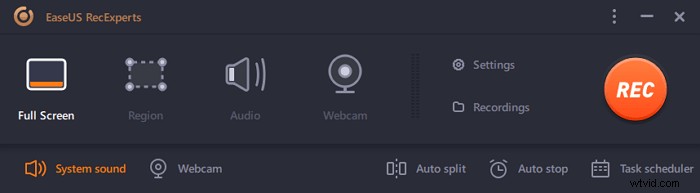
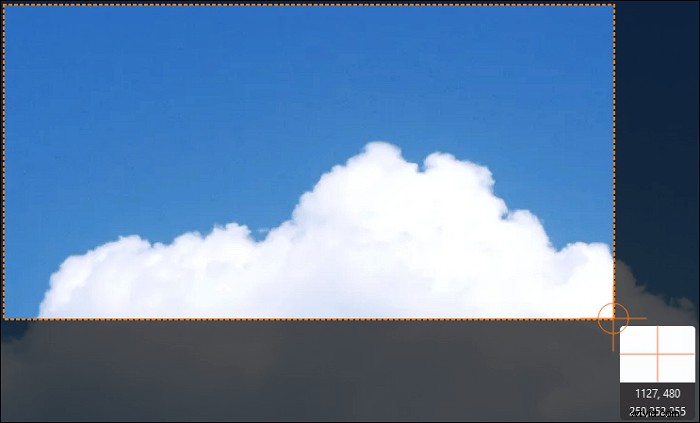
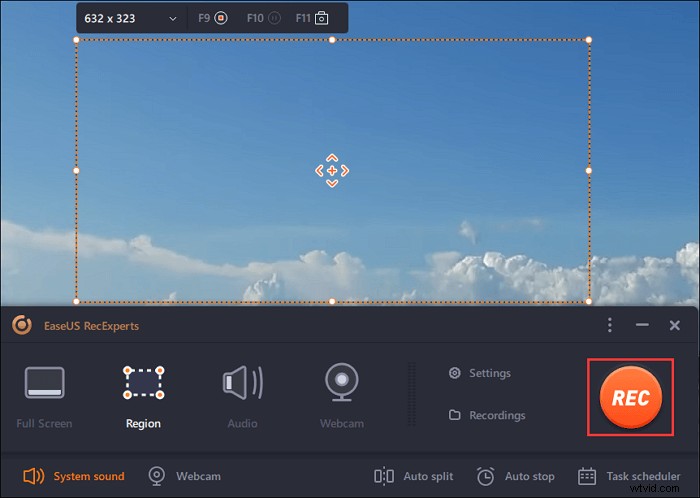
Step 2. On the panel, one can record the entire screen by clicking on the "Full Screen" option or a specific region by clicking on the "Region" option. Now, drag your cursor onto the screen to select the desired area.
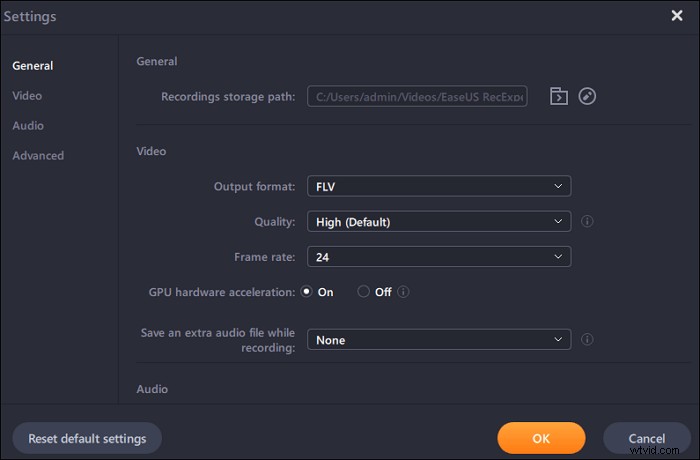
Step 3. For webcam recording, attach a webcam and click on the "Webcam" button from the main panel. Also, one can further choose the output format, quality, and frame rate from the settings.
Step 4. Now, click on the "REC" button to start your recording.
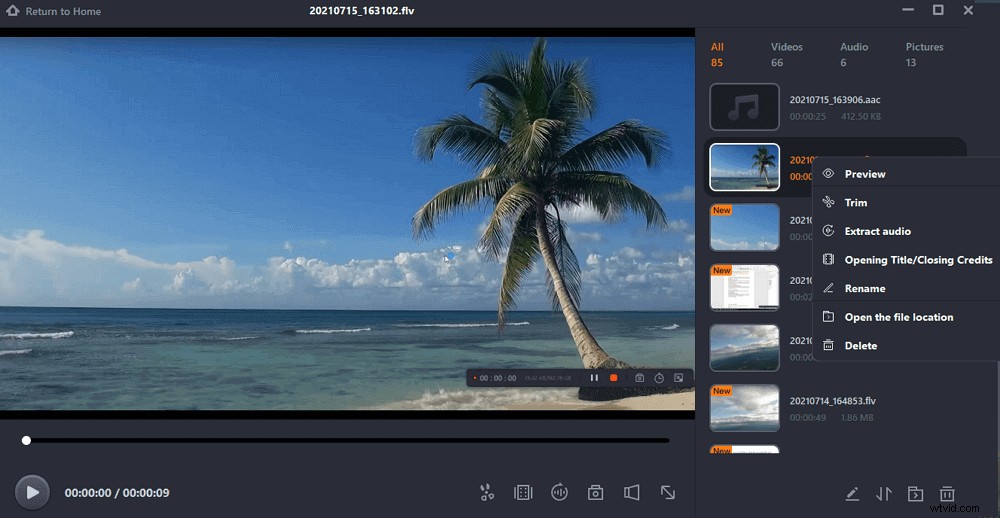
Step 5. Click on the "Stop" button once you are done. The recorded video will show up on the screen when a user stops recording. The editing features offers features like trim, rename a file or extract audio, and more. You can also take a screenshot by simply pressing F11.
Record Your Screen on Windows 10 with OBS Studio
Many people may know an open-source software that is named OBS Studio. This cross-platform program enables you to stream or record with it, and you can select the video source freely from your Windows 10 PC. For instance, it allows you to capture the whole Windows 10 screen except the full-screen gameplay, capture the game in full-screen mode, or only record the active window running on your Windows 10 PC.
It also provides you many other advanced tools. It can not only help you capture audio from many different sources, and it even allows you to customize the bitrate of each track individually. Its other advanced features like "Studio Mode" and "Multiview" are beneficial in making professional-level video work. Nevertheless, its complex setting and the professional interface may hinder beginners from using this software. If you want a more user-friendly application, it would be advisable to try EaseUS RecExperts.
How to Record Screen on Windows 10 with OBS Studio:
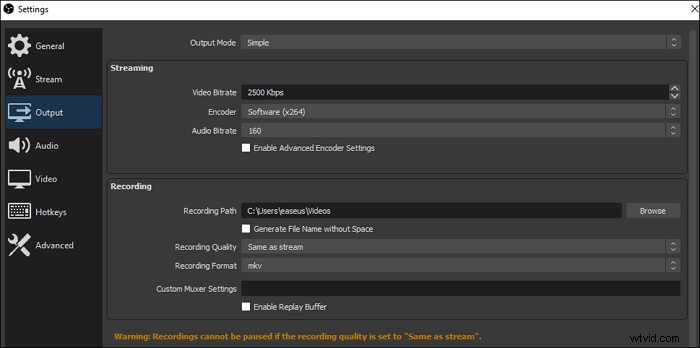
Step 1. Launch OBS Studio. Click on "File" > "Settings" to adjust the options for your videos and audios.
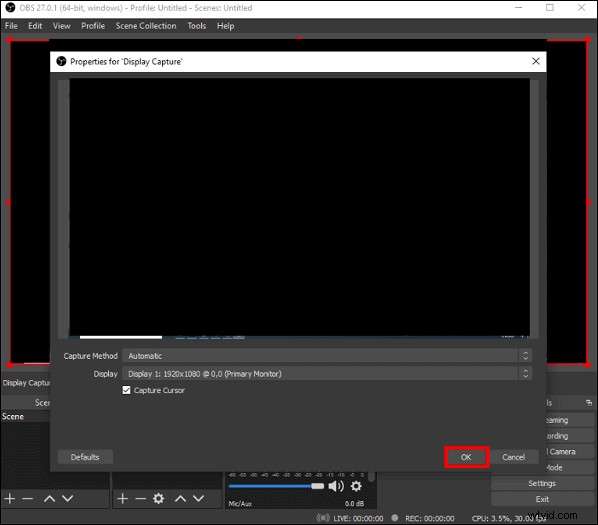
Step 2. Then, back to the main interface and click on the "+" icon in the "Scenes" box or right-click the box and choose "Add." Then, select "Display Capture" to record the whole screen, except the full-screen gameplay, and select "Window Capture" if you only need to record the active window.
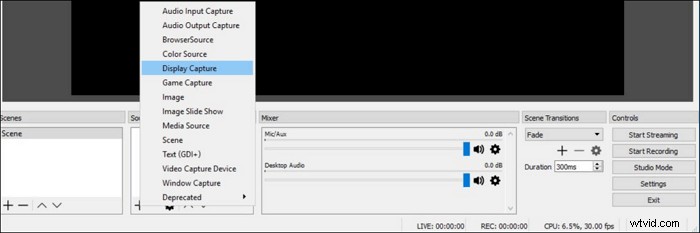
Step 3. When a window appears, choose "OK" to create a new source. Then, another window will pop up and ask you to select the capture mode and the monitor you want to record. Don't forget to hit "OK" to confirm your settings.
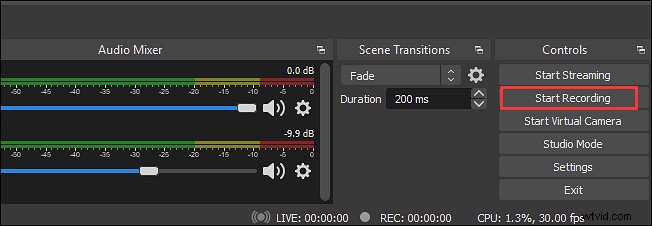
Step 4. Then, find the "Start Recording" button on the "Controls" panel. Click it when you want to screen record your Windows 10 PC.
Record Screen on Windows 10 with VLC Media Player
VLC is a well-known open-source media player that enables you to play most of the videos you get, but many people have no idea about its features besides playing media files. This versatile software can even work as a screen recorder Windows 10 or converter that supports numerous media formats. To record the screen of Windows 10 PC, you only need to set your desktop as the video source, choose a suitable output file format, and select the save path. Then, its built-in recording tool will capture what is happening on your Windows 10.
Moreover, VLC Media Player is also helpful in editing videos. You can use it to distort, rotate, split, mirror videos, and add a logo overlay during playback.
Method of Windows 10 Recording with VLC Media Player:
Step 1. Launch VLC Media Player and click on "Media" > "Convert/Save."
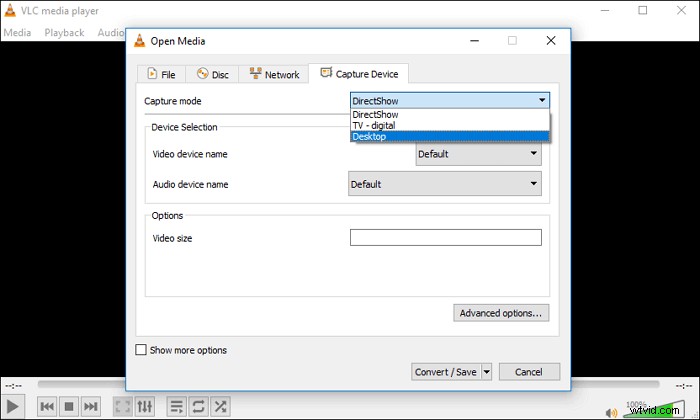
Step 2. When the "Open Media" window pops up, navigate to the "Capture Device" tab and choose "Desktop" from the dropdown menu of "Capture mode." Then, click on the "Convert/Save" button and move to the next screen.
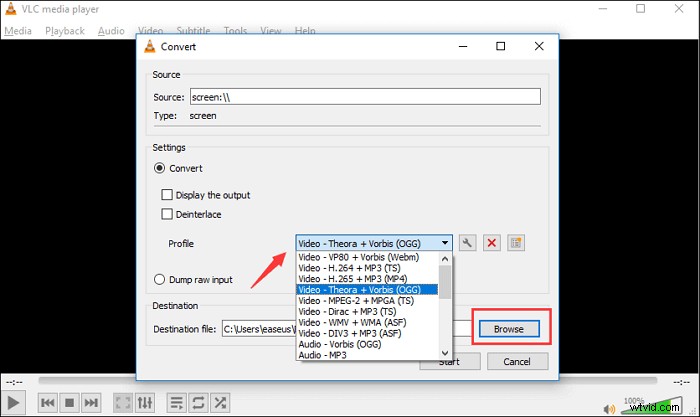
Step 3. You need to set the output format in this window and click "Browser" to select an appropriate folder to save your recordings.
Step 4. Click on the "Start" button to screen record on Windows 10 PC, and hit the "Stop Recording" button at the bottom left when you recorded all that you want to save.
Screen Record for Windows 10 Online
All the above-mentioned desktop Windows 10 recorders are powerful. Still, some people perhaps prefer to online screen recorder for Windows 10 as they can directly use the online tool without downloading the software.
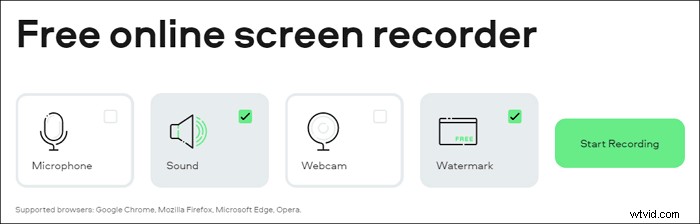
Screen Capture is a recommendable and easy-to-use video recorder in Windows 10 that allows you to choose the recording mode on the main interface. It offers you four options that you can record along with the Windows 10 screen, including the microphone, system sound, webcam, and a watermark, and you can easily click on the icons to decide if you will record them.
How to Record Computer Screen on Windows 10 with Online Recorder:
Step 1. Go to the page of this online Windows 10 screen recorder.
Step 2. Click the four icons to choose what you want to capture, along with recording the Windows 10 screen.
Step 3. Hit the "Start Recording" button, and choose to record the whole screen, record a window, or only record a tab of the Chrome browser.
Step 4. Click on "Stop Recording" > "Download" to save the recording to your computer.
Conclusion
This post is for users who don't know how to screen record on Windows 10, and you can see the best five methods of Windows 10 recording. Whether you prefer to capture your screen online or offline, there must be a suitable Windows 10 screen recorder for you.
OBS Studio is the go-to software for professional users who want to stream or record the screen with advanced tools. But for beginners who want to do the recording effortlessly, EaseUS RecExperts is the best choice.