
What to Know
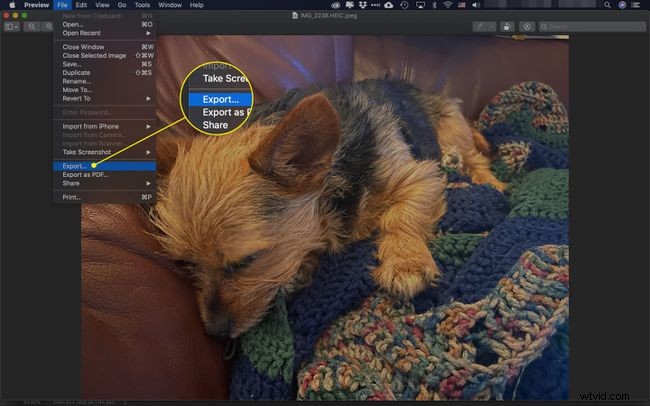
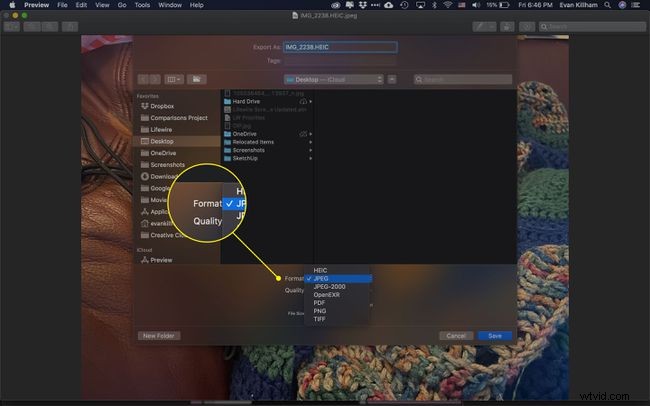
- Preview app: Open the image in the Mac's Preview app. Select File > Export > Format > JPEG. Adjust the quality and select Save.
- Squoosh website: Go to the squoosh.app website. Drop HEIC image on the screen for automatic conversion to JPG. Download the file.
This article explains how to convert an HEIC image to the JPEG format on a Mac using the Preview application that ships on the Mac or the Squoosh website in a browser.
How to Convert HEIC to JPG on a Mac With Preview
HEIC (High Efficiency Image Container) is an image format used for storing photos captured on smartphones. Many device manufacturers, including Apple, Samsung, and Google, have adopted HEIC as it's an effective way of storing photo files without losing data.
However, HEIC is still relatively new, and does not enjoy the same level of broad support as the older JPG format (aka JPEG). This can lead to issues when trying to upload an HEIC file to certain websites and apps. Converting an HEIC file to JPG is relatively simple to do.
It's easy to convert HEIC to JPEG when you use the Preview application that comes on every in Mac. It takes just a few steps to convert your image file to a more recognizable format.
-
Locate the file you want to convert and double-click it to open Preview or drag and drop an image onto the Preview icon in the Dock.
-
In Preview, click File > Export.
-
To convert the image to JPG, click Format and then click JPEG.
-
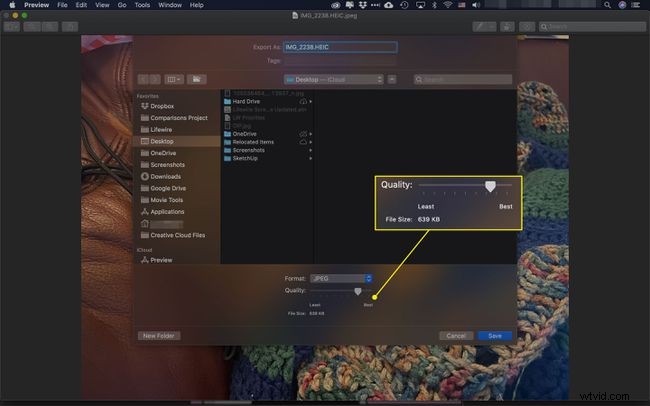
Adjust the Quality slider to export a larger or smaller file.
Check the File Size underneath the slider.
-
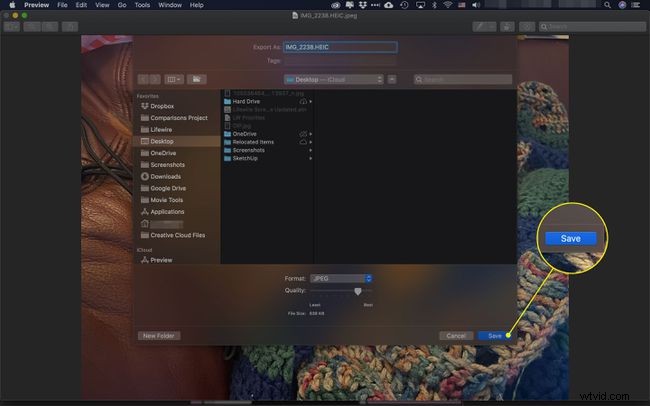
Click Save to export the file.
How to Convert HEIC to JPG Using Squoosh in a Browser
The Google Sqoosh software is great for converting and compressing files via a web browser. Here's how to use it to convert an HEIC file to JPG.
-
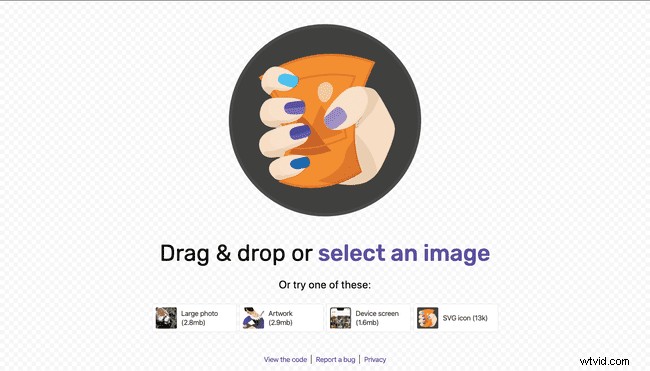
In a browser, navigate to https://squoosh.app/.
-
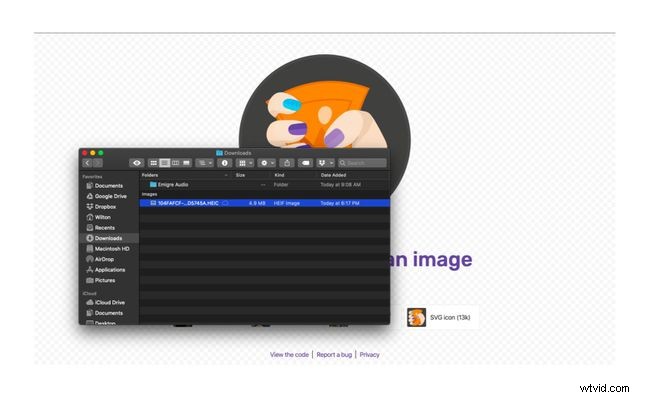
Find the HEIC file you want to convert to JPG. Drag and drop it onto the Squoosh web page to upload it to the web app.
-
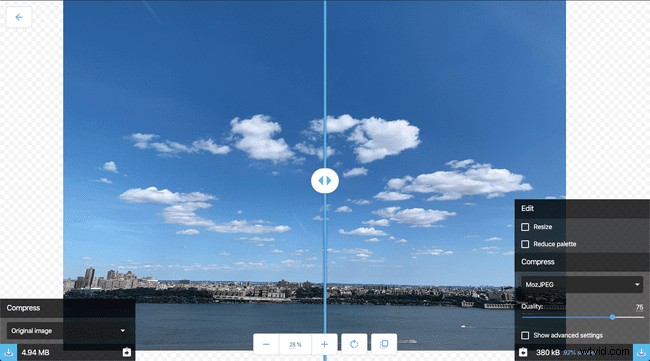
Wait your HEIC image loads in the Squoosh app.
-
The web app automatically converts your image to JPG upon export.
-
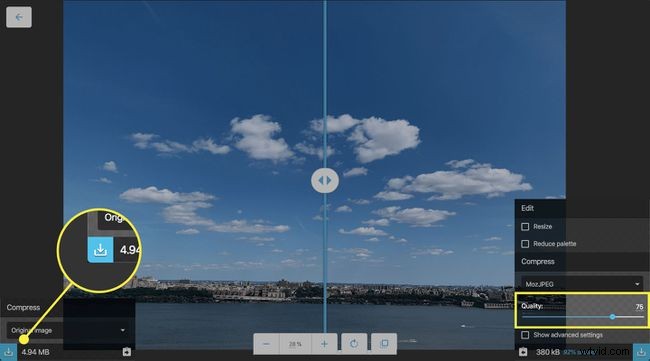
To save your HEIC image as a JPG file, adjust the Quality slider as required and then click the download arrow in the lower-left corner.
-
Save your JPG image to your device.