
Summary
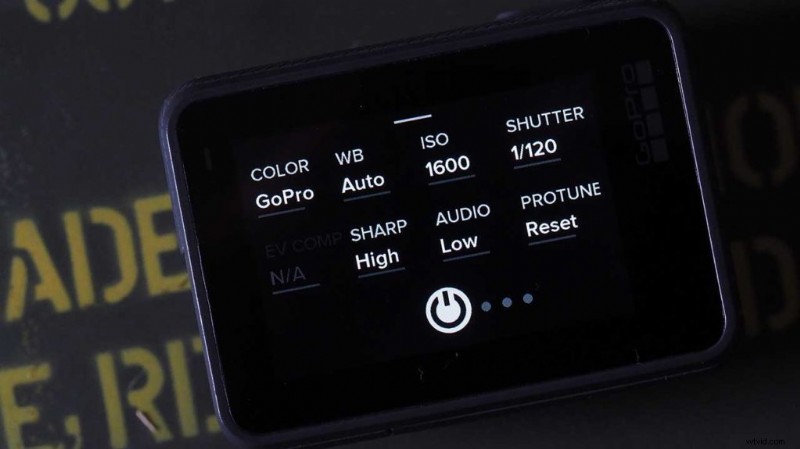
ProTune is essentially a quality boost for GoPro. Once activated it increases the bitrate at which video is recorded, boosting the amount of information that is captured with each frame as well as the file size. It also unlocks manual control over features such as white balance, ISO, audio options and shutter speed.
GoPro Hero cameras are designed to capture action without fuss. Features such as one button record and voice activation have boosted the ease of use, but behind the scenes there’s still a hell of a lot more to the capabilities of these small cameras.
- GoPro Hero6 Black Review
The GoPro Hero5 and previous models have a feature called ProTune, this is a powerful setting that really appeals to professional filmmakers and broadcasters, as it gives complete control over the way the image captured, in much the same way as larger scale video cameras.
Not only does ProTune ramp up the recording options available to you, it also increases the quality the video file being recorded by boosting the Mega Bits. This means better quality footage, but will also mean bigger files – this is a trade that is well worth it, so a little later in the feature I’ll show you how to activate it if you haven’t already.
ProTune has been around for a while and previous generations packed in the manual features such as white balance, ISO and exposure compensation and those options in the GoPro Hero5 have now been boosted to include shutter speed.
The shutter speed addition is one of the most exciting new features to appear on the GoPro since its launch and enables all sorts of visual tricks and styles that can only be captured in camera.
I’m going to take a look at what the whole list of GoPro ProTune settings are and what they can offer you as a GoPro filmmaker. Before we start let’s look at how to activate ProTune on your GoPro.
GoPro Hero5 Black: how to turn on ProTune
- Booting the GoPro Hero5 without recording
Start up the GoPro Hero5 by holding down the Mode button on the side of the camera for a couple of seconds. - Locating ProTune
Looking at the LCD on the back swipe left from the right side of the screen and you’ll see the ProTune options window. - Switch on ProTune
After the text at the base of the screen you’ll see a button that looks like the generic power icon, click this to activate ProTune.
GoPro Hero5 Black: setting White Balance
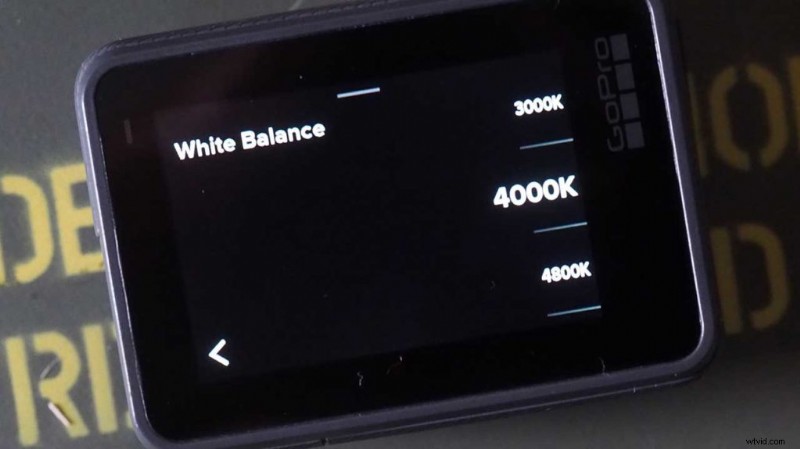
A camera’s white balance settings enable the camera to capture colour without a cast. Although it’s not immediately obvious to us as our eyes adjust to colour rapidly, different light source give off different coloured light. So white under one lighting source could look white, yellow, blue or even green depending upon the light source.
The GoPro’s white balance settings enable the camera to set the white balance either automatically, or manually with options for 3000K (incandescent or sunrise/set), 5500k (Cool light, cool fluorescent and daylight) 6500k (cool light such as overcast), CAM RAW (no compensation) and Native (Industry standardised colour).
GoPro Hero5 Black: Color
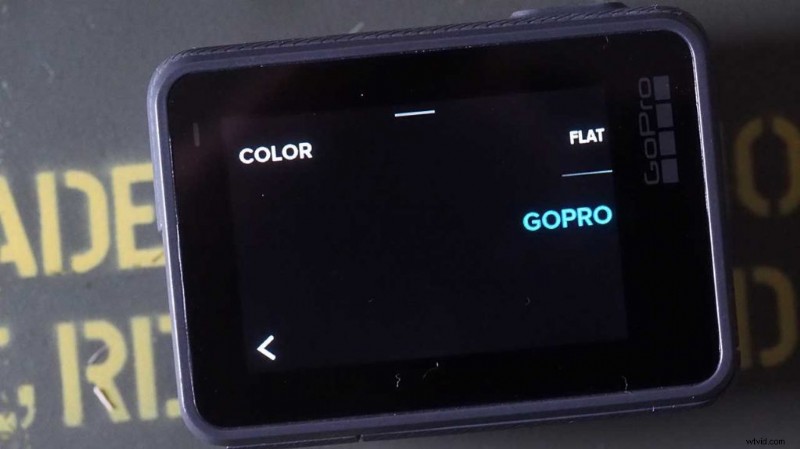
There are just two colour options on the GoPro:
GoPro Color: This gives footage the vibrant look and feel that we’re used to from action cameras. Whilst this is a crowd pleaser it isn’t always the best option, especially when mixing with footage from other cameras.
Flat: If you haven’t come across this type of setting before then when you first view the footage back you’ll think that something is wrong. Colour will be lacklustre and low contrast will make the image look incredibly flat or dull.
However, this colour setting enables the small sensor and processor to capture the maximum amount of information and it can be easily synced in with footage from other camera, giving video editors the maximum scope for adjustment during the processing stage.
GoPro Hero5 Black ISO Limit
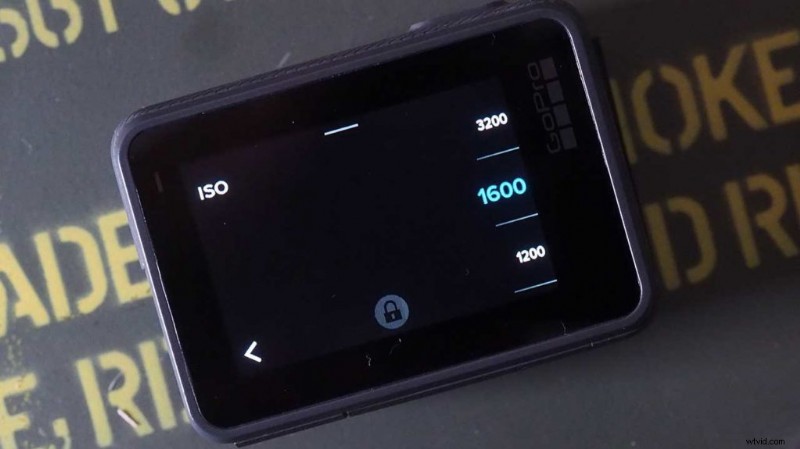
ISO Limit or Gain enables you to set the sensitivity of the sensor to light. The higher the value the more sensitive the camera becomes. There are three settings alongside auto; 6400, 1600 and 400.
6400 is the best setting to use if you’re shooting in low light conditions, 1600 for ok light and 400 when the sun is out.
One problem with using high ISO values is that it leads to image noise. Noise looks a bit like pixilation in the footage.
GoPro Hero5 Black: Sharpness
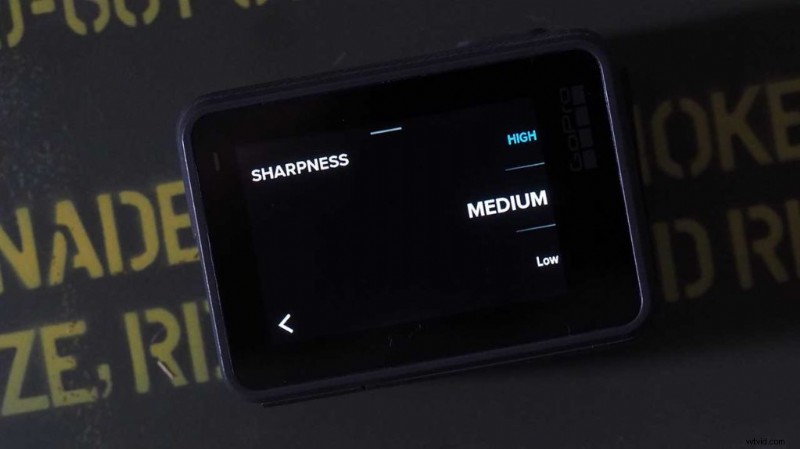
Sharpness settings can really make your footage punchy and gives everything a crisp and clear edge. Whilst many people will love the look pro videogrpahers tend to lean the other way and prefer little to no sharpening. GoPro has three main settings.
High: This is the maximum setting, if all you want to do is leave the camera in auto and get out to ride the trial then this is probably the best setting for you. It will create instantly striking footage but it also makes it tricky to mix with footage from other cameras.
Medium: Slight sharpness added with this setting and it’s a good option if you’re going to edit the footage from one GoPro with another. There’s still some scope for postproduction work so there is latitude for greater compatibility with footage from other cameras.
Low: Unlike larger cameras, there’s no option for switching sharpening off completely, but this “low” option is close enough to it. Switching to the Low setting on the GoPro enables you to more easily match the look and style with footage from other cameras.
GoPro Hero5 Black: Shutter Speed
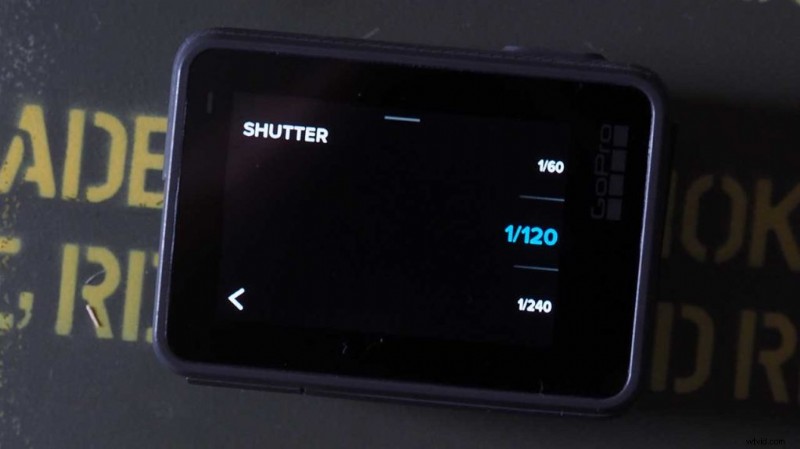
Shutter speed options are all-new to the Hero5 Black and shouldn’t be mixed up with frames per second.
We’ll look at these in more depth in the future but by adjusting the shutter speed you can create all sorts of visual effects due to something know as the 180-degree shutter rule.
For normal footage, according to the rule, the camera’s frame rate should always be half the shutter speed. This means if the frame rate is 30 fps second, set the shutter speed to 1/60.
A slower shutter speed will create slightly blurred romantic styled footage whilst increasing the shutter speed to say 1/120 would create high impact jittery motion footage. It’s a trick often used in action movies.
GoPro Hero5: Black Audio
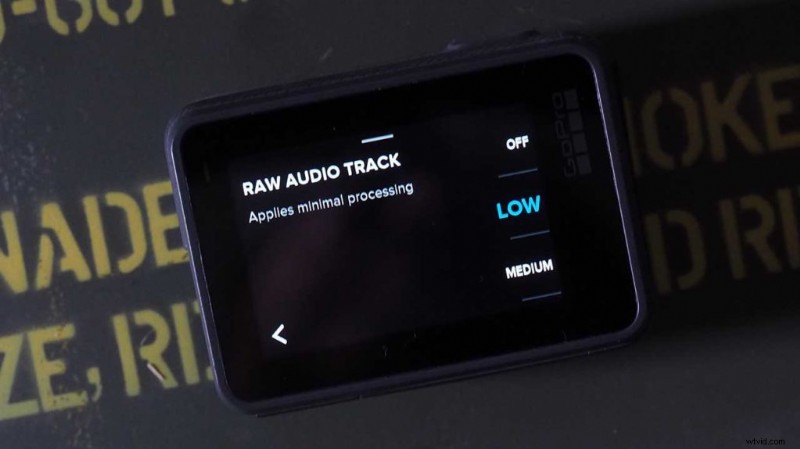
Everything GoPro is often about the visuals making it easy to forget the audio. ProTune enables four different audio settings, Off, Low, Medium and High.
Save