
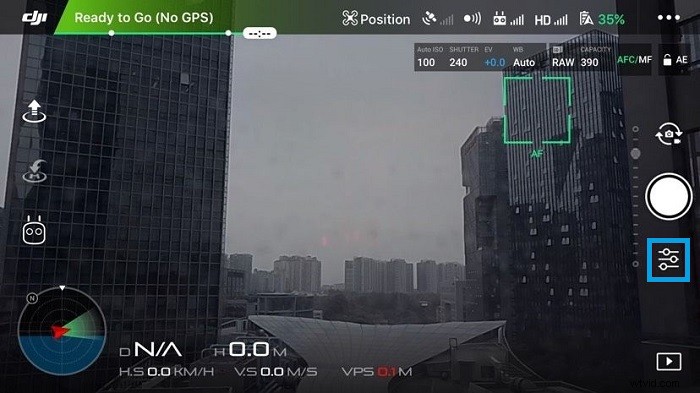
Histograms are a tool that can help you get correct exposure. You may have seen the option to turn on a histogram in DJI GO 4. If not, here’s how to turn it on:
1. Go to your camera settings.
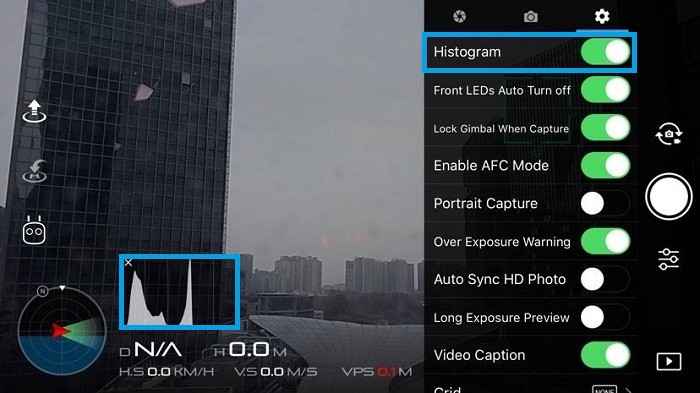
2. Turn on “Histogram”. You can drag and drop the histogram wherever you want in the UI.
Now you may be asking yourself…
What exactly is a histogram?
Here’s a dictionary definition: “A bar graph of a frequency distribution in which the widths of the bars are proportional to the classes into which the variable has been divided, and the heights of the bars are proportional to the class frequencies.”
As one can tell from the definition, histograms are used in a number of different fields, but let’s take a closer look at how camera histograms work, specifically.
Reading a Histogram
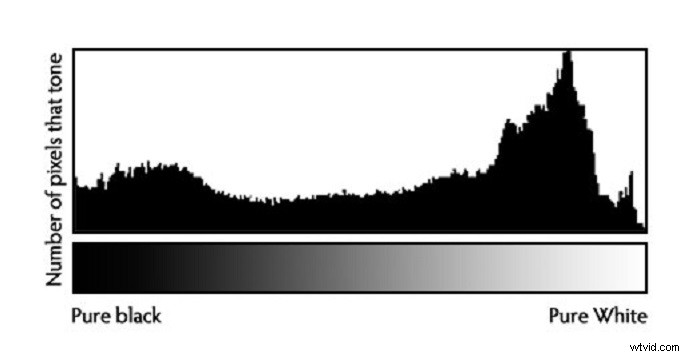
In short, a histogram is a visualization of pixel exposure in your image. The left side of the graph represents the darkest parts of the image, also known as shadows, and the right side represents the brightest parts of the image, also known as highlights. The middle section represents midtones. The Y-axis represents the number of pixels exposed in a particular tone. The higher the graph goes at a given point, the more pixels are exposed at that particular light level.
Ideal Histogram Shapes
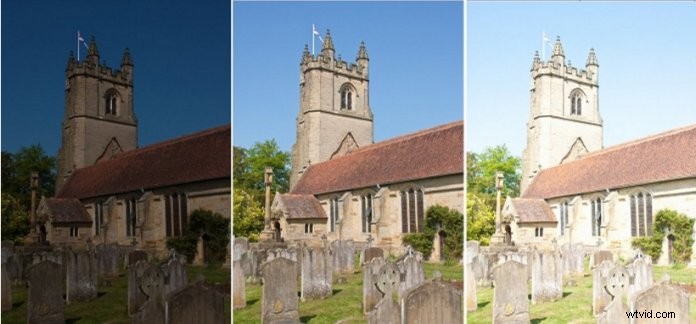
A histogram tells you how over or under exposed your image is. The picture below shows histograms for over, under and well exposed images.
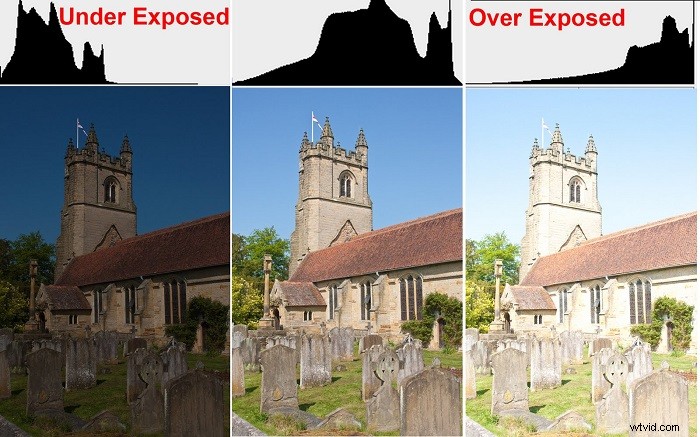
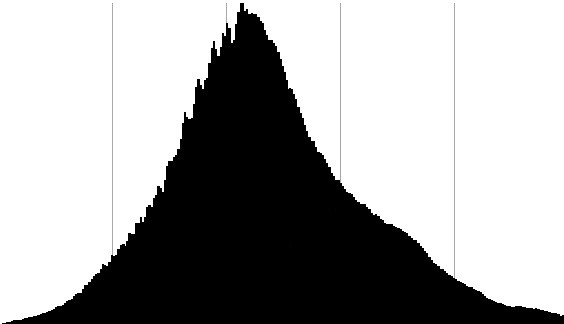
Generally, you don’t want your image to be too overexposed or underexposed. An ideal histogram looks something like the one below. There is a bulge in the midtones, and it tapers downward on the left and right.
However, your histograms won’t always looks like this, depending on what you’re shooting. For example, say you’re shooting a sunset with a building in the foreground. This is a high-contrast shot, so you’ll likely see the histogram bulge in the shadows and highlights (see the histograms below). In such situations, it’s a good idea to use auto-exposure bracketing (AEB) mode and make an HDR image in Lightroom or Photoshop.
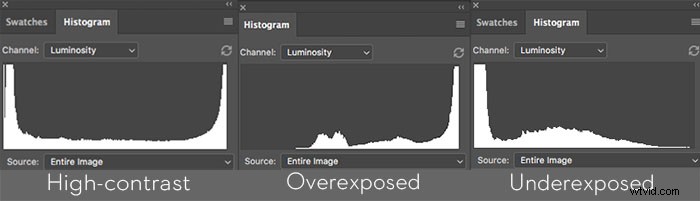
Also, you want to watch out for clipping. Clipping is where details in a photo or video are lost because of serious overexposure or underexposure. If you see your histogram really rubbing against the left or right edges, like the two histograms above, you may want to adjust your ISO, shutter speed, or aperture accordingly.
You Might Also Like:
DJI GO 4 Manual: The Pilot’s Handbook
Drone Camera Settings: All you Need to Know
How Much Do You Know about DJI Gimbal Cameras?
Thanks for reading everyone! For more tips, tricks, and advice…
Like DJI Support on Facebook!
Follow DJI Support on Twitter!
Subscibe to DJI Support on YouTube!