
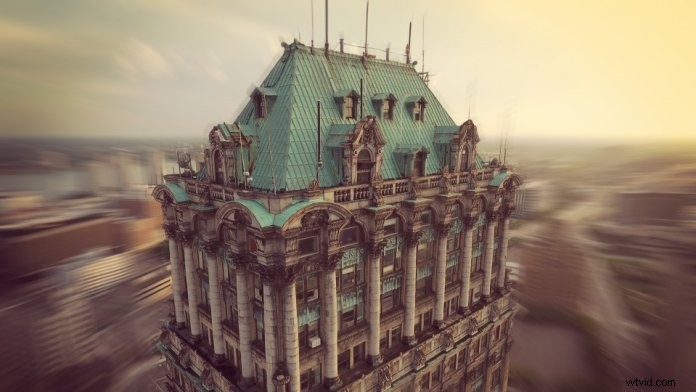
Zooming in filmmaking refers to the technique of changing the focal length of a zoom lens, which allows a change of distance for different objects during a shot, giving more spaces for storytelling and expression. Dolly zoom, one variation of the zooming, was first conceived by photographer Robert Burks in Vertigo.
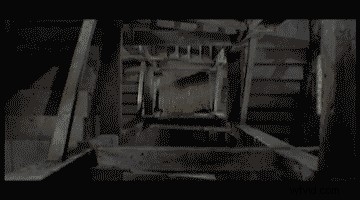
Vertigo, filmed in 1958
In the film, he made an object stay on the screen without a size change by moving the lens and zooming at the same time. Due to a perspective effect, the background will keep changing. Hence, we found that stairs in the film changed into a spooky space and directly sensed the dizziness and fear towards height for the hero.
This technique was applied to lots of famous films. For example, Steven Spielberg utilized dolly zoom in Jaws to show the worst fears of the hero.
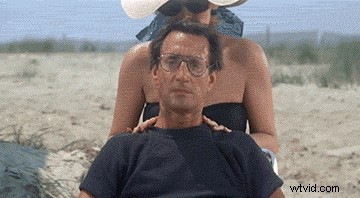
Jaws directed by Steven Spielberg in 1975
Now you can also have this magic effect with videos captured by drones through simple post-production. Today, we will discuss how to obtain a dolly zoom effect.
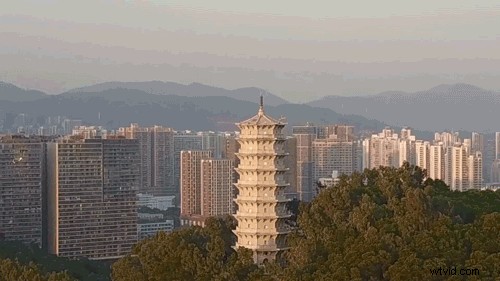
Dolly Zoom Shot with Mavic Pro
In the past, to get a dolly zoom shot, the camera angle needs to be pulled away from a subject while the lens zooms in, or vice versa. Fortunately, DJI drones are equipped with a stable three-axis gimbal and camera featuring 4K HD resolution, which lets you make dolly zoom videos through easy post-production.
Procedures
A: First, fly an aircraft forward without any change of camera’s angle and record a video. Set the resolution to the greatest value. Ensure that the aircraft is flying at a steady speed.
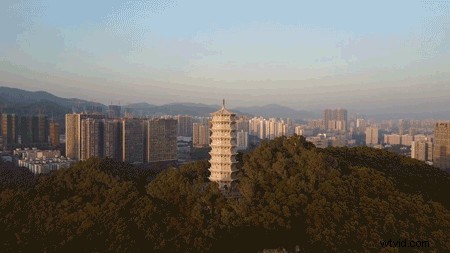
B: Import the video to an editing software. Take Adobe Premiere as an example. Create a project and sequence. (It is recommended to use 1080p.)
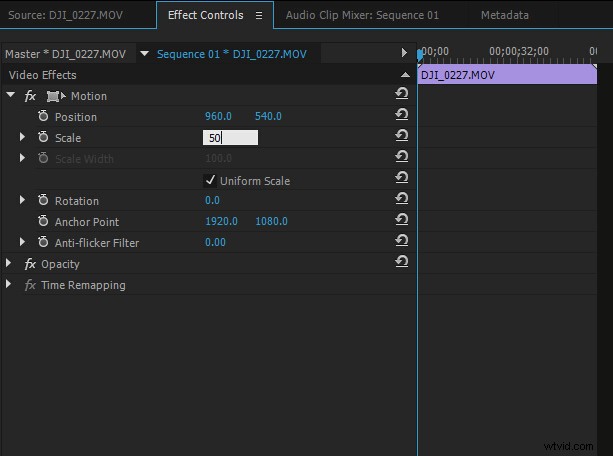
C: Import the video to the sequence and resize it through adjusting scale (click Effect Controls, go to Video Effects, adjust Scale under Motion). For example, to resize a 4K video to 1080p video, set Scale to 50.0.
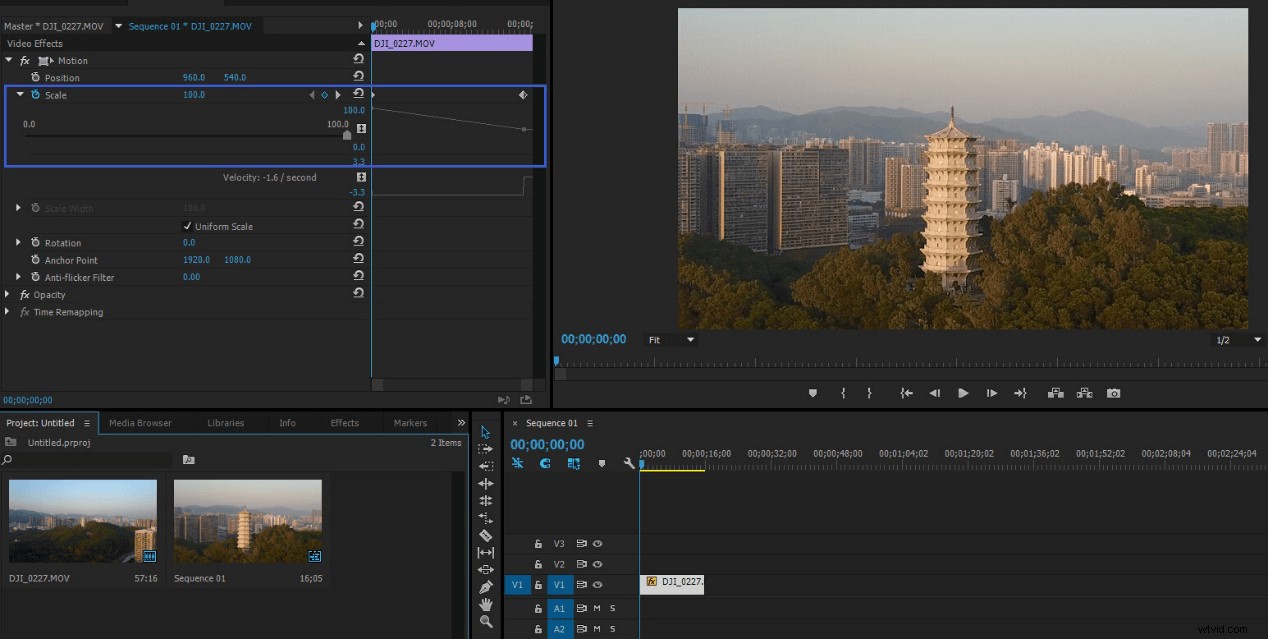
D: Under Scale, add two keyframes to the start and end of the video, respectively. With 100% scale at the start and 50% scale at the end (scale 4K to 1080p), double scaling effect can be achieved. (It can be viewed in preview.)
E: At last, adjust the scale of the start screen of the video and make the object look the same from start to finish.
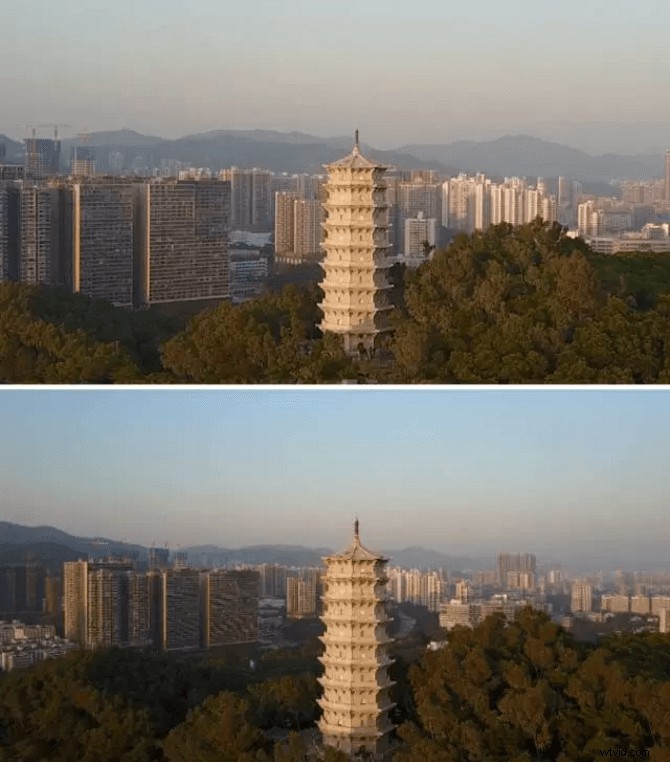
F: If the camera moves slightly during shooting, adjust Position under Motion, add multiple keyframes and adjust coordinates on the X axis and Y axis to make the object stationary on the screen.
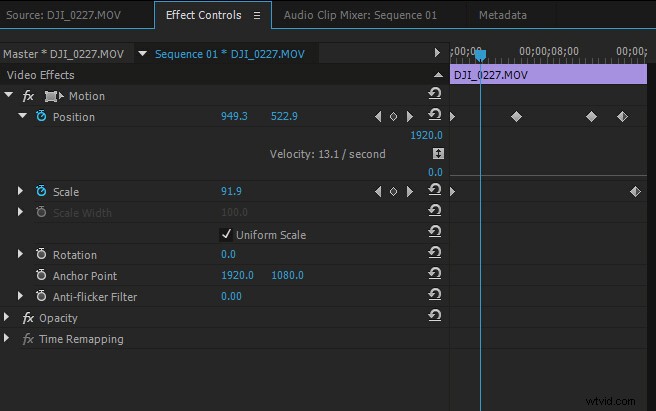
G: Export the video.
*Note that the scale rate in post-production is relatively small because the maximum resolution of a video is 4K. Use time-lapse videos, and you can output a video of higher resolution with larger scale rate.
Samples
You can record dolly zoom videos not only with the Mavic Pro! Next, we will show you videos captured with other DJI products.
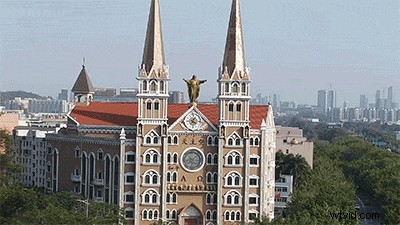
Recorded with Mavic Pro
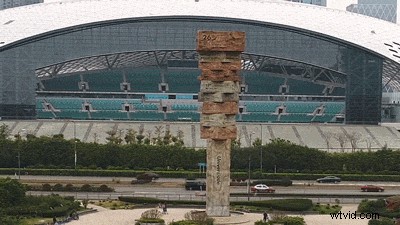
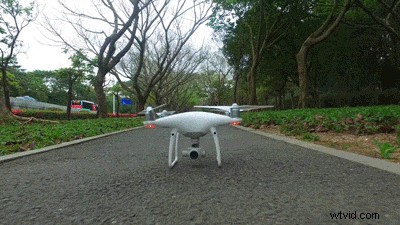
Recorded with Phantom 4 Pro
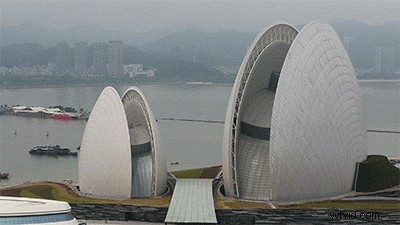
Recorded with Inspire 2
Recorded with Osmo
Now take your drone and go grab some dolly zoom videos of your own! If you have any questions or suggestions, feel free to contact us on Facebook or Twitter.
You Might Also Like:
Drone Camera Settings: All You Need to Know
How to Create a Mirror Effect with Drones
Photography and Videography Tips for Your Island Vacation
Drone Wedding Photography Tips
For more from DJI Support:
Like DJI Support on Facebook!
Follow DJI Support on Twitter!
Subscribe to DJI Support on YouTube!