 Posted by: Lyle Schrock • 4 months ago
A reliable charging port is the backbone of any device’s daily operation. When it’s damaged, you’ll notice power interruptions, sluggish performance, and a battery that no longer holds a charge. Identifying the warning signs early can save you costly repairs and keep your technology running smoothly.
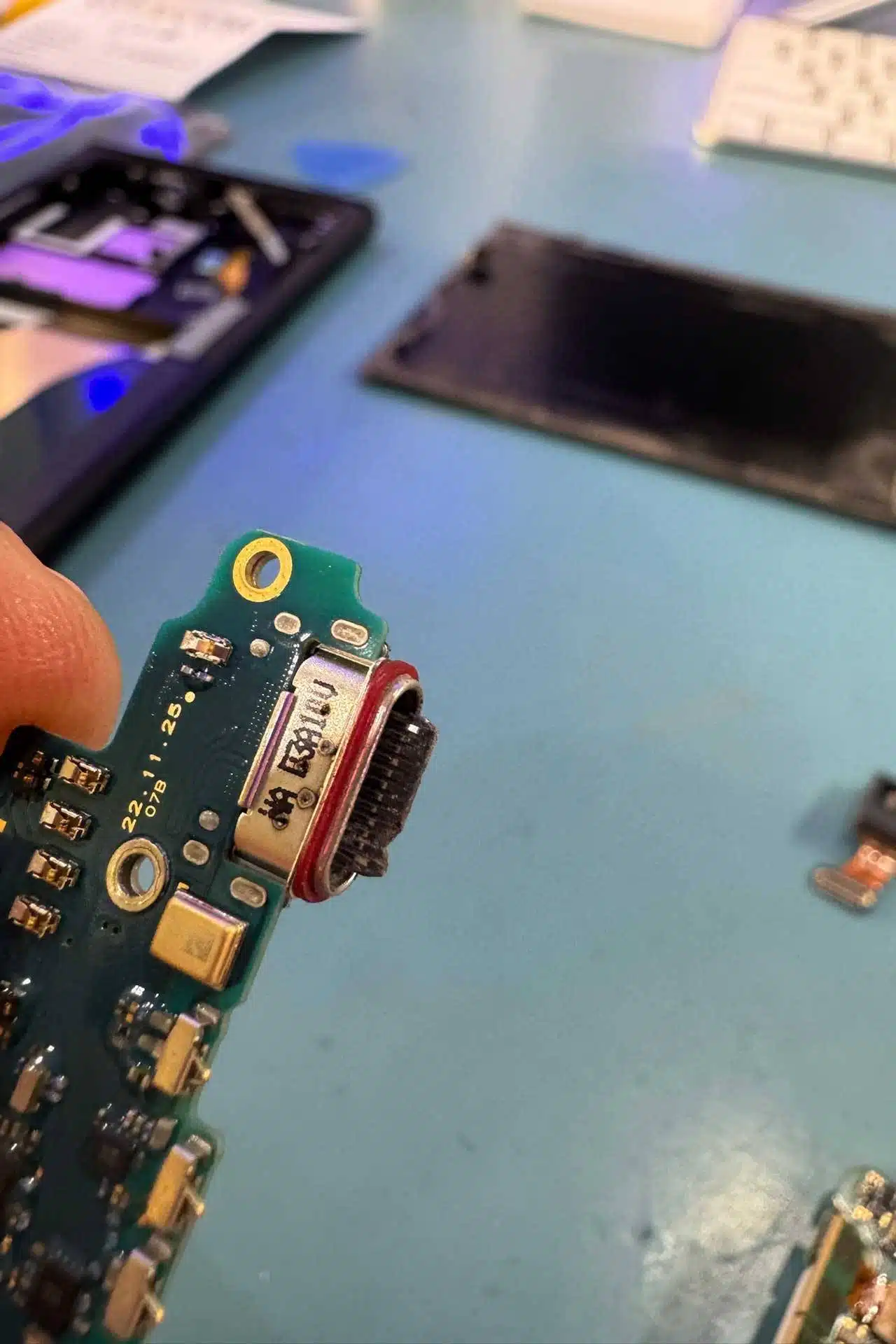
Early Signs of a Damaged Charging Port
When a port begins to fail, its symptoms become increasingly obvious. Look for these red flags and act promptly:
- Connection only succeeds when the cable is angled or held at a specific tilt
- Charging stops abruptly while the device is in use
- The cable slips out or feels loose each time you plug it in
- Unexpected heat buildup around the charging area
- Visible debris—dust, lint, metal shavings—or dark discoloration inside the port
Each indicator points to internal wear, debris accumulation, or a bent connector that hampers stable power delivery.
Why Charging Port Damage Happens
Common habits can put unnecessary stress on the delicate pins inside a charging port:
- Repeatedly pulling, twisting, or forcing the cable in and out
- Using low‑quality or incompatible charging cables
- Allowing dust, lint, or other particles to lodge inside the port
- Exposing the connector to moisture or humidity
- Dropping the device while it’s plugged in
These actions gradually weaken the pins and create unstable connections that interrupt charging cycles.
To confirm whether the port is truly damaged, perform these simple checks:
- Try a different cable and a different power adapter or USB port
- Gently clean the port with a soft toothpick or miniature brush—be careful, as over‑cleaning can cause further damage (skip if unsure)
- Restart the device to rule out software glitches
- Inspect the port with a flashlight for bent pins, debris, or visible wear
If the port still refuses to charge after these steps, professional repair is likely required.
Immediate Actions When Your Charging Port Needs Repair
Quick intervention can prevent further damage:
- Stop forcing the cable into the port; use gentle, straight insertion only
- Turn off the device if it becomes noticeably hot during charging
- Schedule a visit to The Lab for a thorough inspection and repair
A trained technician can realign loose connectors, clean the port safely, or replace damaged components—ensuring the battery and internal circuitry stay healthy.
The Lab’s Expert Charging Port Solutions
At The Lab, we deliver reliable, quick service for all charging issues. Our technicians use industry‑standard tools and high‑quality parts to:
- Diagnose the exact cause of the charging problem
- Clean and polish the port without harming delicate pins
- Repair or replace connectors as needed
- Verify that charging performance returns to factory specifications
With our expert care, your device will recharge consistently and remain ready for everyday use.
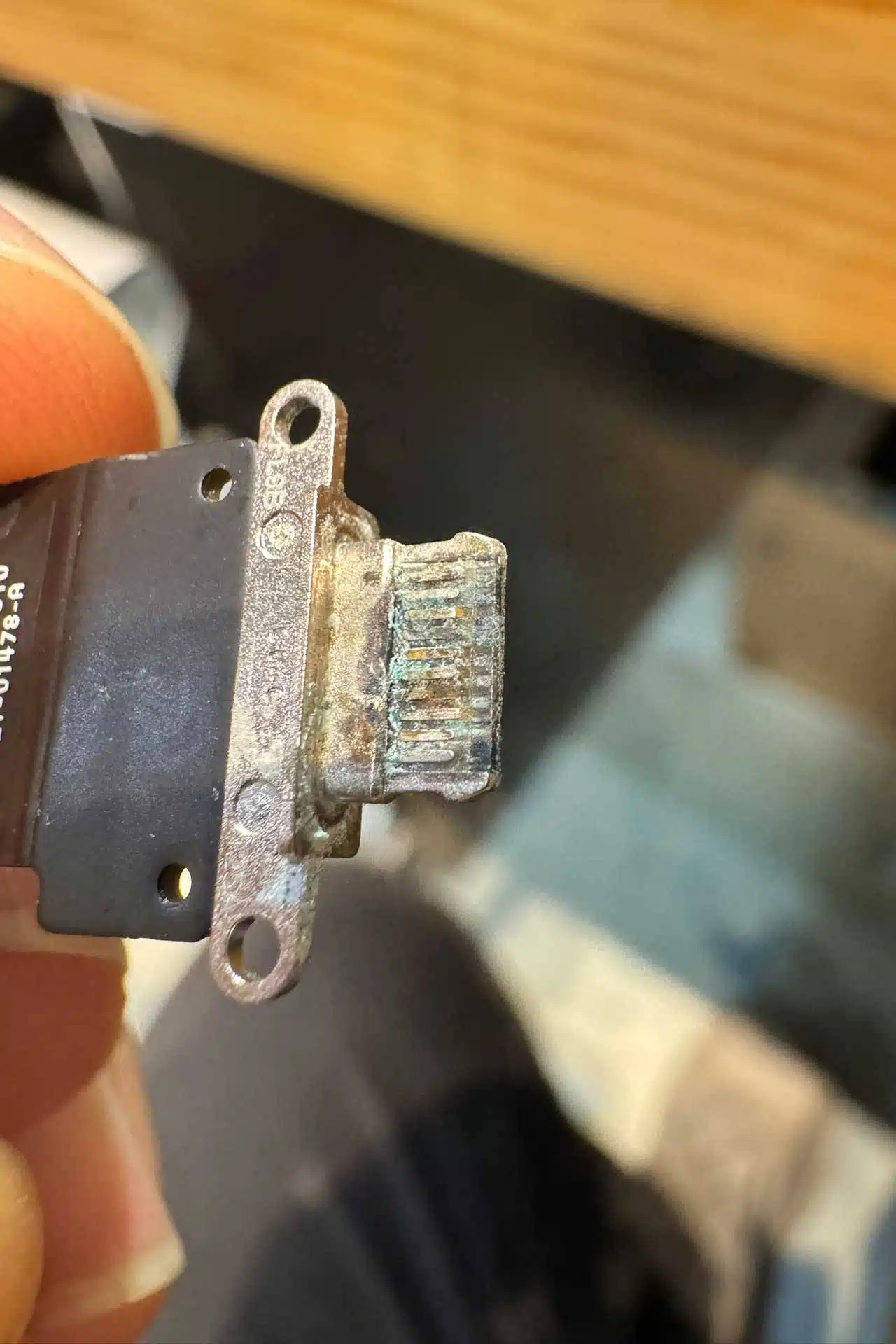
A damaged charging port can disrupt your workflow and shorten your device’s lifespan. Recognize the early signs, act swiftly, and keep your technology performing at its best.
Previous The Hidden Dangers of Ignoring a Cracked Screen
Next How to Avoid Dead Tech Before You Buy It