
Overheating is frustrating and can silently cripple performance, trigger loud fans, and cause abrupt shutdowns. Ignoring heat buildup risks permanent hardware damage and a shortened lifespan.
Understanding the most common triggers for laptop overheating empowers you to prevent serious issues and keep your device running smoothly. This guide explains why laptops overheat and offers straightforward prevention strategies.
Why Laptop Overheating Matters
Excess heat stresses critical components—CPU, GPU, battery—and can trigger built‑in safeguards that throttle performance or shut down the system. Early warning signs include:
- Sudden performance slowdowns
- Loud cooling fans
- Random shutdowns or restarts
- A hot keyboard or bottom panel
- Reduced battery life
Frequent appearance of these symptoms indicates a persistent heat‑management problem.
Blocked Air Vents
Internal heat exits through small vents. When a surface—bed, couch, blanket—closes off these openings, hot air is trapped, raising internal temperatures.
Place your laptop on a hard, flat surface or use a stand to keep vents unobstructed and airflow optimal.
Dust Buildup Inside the Laptop
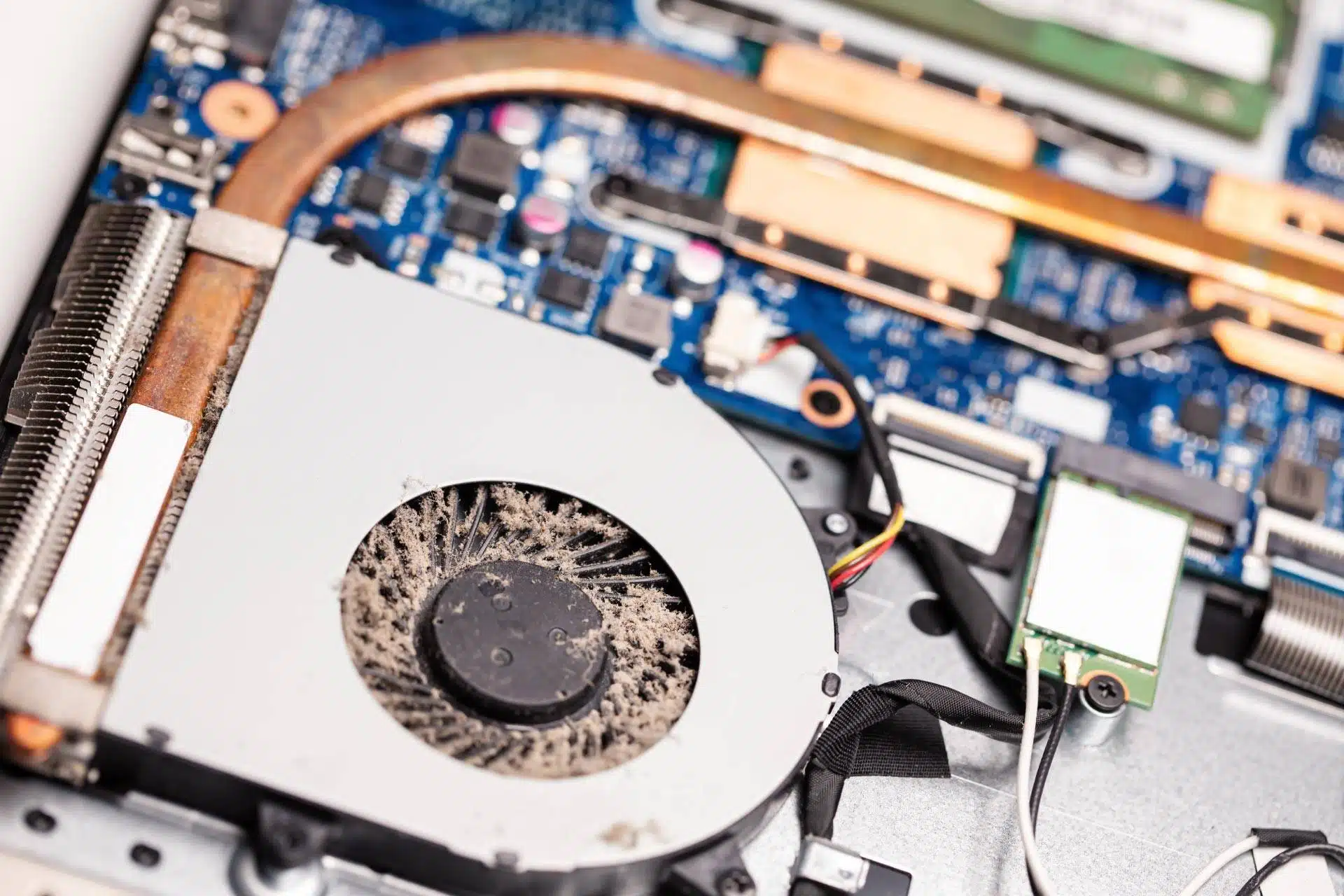
Over time, dust settles on fans and heatsinks, restricting airflow and trapping heat. This is often the culprit behind constant fan noise and elevated temperatures during light tasks.
Regular external cleaning with compressed air—and, if possible, a professional internal clean—keeps the cooling system efficient.
Heavy Multitasking
Running many demanding applications generates heat. Typical offenders include video‑editing suites, modern games, streaming‑heavy browser tabs, and background services.
Reducing the workload—closing unused tabs, shutting down unnecessary background programs—helps maintain safe operating temperatures.
Degraded Thermal Paste
Thermal paste transfers heat from the CPU/GPU to the heatsink. Over time it dries out, reducing its effectiveness and causing heat to accumulate on the processor.
Replacing thermal paste—especially on older laptops—restores optimal heat transfer.
Malfunctioning Cooling Fans
Fans are the frontline defense against overheating. A fan that fails or slows can quickly raise temperatures. Listen for grinding noises, sudden spikes, or overheating during simple tasks.
Have a technician inspect and replace faulty fans if necessary.
Practical Tips to Keep Your Laptop Cool
Adopting simple habits and routine maintenance can prevent most overheating issues:
- Ensure proper airflow: Use a desk or table, elevate the rear of the laptop, or use a dedicated stand.
- Clean regularly: Blow out external vents with compressed air; consider professional internal cleaning for heavy dust.
- Manage workload: Close unused apps, monitor resource usage with Task Manager or Activity Monitor, and avoid launching multiple demanding programs simultaneously.
- Use a cooling pad: Additional fans beneath the laptop can lower temperatures during intensive sessions.
- Keep software updated: OS, driver, and firmware updates often include power‑management improvements that enhance cooling efficiency.
When to Call a Professional
Persistent overheating—frequent shutdowns, loud fans, or high temperatures during normal use—may signal deeper hardware problems. A qualified technician can clean internal components, replace thermal paste, repair fans, and diagnose any underlying issues.
Frequently Asked Questions
Why does my laptop overheat so quickly?
Blocked vents, dust, or heavy applications are common culprits. Poor airflow is the leading cause of rapid heat buildup.
How can I tell if my laptop runs too hot?
Watch for loud fan noise, sluggish performance, hot surfaces, and unexpected shutdowns. Temperature‑monitoring software can confirm overheating.
Will overheating damage my laptop?
Yes—continuous high temperatures can degrade the CPU, GPU, battery, and motherboard. Preventing heat buildup extends the device’s lifespan.
What temperature is too hot for a laptop?
Most laptops operate safely between 86°F (30°C) and 185°F (85°C). Consistent temperatures above this range suggest a cooling issue.
Addressing overheating early improves performance, protects your hardware, and extends your laptop’s life.