
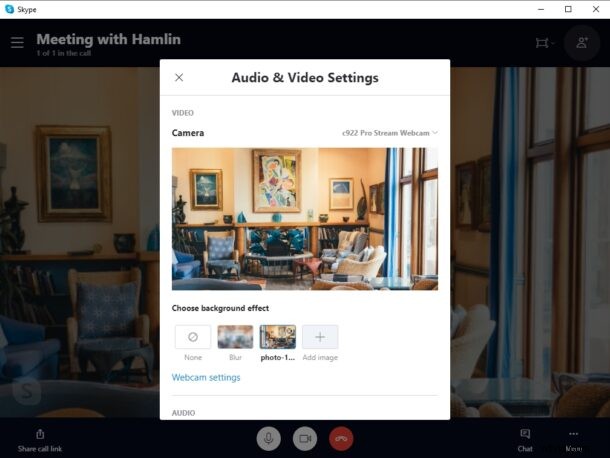
Do you want to mask your background while you’re video calling your friends, colleagues, and family on Skype? If you use Skype for making video calls, you can hide the background in a matter of seconds and set a custom background if you’d like to. And thankfully, it doesn’t involve the usage of a green screen. This is similar to virtual backgrounds on Zoom, but of course it’s on Skype.
As the name implies, Skype custom backgrounds allows users to display any image as their background during an ongoing video chat. This is extremely helpful in cases where your room is just a mess or if you’re having privacy concerns, or you just don’t want other people in the meeting to see where you are and what’s going on behind you.
How to Set Custom Background in Skype Video Calls
In order to try this feature out, you’ll need to download the latest version of Skype for Desktop (Windows and Mac). Custom Background is not available on the Windows 10 version of Skype that’s downloadable from Microsoft Store.
- First of all, make sure you’re in an active video call or meeting on Skype. Click on the “More” option located at the bottom-right corner of the window and select “Choose background effect”.

- Here, click on “Add Image” to use any image as your custom background for the ongoing call. Alternatively, you have the option to blur out your background, as shown below.

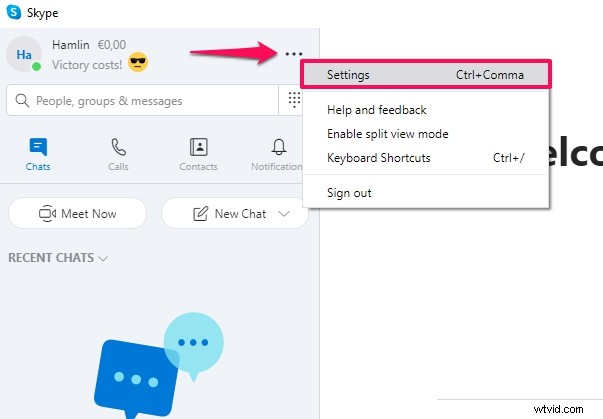
- While the above steps cover how you can set a custom background during an ongoing call, you can also set a default custom background for all your Skype video calls. To do this, click on the “triple-dot” icon located right next to your Skype name and choose “Settings”.
- Now, head over to the “Audio & Video” section and click on “Add Image” to import a custom background for your video calls. Or, you can choose the “Blur” option to subtly mask your background.

There you go. Now you can set any image as a custom background during your Skype calls. Choose a picture of paradise, or whatever you want.
Skype’s custom background feature works best with simple background, preferably something like a green screen, and with uniform lighting. It’s similar to how streamers mask their backgrounds in their face cams. The green screen helps Skype to easily distinguish between you and your actual background. Regardless, the feature works fine as long as you’re not moving around too much.
If you’re spending a lot of time on Skype and video chats lately, you might also get a kick out of using Snap Camera filters, which can be quite amusing (or obnoxious) too.
If you use Zoom instead of Skype for online meetings and video calls, you might be interested in learning how to use Zoom’s Virtual Background feature to effectively mask your messy bedroom or workplace.
This feature was first introduced to Skype on desktop, which is obviously what we’re focusing on here. If you’re looking to set a custom background while making or joining Skype calls from an iOS or Android device, be sure to update to the latest version of those apps too.
We hope you managed to mask your room with a custom background during your Skype video chat. What do you think about this handy feature and how well did it work for you? Do share your thoughts and experience in the comments section down below.