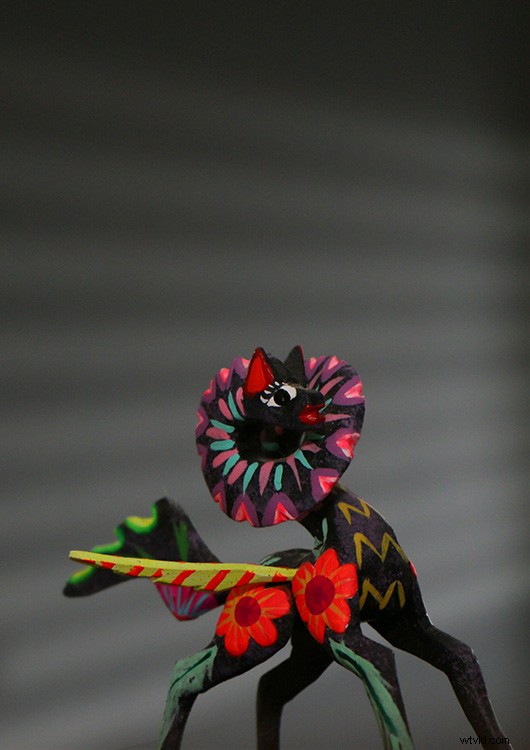
When you’re having a romantic dinner you light it with candles and not a bright reflector, right? That’s because light contributes to forming an atmosphere. When you’re making a photograph, measuring the right exposure is not the only thing that matters. Wouldn’t you agree that manipulating that light is what makes it or break it?
In this tutorial, I’ll show you how to simulate light coming in through a window, so that your photo has a warmer ambiance.
Getting started
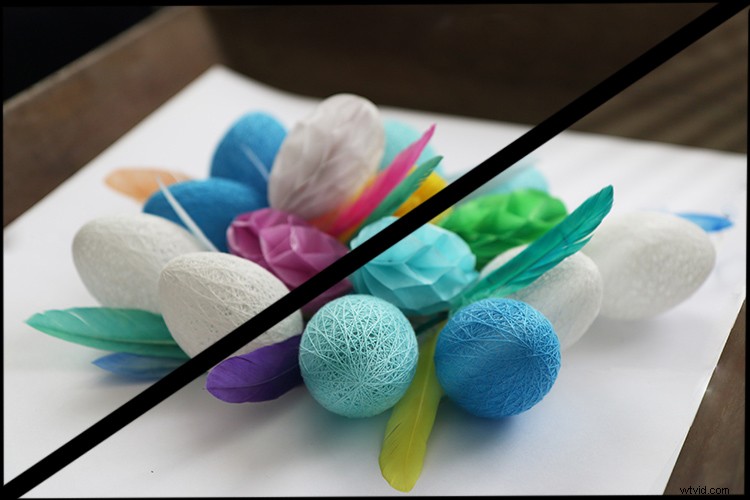
In this case, we’re going to make the effect of sunlight passing through a window with Venetian blinds. This is why the first thing you need to do is delineate the spacing in between the blinds. To make this task easier you can turn on the rulers, just go to Menu > View > Rulers so you can make the spaces more evenly.
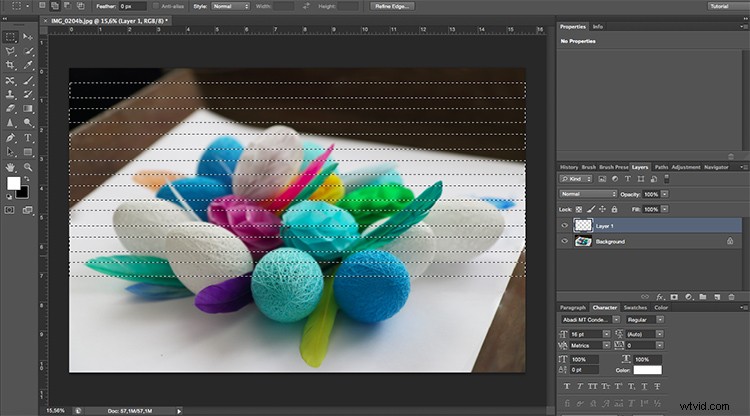
Make a new empty layer by going to Menu > Layer > New Layer. Then select the Rectangle Marquee Tool and start tracing. They don’t have to be perfect just try to keep more or less the same width and the same spacing in between. The amount is up to you, for this example, I’ll do 8.
NOTE: Hold the Shift key down to add multiple rectangular selections.
Adding the light
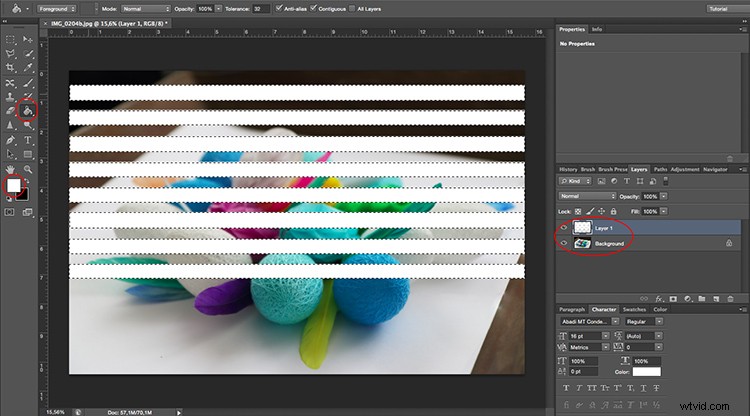
Next, you need to fill the selections with white. You can either select the Paint Bucket Tool and click inside each of the rectangles, or you can go to Menu > Edit > Fill which will bring out a pop-up window. Just make sure the content is set to white and all the selected areas get colored at once when you click OK.
This doesn’t look very realistic yet, but don’t worry, we’ll make it better. To start, you need to give it some perspective to make it fit your image. For this, you can go to Menu > Edit > Transform > Perspective. Find the real light source and make the light (the white bars) smaller on that side. Then turn it and drag it until it feels as if the strips are coming out from that source.
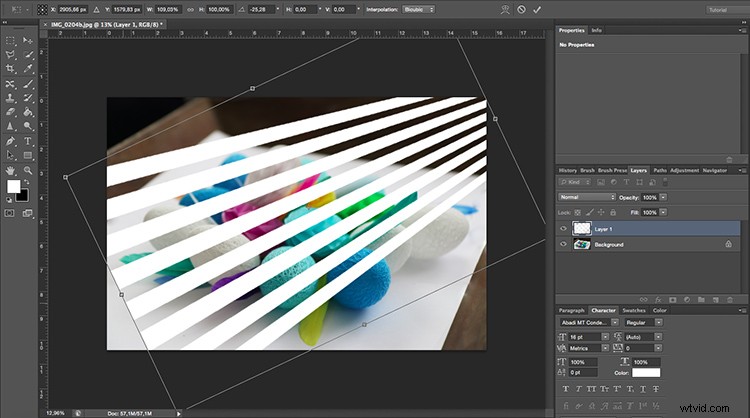
Tweak the light beams
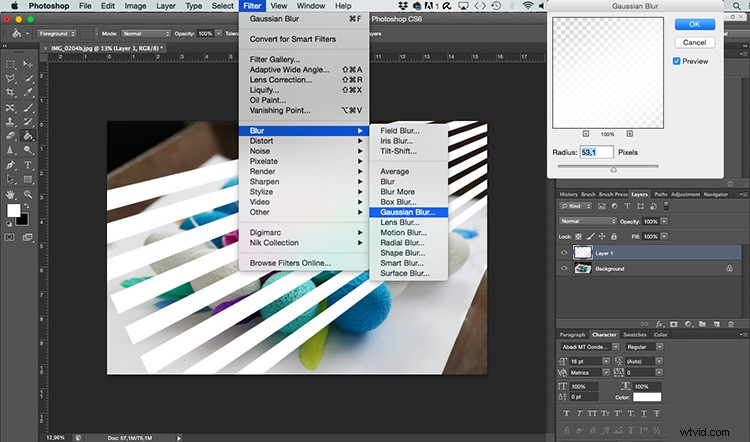
Once it fits you need to make the white bars look more like light beams by smoothing them using a blur filter. Go to Menu > Filter > Blur > Gaussian Blur.
A pop-up window appears and you can set how blurred you want it by dragging the Radius slider. Make sure the preview option is checked so that you can see how your adjustment looks before you apply it. I’m leaving it at around 50 pixels but this is up to you. When you’re happy just click OK.
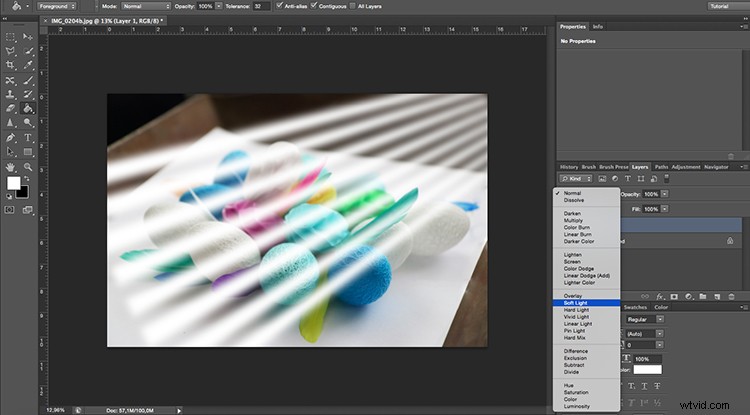
Then change the blending mode of the layer where your stripes are so that it integrates better with the background image. You can do this in the drop-down menu on top of the layers panel. Open it and select Soft Light blend mode.
Apply a gradient
It’s already looking much better, there’s just one final touch that needs to be done. Because the light will obviously be stronger closer to the source and slowly fade away; you need to apply a gradient to achieve this effect.
Add a Layer Mask by clicking on the button that looks like a rectangle with a circle in the middle, located at the bottom of the layers panel. While the mask is selected, go to the Gradient Tool that is hidden behind the Paint Bucket Tool. Then from the top sub-menu, choose the one that goes from black to transparent.
Apply the gradient by dragging your mouse across your image. Follow the lines and make sure the white part of the gradient is at the end of the image where you want the light the brightest. If it’s not, you can just invert the layer mask, or undo it and try again.
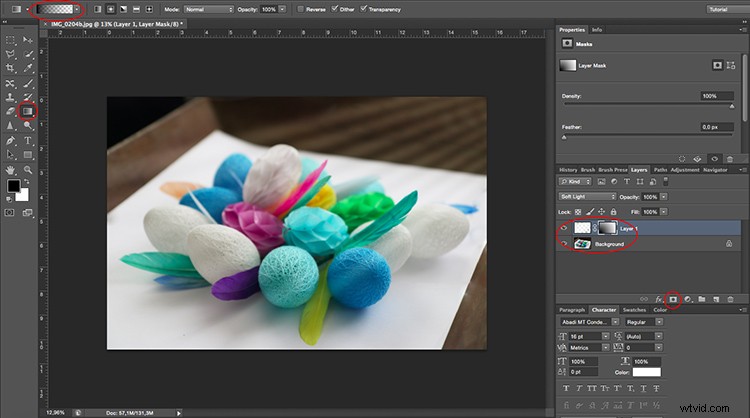
Finishing up
There you go, light passing through Venetian blinds from the window onto your subject without even needing a window!
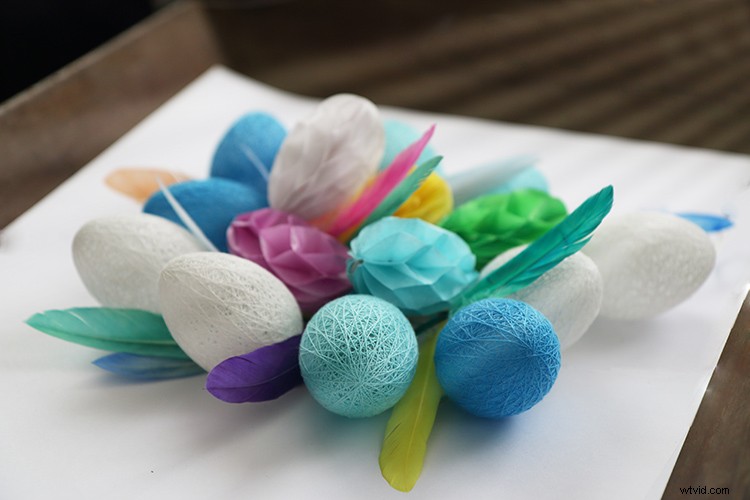
Applying the effect to the background only
This, of course, works if your subject is lit by the same source as the background, but what happens if you have two different light sources? Let’s do an example where we want only the background to receive the light from the window and the subject will be lit by a different light source.
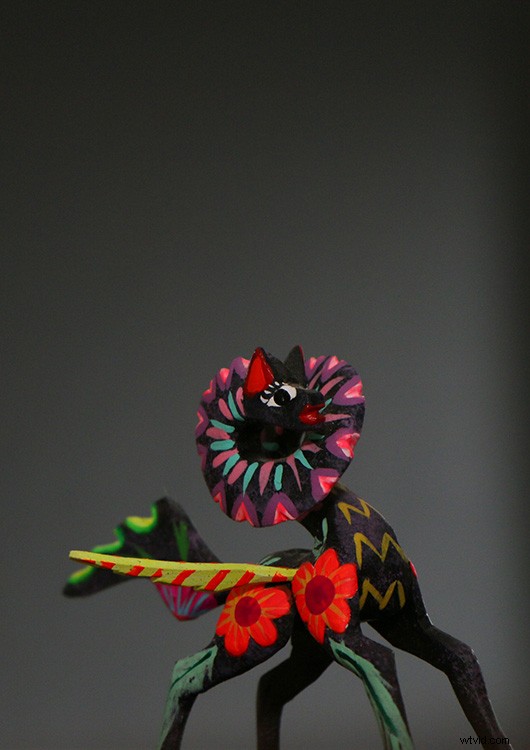
Start by doing exactly the same as you did in the previous example. When you’re done with that you have to add one more step. Duplicate the subject that you want to be in front of the Venetian blinds lighting effect.
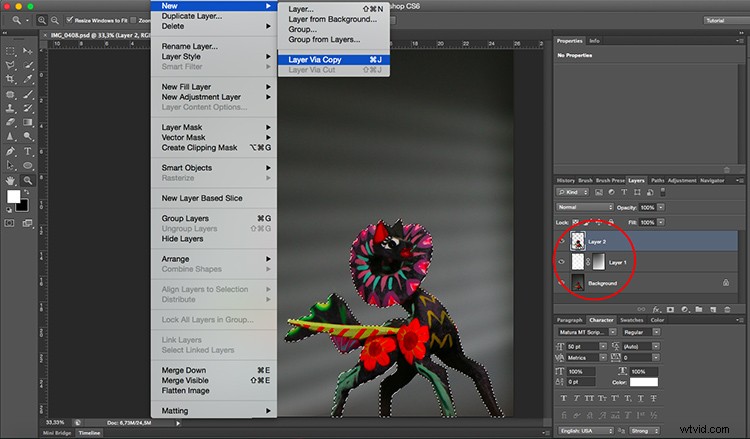
You do this by selecting the object. It doesn’t matter which tool you use. In this case, I used a combination of the Quick Selection tool refined later in the Quick Mask. Once you have your selection go to Menu > Layer > New > Layer via Copy. A new layer will be created duplicating the subject that you selected onto an empty background; drag this layer to the top.
That’s it, your subject will be in front of the lighting effect and therefore won’t be affected by it. Give it a try and show us your results in the comment section below.