
Light sources add depth and interest to your images immediately. By simply adding some window light to this image we added depth and warmth. If you have an image that you love, but it’s falling a little flat, consider adding some light! With just a few simple steps you can add beautiful light to your images.
Follow these steps to create a cast of light – works in Photoshop and Elements
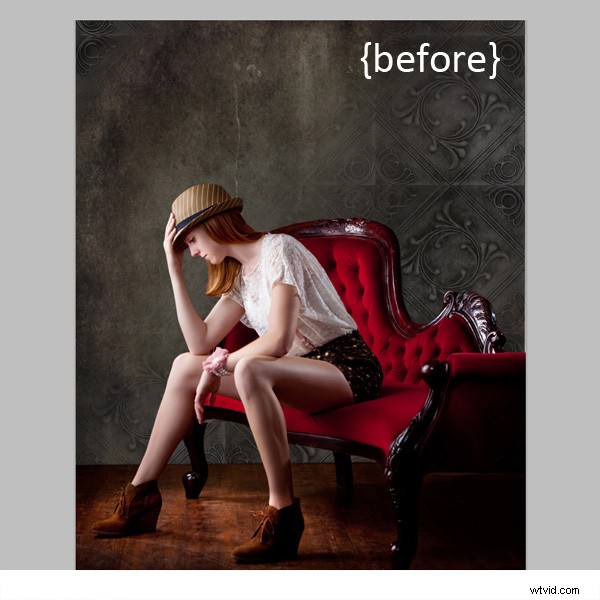
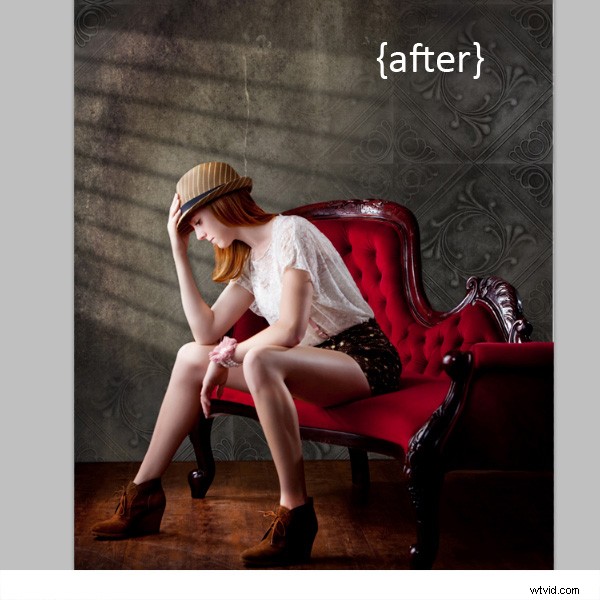
One thing you’ll want to pay special attention to is pre-existing lighting in your image. Make sure the light source you add works with and compliments your image. You can adjust the angles and direction of your added lights to make them work together so your image is both believable and beautiful.
Let’s get started. Follow these simple steps to make your compositions shine!
Step 1: Start with a light source
This can be an image you’ve taken, something you’ve designed or something you’ve purchased. We are using a light element from our Window Cast Light Set. Choose a light source and shape that you want to bring into your composition.
NOTE: if you want to follow along and try this on one of your images we’re happy to provide our set of Light Casts to you for free. Go here to download them – use the code: FREEBIE when you checkout to get them at no charge.
Step 2: Add the light source to your image
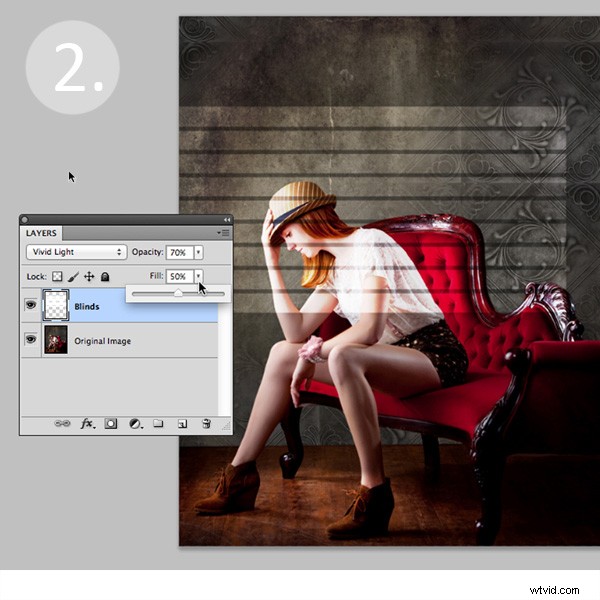
If you have your image and the light source both open in Photoshop, you can use your selection tool to drag the light source to your image. Alternatively, you can also copy (Control + C) the window shape layer in Photoshop (or PSE). Open your image and paste (Control + V) the window shape layer into your image.
In this case, we placed the light source over our image. Next we adjusted our Layer Blending Mode by setting it to “vivid light” and then adjusted our opacity and fill on the light source until we achieved the desired look. You’ll want to play around with these settings to get the right look for your image.
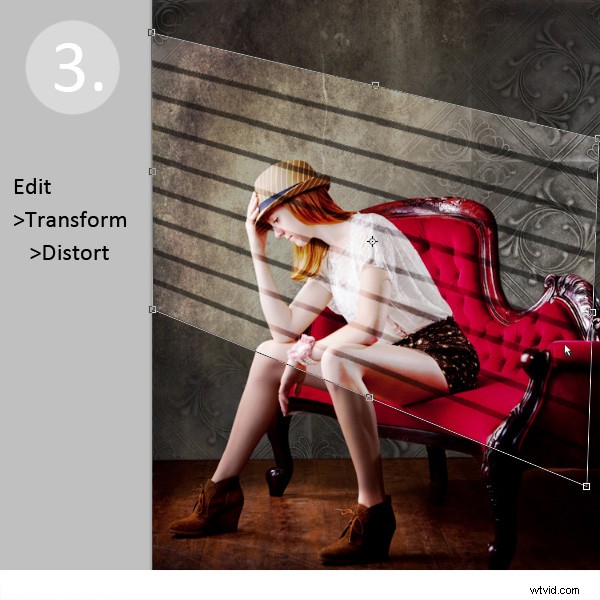
Step 3: Adjust the shape of your light
Next, you’ll transform the window shape to your liking. Go to Edit>Transform>Distort and then move the corners to create the
shape that works best with your image.
Step 4: Soften your light
Now you want to soften the edges of your light so that it is not so harsh. Use the Gaussian Blur filter (Edit>Blur>Gaussian Blur) to soften the edges to your taste. In this case, we set the blur amount to 5. Adjust the amount of blur up and down to see how it softens the light in your image.
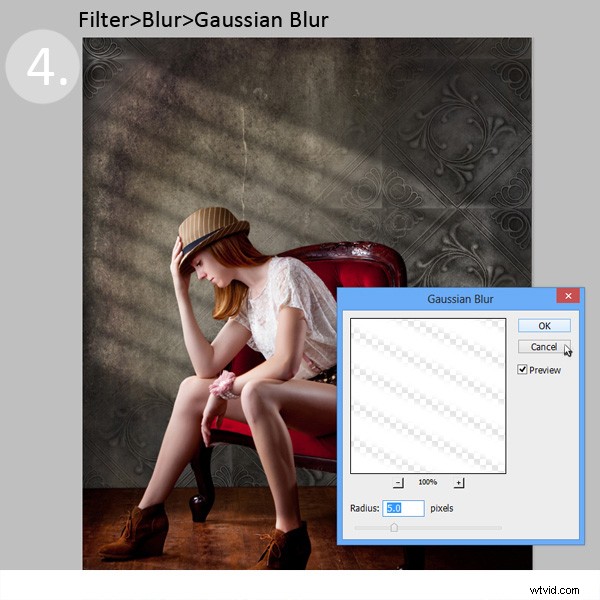
Step 5: Fade your light source for a more natural look
Now you’ll add a Layer Mask to your window shape layer. First, select your layer, and then click the Add Layer Mask Button at the bottom of your Layers Palette. Click on the new Layer Mask in the layer to make sure it’s selected. (VERY IMPORTANT STEP!)
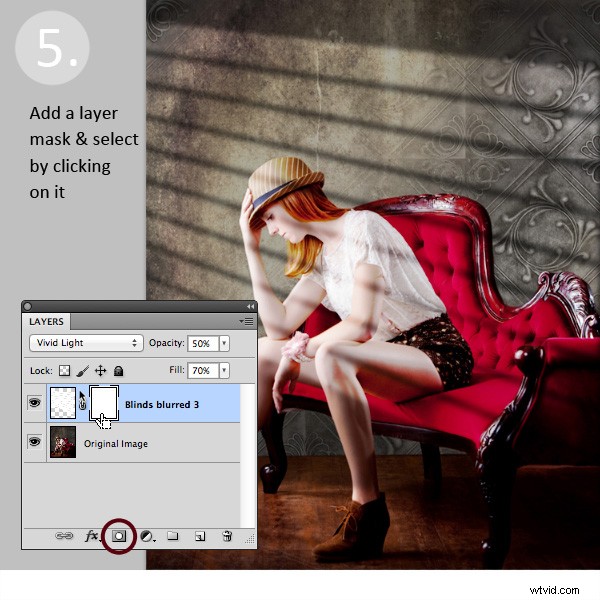
After adding a layer mask to the light cast layer, set your color palette to black and white, with black in the foreground color. Then use the gradient tool set to “foreground to transparent” to fade the light off.
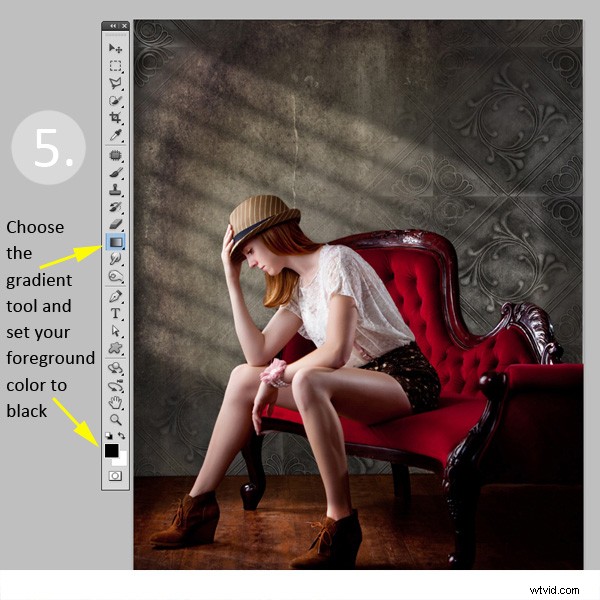
Simply click into your layer mask and drag your cursor from one end (this will be 0% opacity) to where you’d like to see the light at 100% opacity. If you don’t like your results, fill the mask with white and start over.
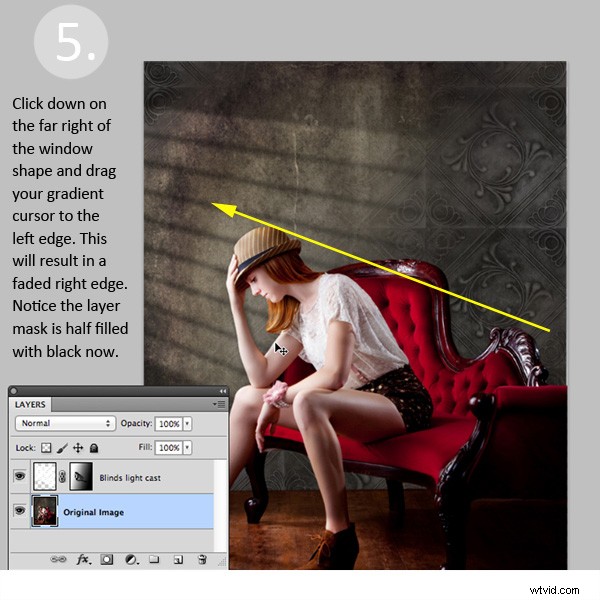
Step 6: Position the window shape to your liking.
Use your Selection Tool to adjust the position of your light layer to the desired location in your image. You can also use a soft black brush set to 30% opacity to subtly brush away the window light in the layer mask. We did this to remove extra light from her face.
Congratulations! You’ve successfully added a beautiful, warm light effect to your image to create more depth and interest in your image.
Your turn!
If you’ve tried out this technique please share your images in the comments below, and please ask if you have questions!