
This is an article for beginners in Photoshop. You will learn how to simply add an element to your photo and transform a daylight image into a nighttime one.
Open your selected images in Photoshop
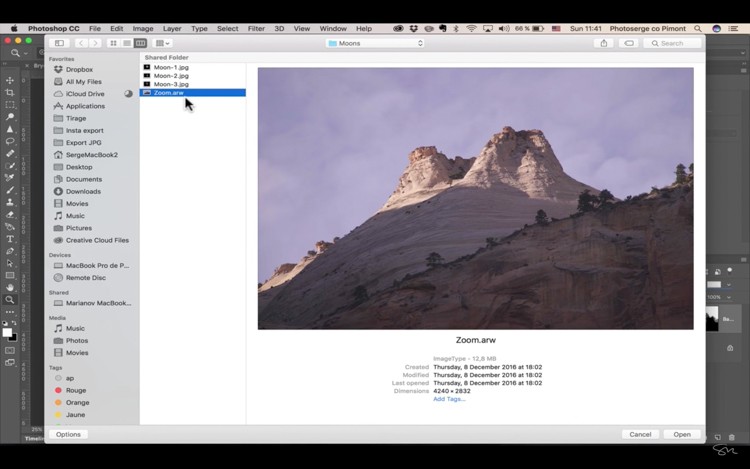
First thing you want to do is select a photo of a mountain (in raw format). For that, open Photoshop then go to File > Open, it will open a window where you can select the photo that you want. Here we select raw file of the mountain:
Raw adjustments first
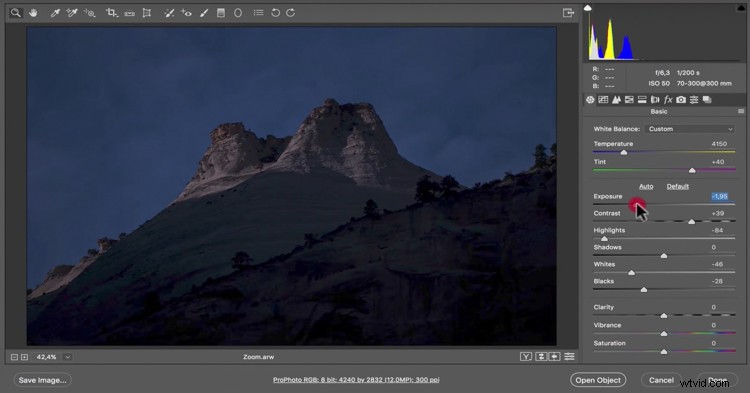
Because we opened a raw file it is going to pop up in Adobe Camera Raw and we are going to retouch it to make it look like night first. Let’s set the White Balance towards the blue, so move the Temp slider to 4150. Then you want your Exposure to be very low so it looks dark, try -1,90, lower your Highlights to -84, add some Contrast to +39, boost the Blacks to +28, and lower the Whites to -46. Basically bring down the bright parts and boost the darker parts to give the image a night mood.
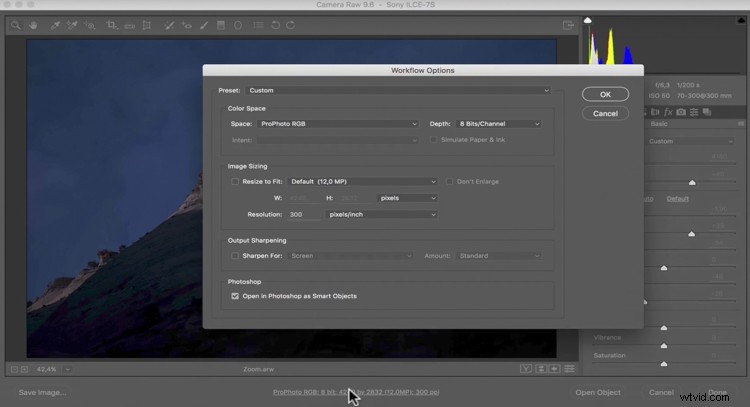
Now click on the sentence under your photo: ProPhoto.. and select Open in Photoshop as a Smart Object.
Open the element you want to add
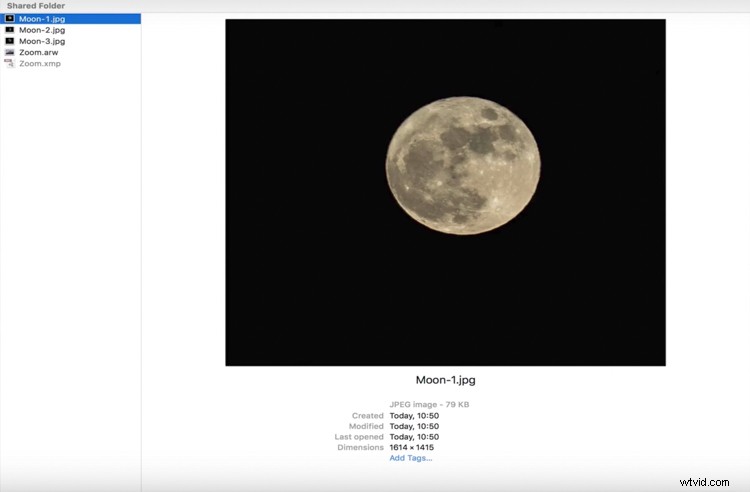
Once you have done that you can come back and open an image or element to add to the first image. We are going to select a moon that we want to add to this mountain. Go to File > Open and select one photo of a moon in jpg.
Arrange your workspace
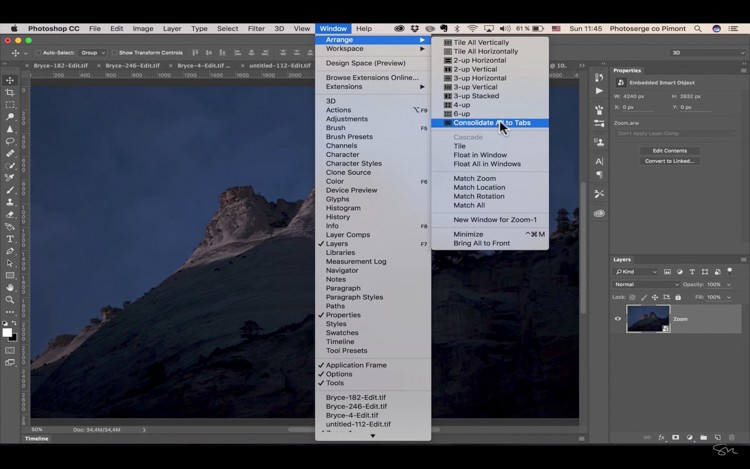
You should have the photo of the moon and the mountain in tabs on the top of your Photoshop interface. If you don’t see that, you can go to Window > Arrange > Consolidate all tabs:
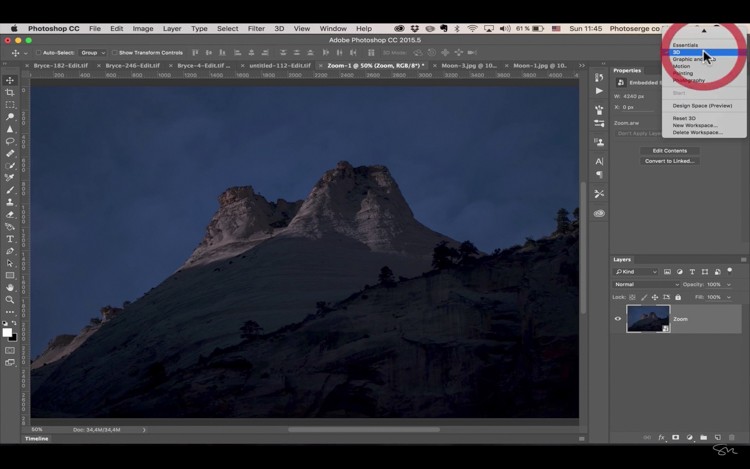
For this tutorial we need a workspace with two windows on the right, one is to show Layers and one is for Properties. For that you need to select “3D” from the pull-down menu for Workspace in the upper right corner.
Move the moon or element onto the mountain image
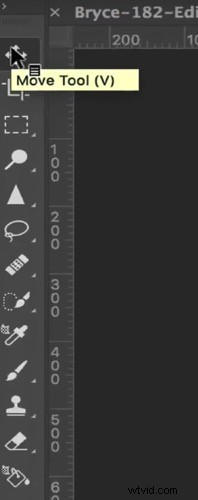
Go to your moon photo and grab the Move tool, it is the first icon on your left side (tools palette), the keyboard shortcut is V.
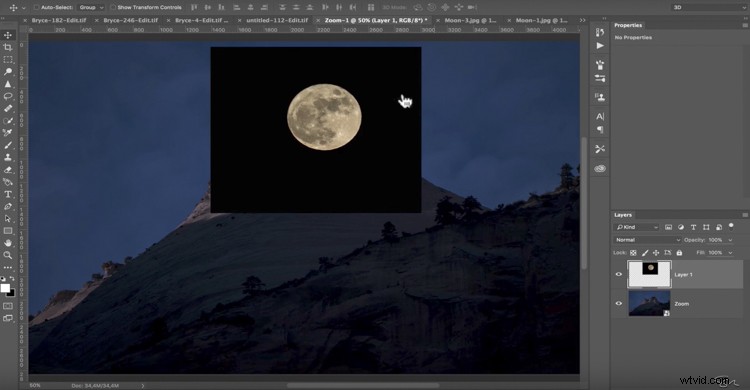
Using the Move tool you need to click on the moon, hold your mouse button, drag it over to the tab of the mountain and let go of the mouse to drop it.
Blending the images together
You can see that we have black around the moon still, so we are going to blend that out. In the layer window there are different options for Blending Modes, For this one we are going to use Screen. Pull it down and select Screen from the options.
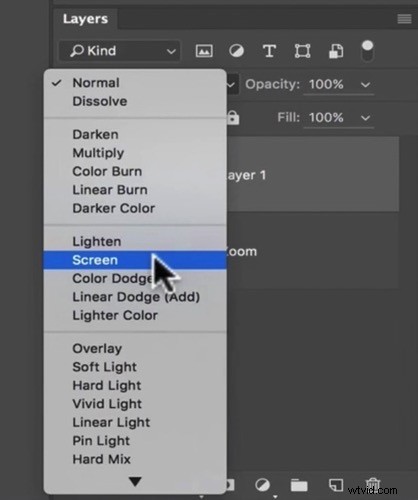
That took most of the black out.
Resize and place the element
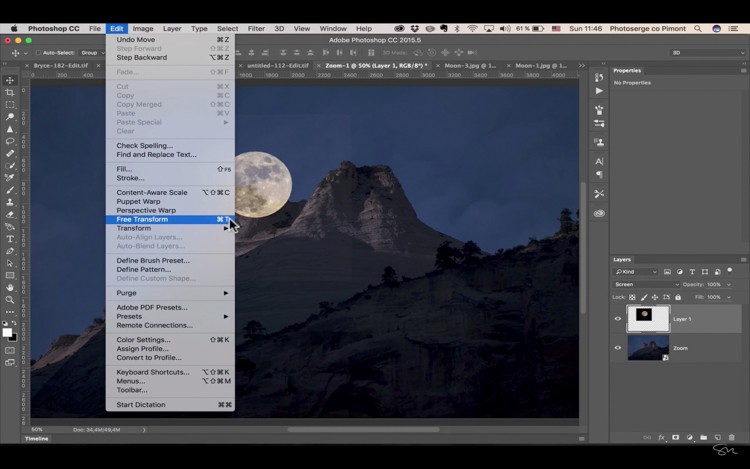
To make the moon even bigger, go to Edit > Free Transform.
Using the shift key to maintain its proportions, you can extend the moon by grabbing the corner and pulling it down.
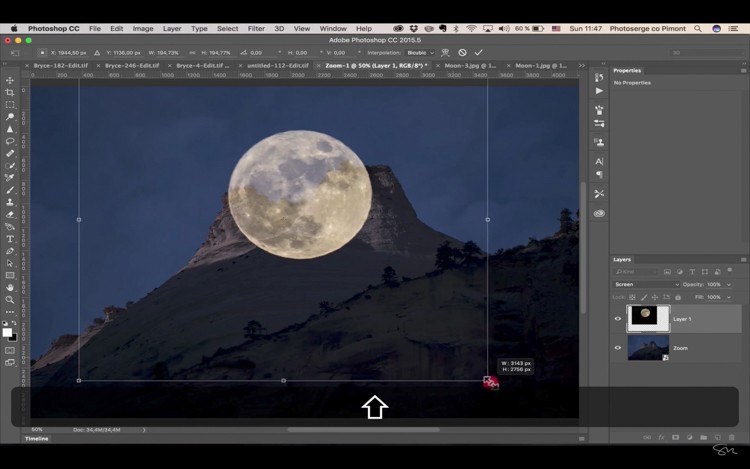
You can also move the moon or your element around, and see where you want to put it. It looks pretty cool already but now we are going to get into masking. For this you will need to click on the Eye icon next to the moon layer number (to turn it off) and click on the layer of the mountain to select it.
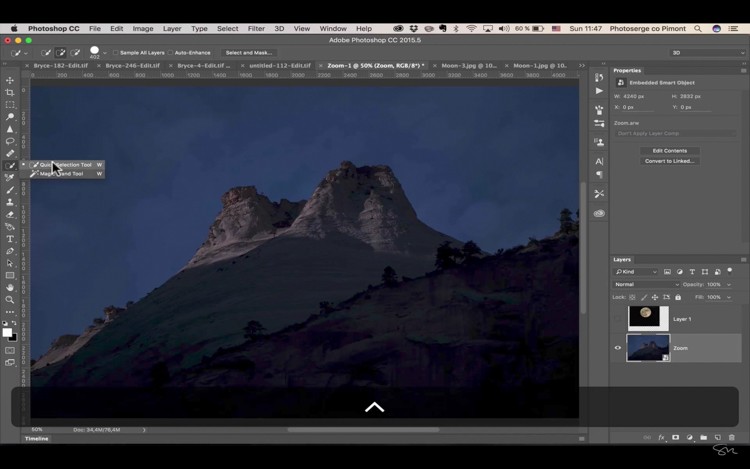
You should see this now.
Select the Quick Select Tool (W on your keyboard) and drag your mouse over the sky to select it.
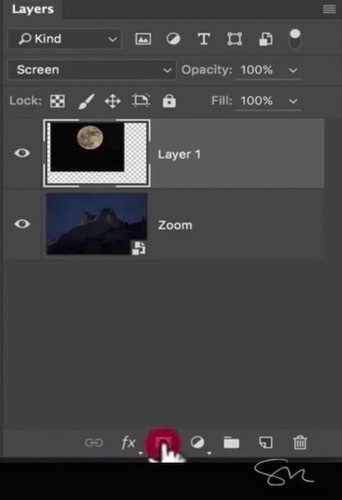
Turn the moon layer back on and click on the little square icon at the bottom to create a layer mask (shown in red below).
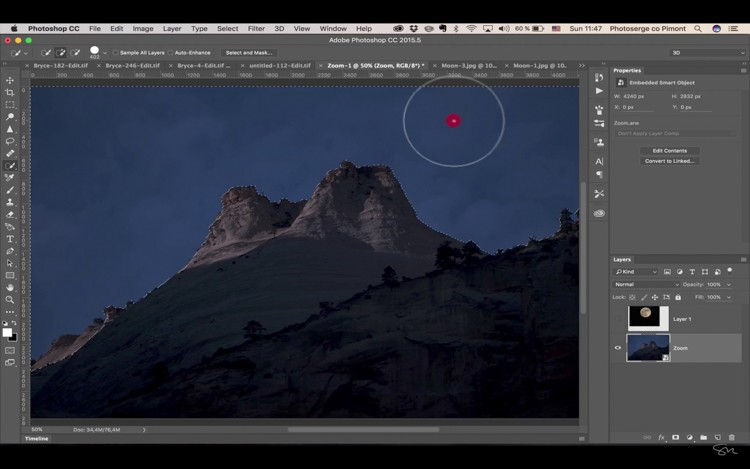
This is going to create a mask and because we have an active selection, a part of the moon is now hidden.
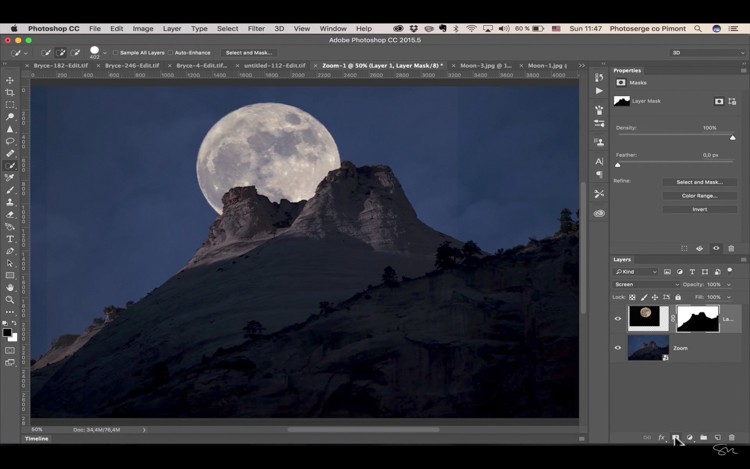
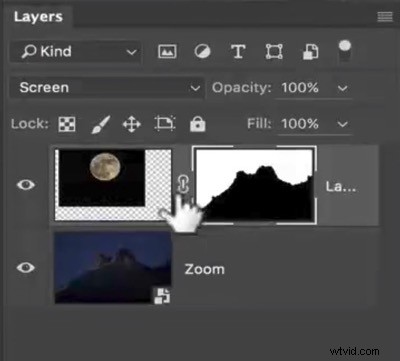
If you want to reposition the moon you just have to select the moon layer and click on the little chain on the side to unlink the image of the moon from the mask.
Side note: if you make a mistake you can select Cmd/Ctrl+Z to go back or undo the last step.
Fine adjustments
You can see that there is a difference of color around the moon because of the layer, so to fix grab the Brush tool. (hit B for brush on the keyboard) or the select the Brush on the tool palette).
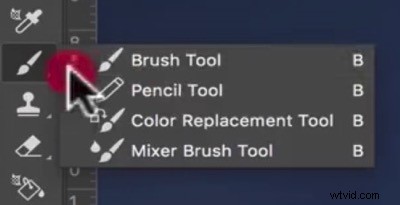
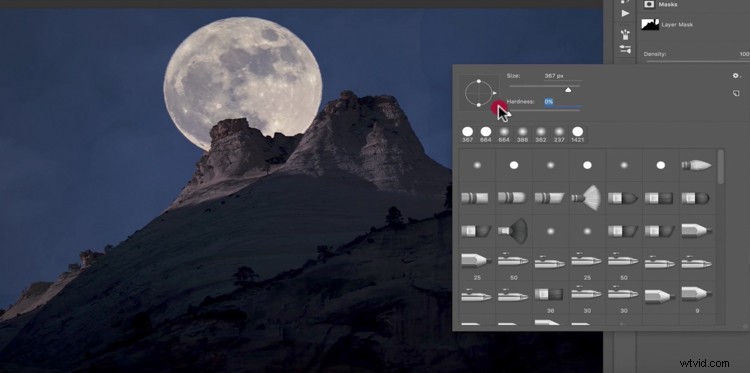
Make sure that the opacity is at 100% and that black is your foreground color. Right-click and set the hardness to zero. This makes your brush very soft and you can brush over the white to remove it.
Side note: Click on the Control and Alt keys to make your brush or any tool in Photoshop smaller or bigger.
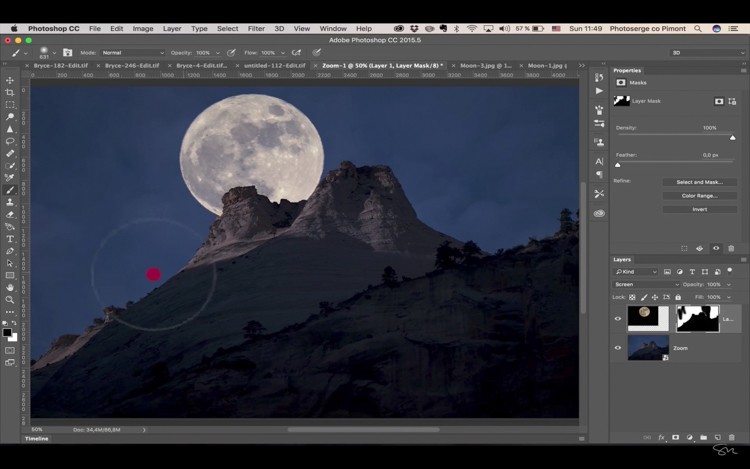
Here you can see where I painted on the mask.
Finished!
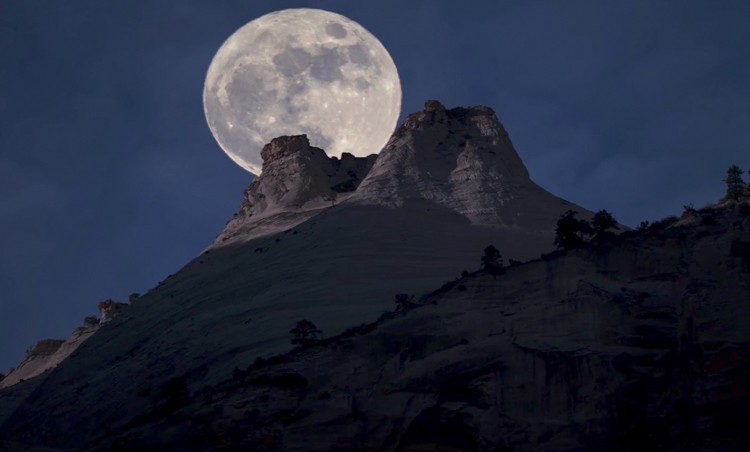
There you go! You have added a moon to your landscape!
I hope you liked this article and you feel more comfortable using Photoshop so you can add the moon or another element into your landscapes and create this cool effect.
If you enjoyed this tutorial and want to learn more about how to use Photoshop, check out Serge’s course Photoshop for Photographers 2017. Use the special promotional code – DPS65 – to get 65% off as a dPS reader!