

REC

Recommended: Video Production, Editing & Gear Maintenance Guide

 WTVID >> WTVID >  >> Video Editing >> Adobe Photoshop

Master Exposure Fixes: Using Contrast Masks in Photoshop

Master Exposure Fixes: Using Contrast Masks in Photoshop

Many of the fixes we commonly apply to images come from darkroom processes. Contrast masking is one of those fixes and it can be used to fix an image which is under or over exposed.

Contrast masking is a relatively simple process and it can work wonders with your images. I like it because it generally doesn’t require you to make selections and there is a lot to like about fixes that don’t involve selections.

Here’s how to use Contrast Masking to fix an under exposed image:

Open your image and duplicate the background layer. Target this duplicate layer in the Layers palette.
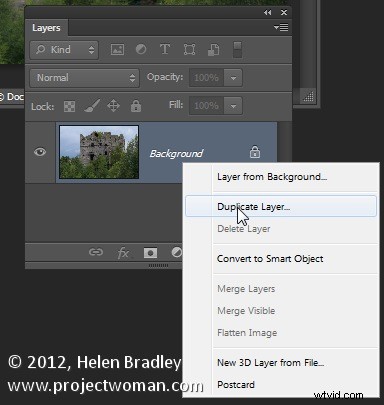
Master Exposure Fixes: Using Contrast Masks in Photoshop

Desaturate this layer by choosing Image > Adjustments > Desaturate. Right now the default convert to black and white is just fine.
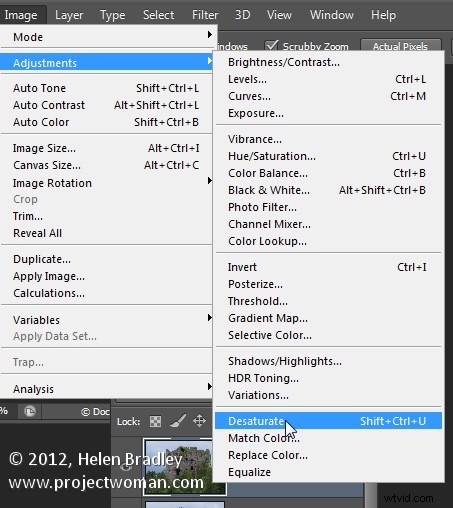
Master Exposure Fixes: Using Contrast Masks in Photoshop

Alter the blend mode of this layer to Overlay.
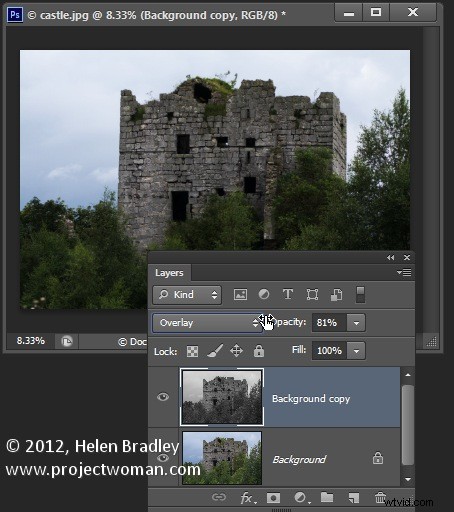
Master Exposure Fixes: Using Contrast Masks in Photoshop

To invert this black and white layer choose Image > Adjustments > Invert – this gives a negative of the image.

Adjust the layer opacity to suit.
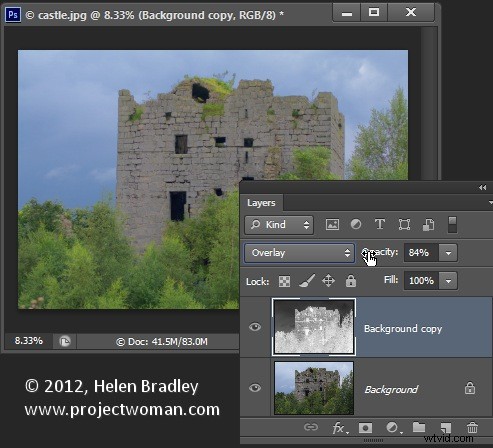
Master Exposure Fixes: Using Contrast Masks in Photoshop

Convert the top layer to a Smart Object by choosing Filter > Convert for Smart Filters.
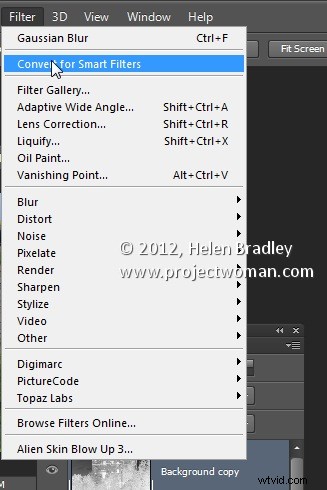
Master Exposure Fixes: Using Contrast Masks in Photoshop

Now blur this layer by choosing Filter > Blur > Gaussian Blur. Adjust the Radius to adds some sharpening back to the image. Check the preview to get the best result for the image.
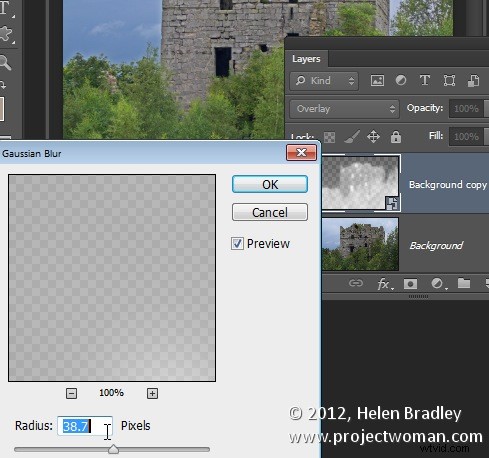
Master Exposure Fixes: Using Contrast Masks in Photoshop


  1. How to Sharpen Only Image Edges in Photoshop: Lightroom-Style Technique

  2. How to Extract Clean Lines from Images in Photoshop: Step-by-Step Guide

  3. Photoshop Sharpening Mastery: High Pass Filter vs. Unsharp Mask

  4. Master Spot Fixing in Photoshop: Effortlessly Remove Imperfections from Photos

  5. Create Stunning Digital Cyanotypes in Photoshop: Easy Step-by-Step Guide

Adobe Photoshop
  1. Expert Guide: How to Seamlessly Merge and Combine Images in Photoshop

  2. Master Luminosity Masks in Photoshop Effortlessly with Lumenzia

  3. Photoshop Tutorial: Soften Images Effortlessly with High Pass Filter

  4. Master Image Sharpening in Photoshop: Pro Techniques for Crisp, Professional Results

  5. Master Non-Destructive Photoshop Workflows: Unlock Smart Objects for Pro Editing

  6. Master Layer Masks in Photoshop: Essential Beginner's Guide

  7. How to Seamlessly Combine Images in Photoshop: Step-by-Step Guide

  8. Master Layer Masks in Photoshop: Step-by-Step Tutorial Guide