
Adobe Photoshop has so many buttons, tools, and options it can seem overwhelming and intimidating to beginner photo editors. Rather than diving into the deep end and trying to learn every possible tool all at once, I recommend a more measured approach. Pick one thing and learn that, and then move on to the next tool or technique. And learning Layer Masks in Photoshop is one of the most important and useful tools for any editor.
In 1994, Photoshop Version 3 introduced a concept that blew the doors off the image editing industry: layers. This allowed editors to stack multiple image elements on top of each other to form a complete picture. This is all well and good, but what if you put one layer on top of another layer and still want to see something on the layer below?
You could use the Eraser tool to remove part of the top layer, which is what I used to do when I first started using Photoshop years ago.
A much better solution is to use a Layer Mask, which lets you show and hide any part of a layer. Instead of using the Eraser tool, you use the Paintbrush (or other tools) to make any part of a layer visible, invisible, or transparent.
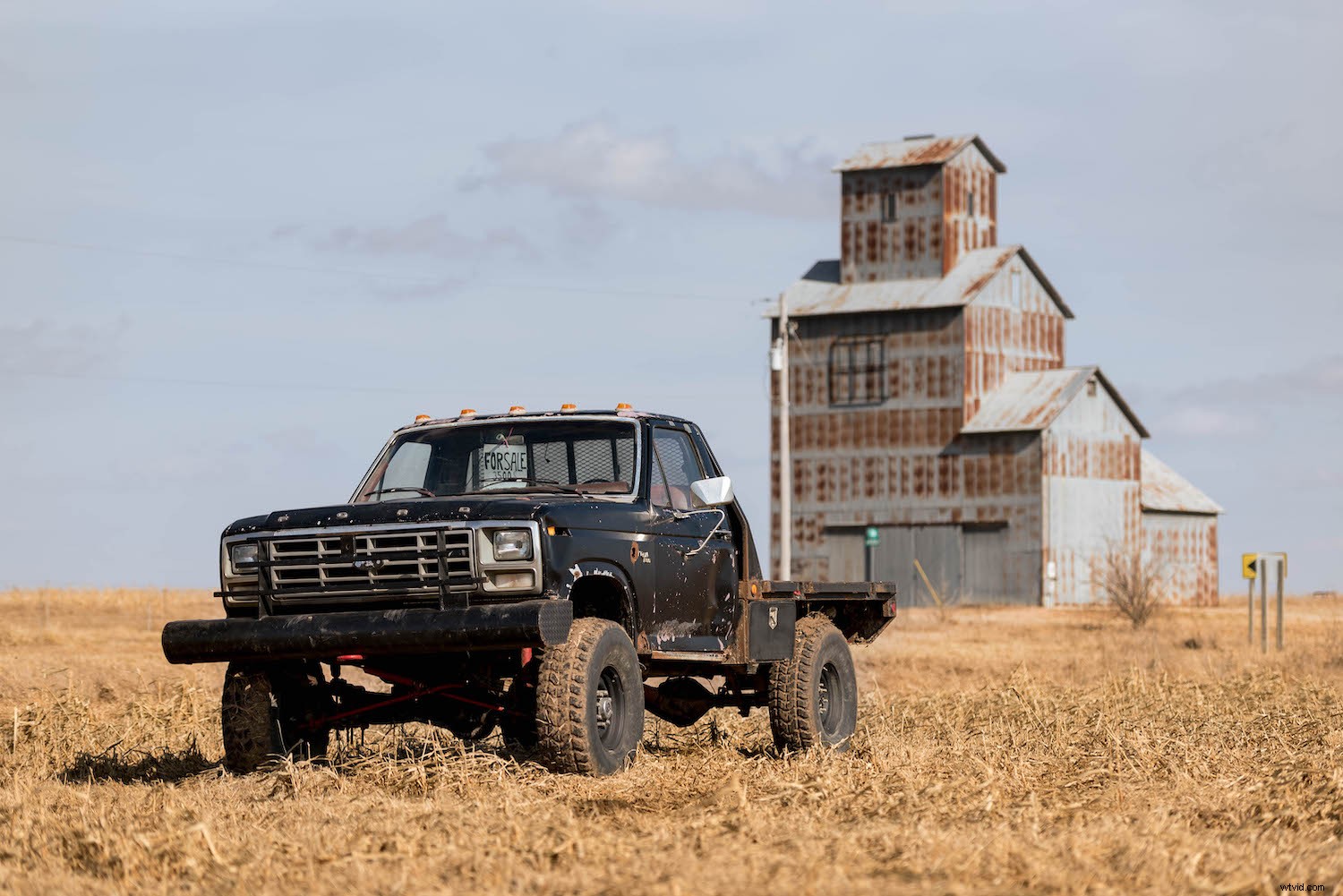
As an example, here’s a picture of a truck on a farm. It’s alright, but the sky behind the truck isn’t very dramatic.
What if I replaced the boring blue sky with this dramatic sunset? Surely that would be a much more interesting photo, and maybe help the farmer sell his truck too.
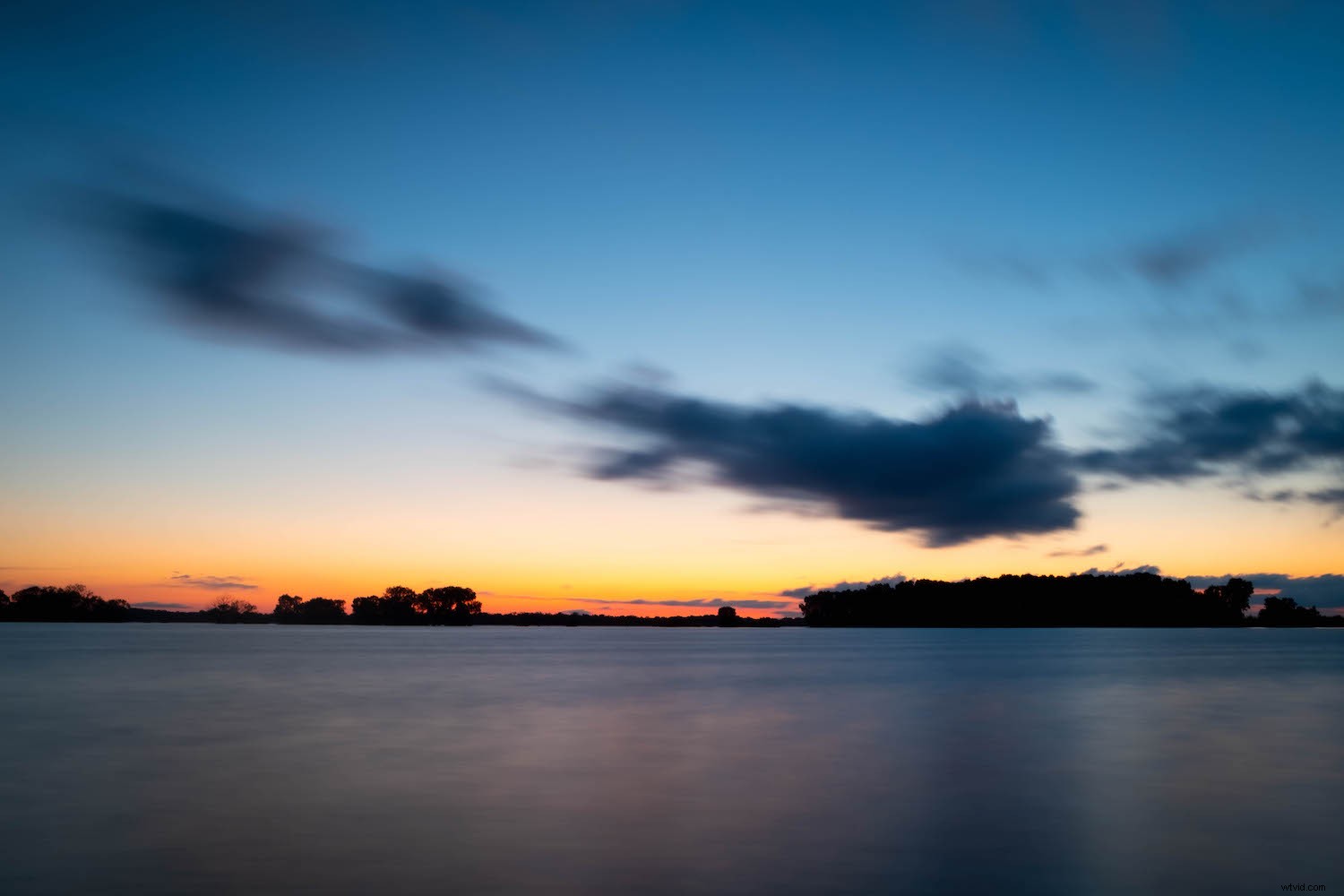
If the pictures of the truck and sunset are stacked in Photoshop, the truck is visible but not the sky. This is where Layer Masks in Photoshop can save the day! You can use a mask on the truck layer and then edit it to remove the sky. This would leave the truck visible but the sunset showing through.
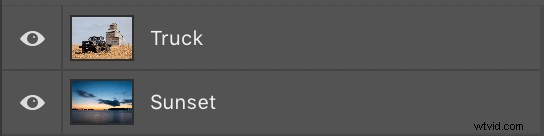
To add a Layer Mask, click the top layer (in this case, the truck) and choose Layer>Layer Mask>Reveal All.
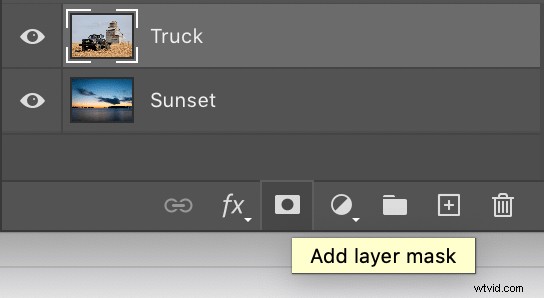
Alternatively, click the Layer Mask icon at the bottom of the Layers panel.
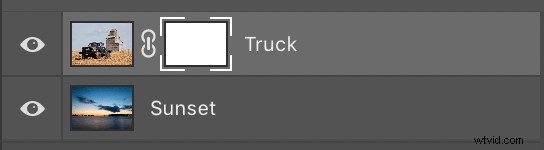
At this point, nothing in the picture has changed because the entire layer is still visible, and nothing has actually been masked out. This is why the menu command is “Reveal All.”
The layer mask shows the entire layer to which it is applied. At this point, you can use any number of methods to remove portions of the layer you are working on.
My preferred method to show and hide Layer Masks in Photoshop is to use the Brush tool. Press the ‘B’ key on your keyboard or click the Brush tool icon on the left-side toolbar. Then start brushing the portions of the layer that you want to make invisible, just as though you were using an eraser.
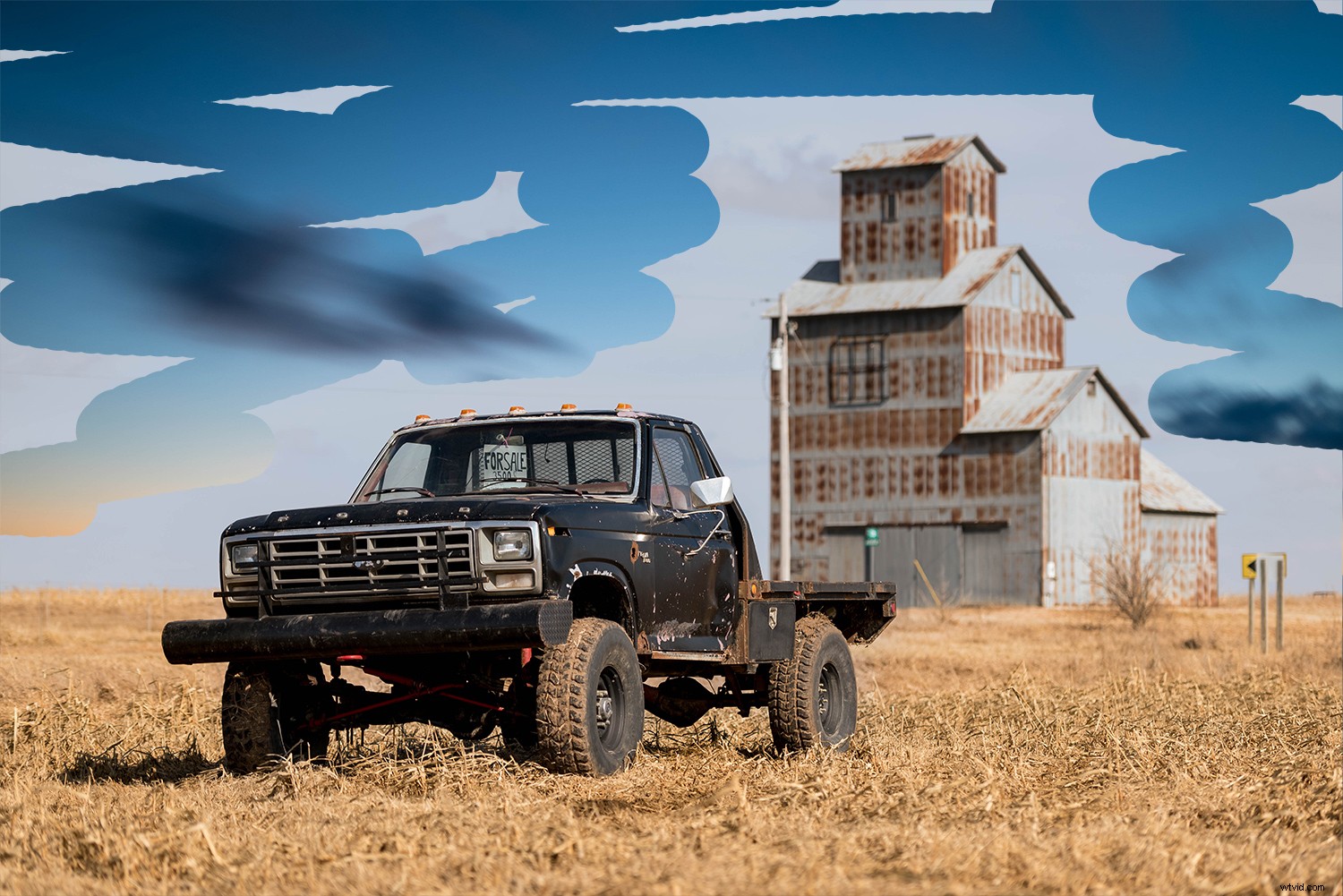
Notice how any part of the mask that you erase is also reflected in the thumbnail. Black portions are where the mask has been eliminated, which is a subtle but useful indicator of the work you are doing on the mask.
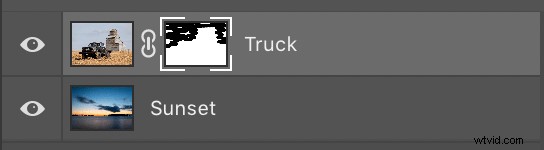
To completely remove the sky behind the truck, I used the Quick Selection tool to select the sky. Then I switched back to the Brush tool and brushed over the entire selected area.
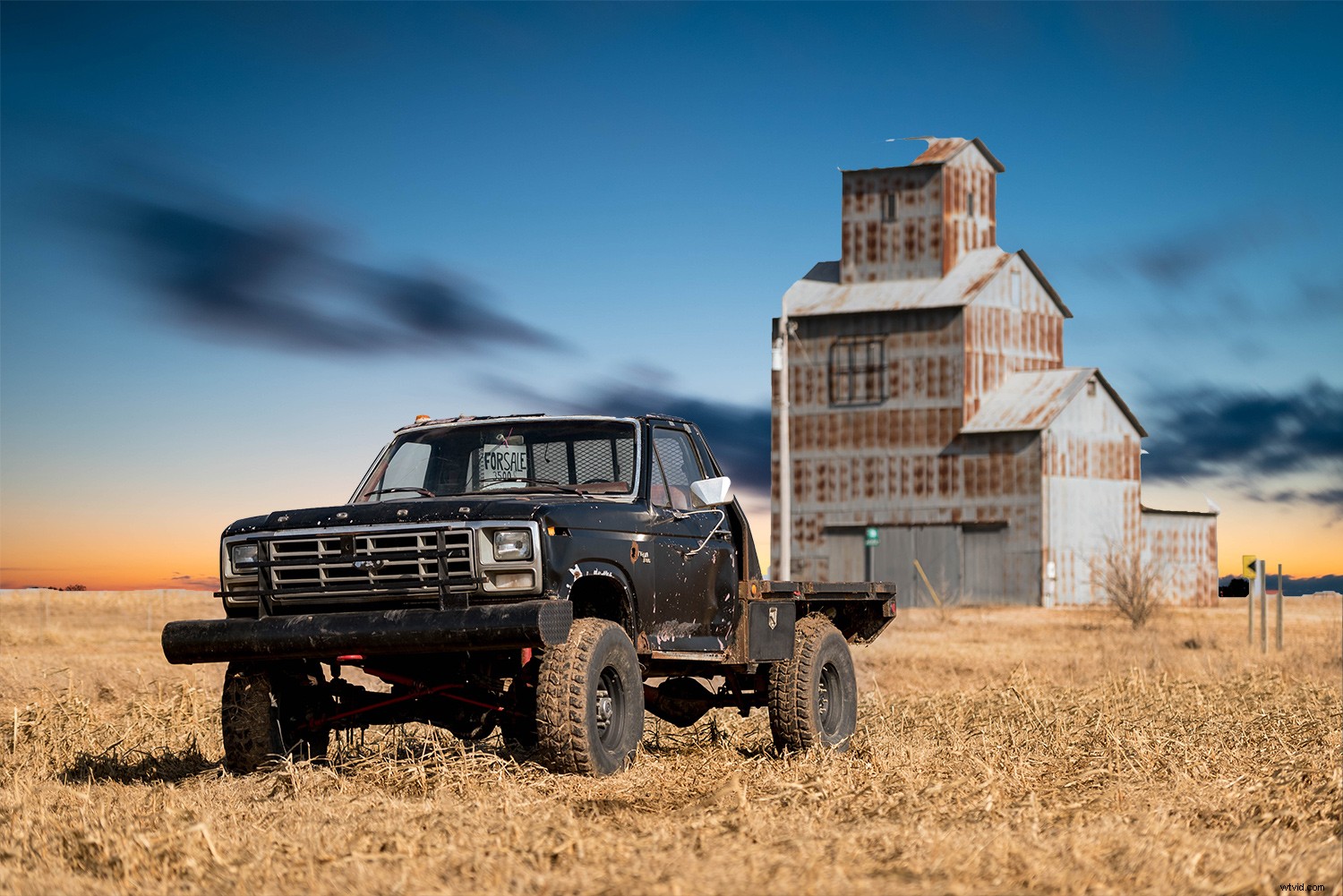
At this point, a Layer Mask probably seems much more complicated than just using the Eraser tool. If you want to erase part of an image, why over-complicate the matter with masks and brushes and selections? Layer Masks provide an enormous advantage in that you can un-erase whatever you want just as easily.
With the Brush tool selected, press the ‘X’ key to invert your brush, and you can now put everything you erased back. Use the ‘[‘ and ‘]’ keys to change the size of the brush, and the ‘Z’ key to zoom in on portions of the image to get the finer details.
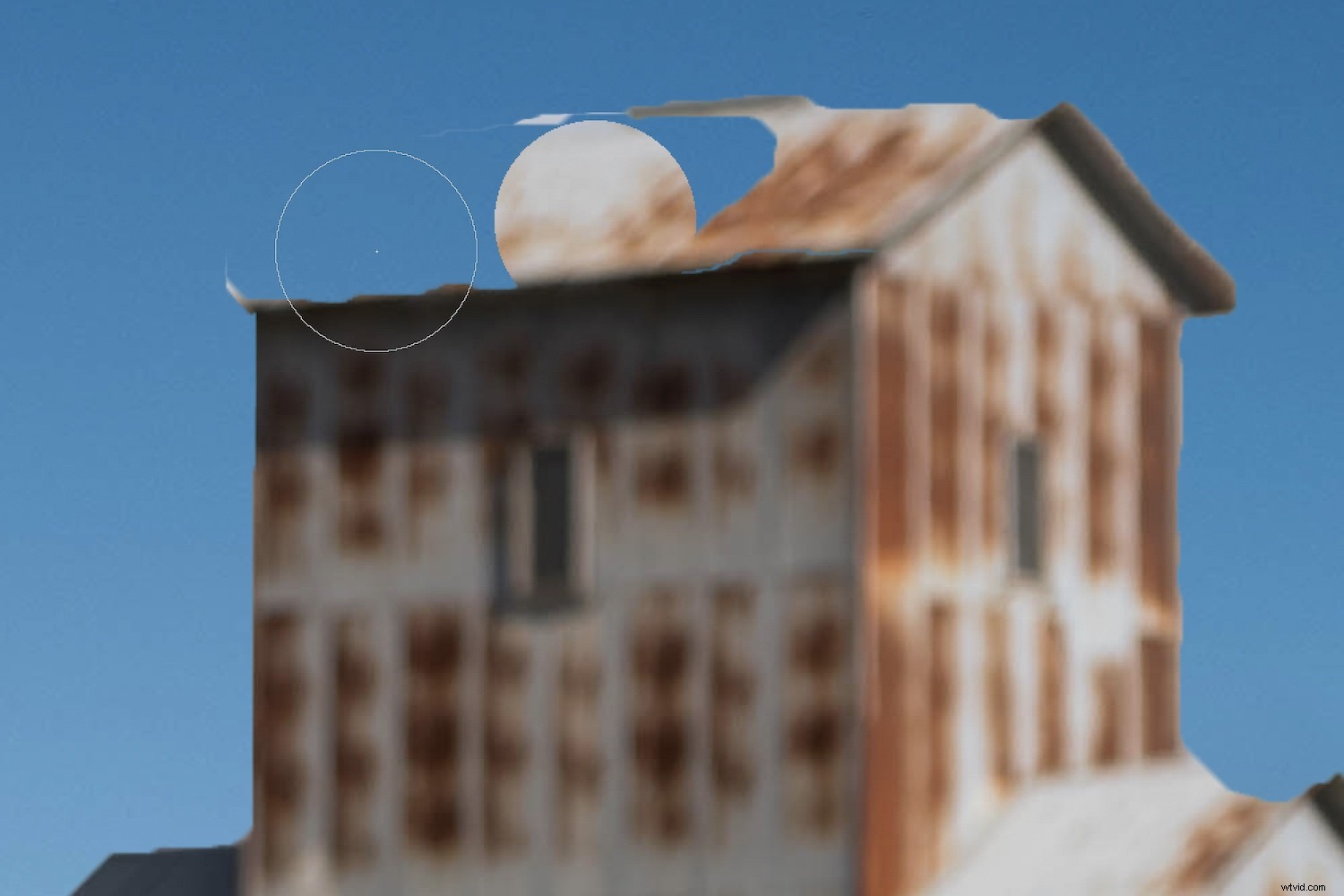
All the normal controls for brushes can be used when working with layer masks – opacity, smoothing, etc. This makes Layer Masks in Photoshop incredibly powerful and exponentially more useful than just using the eraser tool.
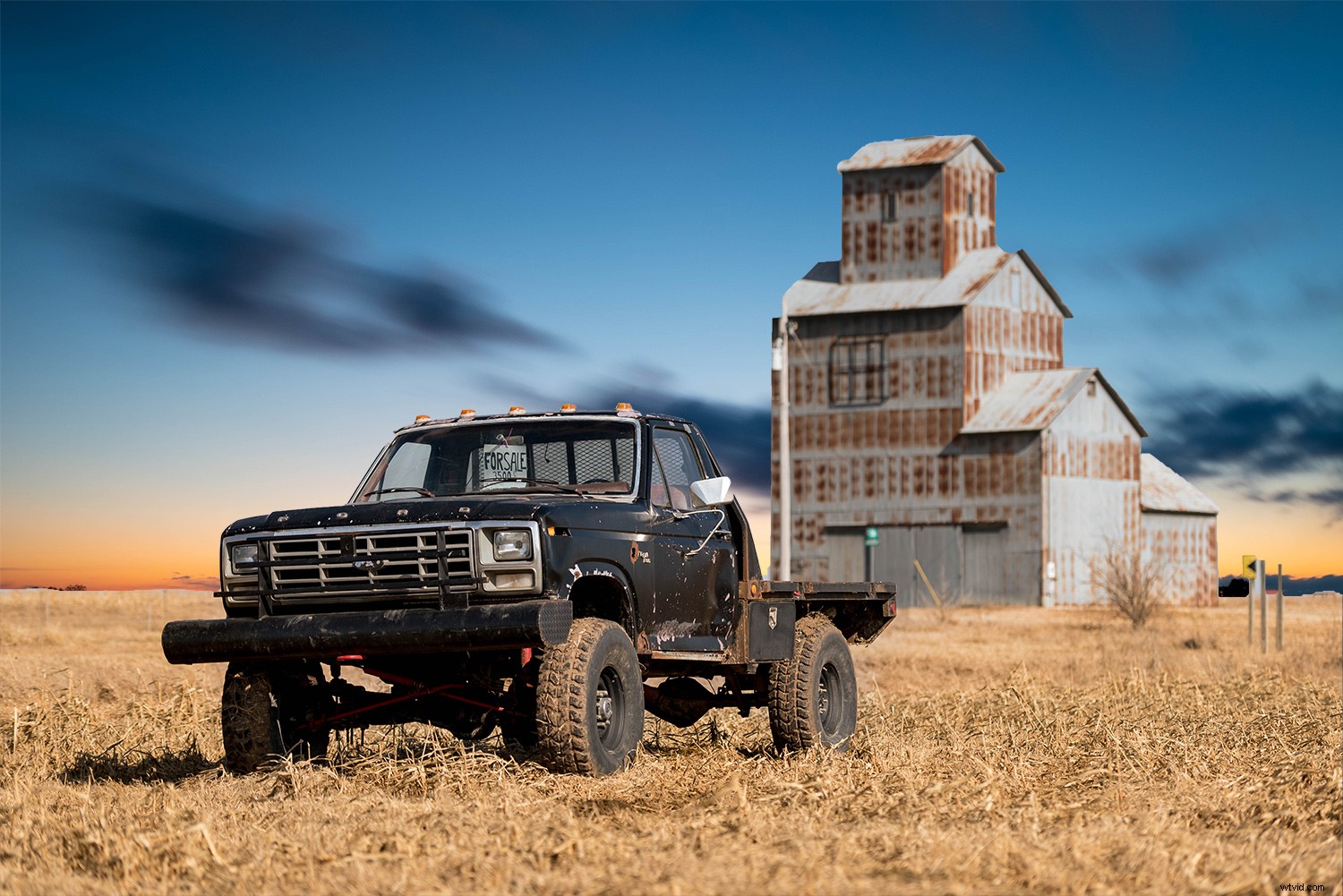
Layer Masks can do so much more than replacing the sky. They can be used to combine any number of images, layers, and effects.
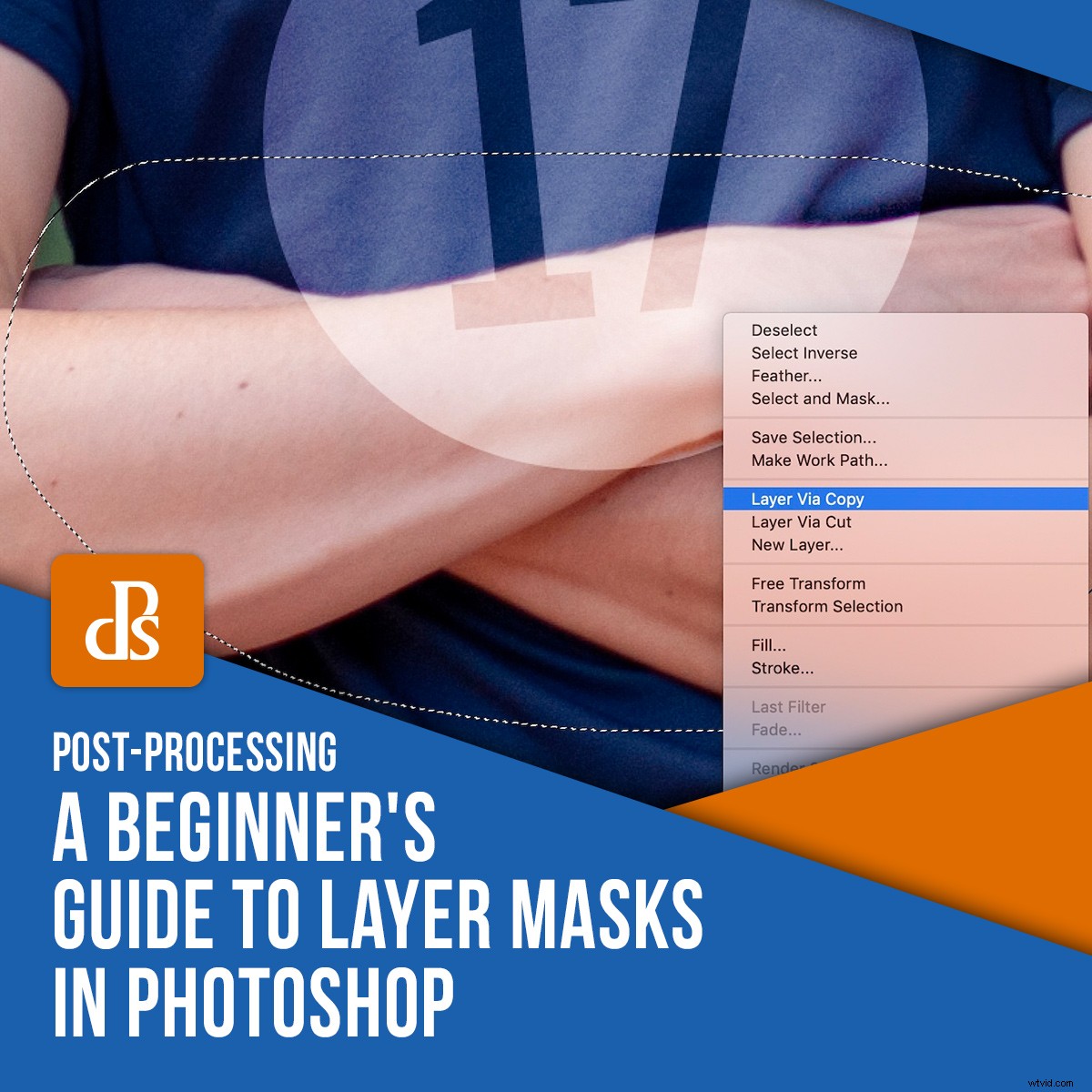
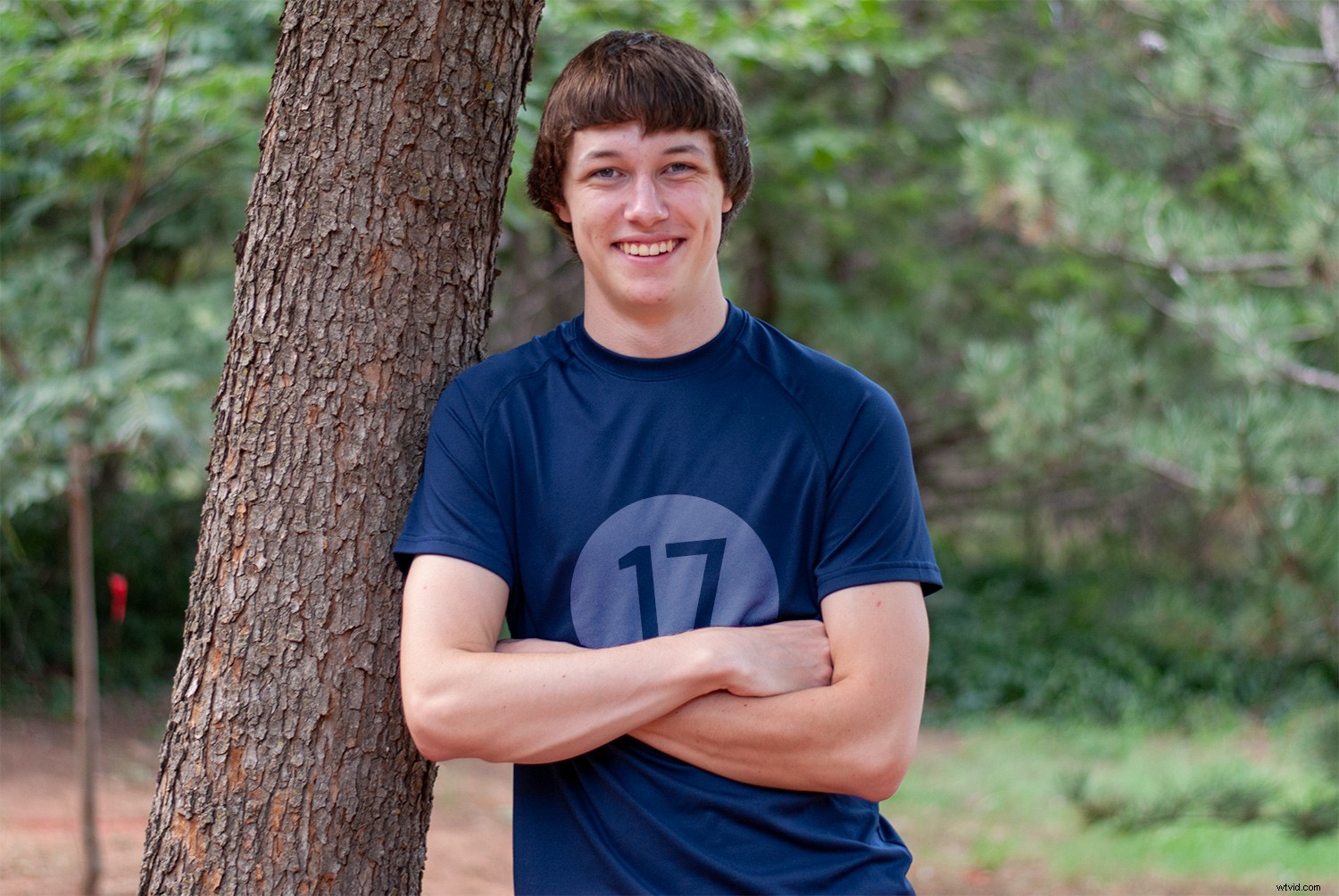
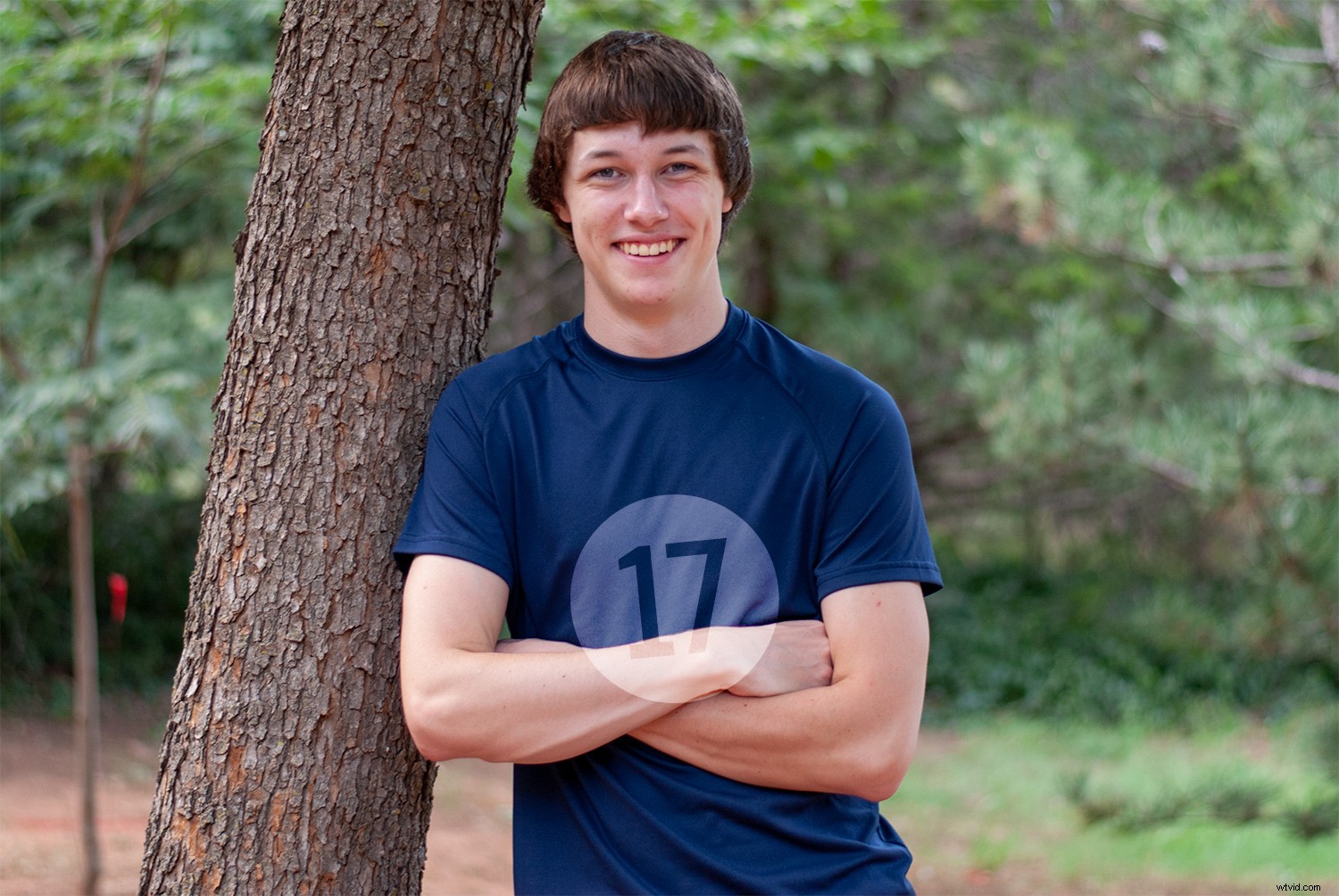
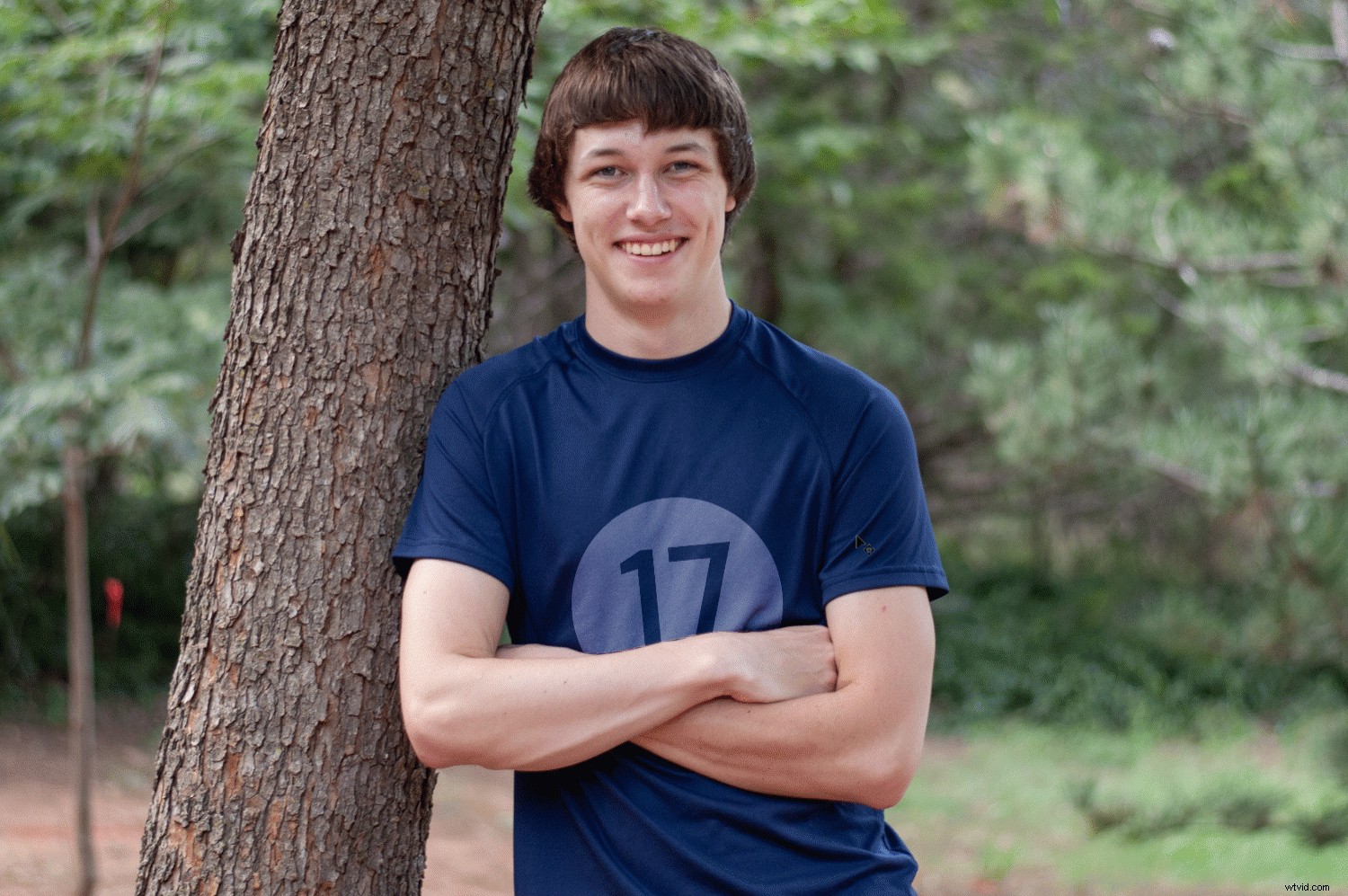
I created the picture at the top of this article with Layer Masks in Photoshop in just a few minutes. It started with the picture below of a high school senior wearing a blue shirt. Since this young man graduated in 2017, I wanted to put a 17 on his shirt. Photoshop made it easy.
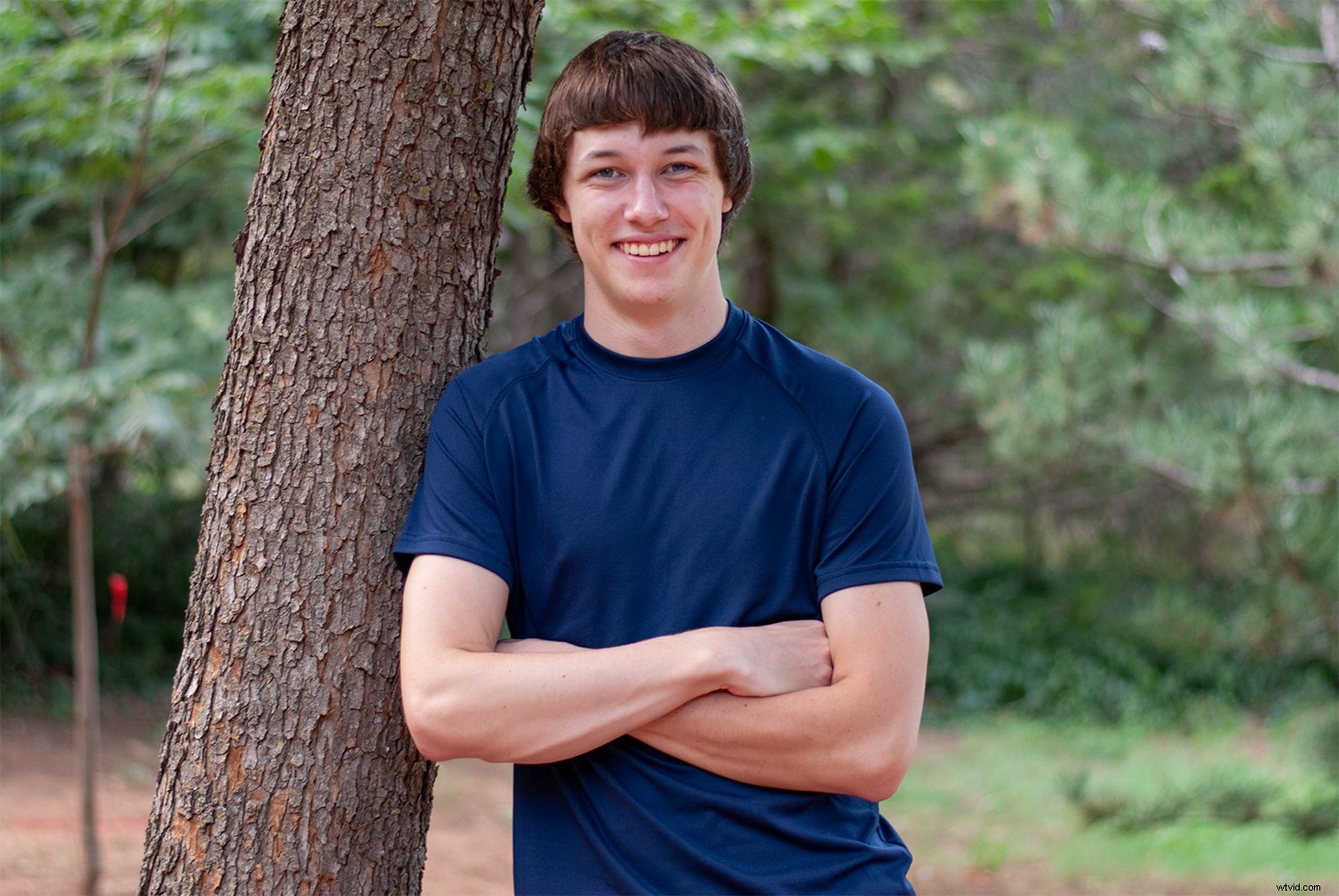
I started by using the Fyra font for the number 17. I set the color to white and used the Soft Light blend mode to make the number look like it was part of the shirt, not just sitting on top of it. The young man’s crossed arms presented a challenge, but one that was easily solved in seconds thanks to layer masks.
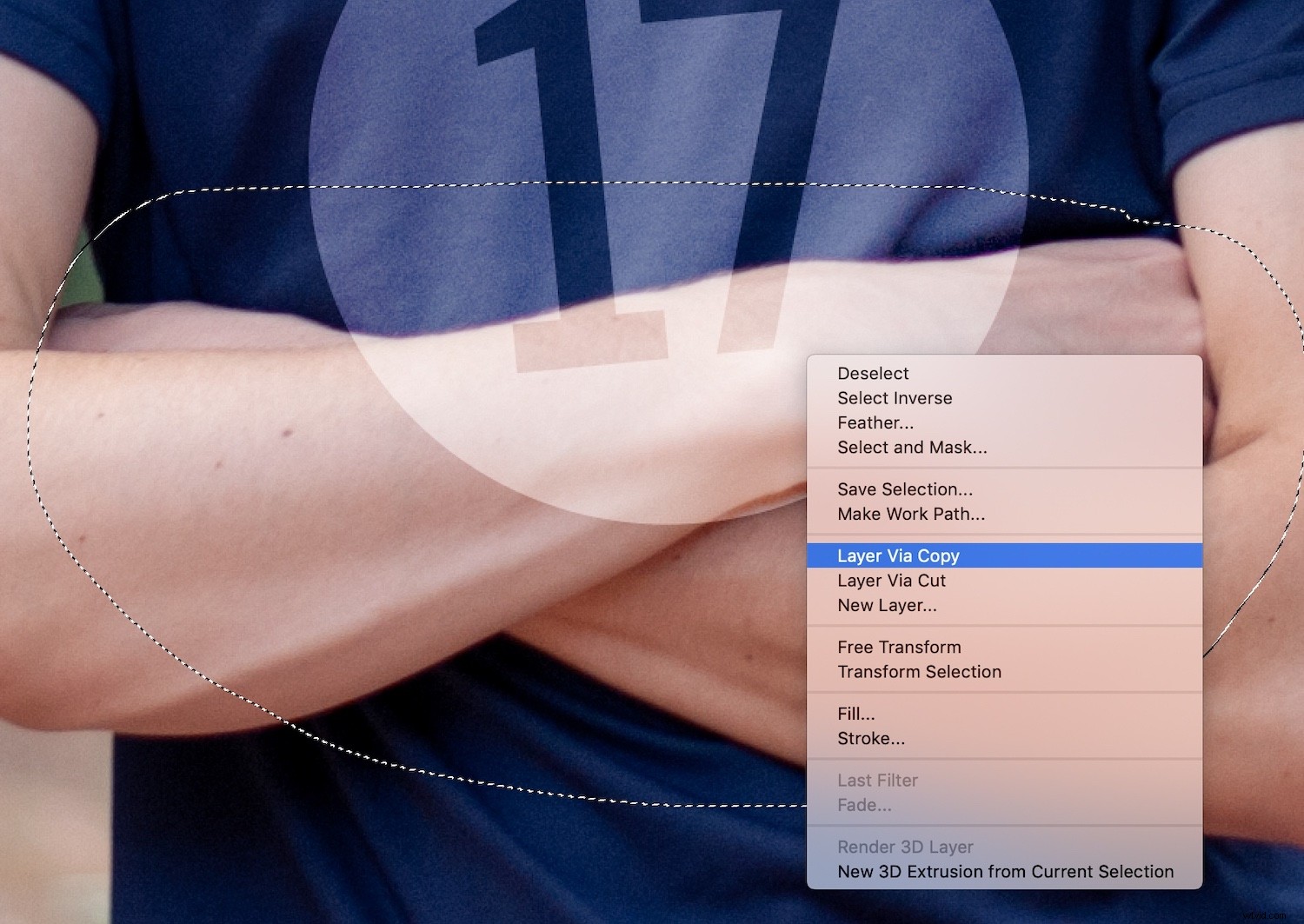
With the base layer selected, I chose the Lasso tool and selected the portion of the picture containing the arms. Then with that selection active, I right-clicked on the image and chose “New Layer via Copy.” This created a new layer in my Layers panel, which I moved to the top of the list by clicking and dragging.
With the new layer selected in my Layers panel, I went to the Layer menu and selected Layer Mask>Reveal All. This created a new masking layer, much like the truck and sunset example, that I could use to show and hide whatever portions of the arms I wanted to.
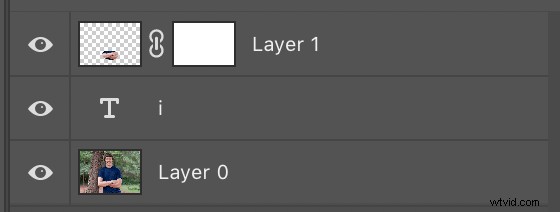
With the new Layer Mask in place, the rest of the operation was fairly simple.
I zoomed in on the image to get a closer view by pressing ‘Z’ and then clicked on the arms. Then I pressed the ‘B’ key to select my Brush tool and used the [ and ] keys to get the right size. As I brushed out the part of the top layer I did not want, I pressed the ‘X’ key to switch back and forth between erasing and un-erasing. This makes it very simple to perform fine adjustments to your layer mask.

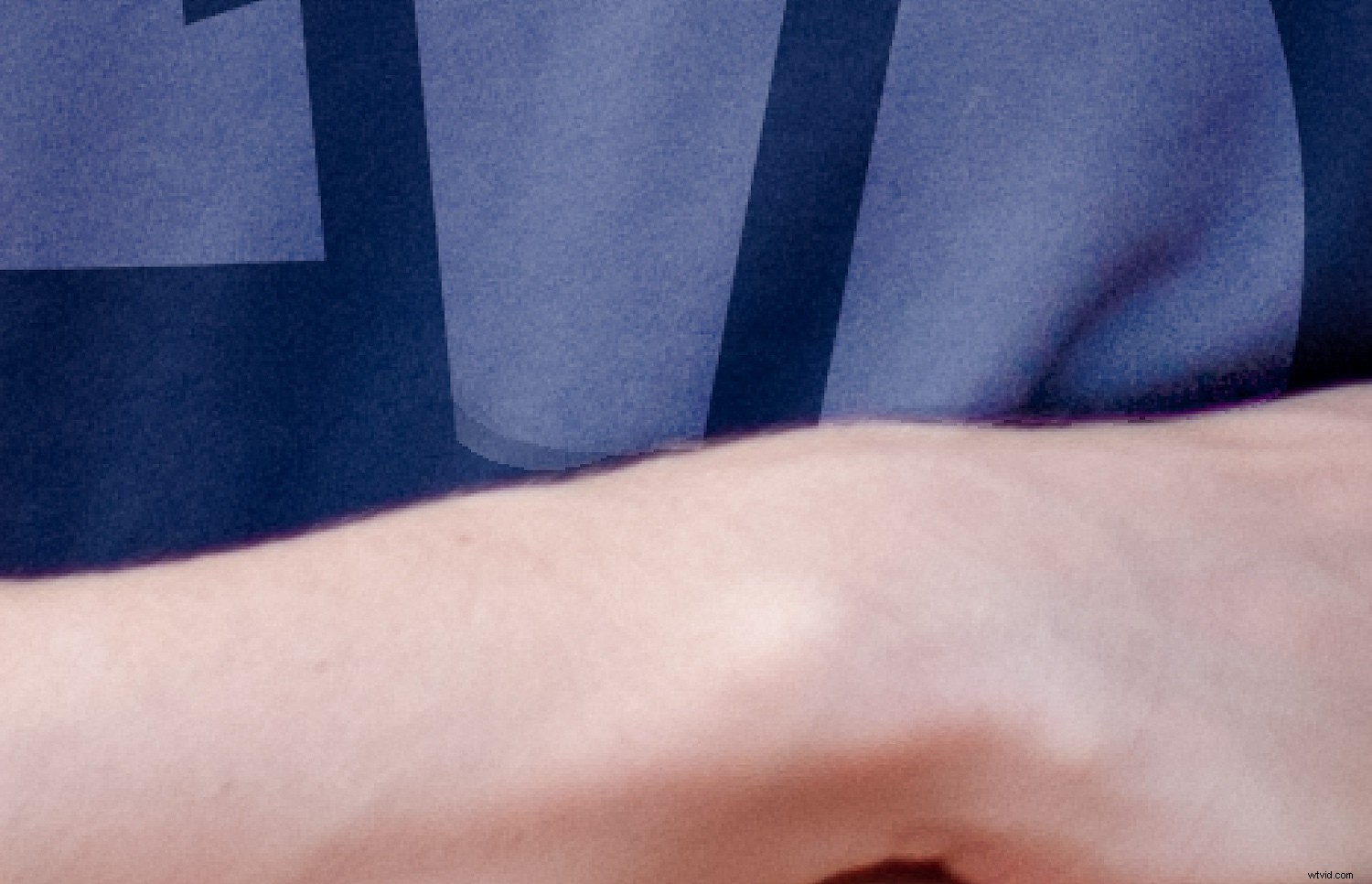
Using layer masking instead of just erasing portions of an image means you can continue to manipulate your image as separate layers even after you have made your edits. Watch how the number 17 can be moved and resized without any additional editing or erasing. This is possible because the arms are a separate layer in front of the number, and the blue part of the arms layer has been erased or masked out.
Reading through all these steps to learn Layer Masks in Photoshop might seem kind of overwhelming. If you follow along step by step, it’s a lot easier than it seems. Also, there are hundreds of ways to edit layer masks to create compositions you probably thought were previously unattainable.
If you have never tried using layer masks in Photoshop, I recommend giving it a try, and see where your creativity takes you. You might find that it opens up a door to entirely new types of artistic expression and editing possibilities.
Share your results with us in the comments below!