
Step 1
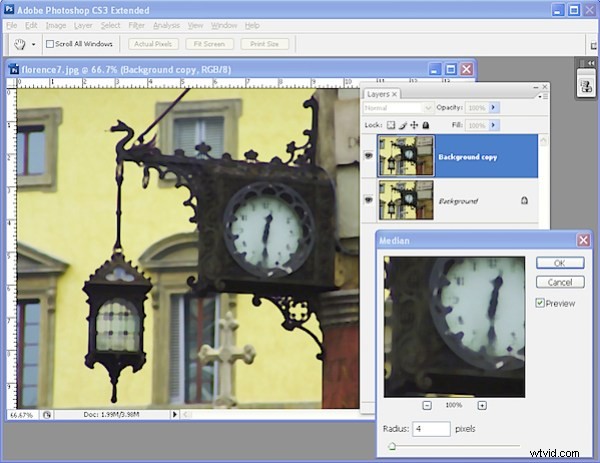
Open a new image and duplicate the background layer by right clicking it and choose Duplicate Layer. Click this new top layer and choose Filter > Noise > Median and set the radius to around 4 – 5 pixels. You want to see a general softening of the image with the beginnings of loss of detail. Click Ok.
Step 2
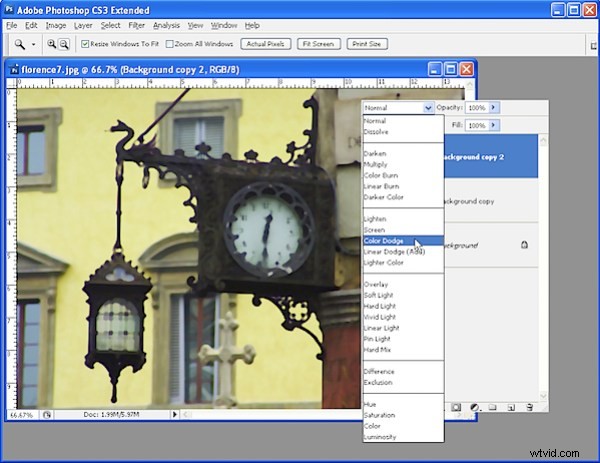
Duplicate this layer you’ve been working on. Set the blend mode of this new top layer to Color Dodge.
Step 3
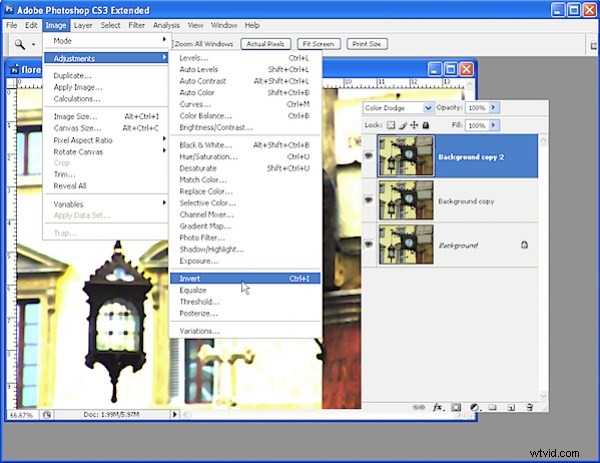
Now invert the top layer by selecting it and choose Image > Adjustments > Invert. The image should now be white.
Step 4
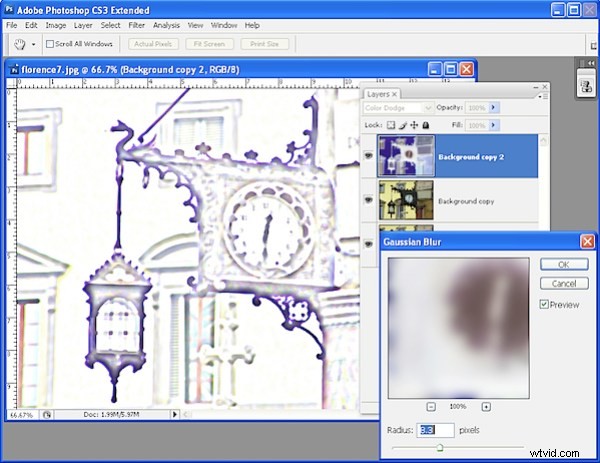
With the topmost layer still selected choose Filter > Blur > Gaussian Blur. Adjust the blur radius until the lines begin to appear in the image. What you’re looking for is a balance between the lines that you want and the image detail that you don’t want. Click Ok when you have an acceptable balance.
Step 5
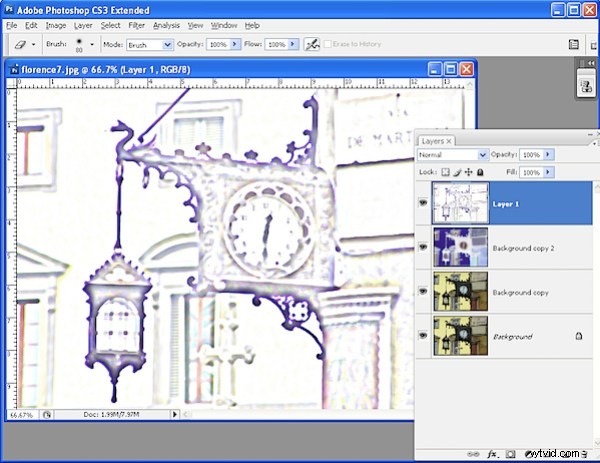
Create a composite of the current image by clicking on the topmost layer and press Ctrl + Alt + Shift + E (Command + Option + Shift + E on the Mac) to create a new layer which is a composite of the layers below. This command is handy because it does this but without destroying them which would happen if you chose to flatten the image.
Step 6
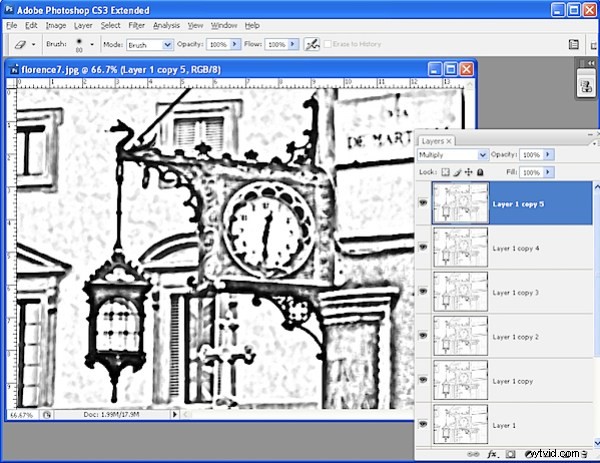
If you want black lines, desaturate this top layer by choosing Image > Adjustments > Desaturate. You can now duplicate this layer a number of times and each time set the Blend Mode of the duplicate layer to Multiply. This will give you increasingly thicker and darker lines in the image. Merge these layers down to a single layer when you’re done.
Step 7
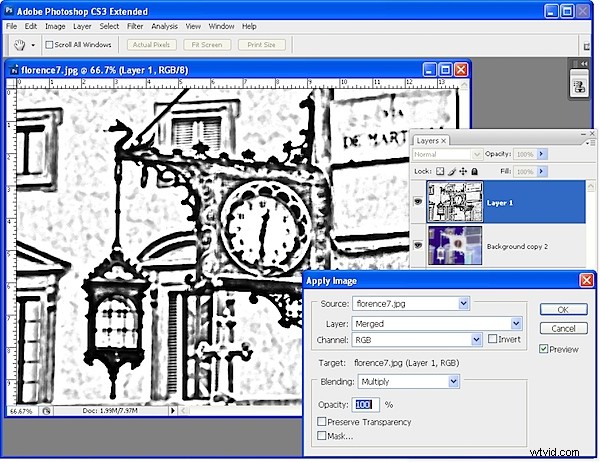
As an alternative to Step 6 you can use the Apply Image command to thicken up the lines by selecting the layer that you created in Step 5 and choose Image > Apply Image, set the blending to Multiply and click Ok. Repeat this step a number of times and you will repeatedly apply the image to itself in multiply mode each time thickening up the lines but without creating a new layer each time.
Step 8
To color the image, duplicate the background layer and drag it to the top of the layer stack. Set its blend mode to Linear Light (or Linear Burn, or something similar), and reduce the opacity to color the line drawing.
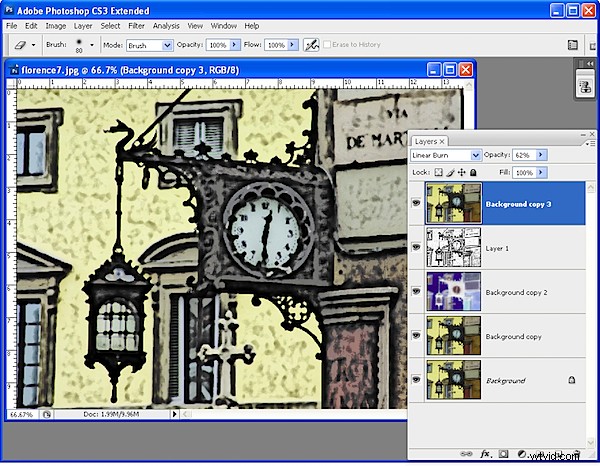
Tip: If desired, at the end of Step 5, place a new white filled layer below the new composite layer and you can remove unwanted lines or shading from the composite layer using the Eraser tool. Merge the top two layers before continuing. It’s often easier to remove unwanted lines earlier in the process than later on.