Have you ever endured the stress of dealing with a corrupted Photoshop PSD file? It’s not such a common problem, but when it happens it can invoke serious mental and emotional hardship. Let me introduce you to a little software tool that can be of great help to photographers, designers, and anyone else who uses Adobe Photoshop – the Recovery Toolbox for Photoshop.
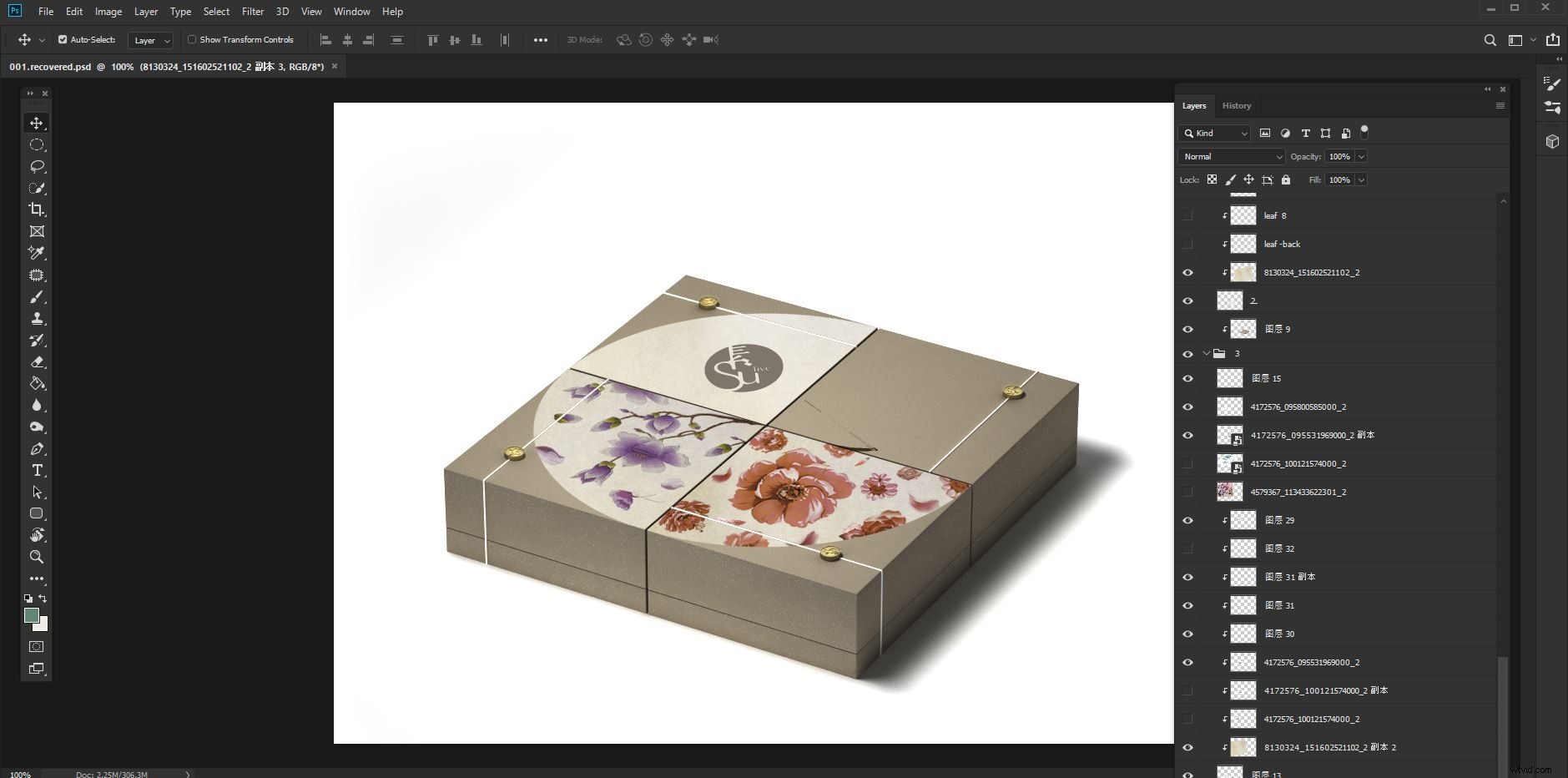
Fully recovered corrupted PSD file
How PSD files become corrupt
Imagine spending hours post-processing a photo you’ve captured or graphic you have created. It’s one of your best. You’ve worked through some tutorials, and been inspired to create a masterpiece of digital art.
You’ve put the final touches to it and hit Save, and then the power goes out. Your file has not saved correctly. Or you’ve saved it to a hard drive with bad sectors. Even when you revive the drive, the PSD file will not open. These are events that create nightmares.
There are other ways PSD files become corrupted and Photoshop won’t open them. At times, all you’ll see is an error message.

Other times the file will open but will be incomplete. Layers may be missing, or the file may have been flattened. Maybe all you’ll see is digital noise.
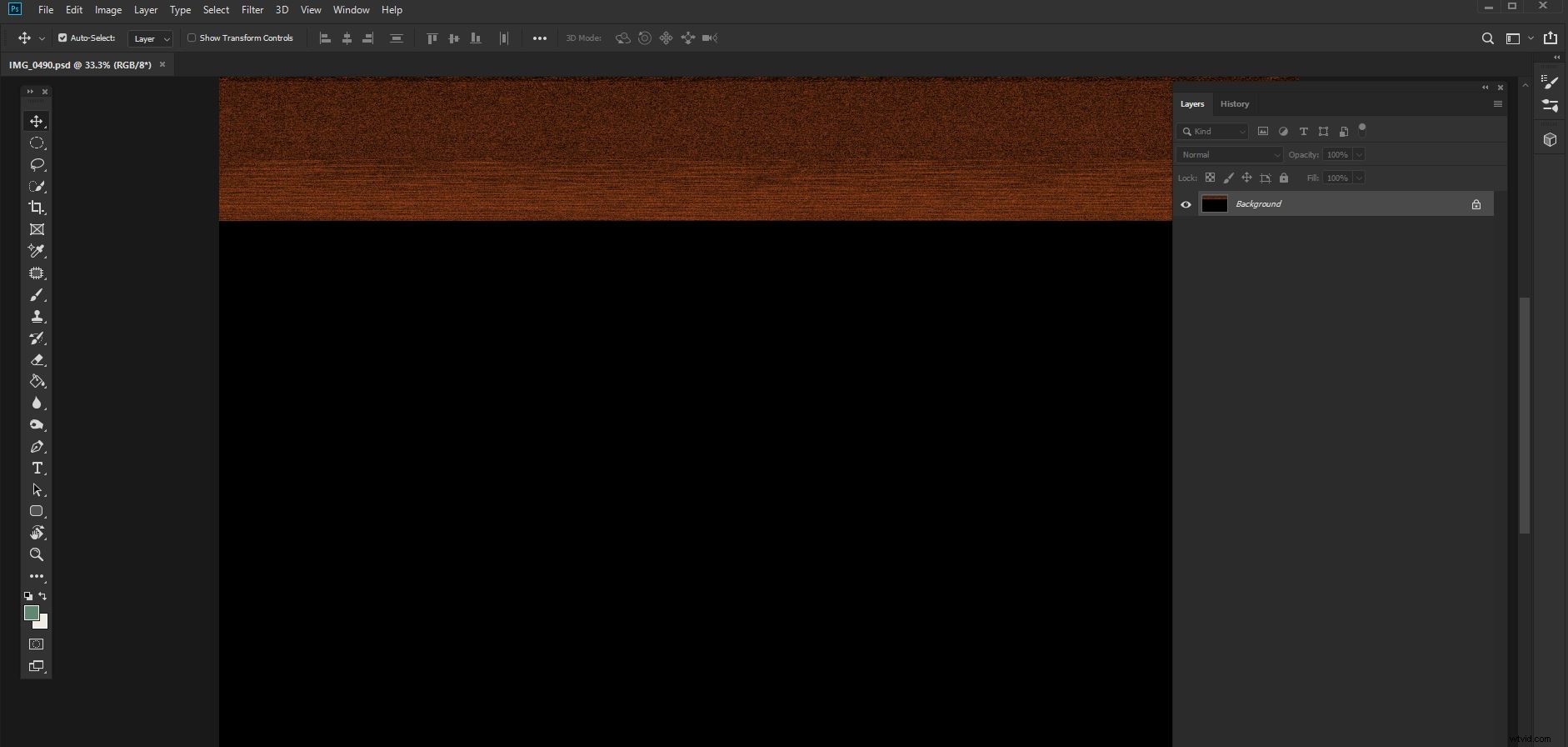
You may have encountered similar file retrieval problems with bad memory cards or hard drives. These situations require specialized software that can recover files and rebuild them.
Adobe Photoshop Repair Tool
Adobe Photoshop Repair Tool from Recovery Toolbox is specifically designed to reclaim and repair damaged Photoshop PSD files. It’s not a tool you will use every day (hopefully), but when you do need to, it can save you considerable stress and maybe hours of work.
This small piece of dedicated software opens and restores PSD files. Often it will manage to completely restore a file which Photoshop refuses to open. Other times it will work partially. You might get most of your layers back, but not all of them. At this stage, however, it is only available for users of Windows 98 and above.
How it works
Step 1:
Open Recovery Toolbox for Photoshop and select the file you are having issues with. Click ‘Next’.
Step 2:
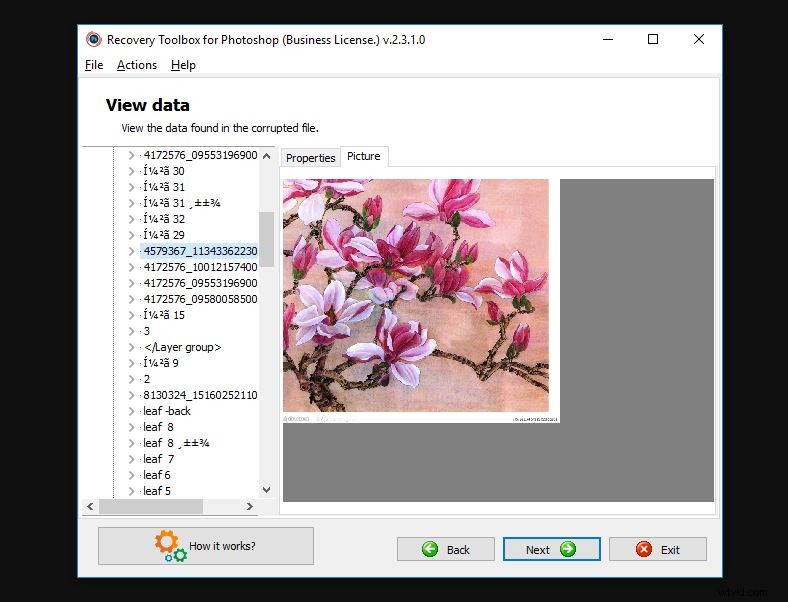
The ‘View Data’ window will open. Here you have a breakdown of what the Recovery Toolbox for Photoshop can see in the corrupted file. If the file has multiple layers, click on the ‘Layers’ drop-down in the left-hand panel to view them.
In the right-hand panel, there are two tabs. Click on the ‘Picture’ tab for a preview of each layer.
Step 3:
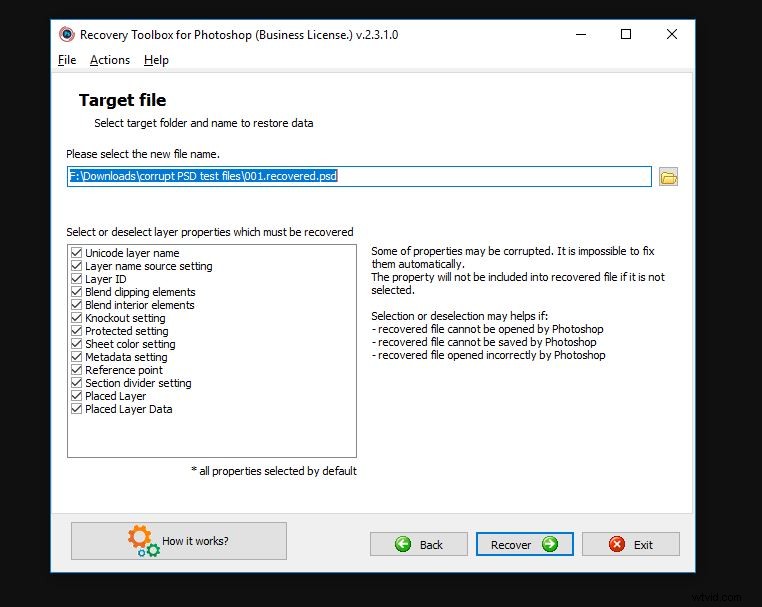
Choose your target file and the layers you want to recover. In this step, you can also select or deselect certain layers you want to recover.
Step 4:
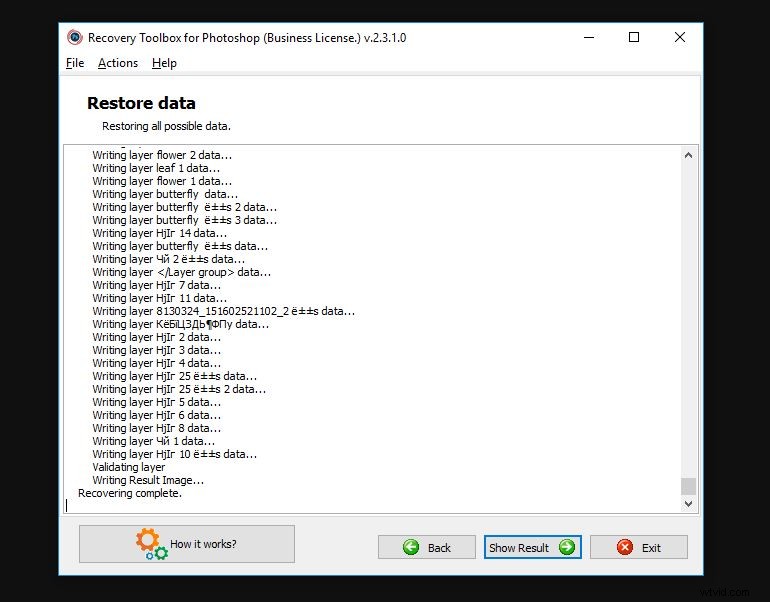
Click ‘Recover’ and the software will work its magic. Once the recovery process is completed, click the ‘Show Result’ button to open the recovered file in Photoshop. It’s as easy as that.
Salvaged
Whether you’re a keen amateur or a professional photographer, this software will help you out when Photoshop fails to open a file. This might mean the difference in saving time rebuilding an image, or it might save your skin and keep a valuable client.
This Recovery Toolbox for Photoshop works on any PSD file saved from Photoshop version three or later, and recovers files with .psd and .8bps extensions.
Working through the easy steps is fast and allows for some control in the layers you choose to repair. I found that when testing this software, it was not necessary to do this, but the feature allows for flexibility with more problematic files.
This software is specifically designed to read, analyze, and recover your PSD files.
When testing this software, I purposefully produced a series of damaged PSD files, corrupting them in different ways. While saving a multi-layered PSD file, I rebooted my computer while the file was in the process of writing to a hard drive. I also saved the file to a thumb drive which I removed before fully saving the image. I did this at various stages in the process of saving. In these instances, the Recovery Toolbox for Photoshop was not able to restore my files even when they’d been nearly through the saving process.
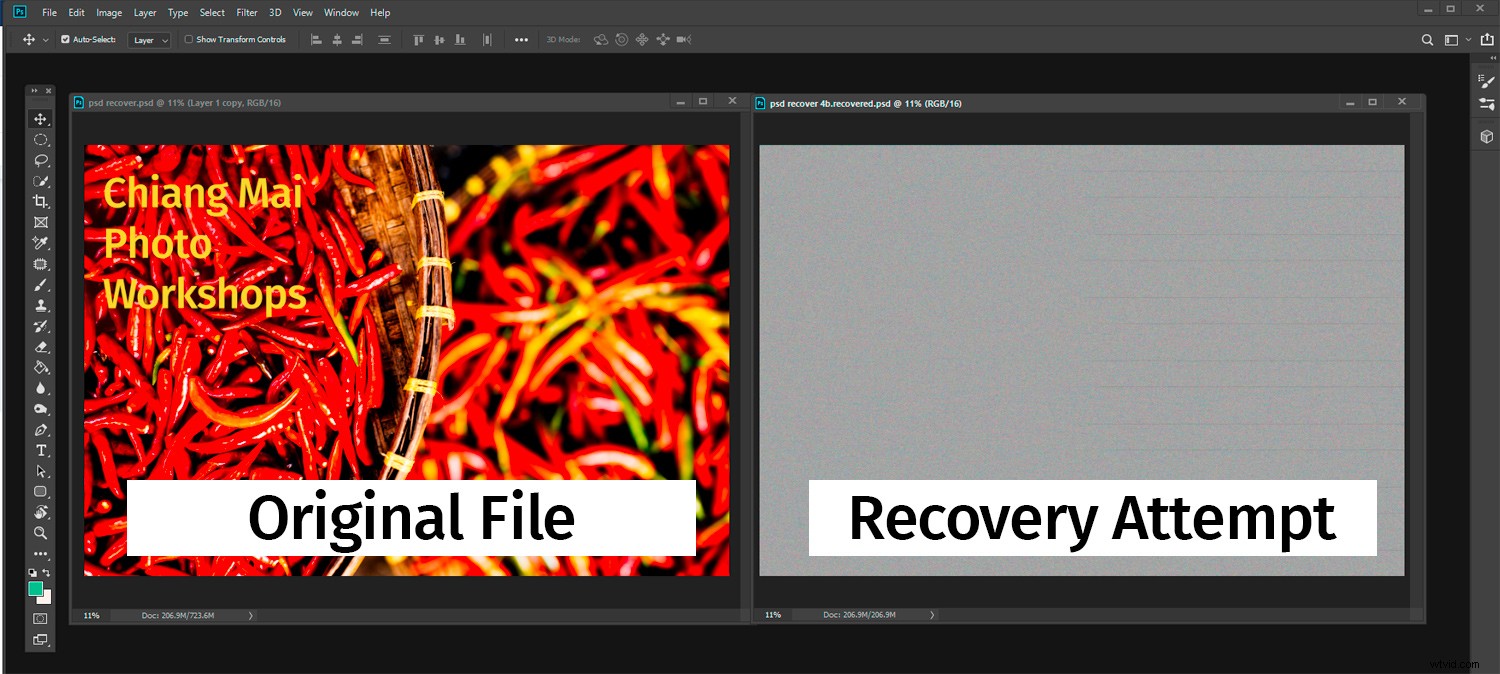
The software was sent to me with a number of test files. Each of these appeared to be corrupted in different ways. Some of them opened with Photoshop, but incompletely. Others failed to open and Photoshop displayed an error message.
Pros
- Dedicated to repairing PSD files.
- Easy to use.
- Well laid-out user interface.
- Detailed information and controls.
Cons
- Doesn’t repair all damaged PSD files.
- Only available for Windows Users
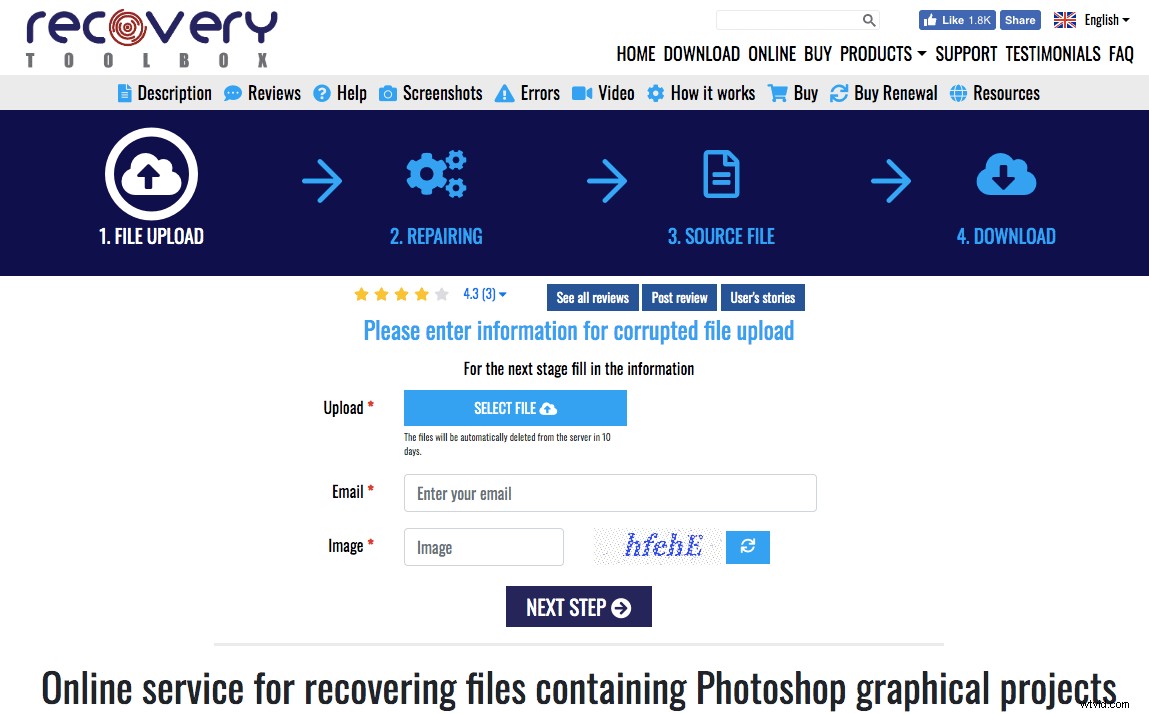
If you don’t like the idea of installing software onto your computer, Recovery Toolbox for Photoshop also has an online repair service where you simply upload your damaged file. The benefits of using the online version include:
- Helps to repair Photoshop files on all Operation Systems: macOS, iOS, Android, Windows and so on
- Work on any devices: PC, tablet, phones
- Affordable price: $10
- No need to install any software
In this review, the online version was not tested.
Conclusion
Recovery Toolbox for Photoshop is a great tool and will help you out where Photoshop fails to. However, there is never any substitute for having a disciplined backup routine. Saving your work often and backing it up on a separate drive, device or in the cloud is the most sure-fire way to ensure your precious files are safe and usable. Disclaimer: Recovery Toolbox for Photoshop is a paid dPS partner.