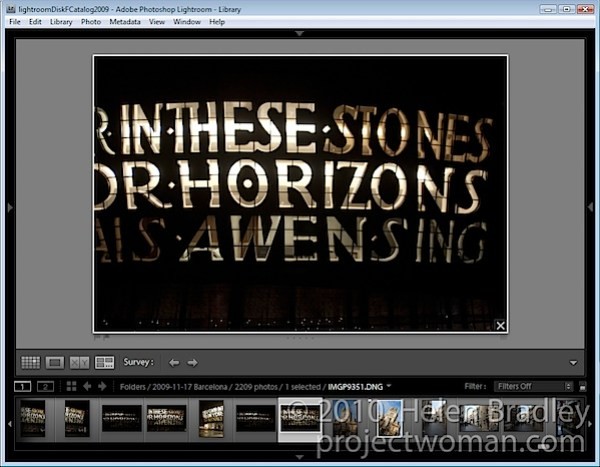
Lightroom’s Survey view is a tool that makes choosing one image from a group of images a simpler process. In this post I’ll show you how to use Survey View and some tricks for working with it.
Step 1
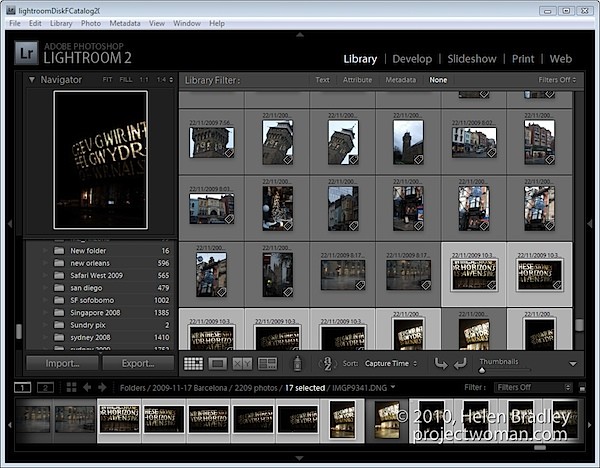
To see it at work, in the Library module, select a series of images on the filmstrip by clicking on one and Shift + Click on the last. Alternatively hold the Control key (Command on the Mac) as you click on each image that you want to make a choice from.
Step 2
To enter Survey View, choose View > Survey, click the Survey button on the toolbar or press the letter N.
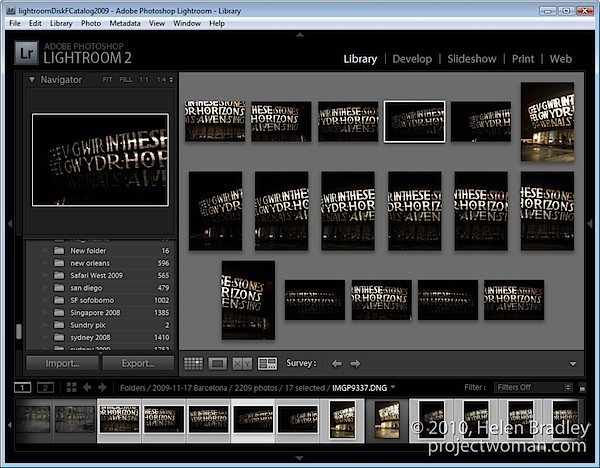
Once in Survey view, you will see only the images that you had selected. You can add more images by Control + Clicking (Command + Clicking) on them to select them in the Filmstrip.
Step 3
In Survey View, you can rate your images with a star rating, flag them and label them or simply use the view to narrow down your choices to a single image.
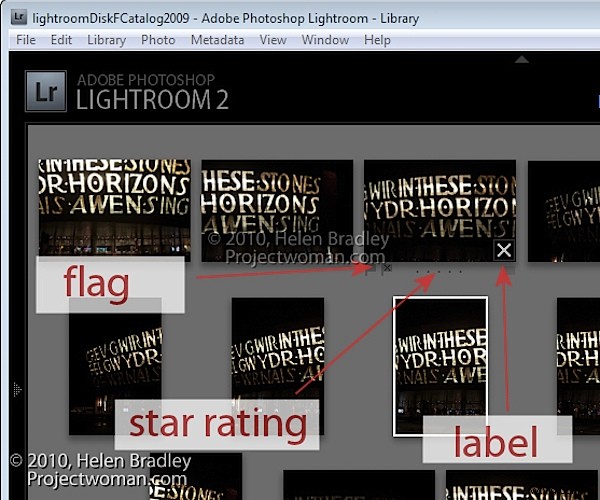
To rate an image, click the star value beneath the image – this appears when your mouse hovers the image.
You can pick an image by selecting it and press P to flag it, U to unpick or remove the flag setting from it and X to reject it.
Click the label indicator under the far right of the image to select a label to apply to the image.
Step 4
Press Shift + Tab to hide all the panels to maximize the viewing area. When an image is selected notice the X in its bottom right corner. Click that and the image will be removed from Survey View. Note that it is only removed from this view not from Lightroom and not from your disk – Survey View is simply a method you use to pick the best image from a sequence and has no other purpose.
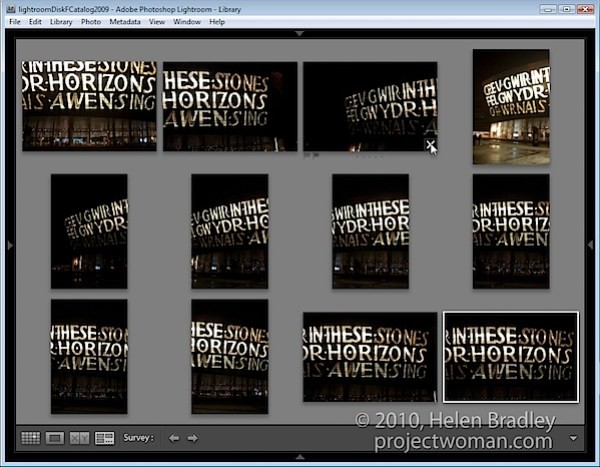
Start removing those images you do not want by clicking their X buttons or Control + Click (Command + Click on the Mac) to remove them.
Step 5
Provided you are working with a Folder of images or a Collection (but not a Smart Collection, All Photographs or Previous Import), you can reorder images in Survey View. To do this, drag and drop an image into the position you want it to appear in the group.
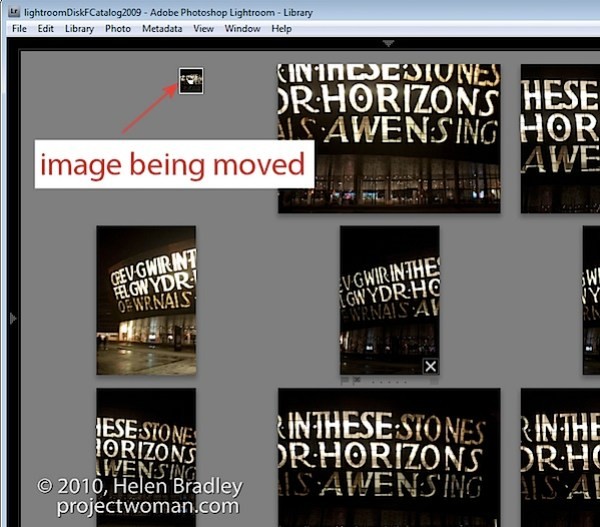
Files in a Smart Collection, All Photographs and Previous Imports can be selected and viewed in Survey View but you cannot reorder your images if they are selected from any of these collections..
Step 6
At any time you can exit Survey View by clicking G for Grid or E for Loupe.
The advantage of using Survey Mode is that you can quickly identify the image that you want from a series of images eliminating all the other images from the view as you do so.
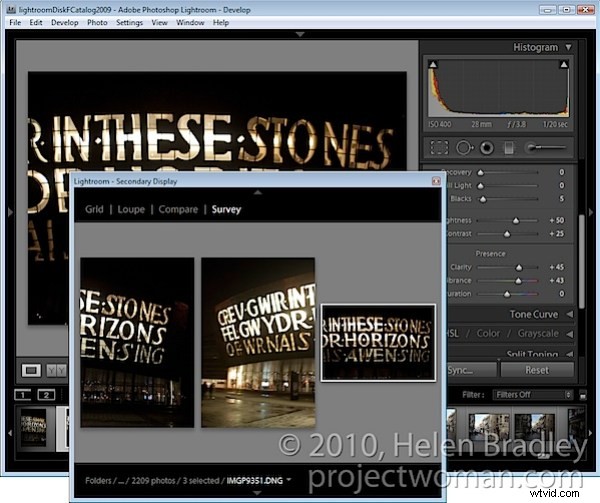
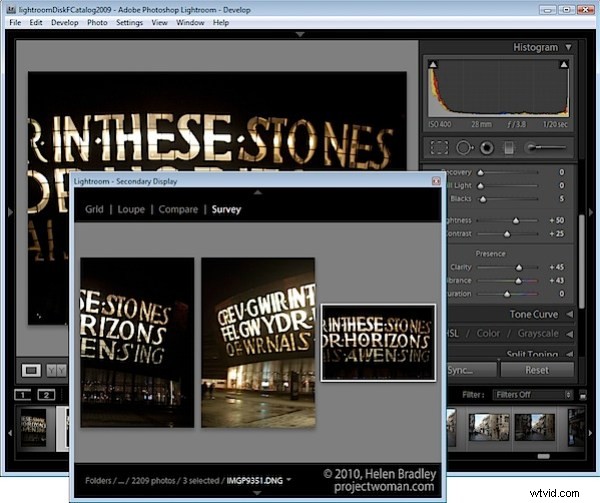
You can open Survey View in a separate window if desired. Press F11 to open the new window and select Survey as what should display in this window.
Using this secondary display window you can move Survey View to a second screen if you’re using two monitors or position Survey View in one area of your screen and work on one of the images in, for example, the Develop module at the same time.
Step 7
When you have only the image or images you want to use remaining selected, press E or G to exit Survey View. These images will remain selected so you can now do something with them such as adding them to a collection, export them or take them to Photoshop for editing.