
Andrew S. Gibson is the author of Mastering Lightroom Book One: The Library Module, on offer now at SnapnDeals for a limited time.
‘Working the subject’ is an expression often used in photography to describe the process of taking a series of photos of the same subject. The idea is to work your way closer to the ‘perfect’ photo (if there is such a thing) by varying the camera angle, focal length, point-of-view and other factors. As part of the editing process it’s the photographer’s job to select the best images to process. In the old days this meant poring over a lightbox or contact sheet with a loupe. Some people still do it this way, but most of us work with digital images. One of the benefits of this is that software like Lightroom makes it very easy to view images side-by-side and organize the keepers into a “Collection” for processing.
When I use Lightroom’s Library Module to cull my photos, I start off in Grid View and then use either Compare View or Survey View to compare similar images. The previous article in this series showed you how to use Compare View, and today I’m going to take a look at Survey View.
Compare or Survey View – which one to use?
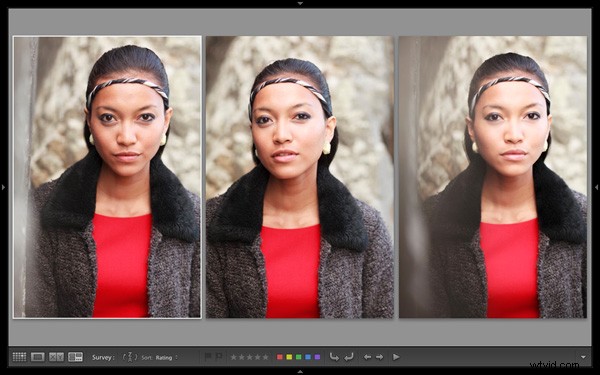
What’s the difference between the two? The main difference is that you can only compare two images at one time in Compare View, but as many as you want in Survey View. Here’s an example:
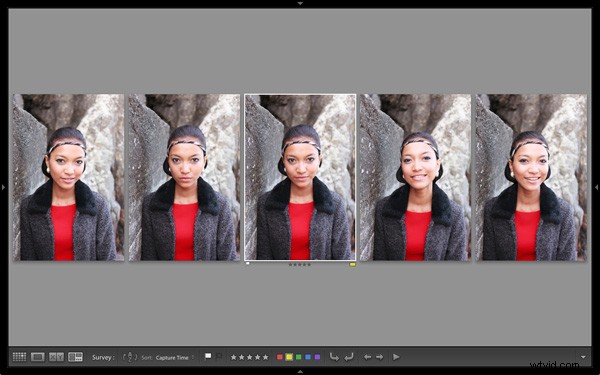
To arrive at this view I selected five images in Grid View and used the ‘N’ keyboard shortcut to go to Survey View. Lightroom arranges the images in the way that fits the screen space best so you can look at them all together. A little common sense is required here – Lightroom will try and squeeze as many photos as you select into the one screen, but the thumbnails will soon become too small to be of any practical use. The practical limit is probably somewhere between eight and 20 images, depending on your monitor size.
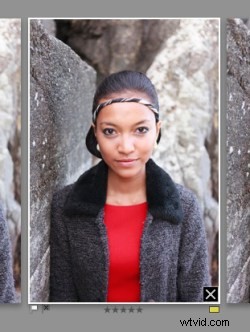
The ‘most selected’ image is displayed with a white border, and if you have assigned a flag, star rating or colour label it is displayed underneath. These also appear in the Toolbar at the bottom of the screen (press ‘T’ to reveal the Toolbar if you don’t see it):
If you hover over one of the images you can assign a flag, star rating or colour label by clicking one of the icons displayed underneath (you can also do this in the Toolbar). You’ll also see a white X in a black square in the bottom right-hand corner of the image. Click this to remove the image from the selection. Lightroom removes it from the screen when you do so, and the remaining images rearrange themselves. If you click the X by mistake, press Ctrl-Z (PC) or Cmd-Z (Mac) to bring the de-selected photo back.

What do you do once you’ve decided which images are keepers? I find the simplest approach is to flag each image that I want to process, and send them to a new Collection (see my article Use Lightroom Collections to Improve Your Workflow for more information on this).
Another useful feature of Survey View is that you can press the Space bar whenever you like to view the most selected image in Loupe View – useful if you want to see it in a larger size or zoom in to check for fine detail such as accurate focusing. Simple press the Esc key or use the ‘N’ key shortcut to return to Survey View.
Mastering Lightroom
My latest ebook Mastering Lightroom Book One: The Library Module is a complete guide to using Lightroom’s Library module to import, organize and search your photo files. You’ll learn how to tame your growing photo collection using Collections and Collection Sets, and how to save time so you can spend more time in the Develop module processing your photos. It’s available now over at Snapndeals, for a special price for a limited period.