
In video production, precision timing is everything. Timecode keeps your clips aligned, ensures audio sync, and confirms sequence lengths. When working across different frame rates or multiple raw sources, manual calculations can quickly become error‑prone. A reliable timecode calculator turns complex math into a few clicks, allowing you to add, subtract, convert, or compare timecodes with confidence.
Below is a curated list of the most dependable timecode calculators, vetted for accuracy, frame‑rate coverage, and cost. Whether you’re editing on a desktop, on the go, or need bulk processing, there’s a tool that fits your workflow.
How We Tested Each Calculator
- Accuracy across frame rates – We performed conversions, additions, and subtractions at 23.976, 24, 25, 29.97, 30, and 60 fps to confirm consistent results.
- Frame‑rate options – Tools were selected for support of common frame rates, including drop‑frame and non‑drop‑frame variants.
- Pricing & accessibility – Preference was given to free or low‑cost solutions, with note of any premium tiers or in‑app purchases.
With these criteria in mind, we distilled the list to the calculators that truly deliver reliability and usability.
Best Timecode Calculators for Video Editors
Even a one‑second misstep can derail a sync or cut. The following calculators help you avoid that pitfall by providing precise, frame‑accurate results.
1. robwomack.com
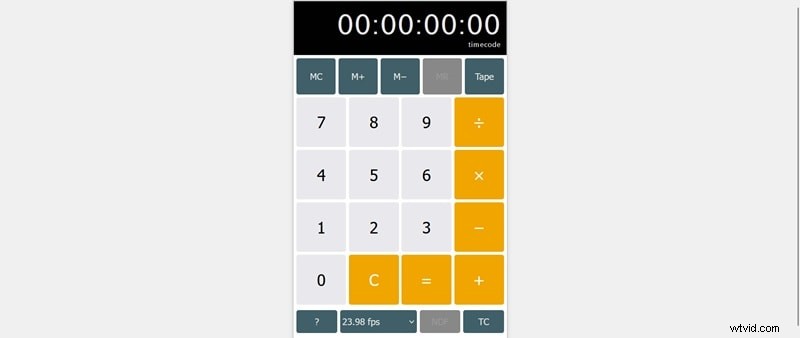
Developed by seasoned editor Robert Womack, this online calculator offers a clean interface for basic timecode operations. Users can input either a timecode or a frame count, then choose from a wide range of FPS settings.
- Simple add and subtract functions
- "Tape" feature logs every calculation for later reference
Supported FPS: 12, 23.98, 24, 25, 29.97, 30, 50, 59.97, 60
2. Nitrosoft Technology Timecode Calculator
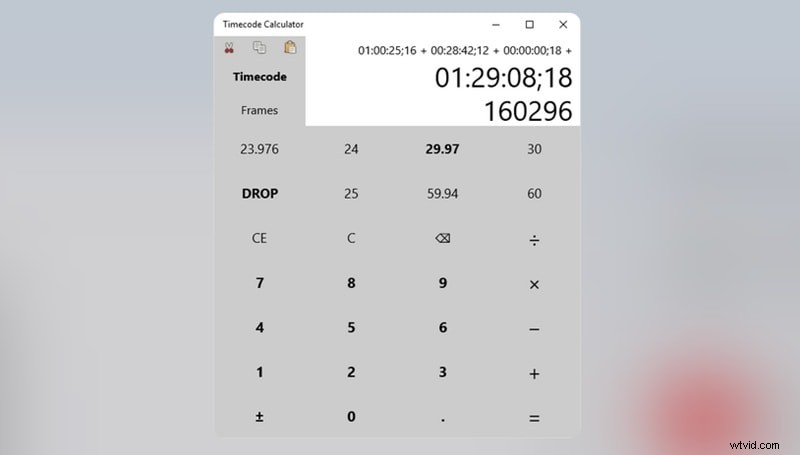
Ideal for daily editors who need a standalone application, Nitrosoft’s calculator is available on the Microsoft Store. Mac users will need an alternative, as the software is Windows‑only.
- Handles frame count or timecode input
- Displays both converted timecode and total frame count
Supported FPS: 23.976, 24, 25, 30, 59.94, 60
3. AVTools TC Calc
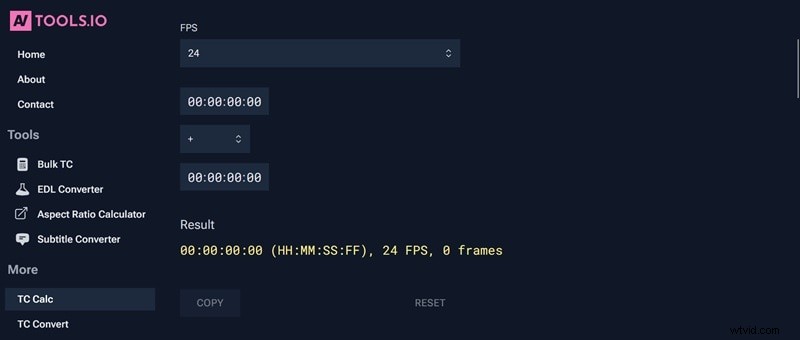
AVTools TC Calc is a SMPTE‑compliant tool that adds or subtracts two timecodes, supporting drop‑frame (DF) and non‑drop‑frame (NDF) formats. Its bulk calculator offers six modes for advanced workflows.
- Real‑time calculation with immediate feedback
- Clear input validation and error messages
- Copy and reset buttons for quick reuse
Price: Free; bulk calculator starts at $19/mo (Solo) or $49/mo (Team)
Supported FPS: 23.976, 24, 25, 29.97, 30, 48, 50, 59.94 DF, 60
4. Simple Timecode Calculator (iOS/macOS)
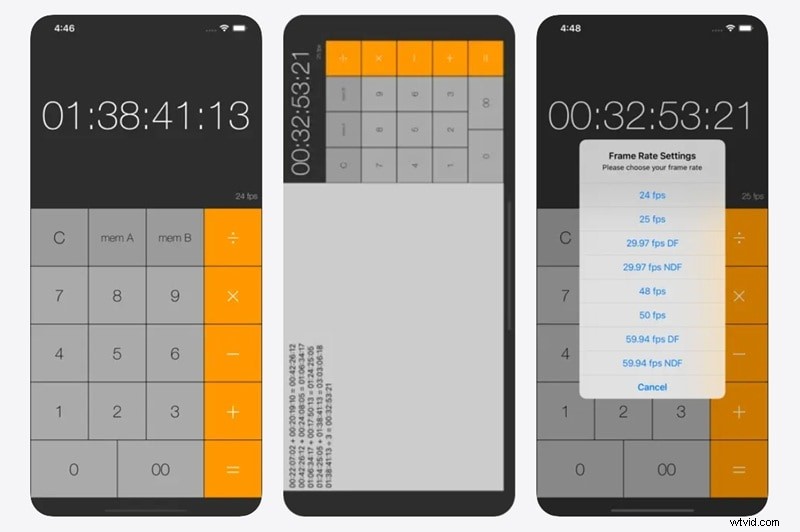
A lightweight mobile app that keeps timecode math in your pocket. It also offers a macOS version for desktop use.
- Ticker Tape function in landscape mode for a continuous log
- Available on iOS and macOS platforms
Supported FPS: 24, 25, 29.97 DF & NDF, 48, 50, 59.94 DF & NDF
5. Michael Cinquin Online Tool
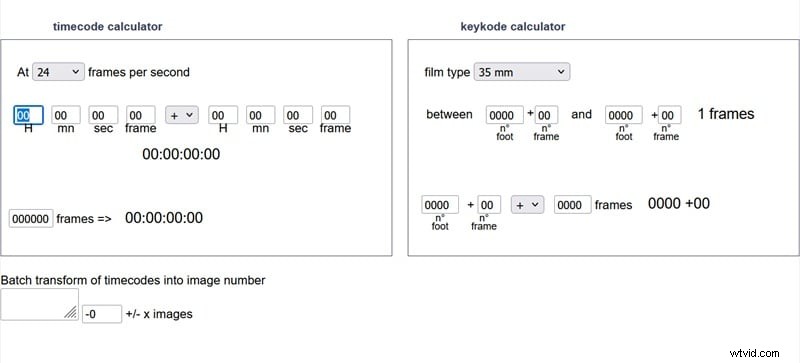
Michael Cinquin’s calculator adds a keycode dimension, useful for matching timecodes to physical film frames or complex post‑production tasks.
- Addition and subtraction of two timecodes
- Conversion to total frames, seconds, and audio samples
- Keycode‑based frame adjustments
Supported FPS: 16, 23.98, 24, 25, 29.97, 30, 50, 59.94, 60
6. GoWorks Timecode Calculator (Android)
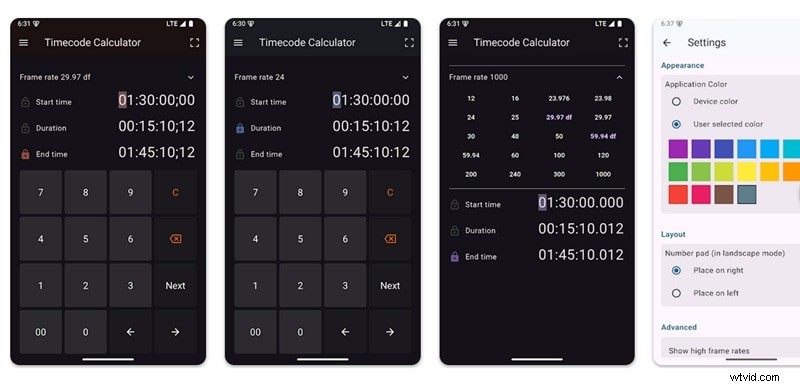
Android users get GoWorks, which supports a broad range of frame rates and offers intuitive controls for lock‑in, duration, or end‑time adjustments.
- Automatic recalculation when locking any parameter
- Dark mode for low‑light editing environments
- Landscape layout and customizable UI
Price: Free with optional in‑app purchase
Supported FPS: 12, 16, 23.976, 23.98, 24, 25, 29.97 DF, 29.97
How to Use a Timecode Calculator in Your Workflow
Each tool has a slightly different interface, but the core steps remain the same:
- Select the correct frame rate for your project.
- Enter either a timecode or a frame count, depending on the calculation you need.
- Choose the operation (add, subtract, convert).
- Review the result, which appears in a clear timecode format.
- Apply the calculated values as your in/out points, cut positions, or sync references.
Typical use cases include:
- Converting frame counts to timecode and vice versa
- Adding or subtracting clip lengths to find exact start/end points
- Translating timecodes between different frame rates
- Switching between drop‑frame and non‑drop‑frame modes for NTSC projects
Integrating Timecode Results with Filmora
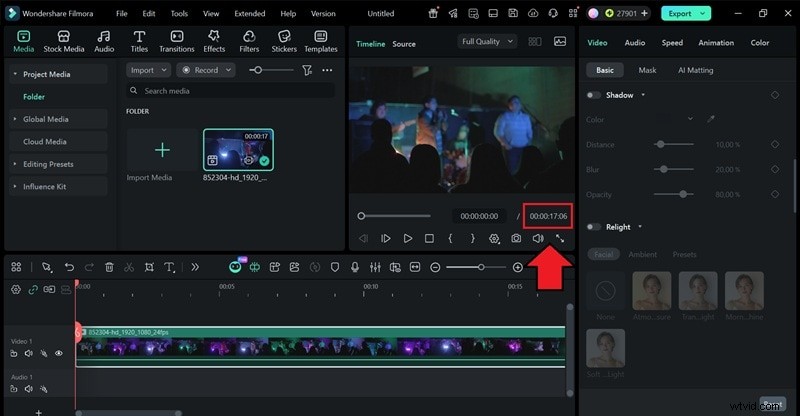
Filmora’s timeline displays timecode beneath the preview window, allowing editors to pinpoint frames down to 6f. By zooming in, you can see individual frames and place cuts with pinpoint accuracy.
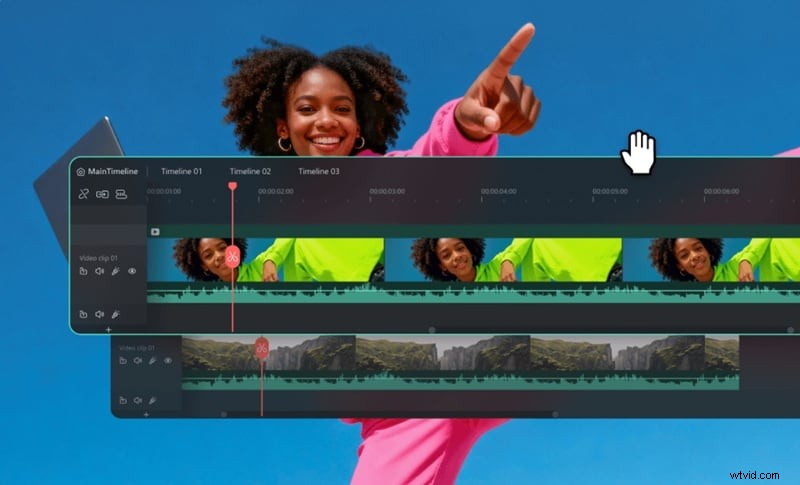
The multi‑timeline feature lets you keep your primary edit intact while testing trims or adjusting runtimes based on your calculator output.
Conclusion
Timecode precision is a subtle yet critical element of professional editing. A trusted calculator removes the mental load of manual math, letting you focus on creative decisions. Pair any of the listed tools with a frame‑accurate editor like Filmora to trim, sync, and finalize your projects with confidence.
FAQs
-
Q1: What is the most common frame rate for cinema?
24 frames per second has been the industry standard for decades, balancing smooth motion, cinematic feel, and manageable file sizes.
-
Q2: How do I add two timecodes together?
Set the appropriate frame rate, enter the first timecode, select the add operation, and input the second timecode. The calculator handles carry‑over automatically.
-
Q3: Can I calculate the timecode for 4K 60fps video?
Yes. Choose a calculator that supports 60 fps, then enter your timecode or frame count using that frame rate. Modern tools handle 60 fps seamlessly.