
Adobe Lightroom is a powerful tool for editing and organizing photos, and presets play a key role in speeding up your workflow. To add new presets, back them up, or simply explore what you’ve already created, you first need to locate the folder where Lightroom keeps them. This guide shows you how to find those folders on both Windows and macOS, and it also covers where your catalog and photos are stored.
Finding Lightroom Presets on Your Computer
There are two straightforward ways to locate the preset files:
Method 1: Using Lightroom Preferences
- Open Lightroom and choose Edit → Preferences (or Lightroom → Preferences on macOS).
- Click the Presets tab at the top of the dialog.
- You’ll see two buttons: Show Lightroom Develop Presets and Show All Other Lightroom Presets. The first reveals the folder for develop presets (the adjustments you apply in the Develop module). The second shows folders for export presets, watermarks, brushes, and more.
- Click the button that matches the preset type you’re interested in. Lightroom will open the folder in your file explorer.
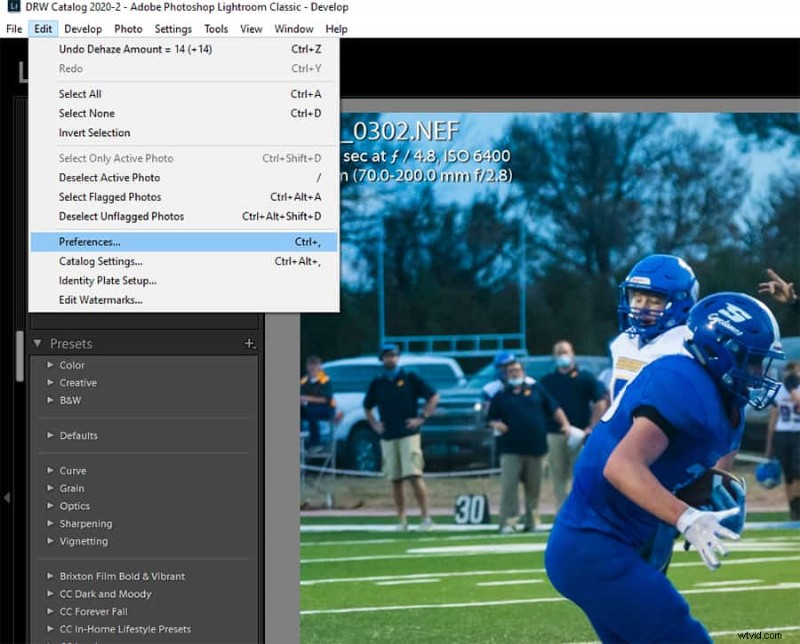
Method 2: From the Develop Module
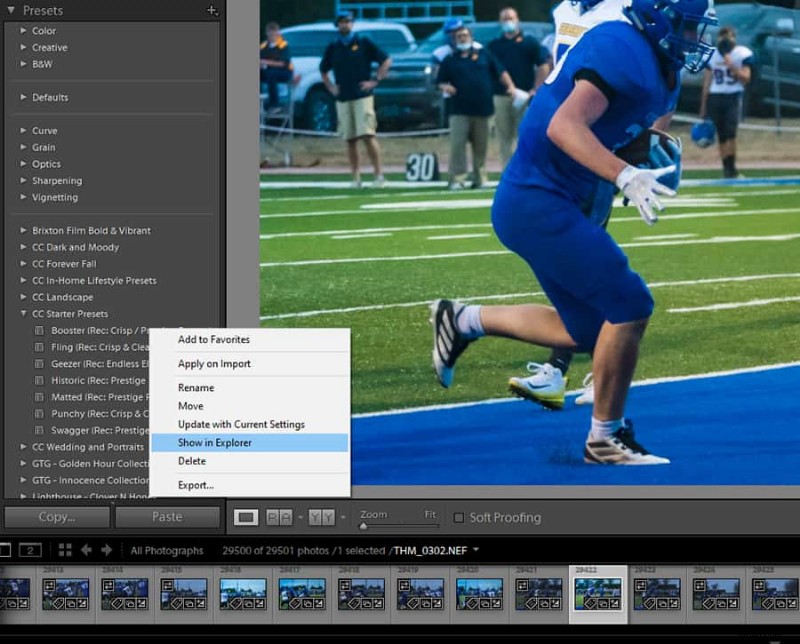
- Open the Develop module and expand the Presets panel on the left.
- Right‑click (Windows) or Option‑click (macOS) any preset you want to locate.
- Select Show in Explorer (or Show in Finder). The file location for that preset opens in your system’s file manager.
- Note: This method only works for develop presets. For export presets, brushes, or other types, use Method 1.
Direct Folder Paths by Operating System
If you prefer to navigate directly, the preset folders are located in the same places across all recent versions of Lightroom. Below are the standard paths for each OS. If you can’t see the folder, make sure hidden files are visible in your file manager.
Lightroom CC (and newer versions)
- Windows 7/8/10:
C:\Users\[user name]\AppData\Roaming\Adobe\Lightroom\Develop Presets - macOS:
/Users/[user name]/Library/Application Support/Adobe/Lightroom/Develop Presets
Lightroom 6
- Windows 7/8/10:
C:\Users\[user name]\AppData\Roaming\Adobe\Lightroom\Develop Presets - macOS:
/Users/[user name]/Library/Application Support/Adobe/Lightroom/Develop Presets
Lightroom 5
- Windows 7/8/10:
C:\Users\[user name]\AppData\Roaming\Adobe\Lightroom\Develop Presets - macOS:
/Users/[user name]/Library/Application Support/Adobe/Lightroom/Develop Presets
Lightroom 4
- Windows Vista/7:
C:\Users\[user name]\AppData\Roaming\Adobe\Lightroom\ - macOS:
/Users/[user name]/Library/Application Support/Adobe/Lightroom/Develop Presets
Locating Other Lightroom Storage Locations
Finding Your Catalog
Your catalog file (.lrcat) is wherever you chose to place it when you created or moved it. To locate the active catalog:
- Open Lightroom and ensure the catalog you want to find is active.
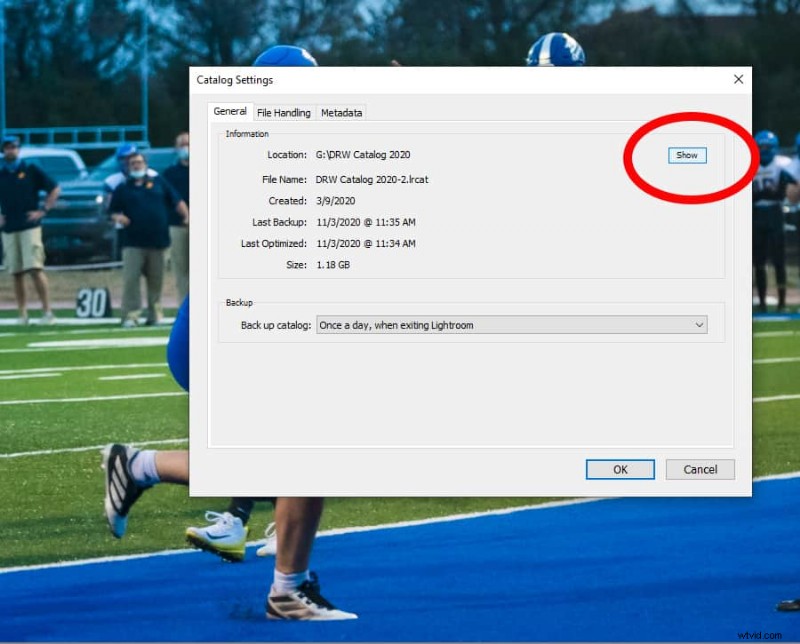
- Choose Edit → Catalog Settings (or Lightroom → Catalog Settings on macOS).
- In the dialog, click Show to open the folder containing the catalog file.
Where Lightroom Stores Your Photos
Lightroom does not store copies of your images; it simply records the location of your original files. To see where a photo is stored, right‑click (Windows) or Option-click (macOS) the photo in Lightroom and choose Show in Explorer (or Show in Finder). The file manager will open to the folder containing that image.
Additional Resources
- How to Install Presets in Lightroom
- How to Import Presets into Lightroom
- How to Use a Preset in Lightroom
Need More Help?
For deeper questions, check out our additional tutorials or contact support.