
AI image generator tools just keep getting better, and Ideogram AI is one of the latest worth trying. This tool lets you generate stunning visuals using simple text prompts. But what is Ideogram AI? How is it different from other AI generator tools?
That's exactly what this guide is here for. You'll see what Ideogram AI can do, how it works, and even learn how to animate the result easily, all without needing any editing experience. If you've been curious about trying AI-generated images, this is a great place to start.
Part 1. What Is Ideogram AI and Why It's Blowing Up Your Feed
You're not imagining things if you've been scrolling through your feed and noticing a wave of eye-catching posters, viral memes, or stunning mockups. Many of those viral visuals are being created with Ideogram AI, a web-based tool that quickly captures attention across the creative world.
Ideogram AI is a free text-to-image generator known for doing what many others struggle with: rendering clean, readable text inside AI images. It produces poster-quality visuals that are perfect for everything from social media graphics to marketing materials, even if you have zero design experience.
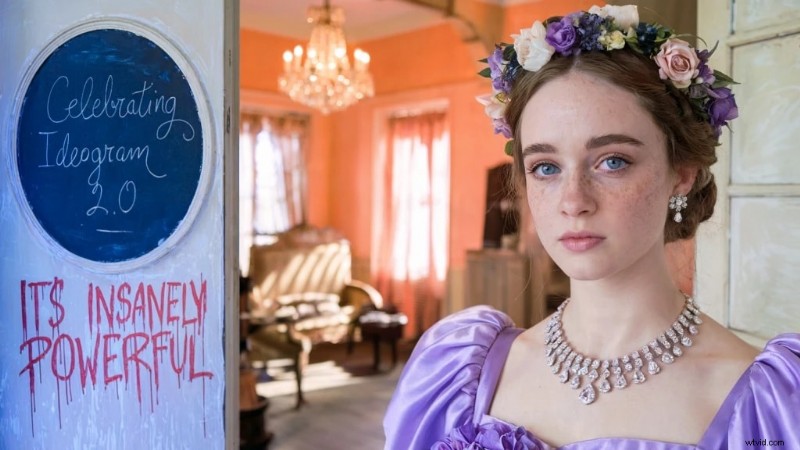
And now, Ideogram has just launched its biggest update yet, Ideogram 2.0. It's generating tons of buzz. Here's what's new in Ideogram 2.0:
Smoother rendering and sharper details, giving results that look more professional
Expanded style options, including realism, anime, isometric, 3D, and more
A powerful Editable Canvas, where you can draw, remove, or extend image elements directly in your browser
Overall, faster and more intuitive performance
So why is Ideogram AI showing up everywhere? Because it gives you four polished image options per prompt in seconds, making it insanely easy to explore creative ideas. People love it for everything from memes and marketing mockups to product packaging, logo design, and viral social media content.
Part 2. How to Use Ideogram AI to Create Your Own Visuals
Now that you've seen why Ideogram AI is gaining so much attention, you're probably curious about how to give it a try. The best part is, it's built for anyone to use. Whether you've worked with design tools before or not, you can start creating bold and eye-catching visuals in just a few clicks.
Here is a simple step-by-step guide to help you get started with Ideogram AI and make your ideas a reality:
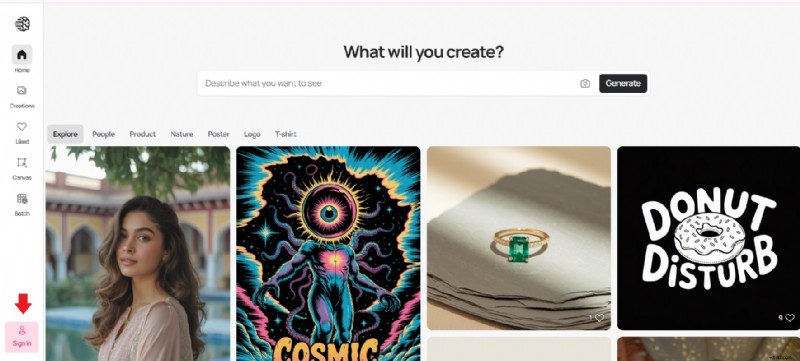
Step 1. Visit ideogram.ai and sign in using your Google account. Once you're in, you'll land on the homepage where you can see a feed of creations from other users for inspiration.
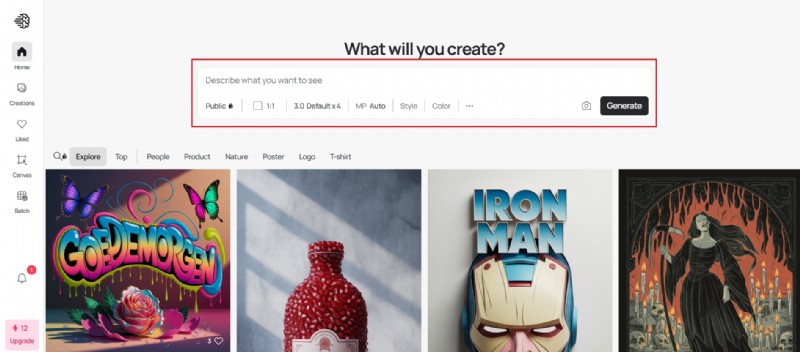
Step 2. Start by typing what you want the AI to generate. Be as clear and specific as possible.
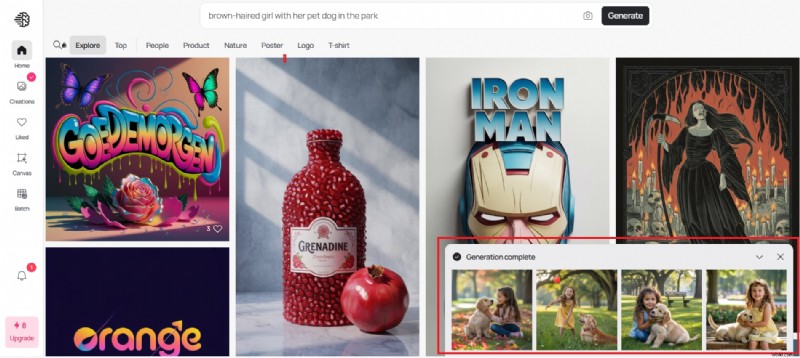
Step 3. Click the Generate button and let Ideogram work its magic. In just moments, you'll get four unique and polished variations based on your prompt.
Step 4. One of the newest features in Ideogram 2.0 is the Editable Canvas. Once your image is generated, you can click Edit to:
Draw or add to existing elements
Erase unwanted parts
Extend the image to create a wider scene
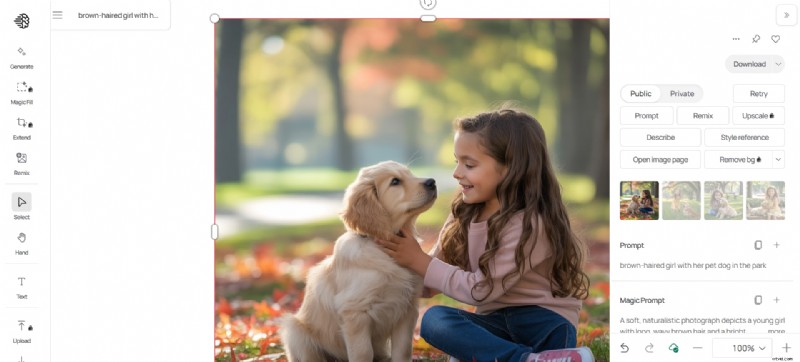
Step 5. Download or share the Ideogram AI images
Part 3. Turn Your Ideogram AI Images into Scroll-Stopping Video Edits with Filmora
So, you've created a stunning image with Ideogram AI. Why stop there? Instead of letting your visuals sit unused in a downloads folder, you can take things further by turning them into dynamic video content. Whether posting on social media, making a presentation, or building content for your brand, turning static images into short, engaging videos is a powerful way to grab attention.
One of the easiest ways to do this is by using Wondershare Filmora, an all-in-one video editor that's perfect for creators of all levels. Filmora makes it simple to turn your Ideogram designs into polished videos with motion, sound, and style, without advanced editing skills required.
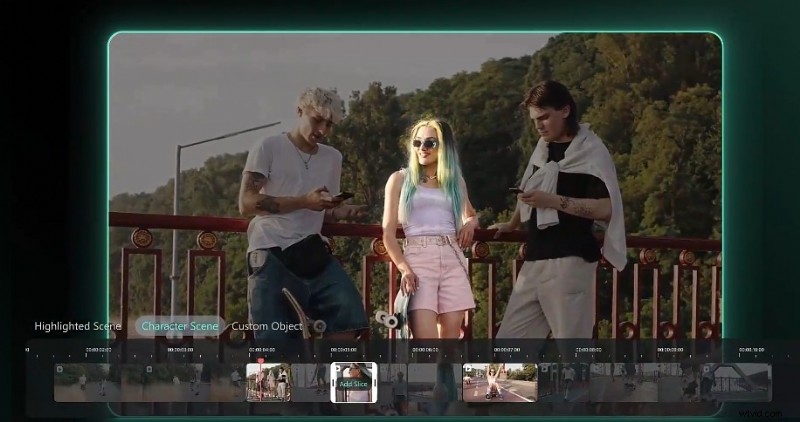
Why Pairing Ideogram AI with Filmora is a Smart Move
Add movement to still images to make them feel more lively
Tell a story or create a themed montage using multiple images
Boost engagement on platforms like Instagram Reels, TikTok, or YouTube Shorts
Enhance your visuals with effects, music, and animated text
Keep everything in one place, with Filmora's comprehensive editing tools
Next, we will show you how to make your visuals in motion using Filmora for Desktop.
Option 1: Make an Image Slideshow Video
Step 1: Import multiple Ideogram AI images into your project
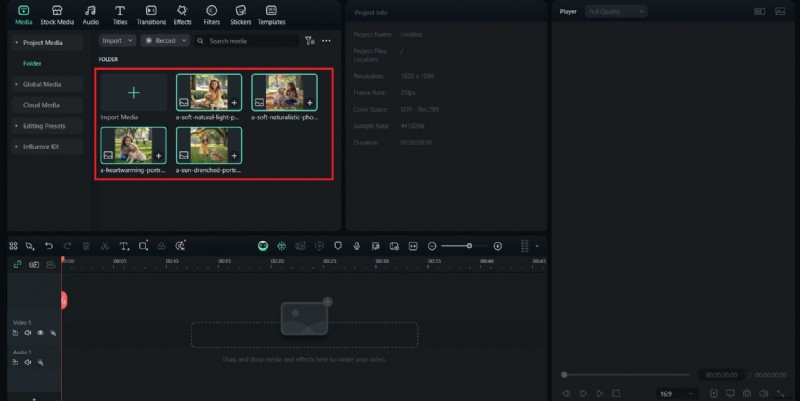
Step 2: Use ready-made templates or arrange them in custom layouts.
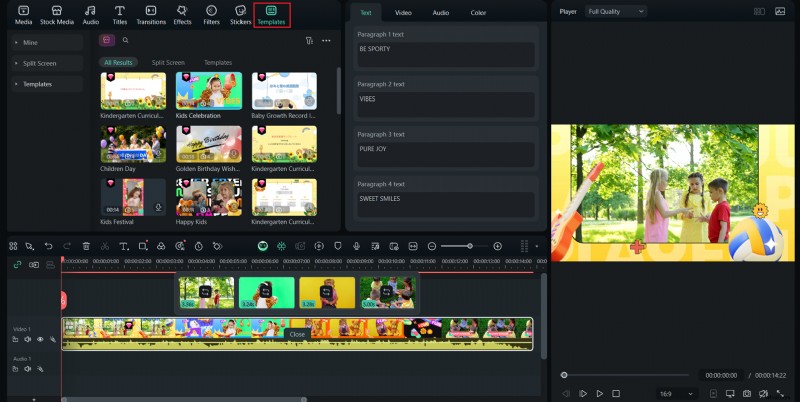
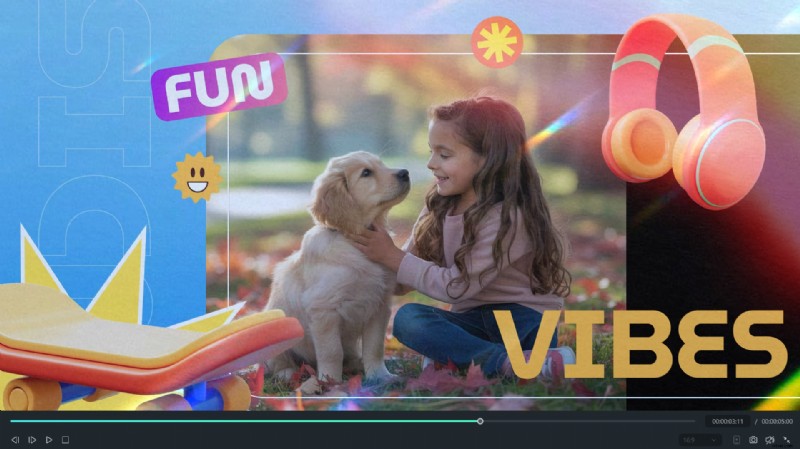
Step 3: Add animated text overlays, fun transitions, and creative filters
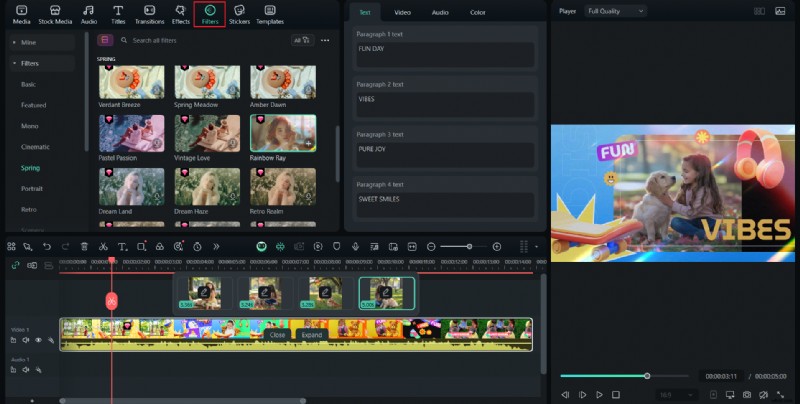
Step 4: Sync everything to background music or a recorded voiceover.
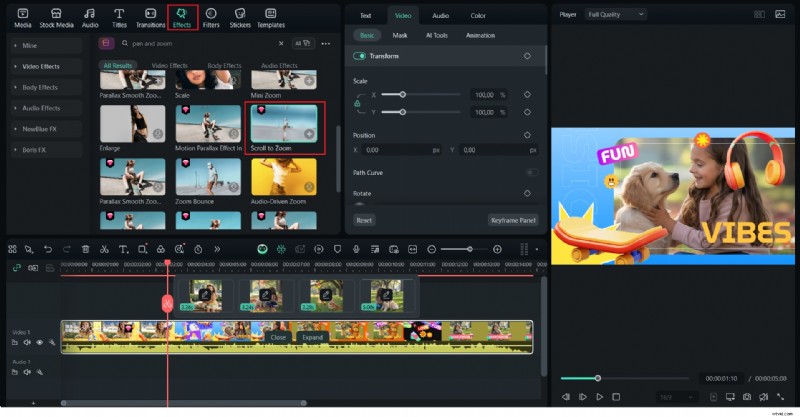
Step 5: (Optional) Apply pan and zoom effects to add motion and keep the video engaging
Option 2: Use Filmora's Image-to-Video AI Feature
If you're looking for a quick and creative way to turn your Ideogram AI images into engaging videos, Filmora's AI-powered Image-to-Video feature is a great choice. It transforms your still photos into professional-looking videos in just a few steps.
Filmora offers a variety of creative templates, so you can choose a style that fits your content and customize it as much as you like. Be it a cinematic feel, a clean modern look, or something bold and dynamic, the options are there for you to explore.

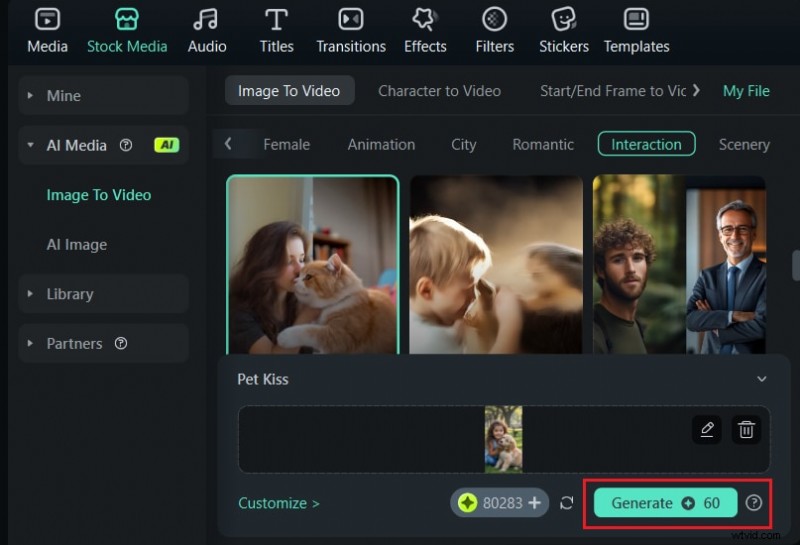
Step 1. Open Filmora and select “AI Image to Video”
Launch Filmora on your desktop and choose AI Image to Video from the main menu.

Step 2. Choose a template
Browse through the available templates. There are options for different themes like romantic, interaction, scenery, and more. Choose the one you want.
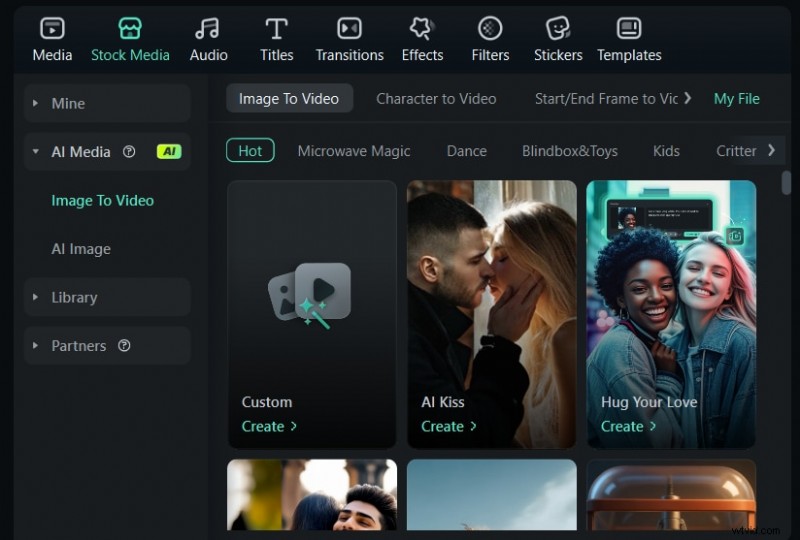
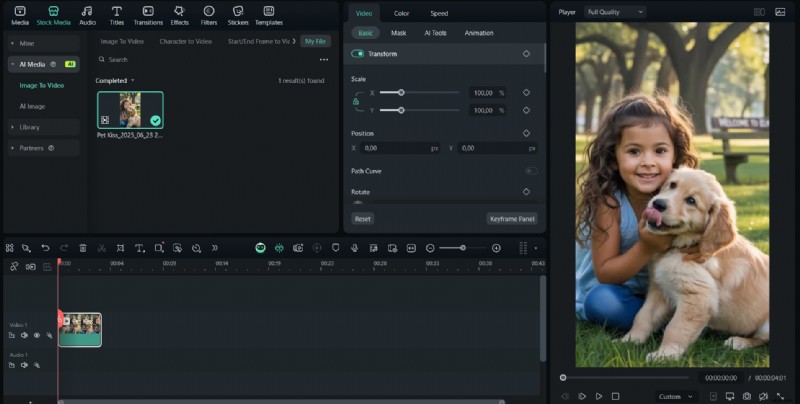
Step 3. Let Filmora generate the Video
Filmora will automatically create a video using your images and the selected template. It adds transitions, text, motion effects, and background music based on the design.
Step 4. Customize and Export
Once your video is generated, you can adjust anythinSg you like. You can edit the text, change the music, modify transitions, or add voiceovers. When everything looks good, export the final video, and it's ready to share!
Bonus: Creative Ways to Use Ideogram AI + Filmora Together
As you've seen, turning your Ideogram AI images into videos with Filmora is both simple and effective. With just a few steps, you can animate still visuals and create content ready to grab attention. So, now that you know how it works, you can start producing as many videos as you like for various creative goals.
Here are some fun and practical ideas to help you get inspired:
- Promo Videos – Animate your AI-generated posters or product mockups to create short promos for brand launches, ads, or announcements.
- Reels & Shorts – Use your Ideogram images as dynamic intros, stylish outros, or background elements for TikToks, Reels, or YouTube Shorts.
- Story Slides – Turn a sequence of images into a narrative or concept reel.
- Logo Animations – Animate your AI-generated logos by adding motion effects like spin, flicker, scale, or glow to make them more engaging.
- Digital Art Reels – Create a behind-the-scenes look at your creative process. Use before-and-after visuals, zoom effects, or layered transitions to highlight the evolution of your artwork.
Whether creating content for a brand, building your portfolio or simply experimenting with new ideas, using Ideogram AI together with Filmora gives you endless creative possibilities. It's an easy and enjoyable way to turn your images into compelling videos that tell a story and leave an impact.
Conclusion
Creating standout content is now easier than ever. With Ideogram AI, you can generate stunning, high-quality visuals complete with clean text and artistic styles. Then, with Filmora, you can turn those images into engaging visuals by adding movement, music, and a creative touch that fits your story.
Filmora's intuitive interface, flexible templates, and smart editing features make it easy to turn your Ideogram AI images into polished videos. If you're looking to take your visuals further, Filmora is a great tool to help you do that without making the process too complicated.