Before you delete a Lightroom catalog, it’s helpful to know what it is, where it lives, and why you might want to remove it.
What is a Lightroom Catalog?
A Lightroom catalog is a database that stores information about your photo library, including metadata, image previews, and editing history. By default, Lightroom places the catalog on your primary hard drive, but you can relocate it to any folder.
When your catalog becomes large or outdated, you may want to delete it to free up space.
Access the Catalog Settings
Open Lightroom and go to Edit → Catalog Settings (or press Ctrl + Comma on Windows, Cmd + Comma on macOS). This opens the Catalog Settings dialog.
Locate the Catalog File
In the dialog, click the General tab. Find the “Catalog File” entry and click Show. Lightroom will open the folder that contains the catalog and its associated files.
Delete Catalog Files
In the folder that opens, you’ll see several files, such as:
yourcatalog.lrcat– the main catalog databaseyourcatalog.lrdata– image previewsyourcatalog.lrbackup– backup copies
Delete the files you no longer need. Be careful to avoid removing any files you might want to restore later. Removing the entire folder is safe if you’re certain you have backed up any important work.
Removing Old Catalogs
Lightroom can create multiple catalog files over time, especially if you have a habit of making new catalogs for different projects. Over time, these can accumulate and consume valuable disk space. Evaluate each catalog and keep only the ones that are actively used.
Delete Lightroom Catalog Backups
Backups are stored in a backup subfolder. While they provide a safety net, they also double your storage usage. To clean them up, navigate to the backup folder and delete outdated or corrupted files. Do not delete all backups—retain recent versions that you might need.
Can I Delete Lightroom Catalog Previews?
Previews are stored in .Ircat files. These files contain low‑resolution thumbnails that Lightroom rebuilds on demand. Deleting them frees space without affecting your actual photos. When you next open Lightroom, the program will regenerate previews as needed.
Special Offer
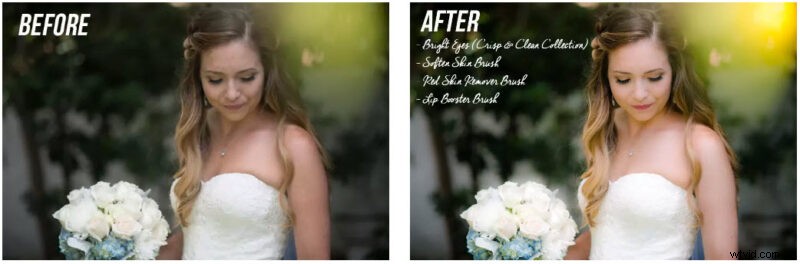
Discover how to add a “wow factor” to your images without Photoshop in just three clicks—ideal for beginners and professionals alike. Join 54,000 photographers who use our Polished Lightroom Adjustment Brushes Presets Collection and enjoy an exclusive 80% discount.